

Conditional Context requires dropdown-type profile fields configured in your workspace. If you haven’t set those up yet, see Prerequisites below.
How It Works
Each rule has two parts:- A condition - a specific profile field value (e.g., Department = “Enterprise Sales”)
- Additional context - background information the AI character receives when the condition matches
Prerequisites
Conditional Context uses dropdown profile fields - custom fields that workspace members fill out on their profile. You need at least one dropdown field configured before you can add conditional context rules. See Profile Fields for the full guide.1
Go to Settings > Users > Profile Fields
Open Settings, expand Users, and select Profile Fields. This is where you define the fields that appear on every member’s profile.
2
Create a dropdown field
Click Create Field, give it a name (e.g., “Department”, “Region”, “Product Line”), set the type to Dropdown, and add your options.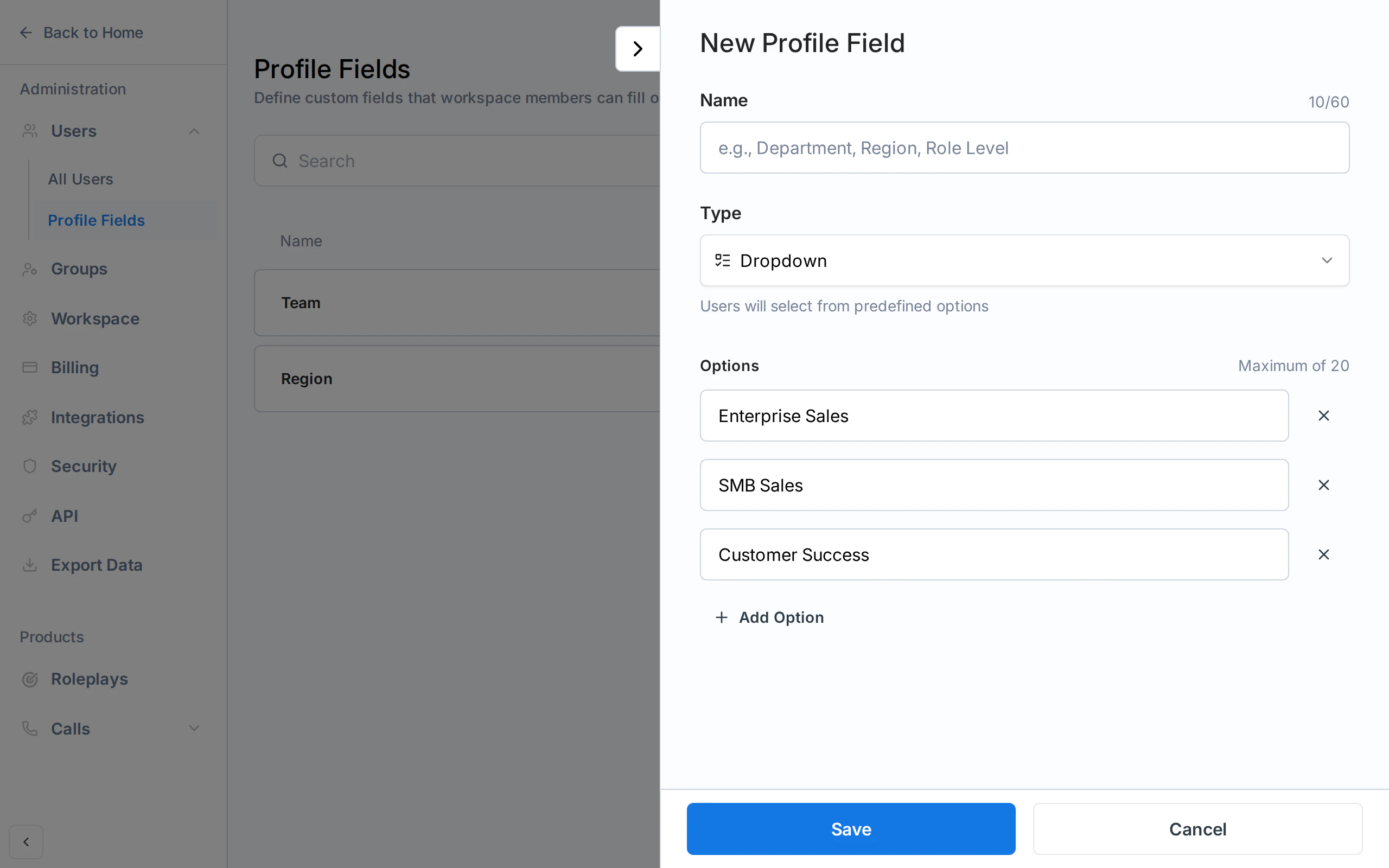
3
Fill in member values
Each workspace member selects their value for the field on their Account page. Admins can also set values on members’ behalf from Settings > Users, either per member or in bulk with Set Profile Fields. Exec uses these values to match conditional context rules at runtime. See Set values.
Adding Conditional Context to a Scenario
1
Open the scenario in the Studio
Click any pencil icon on a scenario you own, or open the three-dot menu (⋯) in the top-right and select Edit Scenario.
2
Go to the Advanced tab
In the Scenario Studio, select the Advanced tab. You’ll see the Conditional Context section.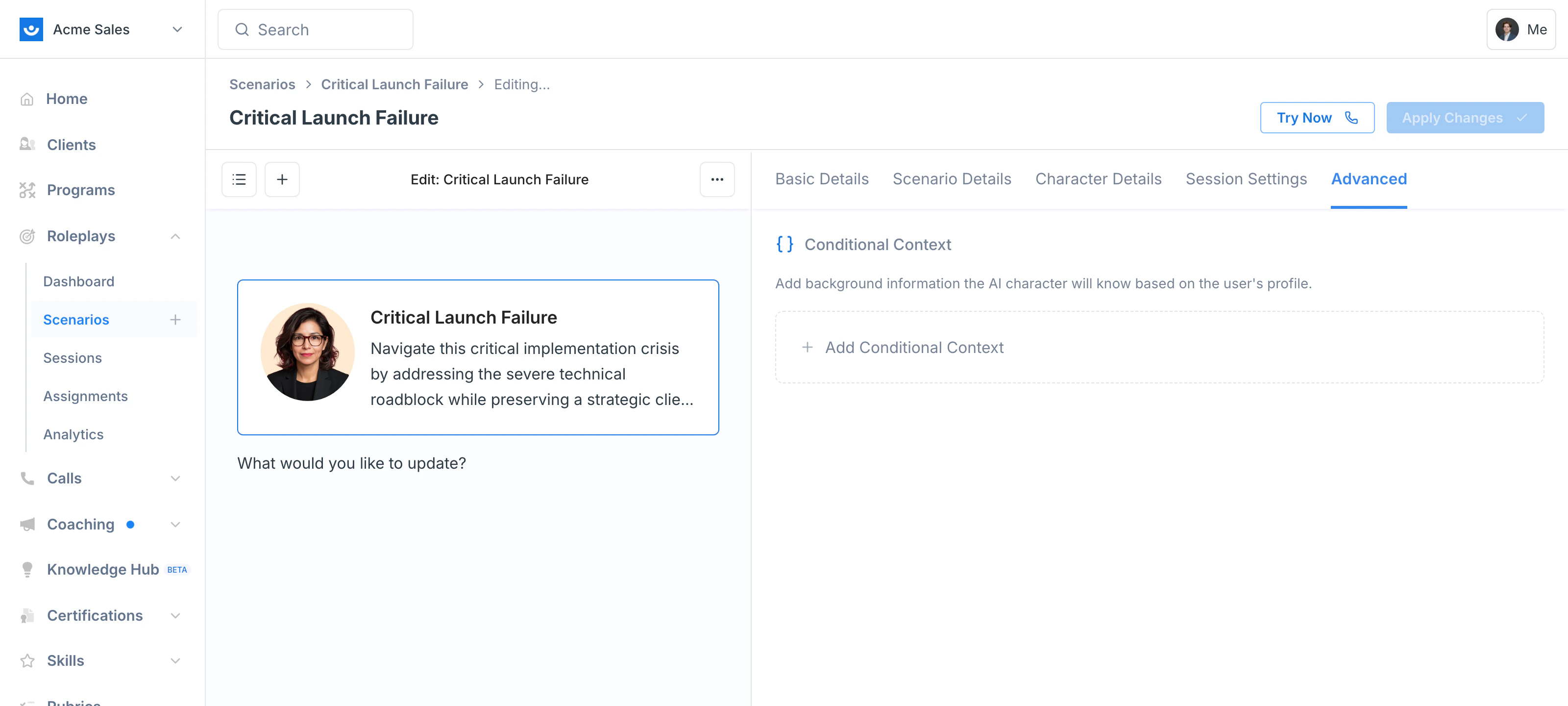
3
Click + Add Conditional Context
A form appears with a dropdown to select a profile field value.
4
Choose a condition
Select a profile field value from the If dropdown. The dropdown shows all available options across your workspace’s dropdown profile fields, formatted as 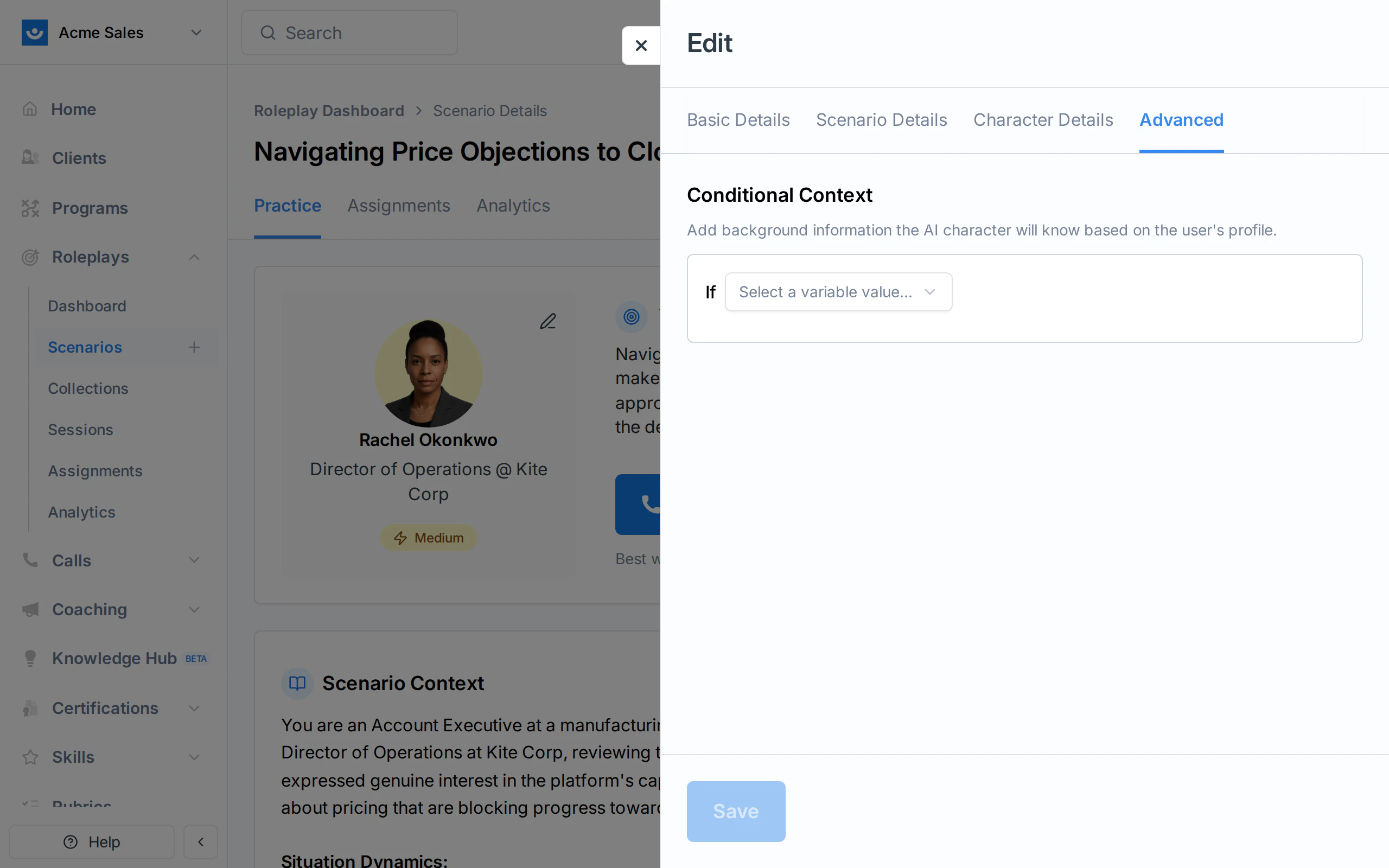
Field Name = "Option".5
Write the additional context
In the rich text editor below, write the background information the AI character should know when this condition matches. This could include: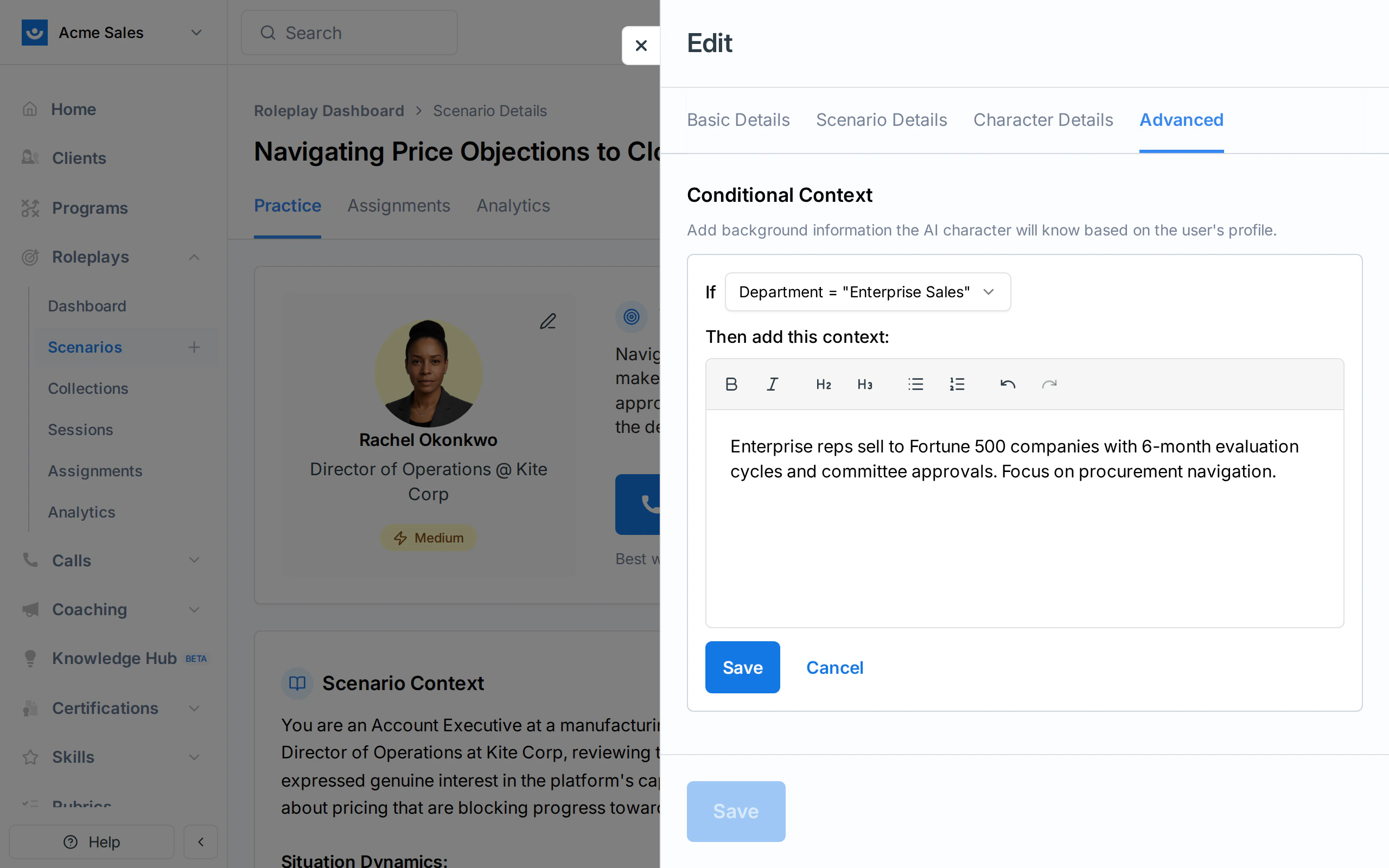
- Product-specific details relevant to the participant’s team
- Regional pricing, competitors, or regulations
- Role-appropriate objections or concerns
6
Save
Click Save. The rule appears as a card showing the condition and context. You can add more rules, edit existing ones, or delete them.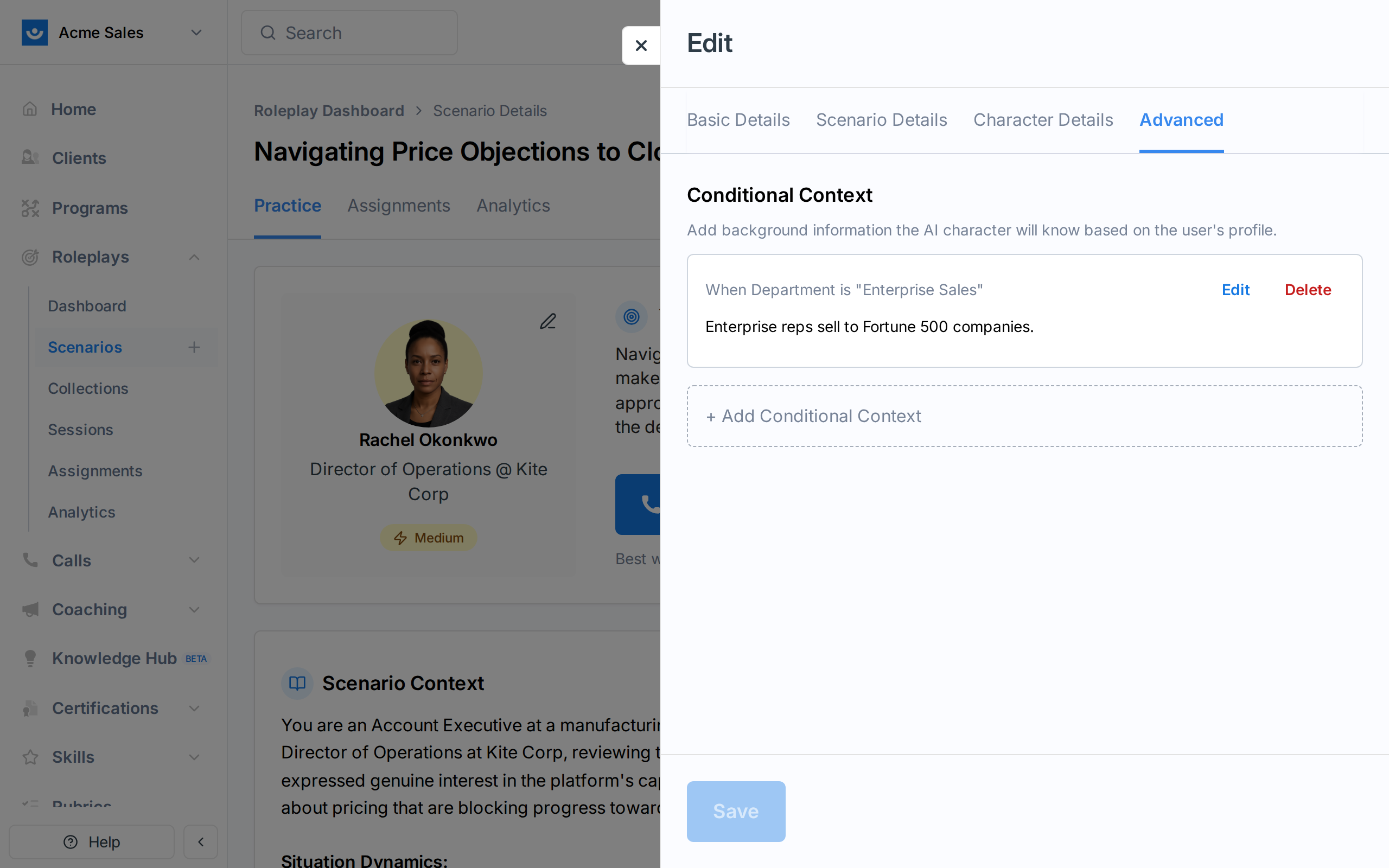
Example
Imagine you have a cold-calling scenario used by both your SMB and Enterprise sales teams. Without conditional context, the AI character behaves the same way for everyone. With it, you can make the experience feel tailored:
The same scenario now gives SMB reps practice with fast-moving, price-focused buyers while Enterprise reps face longer sales cycles and procurement complexity.
Managing Rules
- Edit - Click Edit on any rule to update the context text. The condition (profile field value) cannot be changed; delete and recreate the rule instead.
- Delete - Click Delete to remove a rule. This takes effect immediately.
- Limits - Each profile field option can only have one conditional context rule per scenario. Once all available options have rules, the ”+ Add Conditional Context” button is replaced with a message indicating all options are covered.