You can add users in two ways:

To Your Workspace

This gives them access to scenarios or coaching, without having to be in a targeted program.

To a Specific Program

This adds them directly to a targeted program as a participant
Adding a user to a program will also add them to the workspace, but adding someone to the workspace does not automatically add them to a program.

Adding Users to a Program

1

Open the program & navigate to participants

Screenshot2025 10 17at2 35 26PM Pn
2

Click "Add"

Screenshot2025 10 17at3 08 15PM Pn
3

Enter their email address & add credits or assign to group

If the user is already in your system, their name will appear as you type.If your program uses groups (e.g., “Executives,” “Managers,” “Cohort A”), select the appropriate group before finalizing.If you’re adding them to a coaching program, be sure to assign them credits to compelte sessions.
Screenshot2025 10 17at3 09 18PM Pn
4

Click Add Participants

The participant’s name will now appear in the list and they will receive an email invitation to join when the program launches.
If you add participants before the program launch, Exec will hold the invitations. When the program officially launches, invitations will automatically be sent out.This ensures participants don’t get confused by early invites before the program is ready.

Adding Users to the Workspace

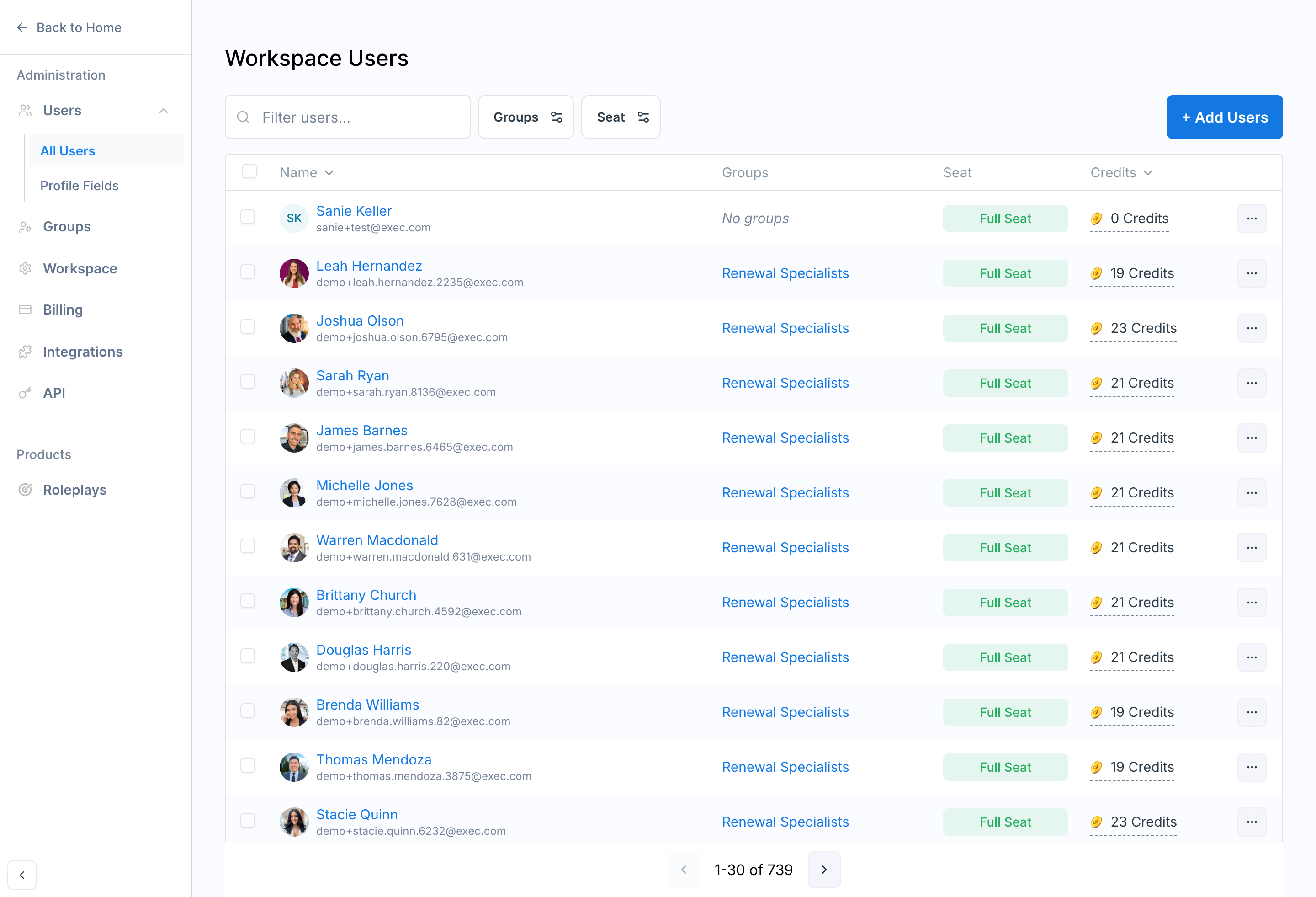
If you want someone to have general access to your workspace, but not yet assign them to a specific program:
1

Go to your workspace's Settings menu

Screenshot2025 10 17at3 12 20PM Pn
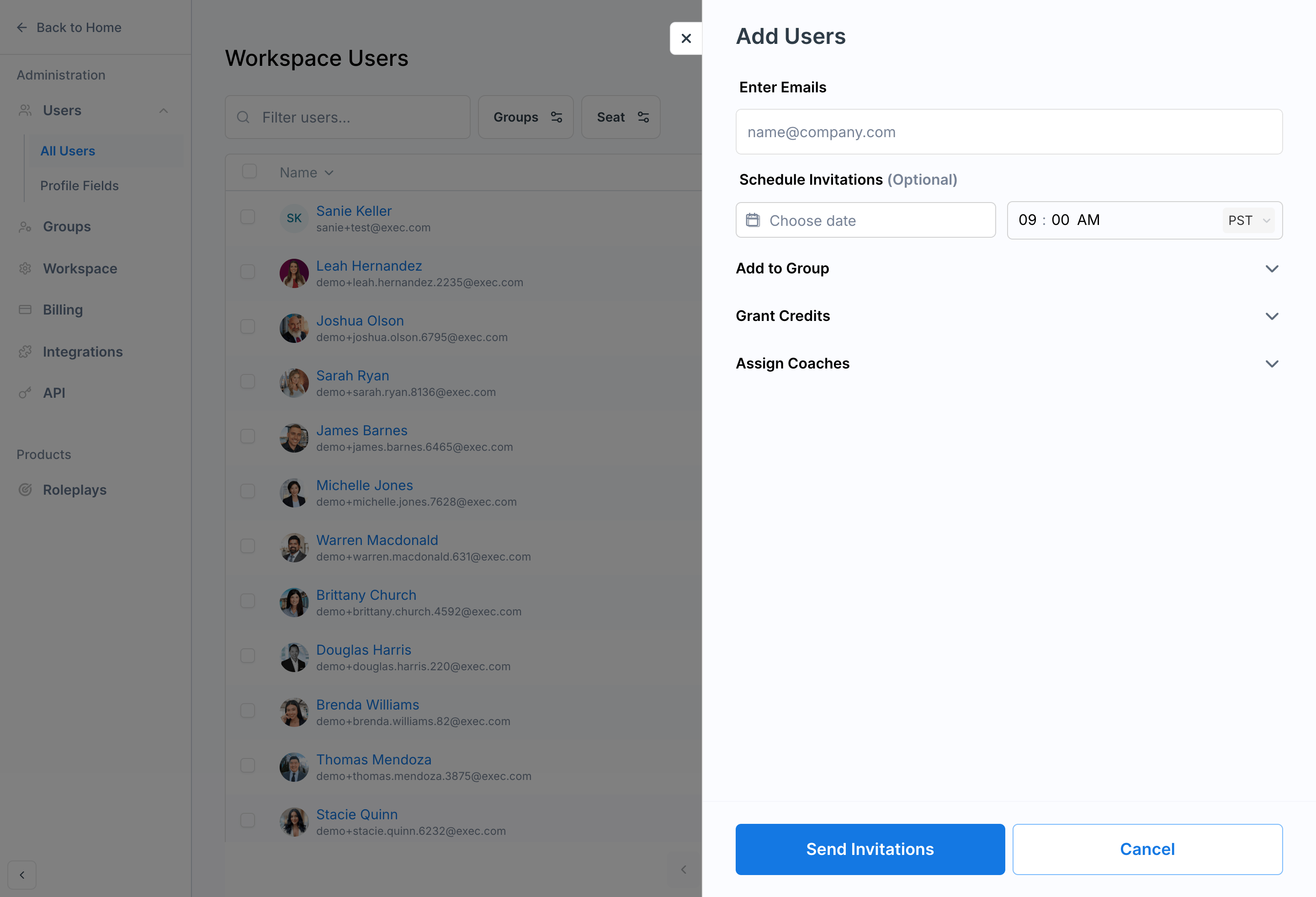
2

Add the user by email address

Once added, they will appear in your workspace directly. Later, you can assign them into one or more programs as needed.
Screenshot2025 10 17at3 13 22PM Pn
Best Practices:
  • Default to program-level adds. In most cases, you’ll want participants enrolled directly in the program they’re supposed to take part in.
  • Use groups to stay organized. If you’re running large programs, grouping helps with facilitation and reporting.
  • Control visibility. Only add users to programs once you’re ready for them to engage, or keep invitations on hold until launch.
  • Admins vs. participants. Participants join learning programs; admins and program leads have separate permissions that can be granted later.

In short: Add users at the program level for training participation, and at the workspace level for broader organizational access. Always double-check where you’re adding them so they appear where you expect.