

Adding a source
Inside any hub, open the + Add menu and choose New File. The Add File dialog offers several ways to bring in content.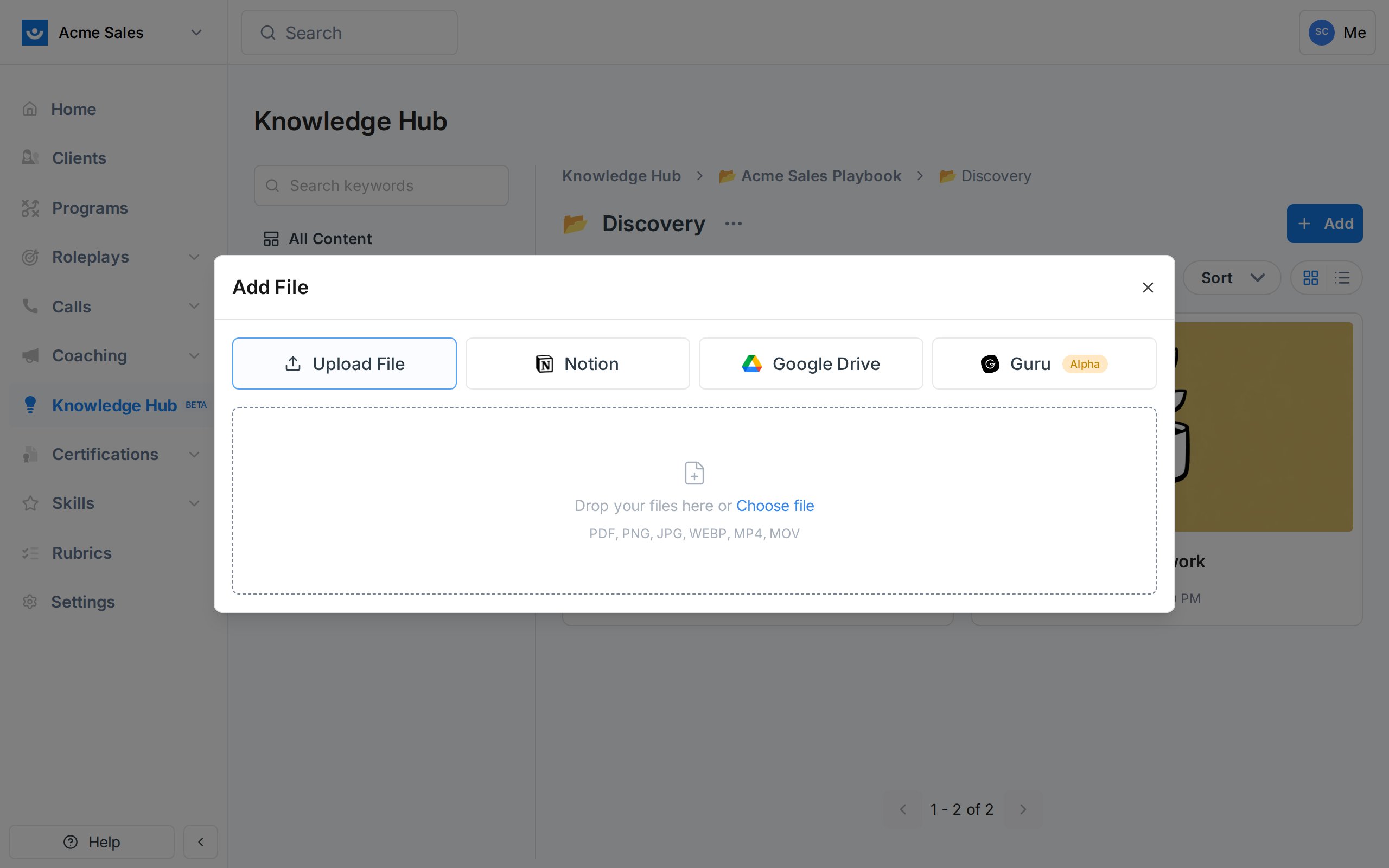
External sources need to be connected under Settings → Integrations before you can pick content from them. See Notion integration and Microsoft 365 integration for setup.
What happens after upload
When you add a source, the platform kicks off a processing pipeline:1
Extract
The raw file is converted into plain text. PDFs and documents go through a parser that preserves headings, tables, and images. Notion pages are imported in their native structure.
2
Index
Extracted text is indexed for hybrid search (keyword plus semantic). This is what lets the AI agent find the right passage of the right source in milliseconds.
3
Summarise
A short summary and a handful of AI insights (key points, tags) are generated so you can scan a source list without opening every file.
Video and audio sources
Video and audio sources (including.mp3 recordings) are transcribed automatically as part of processing. Once the source is Ready:
- The full transcript text is indexed alongside every other source, so the AI agent, search, and roleplays can pull quotes from a call recording or training video the same way they pull from a PDF.
- Opening the source shows the player next to a Transcript panel. The active line highlights as the media plays, and clicking any line seeks the player to that timestamp.
- Closed captions are available on the player. Toggle CC to show them, and they follow the media into fullscreen.
Image sources
Images are described automatically by a vision model. The generated description is stored as the source’s extracted text, which means images become searchable and usable by the AI agent the same way documents are — the agent can answer “which slide showed the pricing chart?” because the chart’s contents are now text it can search.Using sources
Once a source is Ready, it is available in three places:- The hub itself - open the source to read the extracted text and insights
- The AI agent - when you chat with the agent inside a page, it can search across every source you can see and pull the relevant passages into its answers
- Roleplays and Programs - attach sources to a scenario or program so the AI persona speaks to the material your team actually sells against