

Creating a Skill
1
Navigate to Skills
From the left sidebar, click Skills.
2
Click Create Skill
Click the Create Skill button at the top of the page.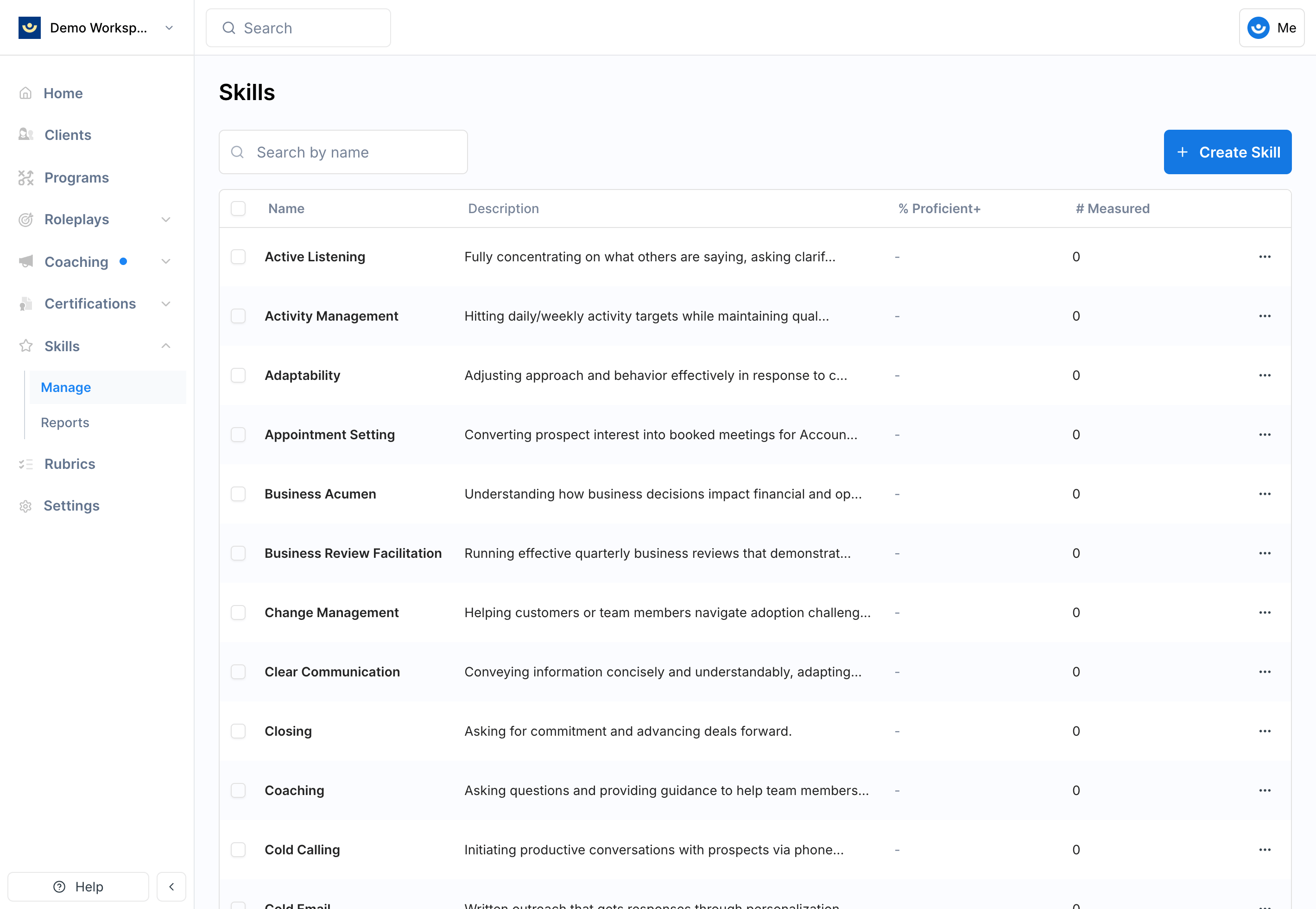
3
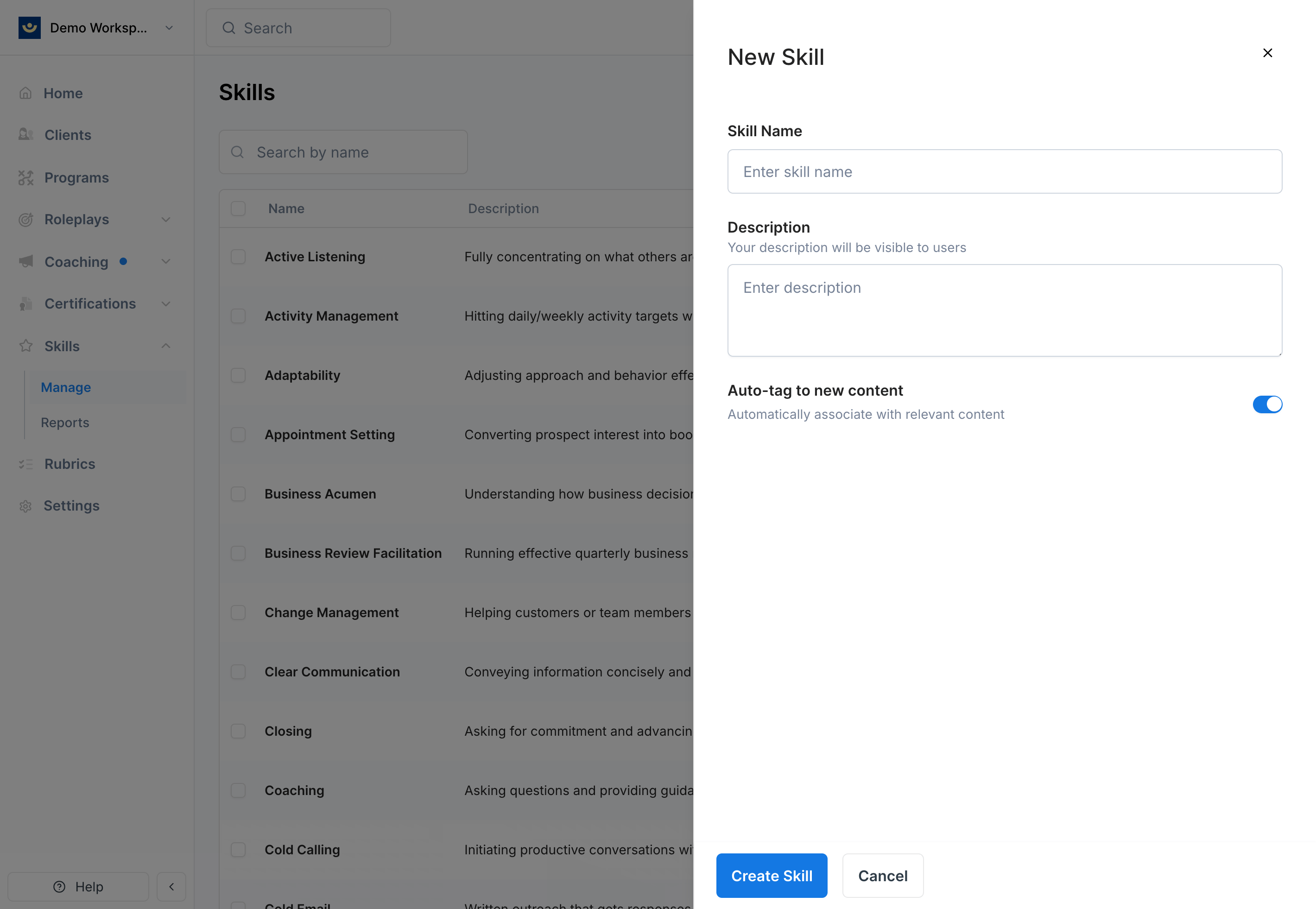
Fill in the details
- Name (required): A clear name for the competency you are tracking. Must be unique within your workspace. Examples: “Objection Handling,” “Discovery Questions,” “Empathy.”
-
Description (required): Describe what this skill measures. This helps other admins understand the intent and helps Exec’s AI accurately tag content.
4
Configure auto-tagging
The Auto-tag to new content toggle is on by default. When enabled, Exec uses AI to automatically link this skill to relevant evaluation criteria in new scenarios you create.
5
Save
Click Save. The skill appears in your skills table and is ready to be tracked.
How Skills Connect to Scenarios
Skills are not assigned directly to scenarios. Instead, they connect through evaluation criteria:Scenario → Rubric Criteria → Criterion Items → SkillsEach evaluation criterion in a rubric contains one or more criterion items (specific behaviors to evaluate). Each criterion item can be linked to one or more skills. When a learner gets graded on a criterion item, that grade counts toward every skill linked to it.
Automatic Skill Tagging
When auto-tagging is enabled on a skill, Exec’s AI reviews the criterion items in new scenarios and automatically links relevant ones to the skill. This happens when you create or import scenarios. You can also manually trigger auto-tagging from the scenario editor by clicking Associate Skills.Auto-tagging applies to new content by default. Existing scenarios are not retroactively tagged unless you manually trigger skill association from the scenario editor.
Manual Skill Association
You can also link skills to criterion items by hand. In the rubric or scenario editor, each criterion item card shows its linked skills. Click the skill tags to add or remove associations. This is useful when you want precise control over which skills are tracked for specific behaviors, or when you want to adjust what the AI suggested. In Scenario Studio, open a behavior to select skills or click Generate Skills for suggestions. You can also ask the Studio agent to tag a behavior with skills by name. Changes reach the published scenario when you apply the draft. See Edit a Scenario.The Skills Management Table
The Skills page shows all your workspace skills with the following columns:
The % Proficient+ column is color-coded for quick scanning: green (75%+ proficient), yellow (50–74%), red (below 50%).
Click any skill row to open a proficiency drawer showing detailed workspace-wide data for that skill. See Skill Proficiency and Reports for details.
Editing a Skill
Click the actions menu (three dots) on any skill row and select Edit. You can change the name, description, and auto-tag setting.Archiving Skills
To remove a skill, click the actions menu and select Delete. To archive multiple skills at once, select them using the checkboxes and click Delete Selected. Archived skills are removed from your skills table and stop being tracked in new sessions. Historical data from past sessions is preserved — it just no longer appears in your analytics views.Archiving is permanent from the UI. If you need to restore an archived skill, contact us at [email protected].