

Adding a Component
1
Open your program
Navigate to the program dashboard. On the right panel, click Add Component (or use the + button on the dashboard).
2
Choose the component type
Select from the available types: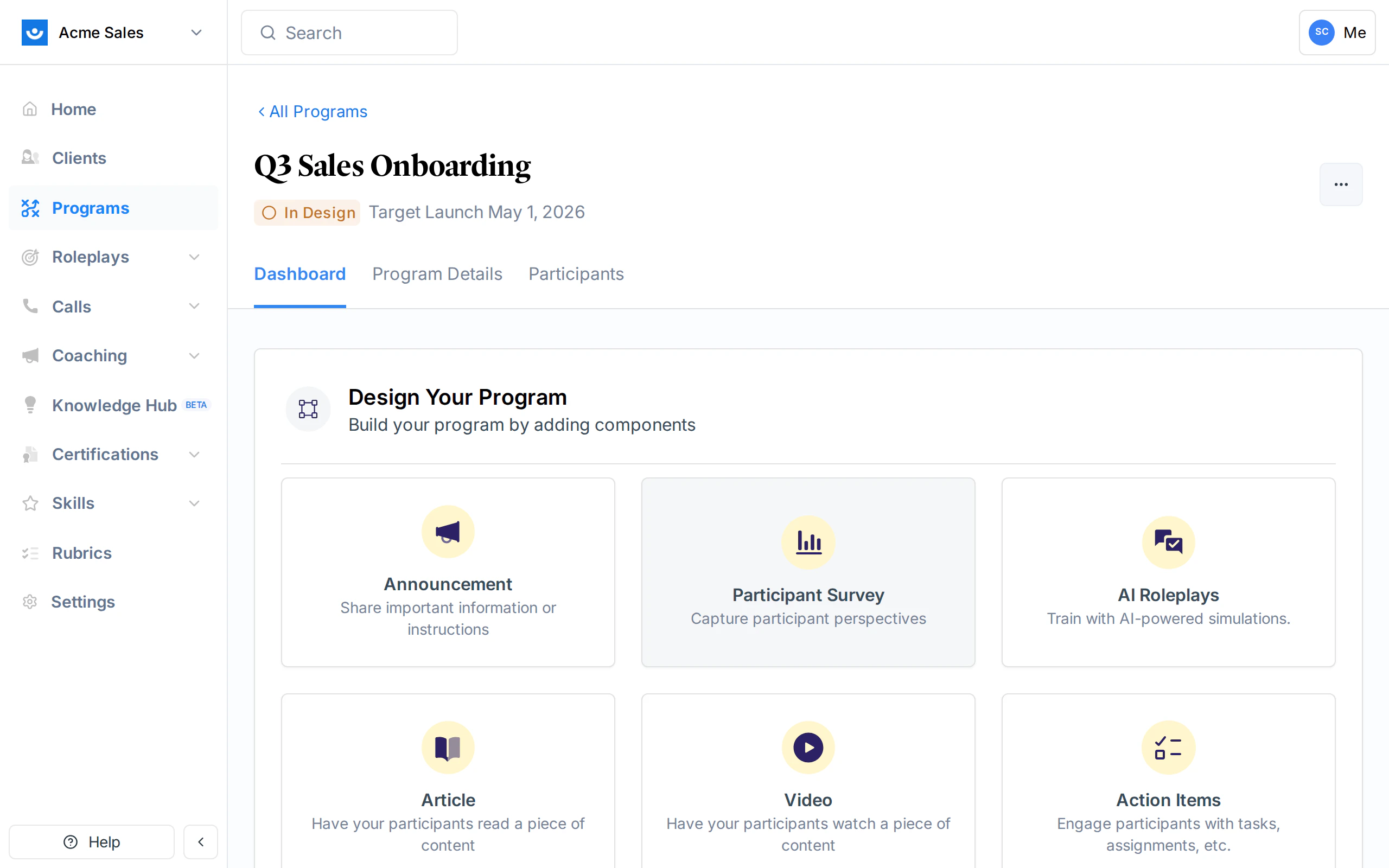
3
Configure the component
Each type has a guided setup wizard. After the type-specific steps, you configure shared settings like name, dates, participants, and notifications.
Component Types
Announcement
Announcements share information with participants. No action is required from them - the announcement is simply displayed on their program dashboard. What you configure:- Name: Title of the announcement
- Body: Rich text content (supports formatting, links, and file attachments)
- Launch date and close date: When the announcement appears and when it is removed
- Visible before launch: Whether participants can see the announcement before its launch date
Announcements do not have a due date since they require no action. They also do not send due or past-due notification emails.
Participant Survey
Surveys let you capture perspectives from participants using custom questions or pre-built templates. Setup steps:- Choose a template (optional): Pick from a library of pre-built survey templates, or start from scratch
- Customize questions: Add, edit, or remove questions. Supported question types include text, multiple choice, rating scales, and more
- Configure: Set the name, dates, participants, and notification preferences
- Survey questions: The questions participants will answer
- Guidance for Participants: Optional instructions shown to participants explaining what the survey is about
- Due date: When the survey should be completed
AI Roleplays
AI Roleplay components let participants practice with AI-powered conversation simulations. You select which scenarios from your workspace library to include. Setup steps:- Choose scenarios: Select one or more roleplay scenarios from your workspace library
- Configure: Set name, dates, participants, and completion criteria
- Scenarios: Which roleplay scenarios to include
- Completion criteria (optional):
- Required scenarios: How many of the assigned scenarios must be completed (default: all)
- Minimum rank: The minimum session rank participants must achieve (Bronze, Silver, or Gold)
- Minimum attempts: How many times participants must attempt each scenario
- Maximum attempts: Cap on the number of attempts allowed
- Guidance for Participants: Optional instructions
Video
Video components assign a video for participants to watch. Provide a URL and Exec generates a preview. What you configure:- Video URL: Link to the video (YouTube, Vimeo, or other hosted video)
- Guidance for Participants: Optional context or instructions
- Due date: When the video should be watched
Article
Article components assign reading material. Provide a URL and Exec generates a preview. What you configure:- Article URL: Link to the article or document
- Guidance for Participants: Optional context or instructions
- Due date: When the article should be read
Action Items
Action item components assign tasks or activities for participants to complete. Setup steps:- Define action items: Create the list of tasks participants need to complete
- Configure: Set name, dates, participants, and notification preferences
- Task list: The individual tasks or assignments
- Guidance for Participants: Optional instructions
- Due date: When tasks should be completed
1:1 Coaching
Coaching components connect participants with expert coaches for personalized sessions. This type has the most involved setup process.1:1 Coaching must be enabled for your workspace. If you do not see this option, contact your Exec account manager.
- Choose specialty: Select the coaching specialty area
- Configure basics: Set the component name and date range
- Design the journey: Configure the coaching session structure (intro sessions, regular sessions)
- Select coaches: Choose which coaches are available for participants to book with
- Review: Confirm the setup
- Specialty: The coaching focus area
- Coaches: Which coaches participants can select from
- Session journey: Number and structure of intro and regular sessions
- Date range: When coaching sessions can be scheduled
Group Meeting
Group meeting components schedule group sessions. You provide a meeting link and Exec handles the rest. What you configure:- Meeting link: URL for the video call (Zoom, Teams, Google Meet, etc.)
- Description: Optional context visible to participants
- Date and time: When the meeting takes place
Group meetings do not have a due date or send due/past-due notifications. They also do not support prerequisite eligibility since they are scheduled events.
Shared Configuration
Every component (except where noted above) shares these configuration options:Dates
You can set a component to auto-launch with the program so its launch date syncs with the program’s launch date.
Participants
By default, components are assigned to all participants in the program. You can also assign them to specific participants by selecting individuals from the dropdown. If a participant is added to the program later, they are automatically included in “all participants” components.Prerequisite Eligibility
You can make a component dependent on another component. When a prerequisite is set, participants must complete the prerequisite before the dependent component becomes available to them.Prerequisites are not available for announcements or group meetings.
Optional vs Required
Components can be marked as optional. Optional components do not count toward program completion - participants can skip them without affecting their certification status. This is available for surveys, action items, AI roleplays, videos, articles, and 1:1 coaching.Notification Settings
For most component types, you can control three email notifications:
Announcements only support the initial launch notification. Group meetings handle notifications differently through the meeting link.