

Supported Languages
Scenario Studio supports nine languages end to end:English
Spanish
French
German
Portuguese
Dutch
Japanese
Chinese
Korean
Three Ways to Build in Another Language
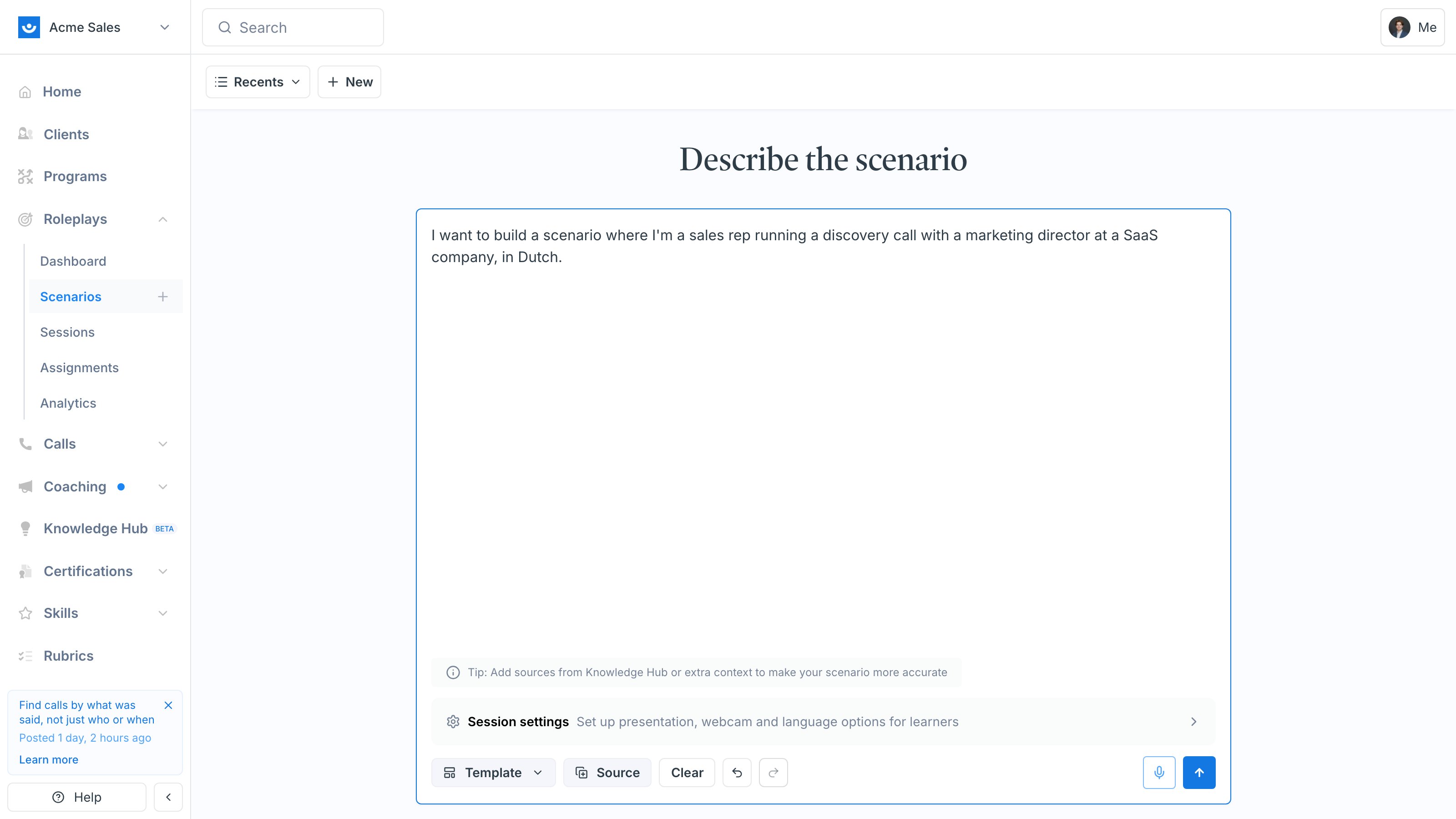
1. Name the language in your prompt
The simplest path. Just include the target language in your description.“I want to build a scenario where I’m a sales rep running a discovery call with a marketing director at a SaaS company, in Dutch.”
2. Write your prompt in the target language
You can also prompt Studio in the language you want the scenario built in. The agent detects the request language and matches it.“Crea un escenario donde practico el cierre con un cliente B2B escéptico.”This works for any of the supported languages, including in-language cues like “日本語で”, “用中文”, and “한국어로”.
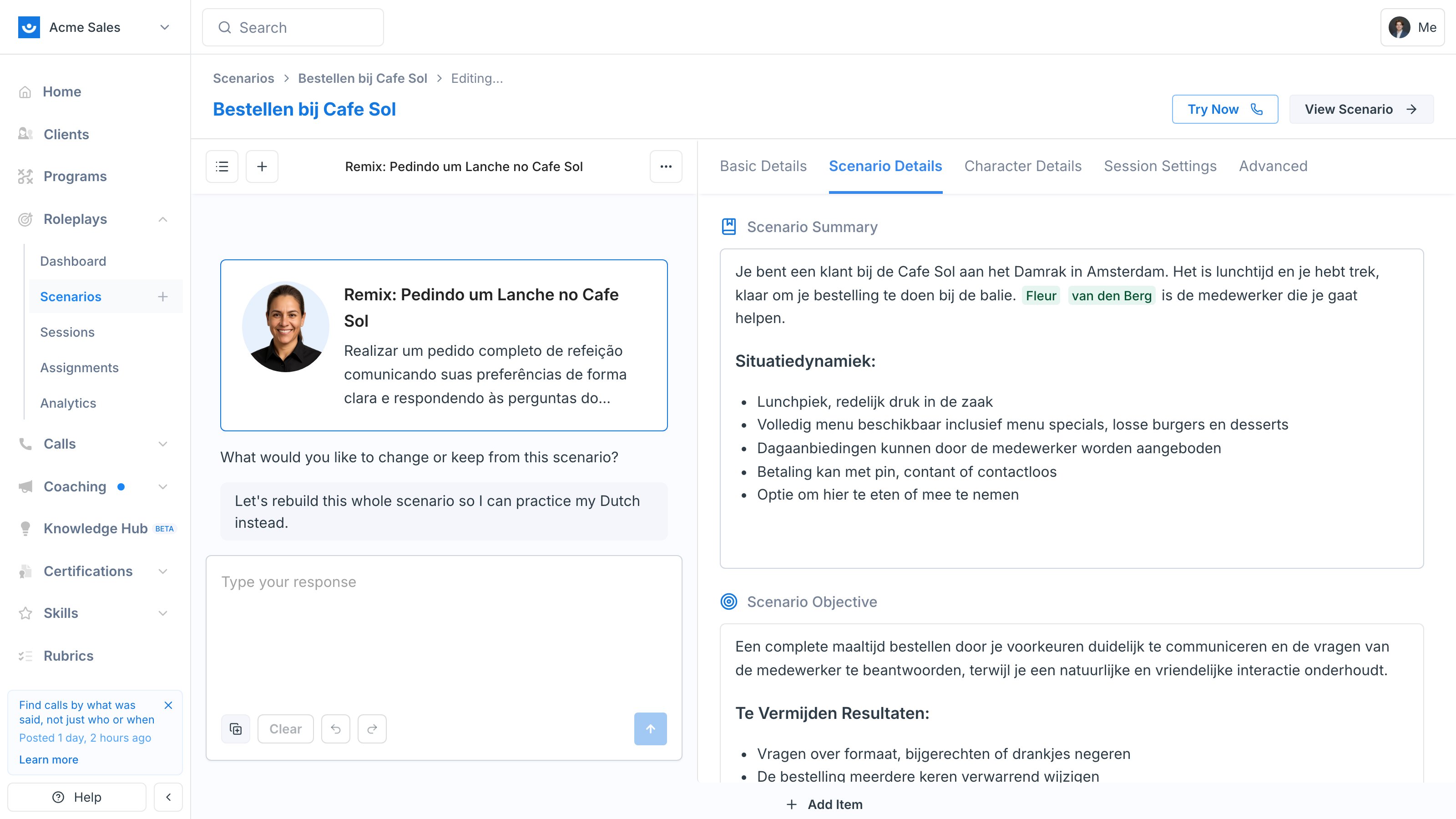
3. Translate an existing scenario
Already have an English scenario you want a Korean version of? Use Remix to clone it, then ask the agent to translate.1
Remix the original
Open the scenario, click the three-dot menu, and choose Remix Scenario. This creates a new draft seeded from the original so the source stays untouched.
2
Ask the agent to rewrite it
In the Studio chat, send a message like “rewrite this in Korean,” or open Session Settings and pick a new language from the dropdown.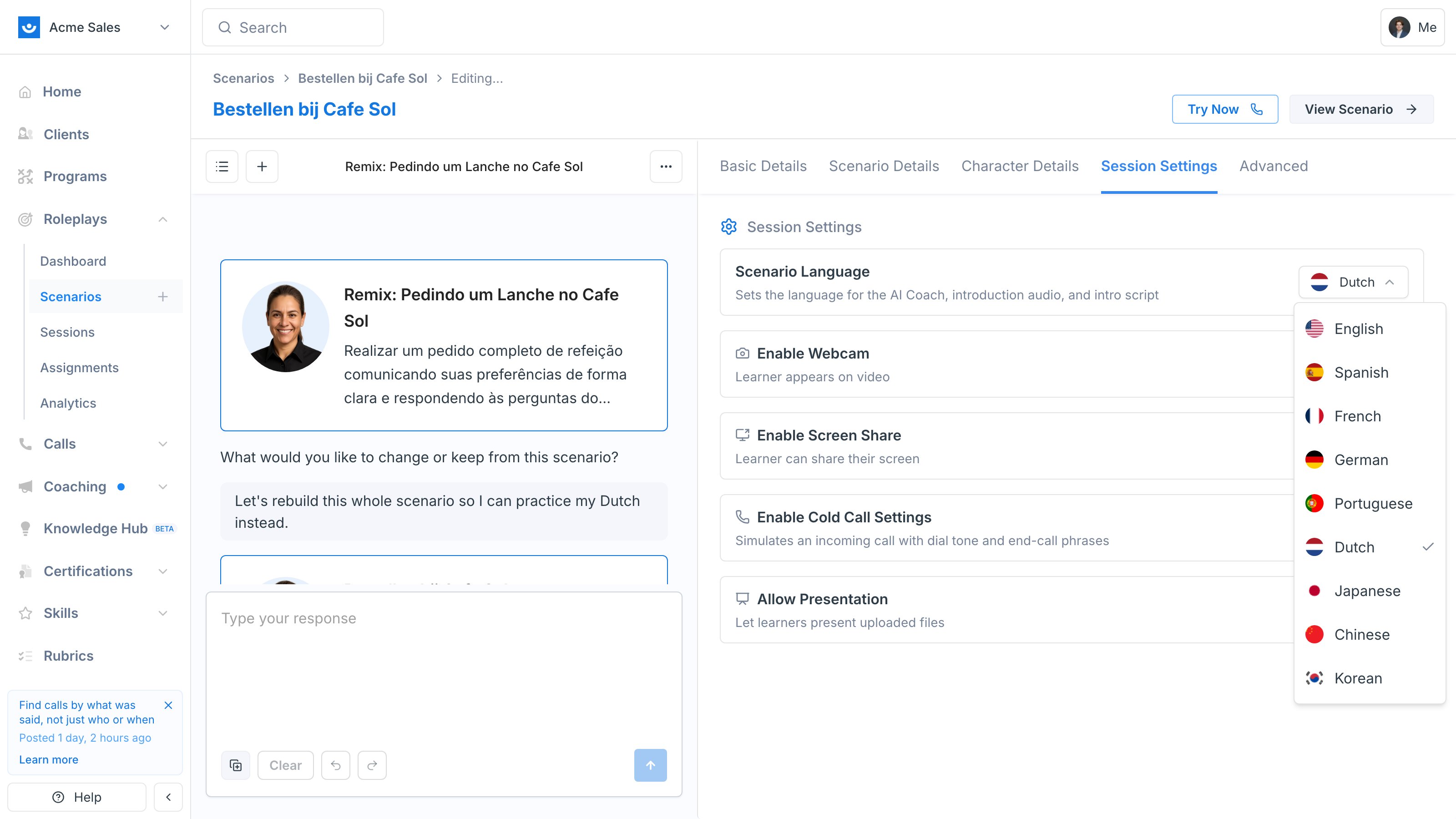
3
Review the translated draft
The body, opening line, evaluation criteria, and character details are regenerated in the target language. The character voice and intro audio are also swapped to a language-appropriate voice.
4
Publish
Click Publish to save the translated scenario alongside the original.
What Gets Localized Automatically
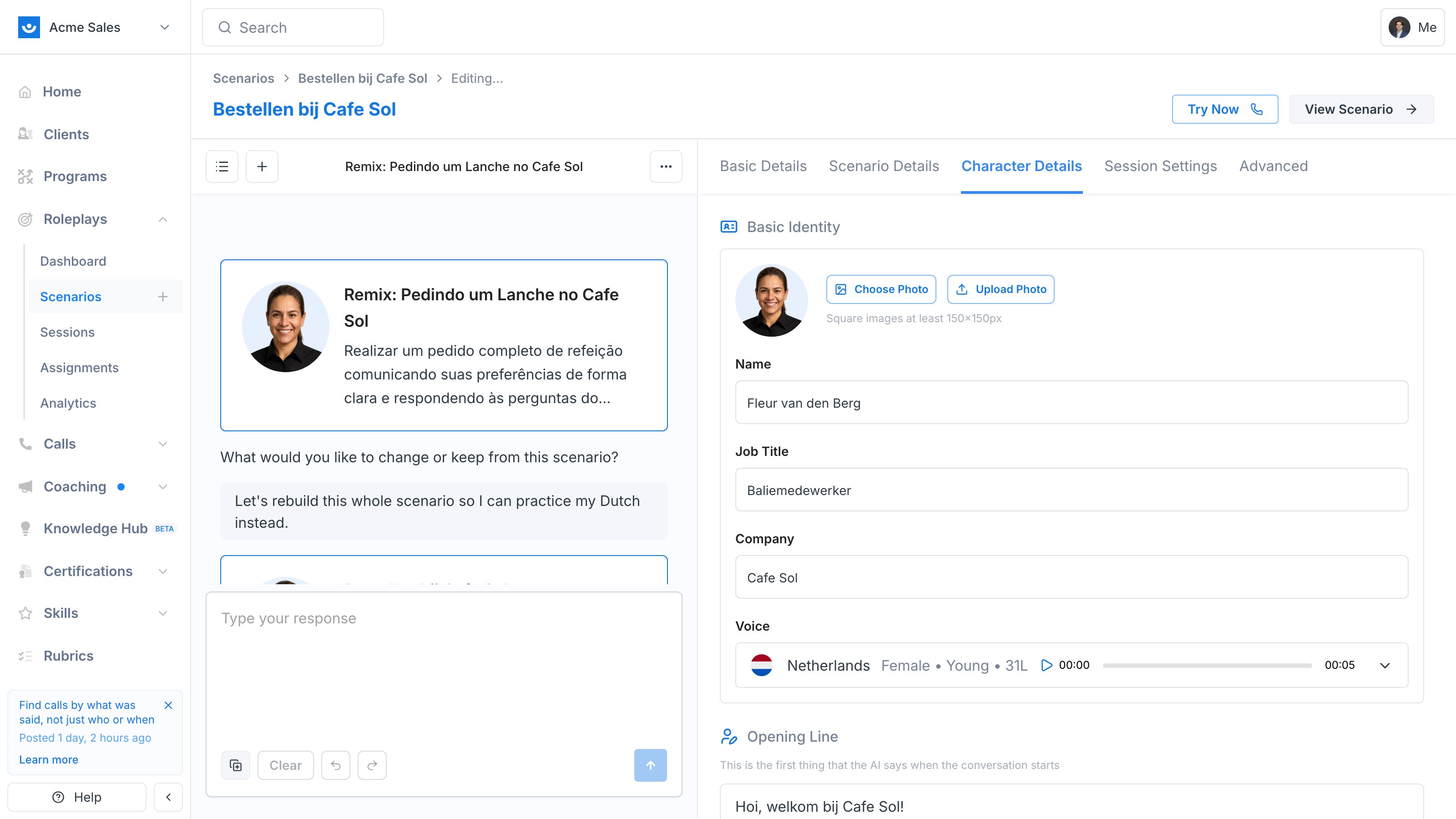
When you build or switch into a non-English language, Studio handles:- Scenario body - situation, objective, outcomes to avoid, and evaluation criteria are written in the target language
- Opening line - what the character says first when the session starts
- Character voice - selected from the language-scoped voice library (you can swap to a different voice in Character Details)
- Intro audio - re-recorded in the target language so the opening sounds native
- Session language label - the flag and language name in Session Settings update to match
- AI Coach feedback - post-session coaching is delivered in the scenario’s language
Switching the Language Later
Two ways to change a scenario’s language after it has been created: In Session Settings, open the language dropdown and pick a new one. The agent regenerates the body, swaps the character voice, and queues a fresh intro audio recording. In the Studio chat, ask the agent directly: “rewrite this in Japanese.” Same outcome, no need to leave the chat.Switching language rewrites the scenario body. If you want to keep the original, Remix first so the source language version stays intact.
Tips
- Name your scenarios consistently. Many teams add a language suffix like “Discovery Call (Dutch)” so multilingual variants are easy to find in the library.
- Use Remix for parallel variants. If you want English plus three other languages of the same scenario, remix once per target language rather than overwriting one draft repeatedly.
- Voice accents matter. Each language ships with multiple voices spanning different accents. If a voice does not match the accent you want, swap it from Character Details.