

Enrolling Participants
1
Open the Participants tab
Navigate to your program and click the Participants tab. You can also click Add Participants from the quick actions panel on the right side of the dashboard.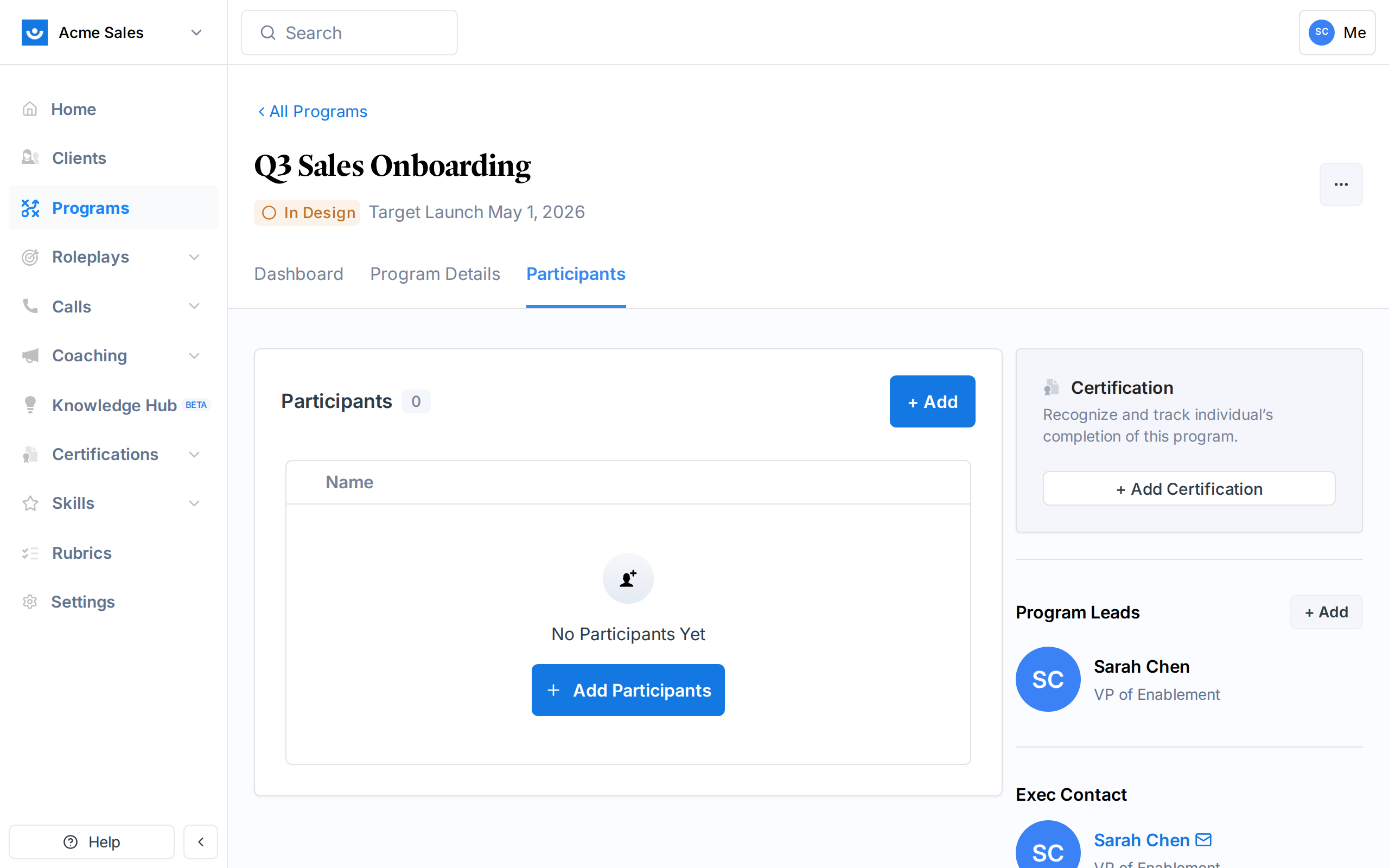
2
Click Add Participants
The enrollment drawer opens on the right side of the screen.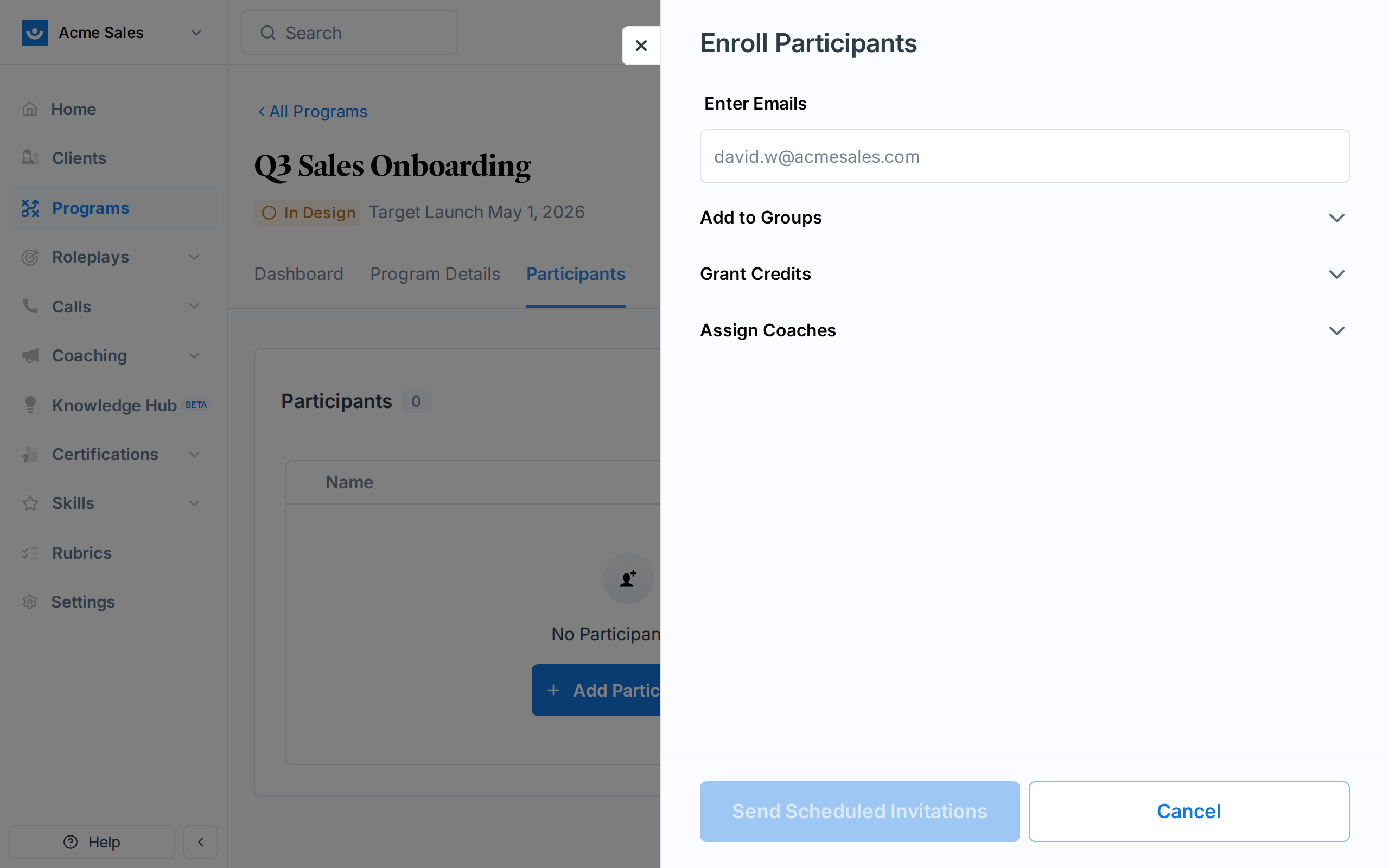
3
Enter email addresses
Type or paste email addresses. You can enter them:
- One at a time, pressing Enter after each
- As a comma-separated list (paste from a spreadsheet column or email list)
- New users: Will receive a workspace invitation along with program enrollment
- Existing workspace members: Already in your workspace, enrolled directly
- Already enrolled: Already in this program (skipped)
- Invalid: Not a valid email format
If you are enrolling people who are not yet in your workspace, they will receive a workspace invitation. Make sure you have enough seats available. Exec warns you if seats are insufficient.
4
Confirm enrollment
Review the summary and click to enroll. Participants are added to the program immediately.
Scheduling Enrollment Emails
Enrollment emails notify participants that they have been added to a program. These are sent on the program’s launch date by default. On the program dashboard, the Launch Panel shows the scheduled email date and subject line:Subject: “Please read: You’re enrolled in [Program Name]”You can mark the launch email scheduling step as complete from the launch checklist on the program dashboard.
Program Roles
Programs have two roles: Lead and Participant. Workspace admins can manage any program regardless of role.Lead Permissions
Program leads have full management access to their specific program:Program lead permissions are scoped to the programs they lead. A lead on Program A cannot manage Program B unless they are also a lead on that program or a workspace admin.
Adding Program Leads
Program leads are added from the Program Leads section on the right panel of the program dashboard. Click + Add to invite a lead by email. A program can have multiple leads.Removing Program Leads
Click the remove button next to a lead’s name in the Program Leads section. A program must always have at least one lead.The Participants Table
The Participants tab shows all enrolled participants with their overall program progress. The table includes:
You can search participants by name, sort by any column, and paginate through results.
Status values
”Needs more time” banner
At the top of the participants table, a yellow banner appears when participants may benefit from an extension. It groups the count by cause:- Joined after components had already closed - late joiners who never had a chance to complete some required components.
- Did not pass - participants who finished but did not meet the pass criteria.
- Did not finish - participants who ran out of time before completing all required components.
For a specific component’s response table (accessed from a component analytics page), the columns are different: status for that one component, due date, completion date, last reminded, and per-row actions. See Track Program Progress.
Extending Deadlines
When participants need more time, use Extend Time to give them a new personal deadline. Extensions are per participant and apply program-wide - every required component the participant has not yet finished gets the new deadline.Extend Time works on Live programs and on Complete programs. Extending someone on a completed program does not reopen the program - the participant keeps working through their personal extension, and their status (and any linked certificate) updates when they finish.
1
Open the Extend Time sheet
From the participants table, click the actions menu on a row and choose Extend Time. To extend multiple people at once, select their checkboxes and use the bulk action, or click the button inside the “needs more time” banner.
2
Pick the new deadline
Use the datetime picker to set the exact date and time of the new deadline. The time is interpreted in your browser’s timezone.
3
Choose whether to link historical data
Turn on Link historical data to associate roleplay and coaching sessions the participant has already run during the extension window with the corresponding program components. Leave it off if you only want the extension to apply to future work.
4
Review the preview
The preview shows a table per participant with each required component, the old deadline (struck through) alongside the new deadline in green, and a Note column that flags rows the change will skip (for example, components the participant already completed).
5
Confirm
Click to grant the extension. Participants with an active extension get a blue calendar icon next to their status.
Extensions cannot be granted to participants who have already completed all required components, and completions that used an existing extension cannot lose it.
Component-level Grant Extension
If you open Grant Extension from a specific component (via the component’s action menu), you can manage multiple extension timelines for that component at once:- Every existing grant loads as a date-grouped timeline card.
- Add a new timeline for a different date, move participants between timelines, or change a group’s date to update everyone in it.
- Remove a participant from all timelines to revoke their extension on that component.
- The Needs help callout counts participants who can no longer finish the component and offers a one-click button to add them all to a timeline.
Removing Extensions
To strip a participant’s extensions program-wide, open the actions menu on their row in the participants table and choose Remove Extensions. Confirm in the dialog. Their deadlines revert to the program’s original schedule. Removing extensions never affects participants who have already completed a component using an extension - those completions stay intact.Sending Nudges
Nudges are reminder notifications sent to participants who have not completed a component. They are useful for keeping participants on track without manually following up.1
Open the nudge panel
From the component’s participant table, click the nudge icon or select Nudge from the actions menu.
2
Review eligible participants
The panel shows two groups:
- Nudgeable participants: People who can receive a reminder
- Cannot be nudged: People who are ineligible, with the reason shown (already completed, recently nudged, component not active, etc.)
There is a 15-minute cooldown between nudges for the same participant. If someone was nudged within the last 15 minutes, they appear in the “Cannot be nudged” group.
3
Send
Click to send nudges to all eligible participants. A progress indicator shows how many have been sent. You can stop the process mid-way if needed.
Removing Participants
To remove a participant from a program:- Find them in the participants table
- Click the actions menu and select Remove
- Confirm the removal