

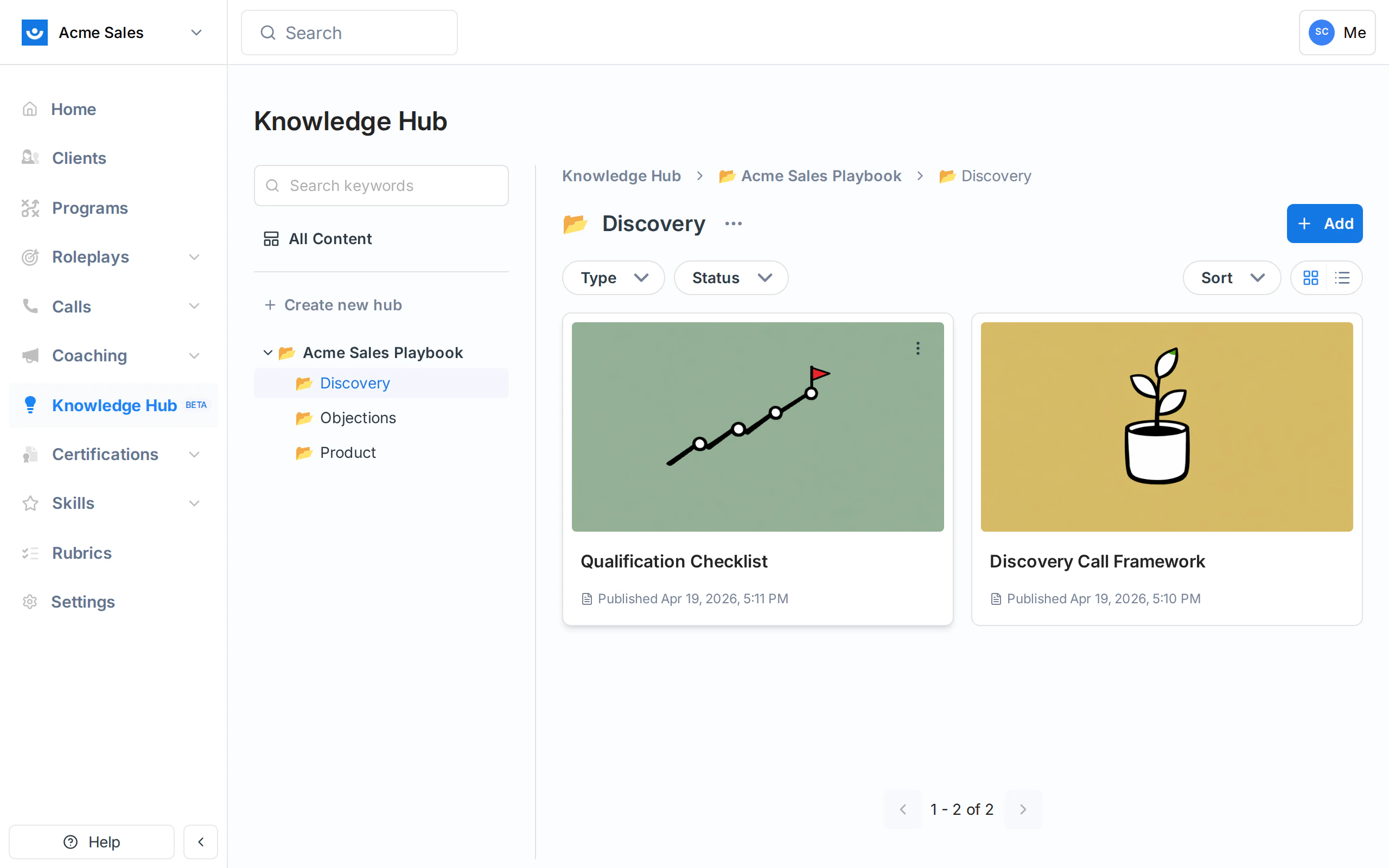
Creating hubs
Top-level hubs are created from the Knowledge Hub sidebar. Click + Create new hub, give it a name, and confirm. Inside a hub you can create child hubs with the + Add menu. There is no hard limit on nesting, but two or three levels is usually enough; anything deeper gets hard to browse.Navigating
The breadcrumb at the top of every page shows the full path back to the Knowledge Hub root. Click any crumb to jump up a level. The sidebar tree on the left expands to show nested hubs. Click a hub in the tree to open it in the main pane. The currently open hub is highlighted.Filtering and sorting
Every hub view has filters at the top:- Type - show only pages, only sources, or everything
- Status - show draft, published, or archived items
- Hub - limit the view to one hub
- Owner - limit the view to one person’s content
- Visibility - show everything, only Personal items, or only Workspace items (see Permissions and Sharing)
- Sort - reorder by name, created date, or last updated
Pinning
If you have a hub you use every day, you can pin it so it stays at the top of the sidebar even when you are browsing other parts of the hierarchy. Pins are per-user, so your pins do not affect what anyone else sees.Good structure
A few patterns that work well:- One top-level hub per domain - Product, Sales Playbook, Customer Success. Keep the top level small and meaningful.
- Sub-hubs for stages or themes - within Sales Playbook, nested hubs for Discovery, Demo, Objections, Closing.
- Pages for stable content, sources for raw material - write the page when the content is curated; keep the raw deck or call recording as a source so it can still be searched.