

The skill dashboard
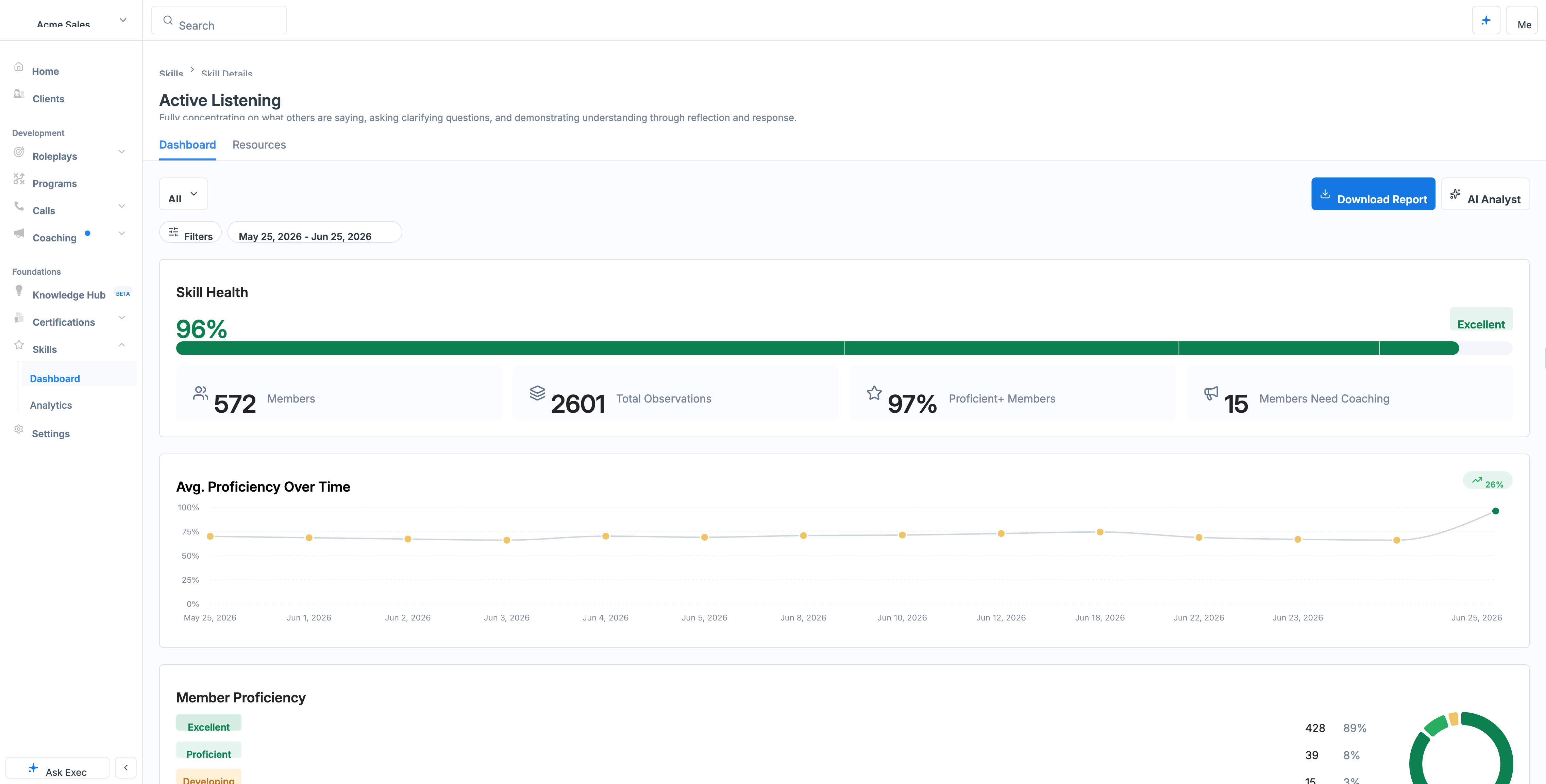
The Dashboard tab gives you the health of a single skill at a glance:- Skill Health - an overall proficiency percentage plus Members, Total Observations, Proficient+ Members, and Members Need Coaching
- Avg. Proficiency Over Time - how the skill is trending across your workspace
- Member Proficiency - the distribution of people across proficiency tiers
- Participants - a per-person table with Observations (the number of sessions where the skill was tied to a criterion), Score, Lift, and Coaching Needs
- Feedback - real feedback from sessions on this skill, filterable by Source and Grade
The Resources tab
The Resources tab gathers all the content tied to a skill in one place, so you can see exactly what your team has to learn and practice it:- Switch between All Resources, AI Roleplays, and Knowledge Hub
- Search by name, filter by status (Published, Draft, Archived), sort by newest or oldest, and toggle grid or list view
- Use the + (add) action to create a new scenario or Knowledge Hub article that is automatically linked to this skill
The AI Analyst
Open the AI Analyst from a skill’s dashboard to turn the data into action. It opens a chat where you can ask about your members’ performance (for example, why a team is excelling on a skill, or where they are struggling), and it can generate new content for you directly:- Create custom AI Roleplay - generate and assign a custom scenario to practice the skill
- Create a guide - generate a Knowledge Hub page that helps learners improve the skill