

Video walkthrough
Build From Your Own Materials
Instead of building from a prompt alone, you can point the agent at real material so the scenario reflects how your team actually sells, coaches, or supports. Click Source > Browse Knowledge Hub and pick the resources to build from, for example call transcripts, a framework guide, and a scenario outline.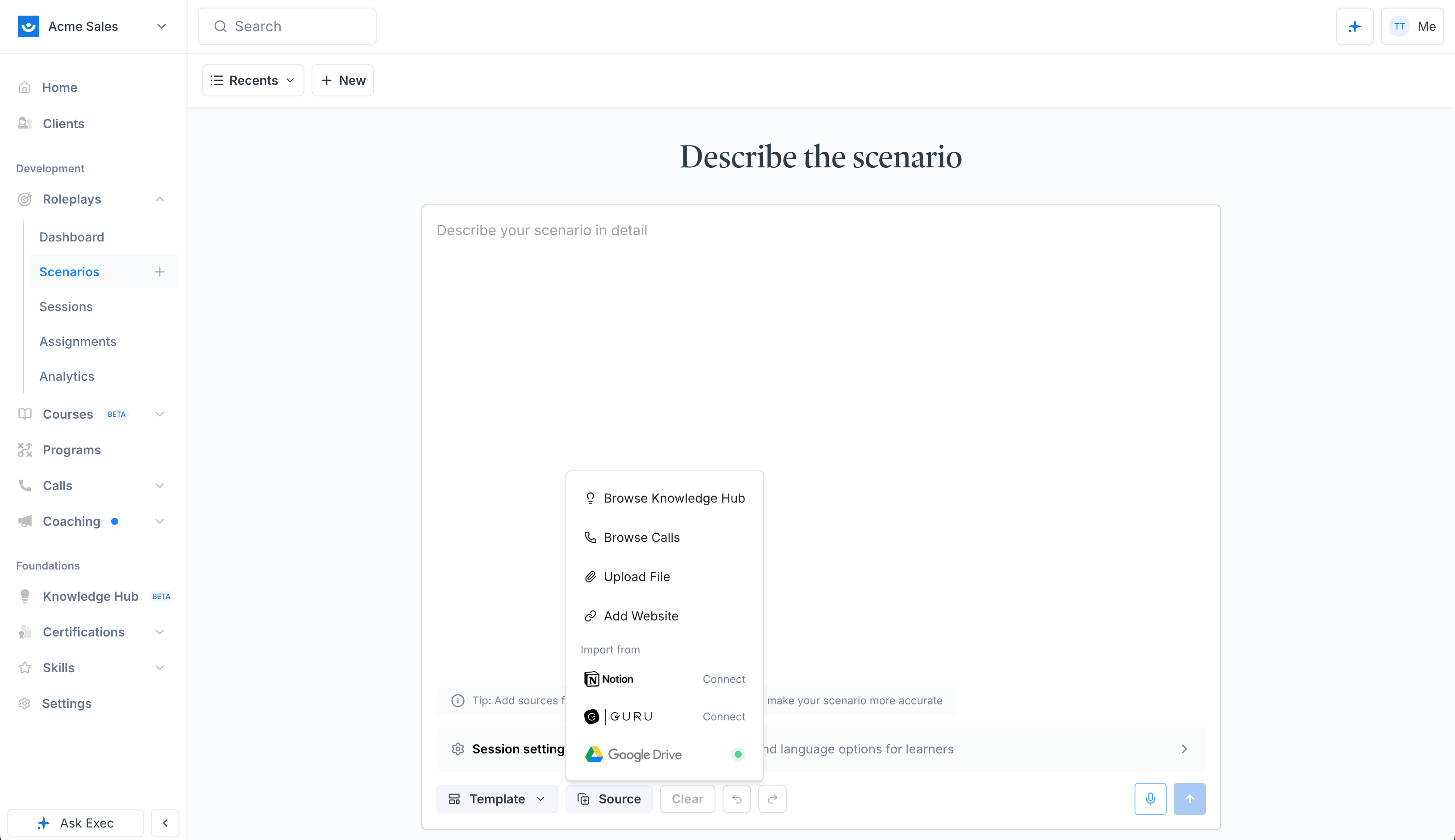
What’s Worth Attaching
Ranked by how much they improve the result:- Real call transcripts - the single most valuable input, because they capture exactly how these conversations actually sound at your company. Objections, phrasing, pacing, and the things customers really say.
- Your frameworks and methodologies - if you teach a specific way to sell, coach, or ask questions, keep it in the Knowledge Hub so the agent can build criteria that match it rather than generic ones.
- Scenario outlines - if you’ve already drafted what each scenario should cover, the build becomes a one-liner: point the agent at the outline and let the other sources fill in the detail.
Fine-Tune the Evaluation Criteria
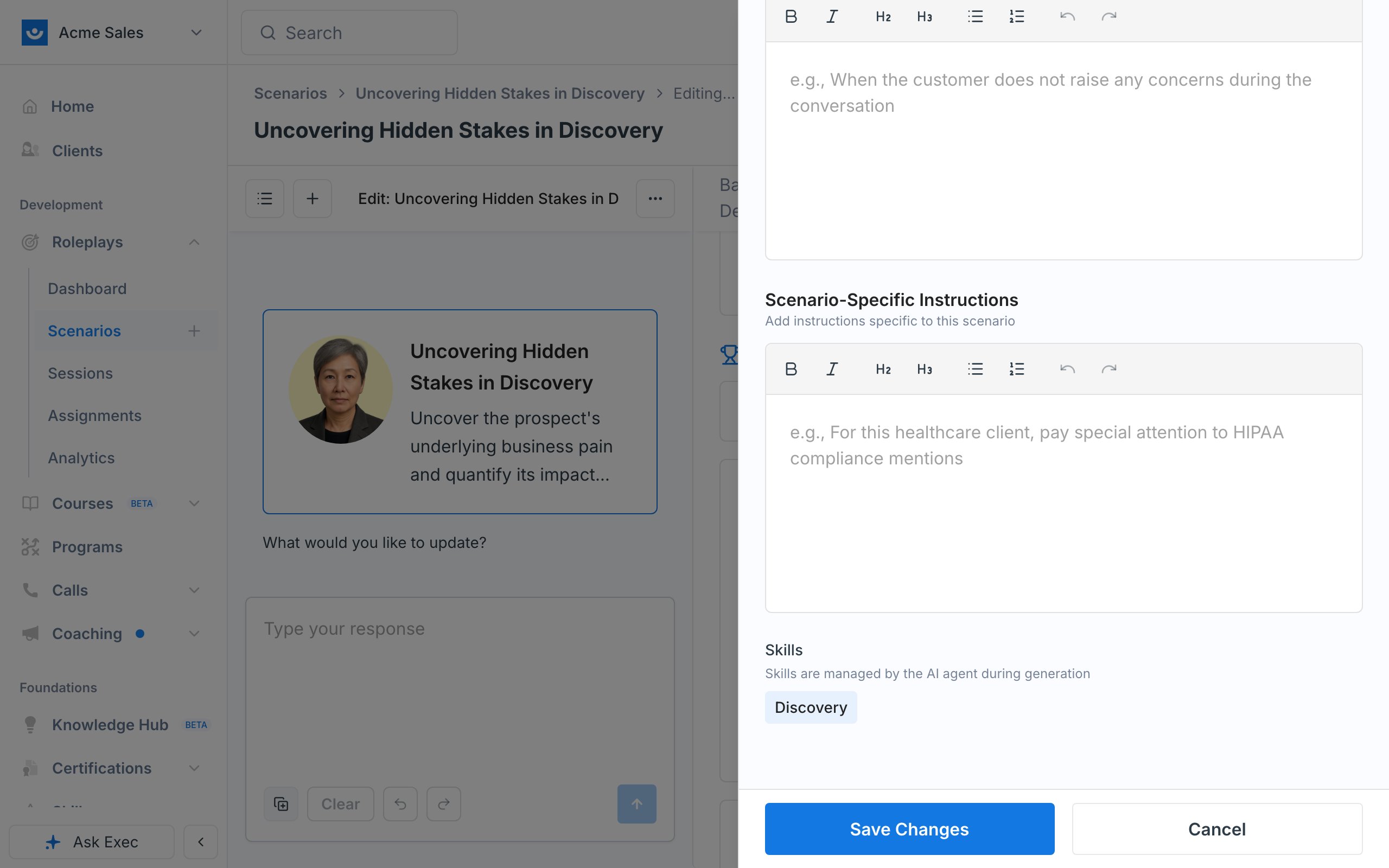
Open the ”…” menu > Edit on any criterion to control exactly how it’s graded:- Descriptions of what Good, Fair, and Poor look like
- A not relevant for grading description, so the criterion is skipped when it doesn’t apply
- Scenario-specific instructions for special grading cases or particular phrasing
- The skills associated with the criterion, which feed your analytics. Inside Studio these are managed by the agent during generation, so the field is read-only here. To edit them by hand, or to use Generate Skills, open the criterion from the published scenario instead.
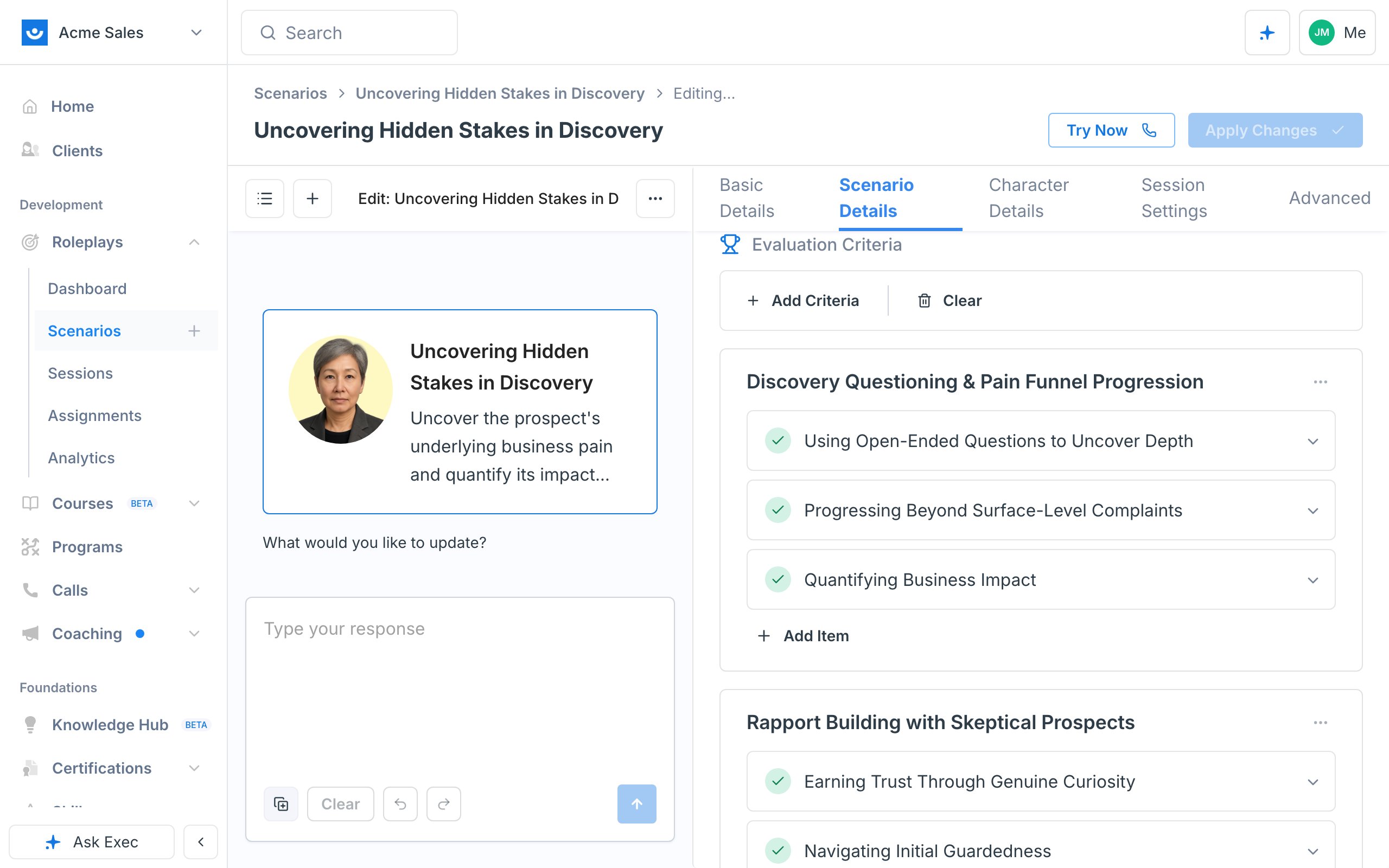
Difficulty is shaped by three things: how resistant the character is, how complex the conversation is, and how strict the grading is.
Shape the Character
On the Character Details tab you can edit the name, job title, opening line, and backstory, plus two deeper sections.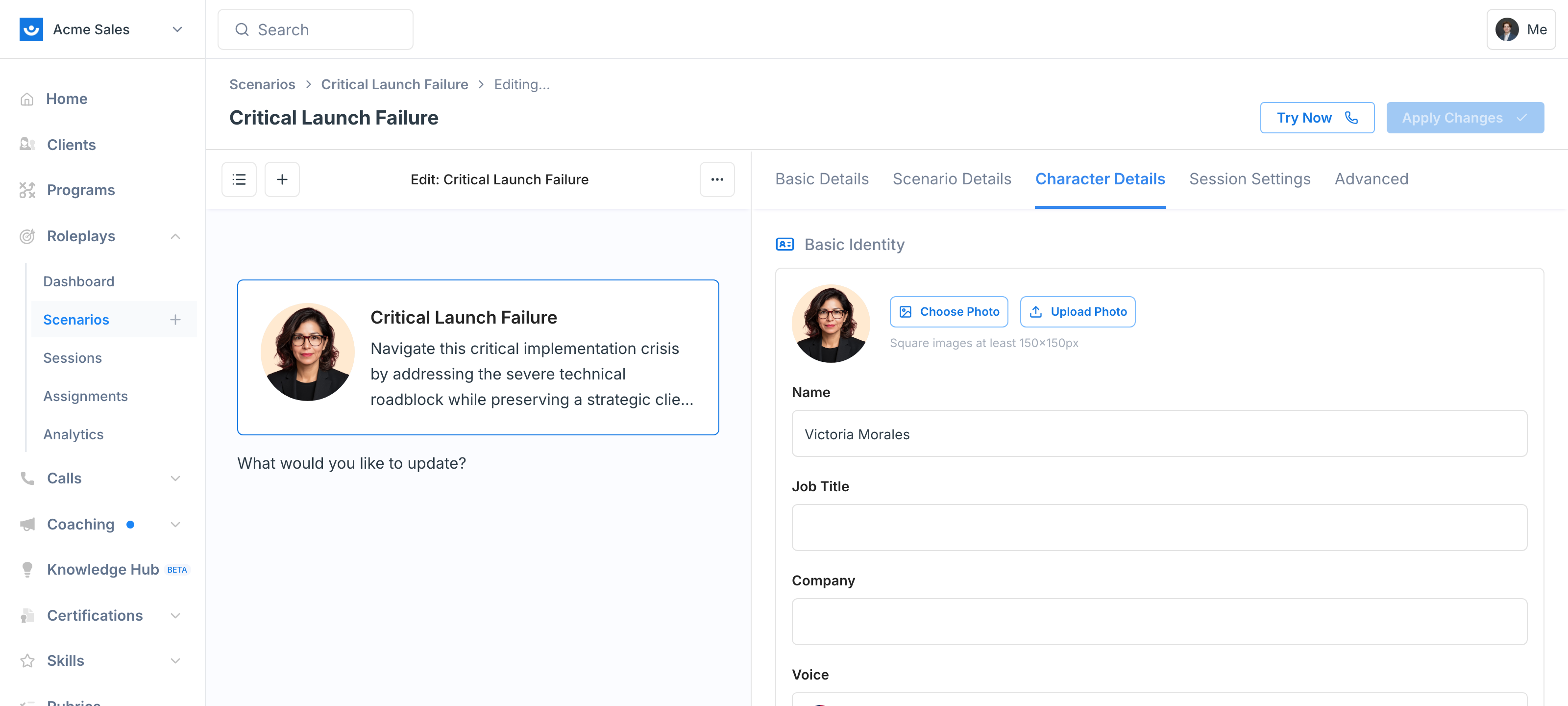
- Custom description - free-form bullet points. More customizable, and the default for most builders.
- Structured traits - toggle switch to structured traits to set dimensions like assertiveness, emotional intelligence, interaction style, stress response, and reasoning style.
Conversation Guidelines
The Conversation Guidelines are the foundation of how the character behaves in the conversation. There are two building blocks:- Text sections - free-form notes such as response length, character setup, natural speech patterns, or pronunciation rules.
- Trigger sections - a trigger paired with leveled responses (“when X is asked, respond like this; if pressed, go a level deeper”). You can add your own triggers and as many response levels as a moment needs.
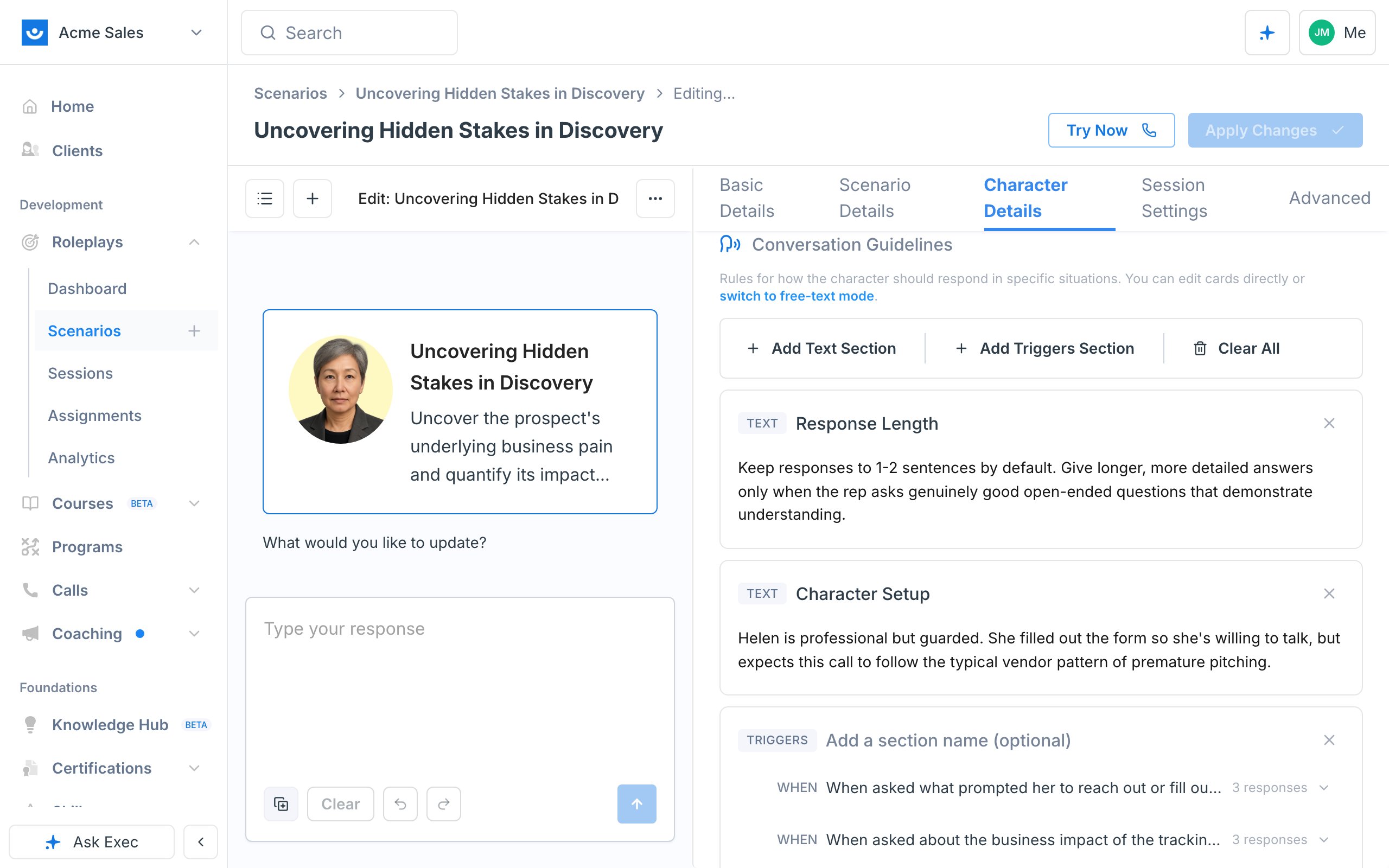
If the trigger/text format feels clunky, toggle to structured guidelines to write everything as free text. You’ll get a warning that switching can lose formatting if it isn’t set up correctly.
Voice and Face
Pick a voice from the library (preview each one before choosing) and a photo for the character. Choosing a voice and face that match the character makes the roleplay feel more real. For building or managing your own voices, see the Voice Library.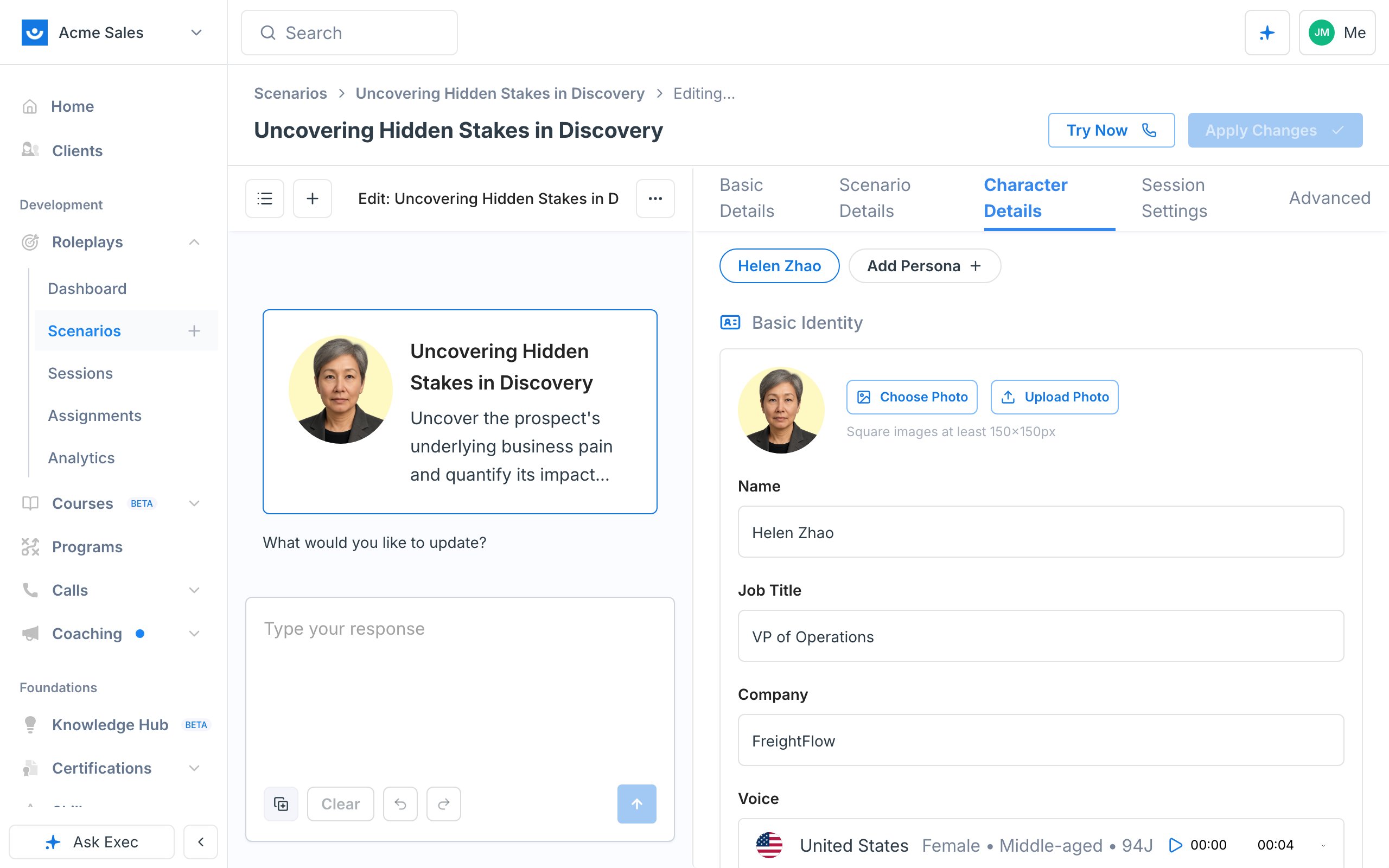
Session Settings
These control the format of the call rather than its content: what language it happens in, what the learner can see and share, and how the call opens.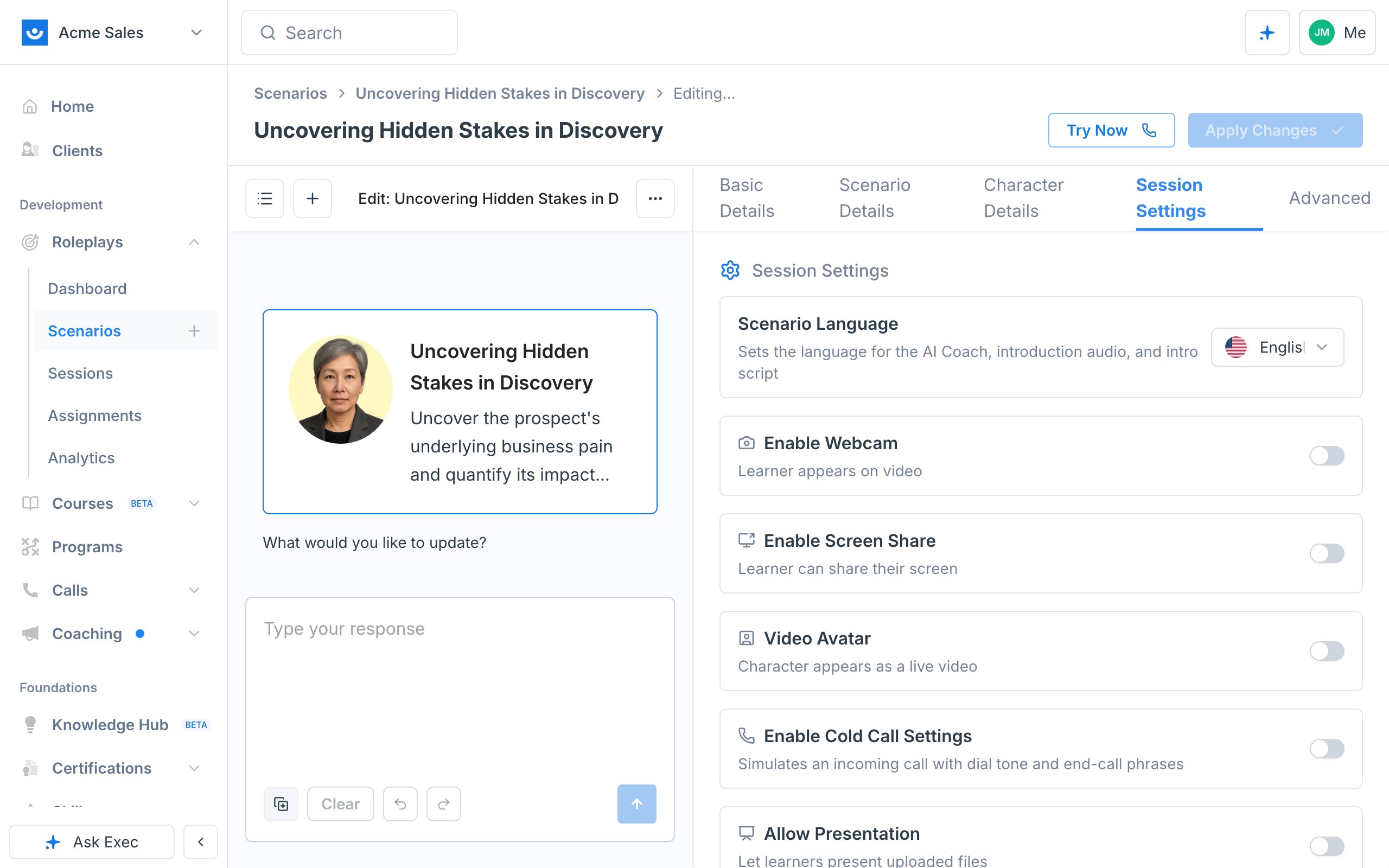
If you turn on the phone ring, update the character’s opening line to sound like they’re answering a call (“Hello, this is David”). The default opening assumes the conversation is already underway.
Basic Details
The Basic Details tab is how the scenario is presented in your library rather than how it runs: a short Scenario Description learners read before starting, an optional Introduction Audio narration generated on publish, a Difficulty label, and Tags for filtering.Video Avatar
Turn on Video Avatar in Session Settings to have the character’s photo animate as a live video during the call. Learners see a talking face in the persona tile instead of a still photo, and the speaking ring lights up on whichever character is talking. When to use it- Interview practice, panel scenarios, or any conversation where reading the character adds pressure.
- Scenarios you’ve already given a strong photo and voice — the avatar animates whatever headshot the character already has.
- The character’s existing photo (headshot library or custom upload) is animated live. No extra setup, no separate video file.
- In multi-persona scenarios, every character gets its own avatar so panelists appear side by side in their own tiles.
- If a character is missing a photo, the session automatically falls back to voice-only for that call.
Video Avatar is off by default. Turn it on per scenario in Session Settings, click Apply Changes or Publish, and the next session (including Try Now) uses the avatar.
Multi-Persona Scenarios
Some conversations have more than two sides — a champion plus a skeptical VP, a panel interview, or a manager and HR partner in an escalation. Add up to three extra personas from the Character Details tab so the learner practices the group dynamic in one session. See Multi-Persona Scenarios for the full setup.Conditional Context
Conditional context makes the character behave differently depending on the learner’s profile field (for example, their segment). A sales character’s pain points might differ for Enterprise vs. SMB vs. mid-market, so you can write per-segment rules and the learner is asked to pick their segment before starting.Conditional context lives on the Advanced tab and requires an admin to first create profile fields in workspace settings. See Profile Fields and Conditional Context. Many teams instead just build separate copies of a scenario per segment, which is often simpler.
Create Variations with Remix
Use Remix when you want a new variation of a scenario while keeping the original intact (and its session data preserved). From the ”…” menu, choose Remix to copy the scenario and reopen it in Studio, then prompt the change you want:- A part two: “I just spoke with Daniel; now we’re meeting again to follow up on what we discussed.”
- A harder version: “Keep the same character and context, but make Daniel ruder and more difficult, and make the grading stricter.”
- The next scenario in a series: re-attach the same Knowledge Hub sources and say “I already built scenario one from these outlines; now build scenario two.” This is the fastest way to produce a full course or program’s worth of scenarios, and it keeps them consistent because each one starts from the last.
Remix is for creating a separate variation, not for changing a live scenario. To update an existing published scenario, use Edit instead (the pencil icon or ”…” menu > Edit Scenario), which reopens it in Studio and saves back to the same scenario with Apply Changes. See Edit a Scenario and Remix a Scenario.