

Linking a Certification to a Program
You can link a certification when creating a program or add one later.When Creating a Program
During program creation, use the Certification dropdown to select an existing certification. If you do not have any certifications yet, create one first.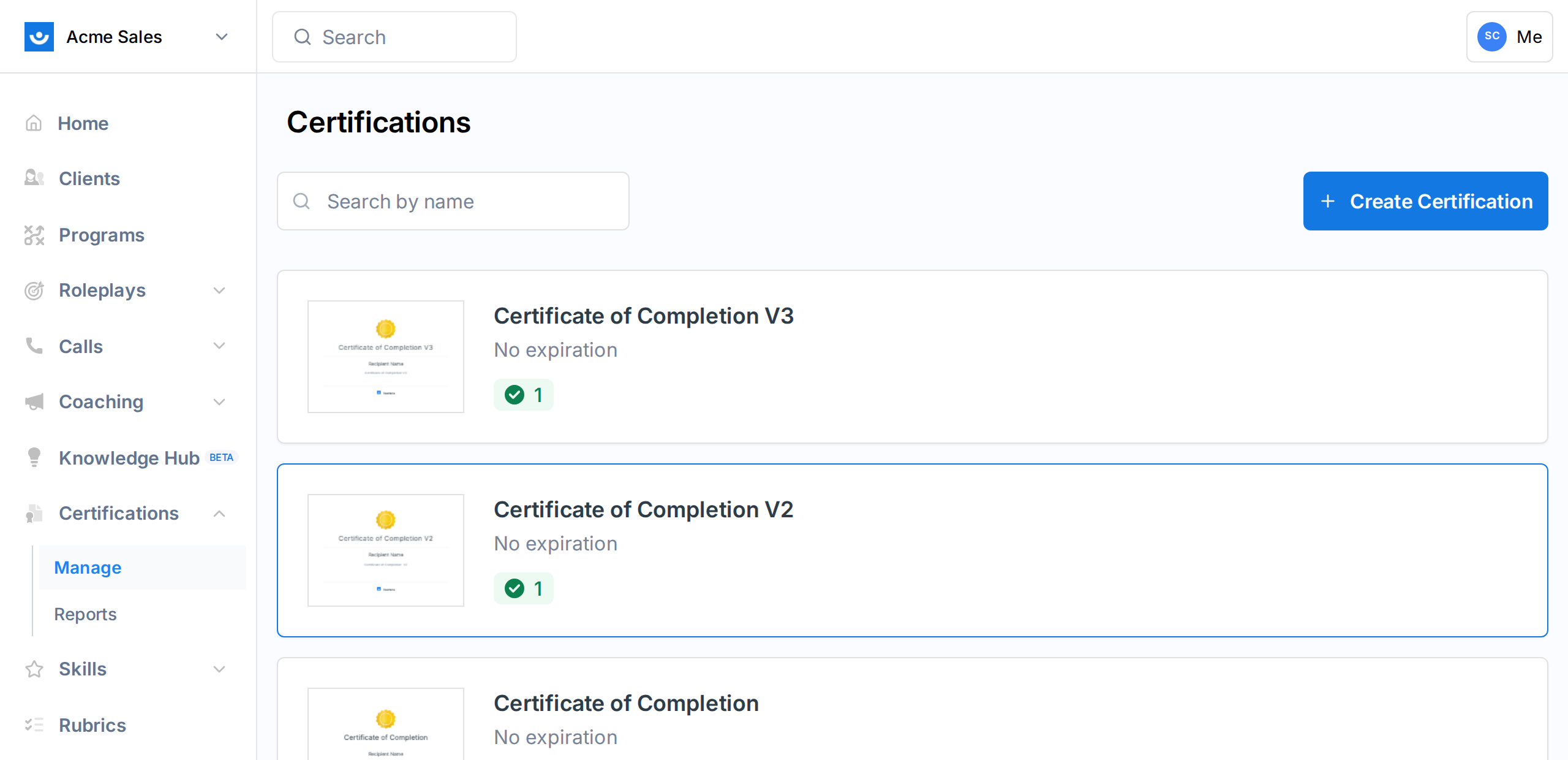
After Creating a Program
From the program dashboard, the certification pipeline card on the right panel shows an Add Certification button if no certification is linked.Certifications must be enabled for your workspace. If you do not see the certification option, contact your Exec account manager.
How Automatic Certification Works
When you end a program that has a linked certification, Exec evaluates each participant:- Required components are checked: Every component that is not marked as optional is evaluated. Announcements, group meetings, and coaching intro sessions are excluded from this check.
-
Status is determined:
- Complete: The participant finished all required components. A certificate is automatically issued.
- Did Not Pass: The participant did not finish all required components. No certificate is issued.
-
Certificates are issued: For participants who passed, a certificate is created with:
- The certification name and details
- Issue date (when the program ended)
- Expiration date (based on the certification’s validity period settings)
- A unique downloadable certificate
- Notification emails are sent to participants with their completion status.
If a participant already has an active certificate for the same certification (from a previous program, for example), the old certificate is revoked and replaced with the new one.
The Certification Pipeline
The certification pipeline is a dashboard that tracks participant progress toward certification across all programs linked to a specific certification.Accessing the Pipeline
There are two ways to view the pipeline:- From the Certifications page: Click on a certification to see its full pipeline dashboard
- From a program dashboard: The certification pipeline card on the right panel shows a summary for participants in that specific program
Pipeline Statuses
Each participant in the pipeline has one of four statuses:Pipeline Statistics
The pipeline dashboard shows four summary cards at the top:- Enrolled: Total number of participants in the pipeline
- On Track: Count of participants progressing on schedule
- Off Track: Count of participants with past-due work
- Did Not Pass: Count of participants who failed to meet criteria
Pipeline Participants Table
Below the statistics, a table lists all participants with:
You can filter participants by name, group, or program. All columns are sortable.
In-Program Pipeline View
When viewing a program with a linked certification, the right panel shows a Certification Pipeline Card with:- The certification name
- A visual progress grid showing each component’s status as a colored badge:
- Components the participant has completed
- Components in progress
- Components not yet started
- Announcements are excluded from this view
- An overall status label: “On Track,” “Off Track,” “Not Started,” or “Certification Criteria Not Met”
Program Completion Banner
When a program ends, participants see a completion banner on their dashboard showing:- Their certification status (passed or did not pass)
- A certificate preview if they were certified
- The certification name and validity dates