

Creating a page
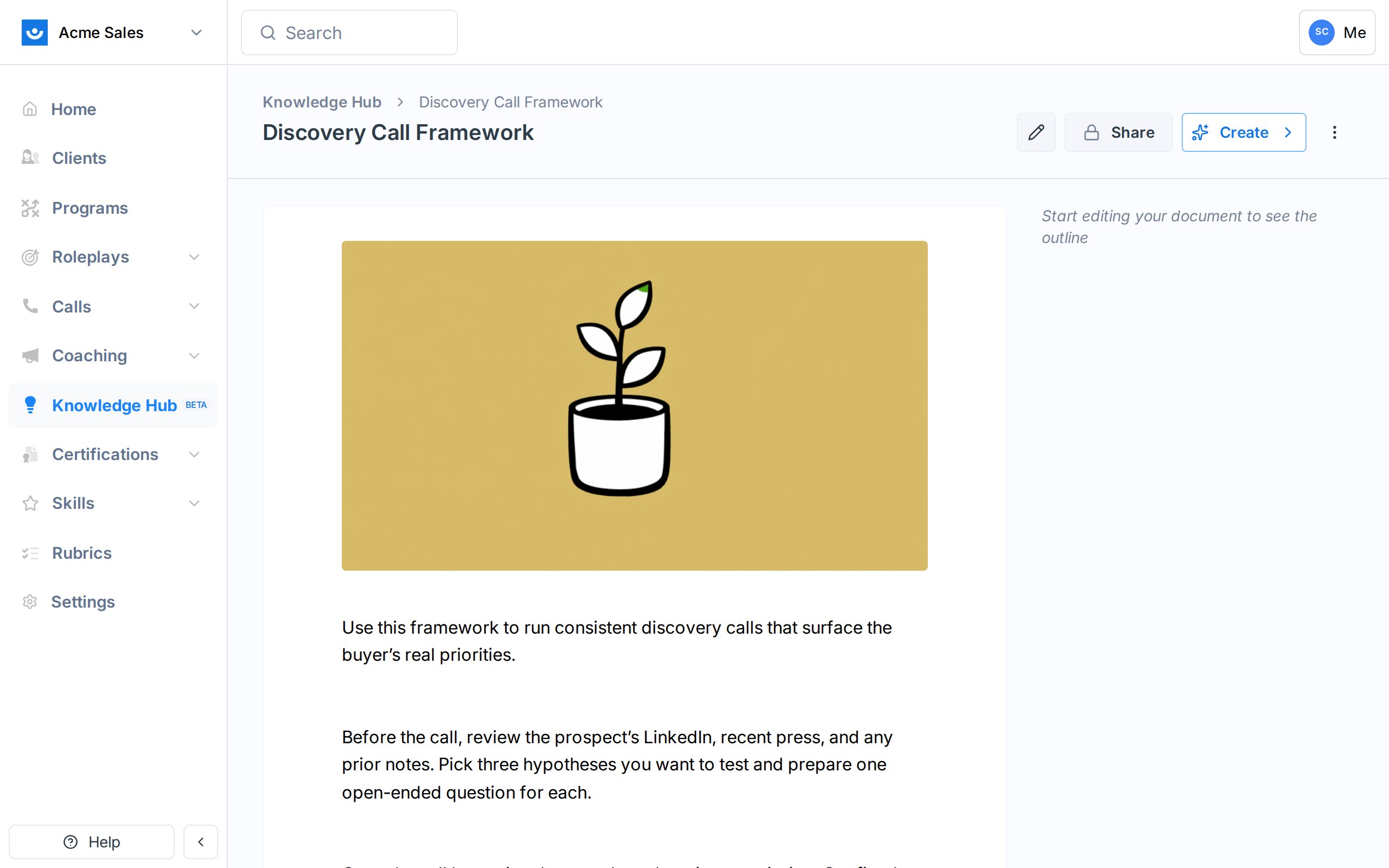
From inside any hub, open the + Add menu and choose New Page. The page opens in the editor with two panels.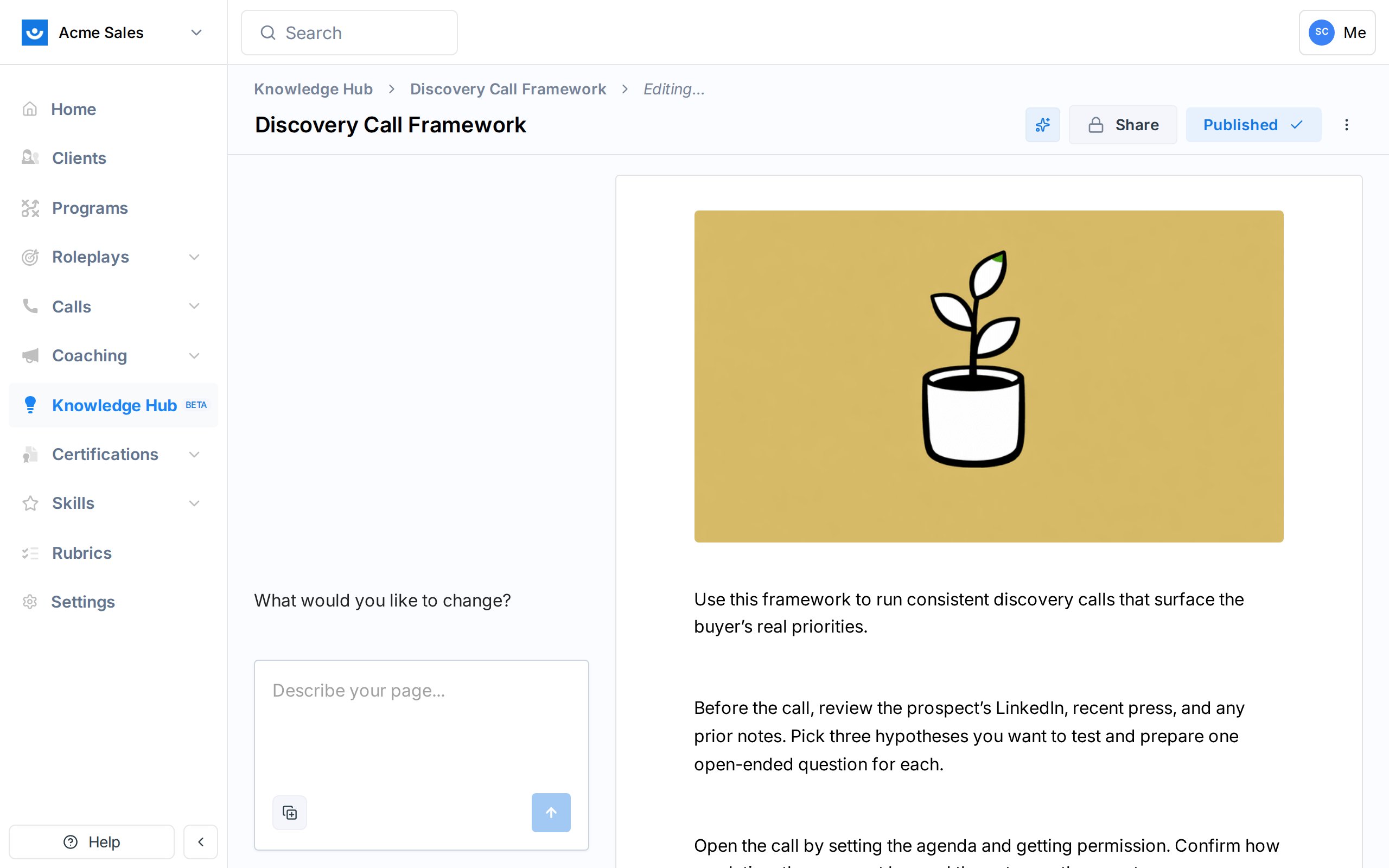
/ to open the command menu for headings, lists, tables, and other blocks.
The left panel is the AI agent. You can describe what you want the page to say and the agent will draft it for you, or ask the agent to refine what you have already written.
Drafts and published versions
Every page has two states that live side by side:
When you click Publish, the current draft is snapshotted into a new published version. The draft continues to exist for your next round of edits.
Version history
Every publish creates a new version. Earlier versions are kept, so you can review what a page looked like at any point and restore an old version if a later edit needs to be rolled back. Versions include who published them and what change was made. Restoring a version creates a new draft from the old content. You still need to publish it to make it live, which gives you a chance to reconcile it with anything that changed in between.Cover images
Every page gets a cover image at the top. New pages get a default illustration. To change it, click Add Cover Image at the top of the page and upload an image, or use the built-in generator to create a cover based on the page’s title and content.Formatting
The editor supports the blocks you would expect from a modern document tool:- Headings (H1, H2, H3)
- Bulleted and numbered lists
- Tables
- Code blocks
- Links
- Bold, italic, strikethrough, and inline code
/ at the start of a new line to open the block menu, or use markdown shortcuts (for example, ## for a heading or - for a list).
Downloading a page as PDF
Once a page has a published version, you can export it as a branded PDF from the page’s... menu. Select Download PDF and your browser downloads the file when it is ready.
The PDF contains the currently published version, so unpublished draft edits are not included. Republish the page first if you want your latest changes in the export.
The export includes the page’s title, description, and cover image, and preserves formatting such as headings, lists, tables, code blocks, callouts, toggles, tabs, and text and highlight colors. Interactive blocks that cannot render on paper are flattened: video embeds become a link, mermaid diagrams print as their source, and tabs, flip cards, and carousels stack their content so nothing is hidden.
Archiving a page
When a page is no longer useful, archive it from the page’s... menu. Archived pages are hidden from the library and from search, but they are not deleted; you can restore them later if you change your mind.