

Program Dashboard
The dashboard is the first thing you see when you open a program. It gives you a high-level view of all components organized by their current status.Component Status Groups
Components are grouped into collapsible sections:
Each component card shows its type, name, dates, and a completion summary.
Lead View vs Participant View
Program leads and participants see different things on the dashboard:
If you are both a lead and a participant in the same program, you see both views with sections labeled “(As Participant)” for your participant-specific content.
Right Panel
The right side of the dashboard shows:- Quick Actions (leads only): Buttons to add components and participants
- Certification Pipeline (if a certification is linked): Progress visualization showing component completion status
- Program Leads: List of current leads with the ability to add or remove leads
- Exec Contact: Your Exec account manager, if assigned
Program Details
Click the Program Details tab for a more analytical view of your program.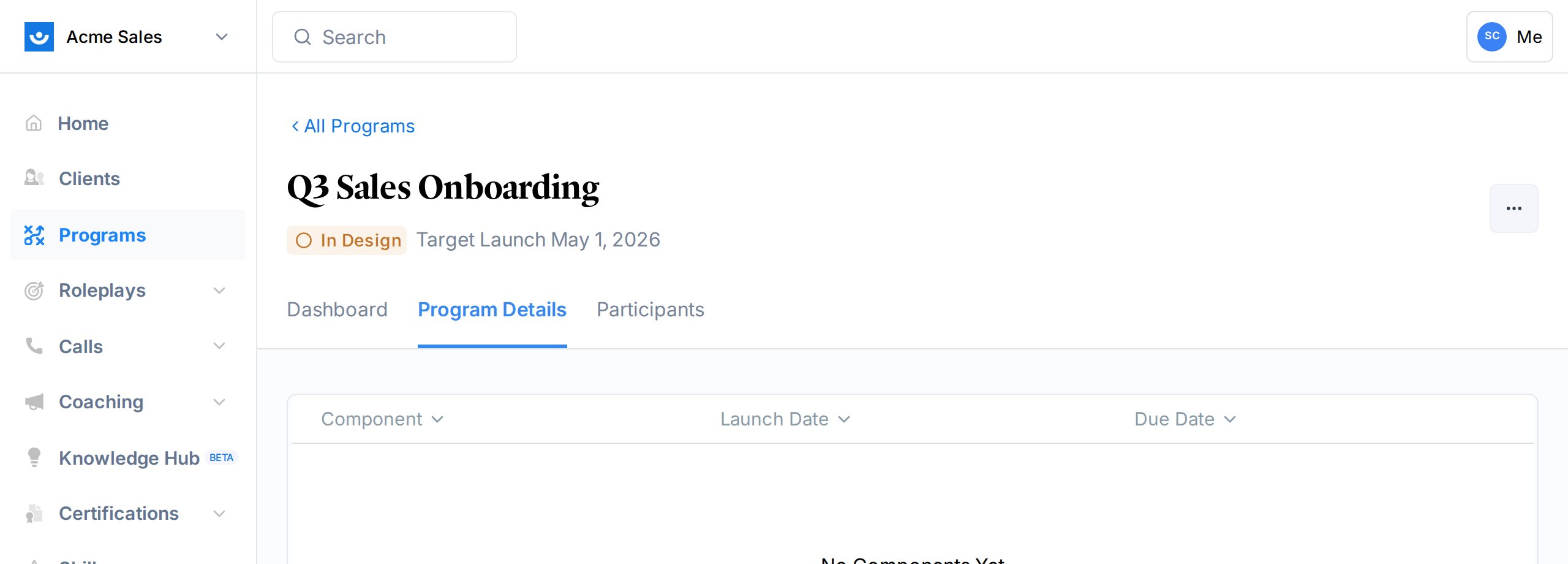
Default View: Timeline and Table
The default details view shows two things:- Program Timeline: A visual timeline showing when each component starts and ends. Switch between month and day views using the dropdown.
- Component Table: A sortable table with columns for component name, launch date, due date, and close date (close date visible to leads only).
Filtered Views by Component Type
Use the tabs to filter components by type:- Surveys - All survey components
- Action Items - All action item components
- AI Roleplays - All roleplay components
- Videos - All video components
- Articles - All article components
- Announcements - All announcement components
- Group Meetings - All group meeting components
Component Analytics
Click on any component from the details view to see its analytics. What you see depends on the component type.Surveys and Action Items
For survey and action item components, the analytics page shows:- Completion statistics: How many participants have responded vs total
- Per-question breakdown: Each question shown as a collapsible card with:
- Response counts (completed, no response, not started)
- Top answers
- Expandable table of each participant’s response
AI Roleplays
For roleplay components, you see:- Performance by scenario: Each scenario with a breakdown of participant ranks:
- Gold, Silver, Bronze, and Unranked counts
- Visual progress bar showing the rank distribution
- Per-participant performance: Expandable section showing each participant’s rank and number of attempts per scenario
1:1 Coaching
Coaching components have the most detailed analytics:- General statistics: Total participants, on-track percentage, average rating, completed sessions, total credits spent, active coaches
- Session list: Individual coaching sessions with dates, duration, coach, and participant
- Coaches table: Each coach with their assigned sessions, completed sessions, and completion rate
- Session feedback: Participant feedback and ratings from coaching sessions
- Credit usage: Breakdown of credits spent, scheduled, and forfeited across sessions
Participant Response Table
All component types include a participant table showing:
For a program-wide view with a progress bar per participant, a “needs more time” banner, and per-row Extend Time / Remove Extensions actions, use the Participants tab instead. See Manage Program Participants.
Exporting Program Data
Program data is included in Exec’s session data exports. When you export session data from Settings > Export Data, the CSV includes aprogram column showing which program each session belongs to.
Learn about exporting data ->
Keeping Participants on Track
When participants fall behind, you have several tools:
Learn more about nudges and extensions ->