

Video walkthrough
This page covers the basics of building a scenario. When you’re ready to go deeper, see Advanced Roleplay Building.
Before You Build: The Four Pillars
Whichever build method you use, think through these four things first. They are all the agent really needs to build something effective.1. The Situation
1. The Situation
Who is involved and what kind of conversation is this?
- What role does the learner play (SDR, AE, manager, support rep)?
- Who is the AI character (their role and company)?
- What type of conversation is it (cold call, scheduled meeting, coaching session)?
2. The Conversation Goal
2. The Conversation Goal
What is this conversation meant to achieve? A clear goal tells the agent where the conversation starts and where it should end.
- Sales discovery: book a follow-up or formal demo, or practice effective discovery
- Coaching: agree on next steps or a new habit
- Customer service: resolve the caller’s issue
3. The Definition of Good
3. The Definition of Good
What does a strong rep do here? For example, asking questions that quantify business impact, or guiding the character to their own conclusions rather than telling them what to do.
4. The Challenge
4. The Challenge
What makes this hard for the learner? A difficult character, a complicated situation, or simply a new concept they’re practicing for the first time (like an onboarding scenario).
Open Scenario Studio
From your dashboard, click Roleplays, then Create Scenario in the top right. You can also use the + beside Scenarios in the left sidebar, which opens Scenario Studio directly.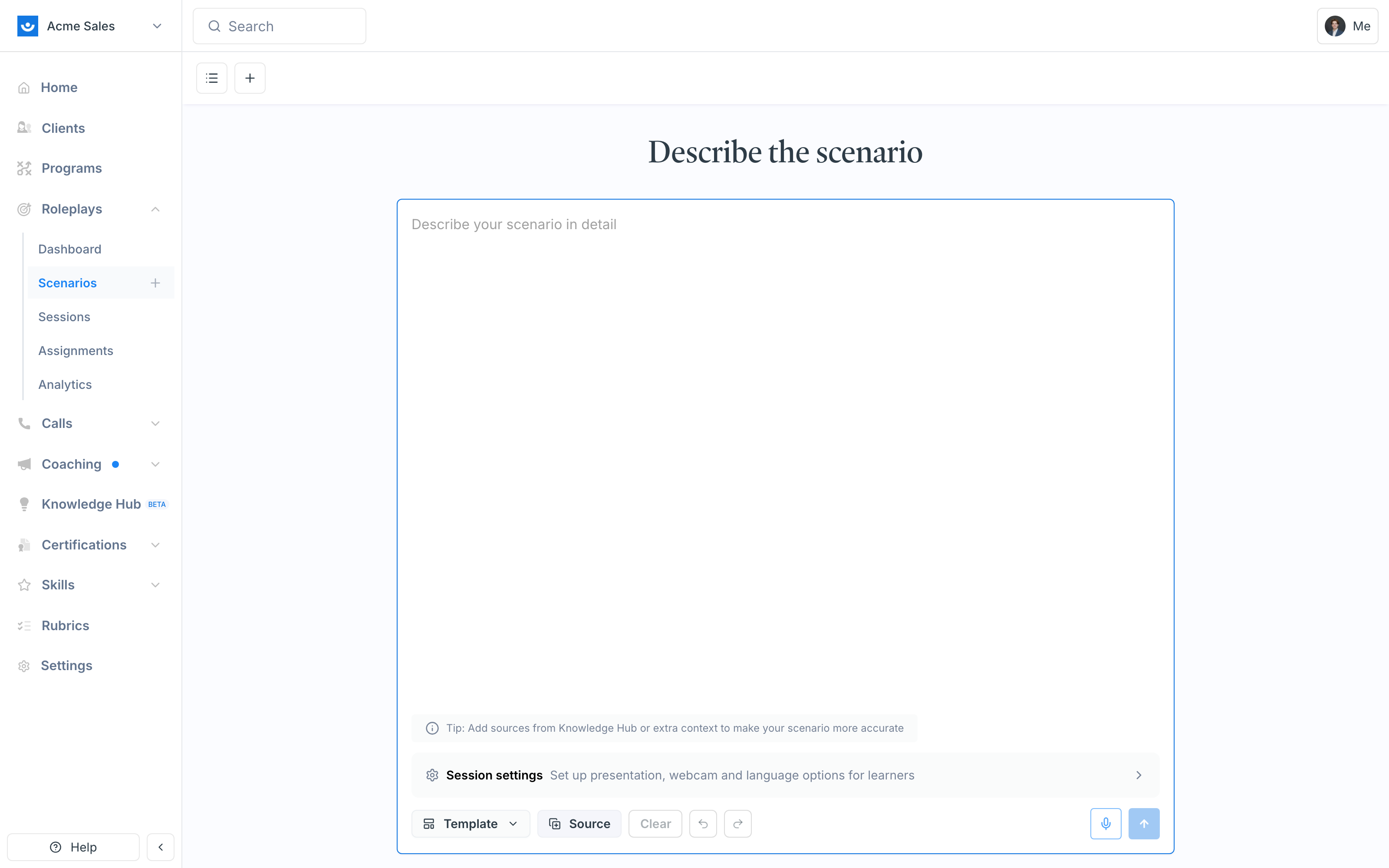
Three Ways to Build
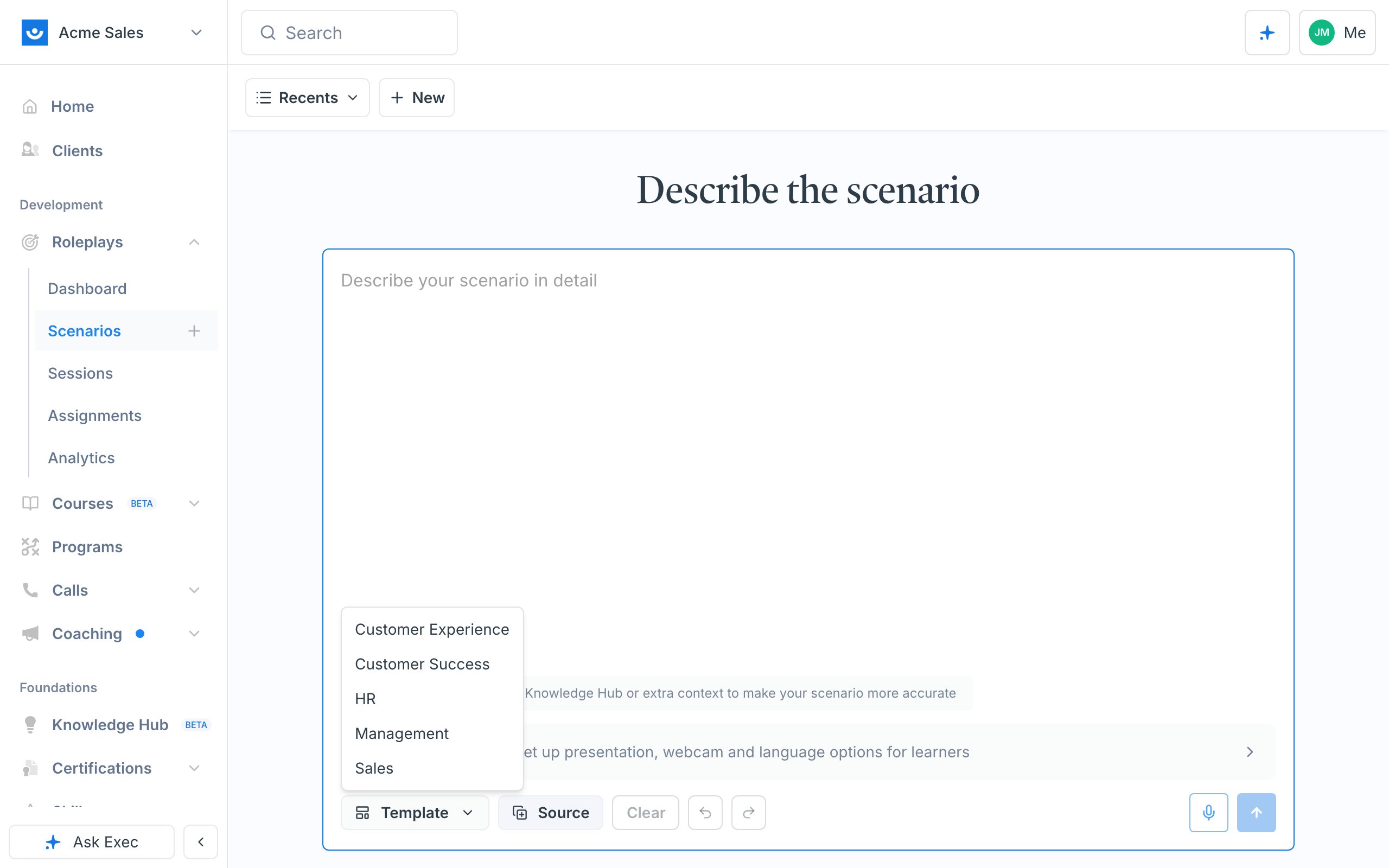
Below the prompt box you’ll find the controls for three build methods. Pick whichever suits you.- Voice Setup - talk back and forth with the agent over voice (the mic icon by the send button). The most beginner-friendly option: brainstorm out loud for a few minutes, click the green End button, and you land on a drafted scenario.
- Chat / Text - type your scenario into the prompt box. The most common method. You can attach sources to speed things up or teach the agent your methodology (see below).
- Templates - start from a conversation template and fill in the blanks. The built-in set is grouped by function (Customer Experience, Customer Success, HR, Management, Sales), and you can build and import your own.
Give the Agent Sources
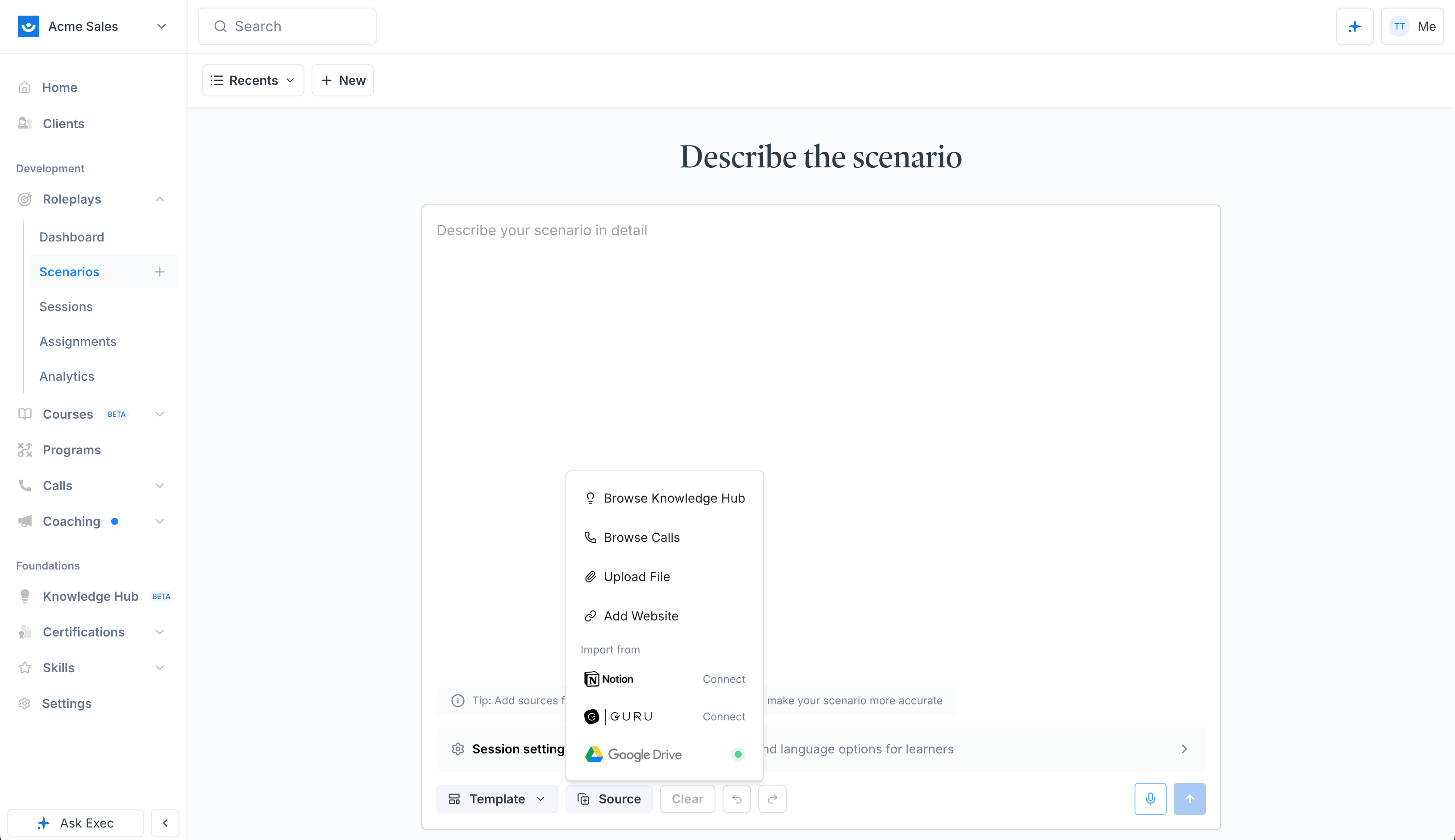
The agent researches on its own, but it builds faster and more accurately when you point it at your material. Open the sources menu below the prompt box:- Browse Knowledge Hub - pull in a page or source already in your workspace
- Browse Calls - use a real recorded call from call scoring as the basis for the scenario
- Upload File - attach a file straight from your computer
- Add Website - point the agent at a URL to research
- Import from - Notion, Guru, or Google Drive, if your workspace has connected them
How the Agent Builds
After you describe your scenario, the agent asks clarifying questions to make sure it builds something relevant (for example, which challenge to focus on, or how to describe the character’s personality). Answer them in plain language, or just tell it to build the whole thing now to skip ahead.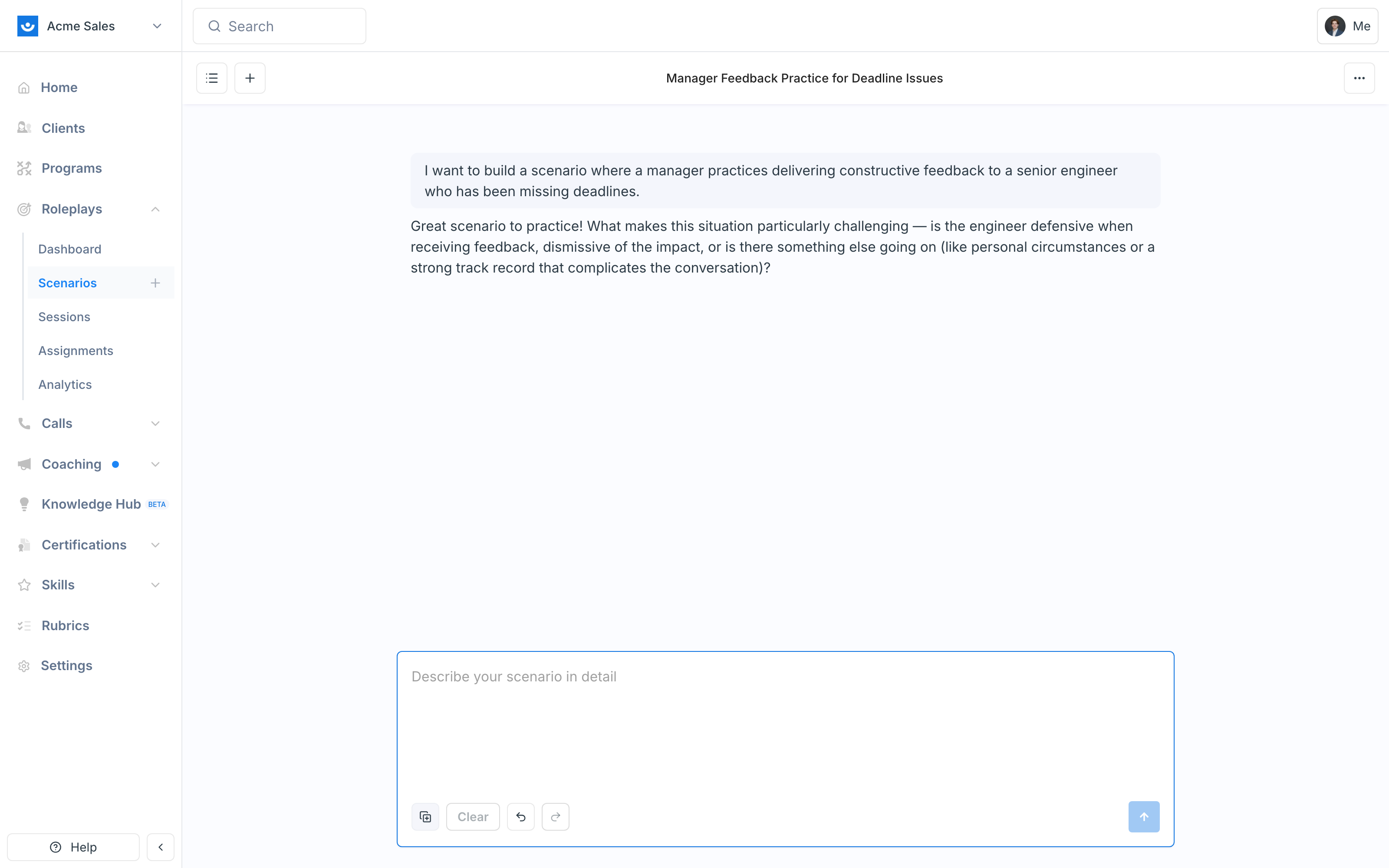
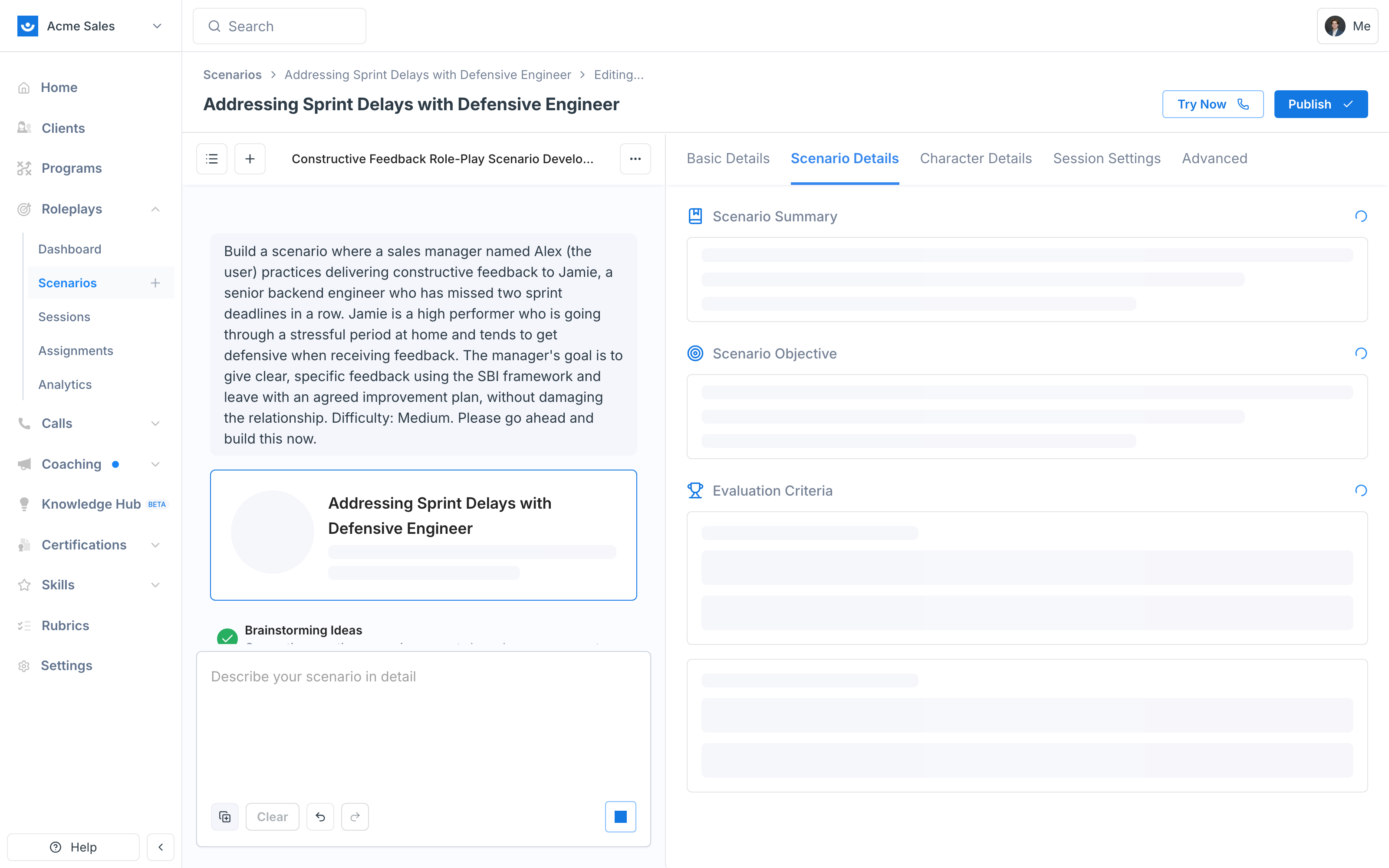
Review Your Draft
When the draft is ready, the panel on the right holds everything the agent built. Keep prompting on the left to make changes, or edit any field directly.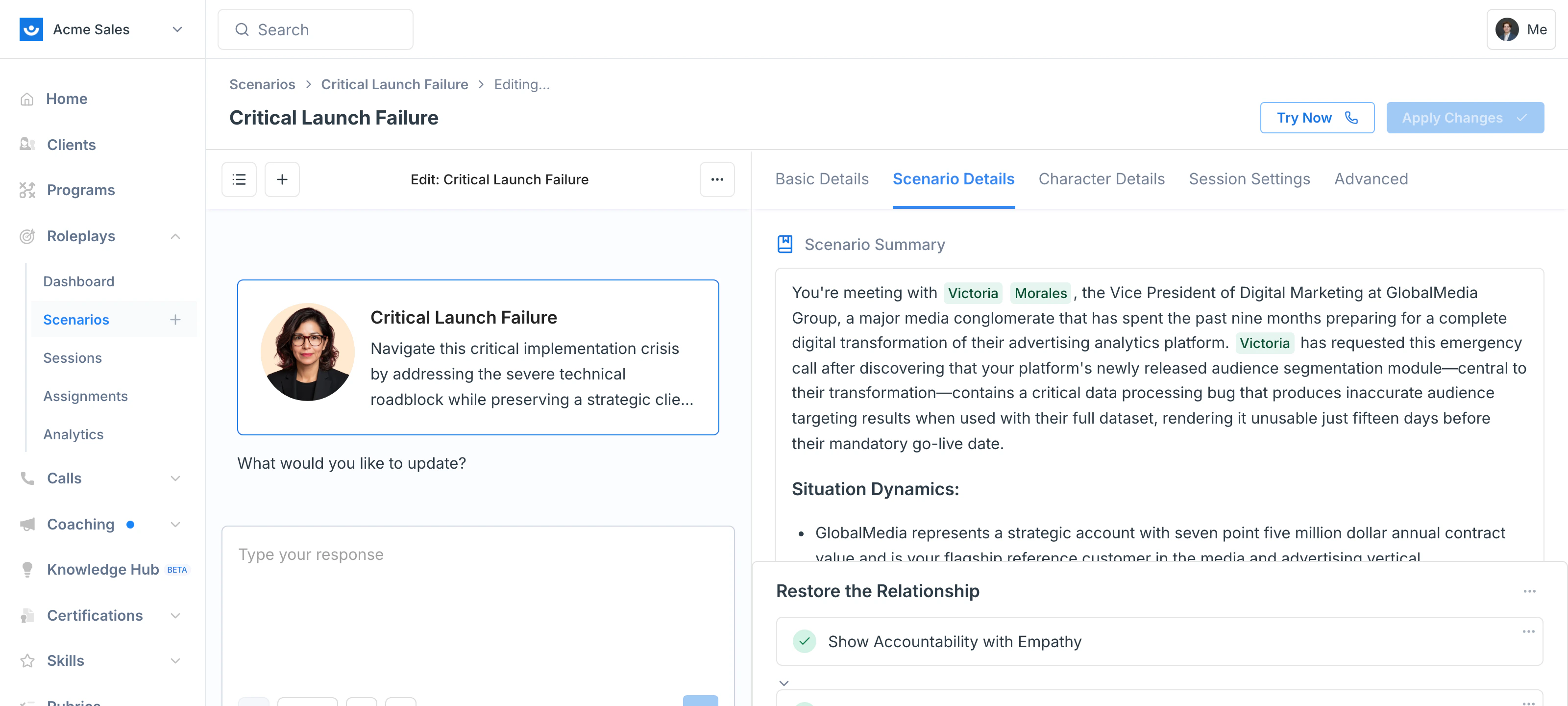
Start With the Gut Check
Read the first draft the way a learner would experience it and ask four questions. Almost every first-draft change comes out of these, not out of the individual fields.Does the scenario make sense?
Is this a conversation that actually happens at your company, with the right roles on both sides and a believable reason the two of them are talking?
Does the character feel right?
Do they sound like the people your team really meets? Too agreeable and there’s nothing to practice; too hostile and it stops being realistic.
Is this the right difficulty?
Match it to whoever is practicing. A new hire in their first week needs a cooperative character; an experienced rep needs real resistance.
Is it graded on what you care about?
Skim the evaluation criteria and ask whether a strong rep would score well and a weak one wouldn’t. Cut anything you wouldn’t actually coach.
What’s in Each Tab
The panel opens on Scenario Details. Every field in every tab is editable inline: change the wording and save.- Scenario Details
- Character Details
- Session Settings
- Basic Details
- Advanced
The situation the learner walks into, and how they’ll be graded.
How the grading math works. Each evaluation criterion item is graded Good, Fair, or Poor, worth 2, 1, and 0 points. The learner’s percentage is their points divided by the maximum possible (2 per item), and that percentage becomes their medal. Items the grader marks Not Relevant drop out of the calculation entirely, so they never count against the learner. If you ask the agent for “simpler grading,” it generally means fewer items. See Interpret Your Results.
Test, Then Publish
Click Try Now to drop into a short test conversation with the character before you commit. If something feels off, return to the chat and adjust (“make the character more skeptical,” “they’re giving away info too quickly”). When it feels right, click Publish.Share Your Scenario
Once published, decide who can use it:- Workspace - available to everyone in your organization
- Restricted - private to you, plus specific people you add by name. You can let someone view it, share it with their team, monitor session activity, or edit it alongside you as a collaborator.
Assign to a Team
To require completion, assign the published scenario to a group. You can set a due date, a minimum passing score, a minimum or maximum number of attempts, and a custom message delivered by email. Assignees find it at the top of their home screen. See Assign Scenarios and Manage Assignments.Edit After Publishing
To change a live scenario, click the pencil icon (or the ”…” menu > Edit Scenario) to reopen it in Scenario Studio. Prompt the agent on the left or edit fields inline, then click Apply Changes. Before saving, you’ll see a before/after view of exactly what changed, so you can keep the parts you like and re-adjust the rest. See Edit a Scenario.Clone and Remix
From the published scenario’s ”…” menu:- Clone - make an exact copy you can use independently
- Remix - copy the scenario and reopen it in Studio to build a new version (for example, a part two, or a harder variation)