

Before You Start
- The rubric you want to import must already exist in your workspace
- You must have editing access to the roleplay
How to Import a Rubric
1
Open the Evaluation Criteria section
Open the roleplay you want to update, navigate to the Evaluation Criteria section, and click Edit.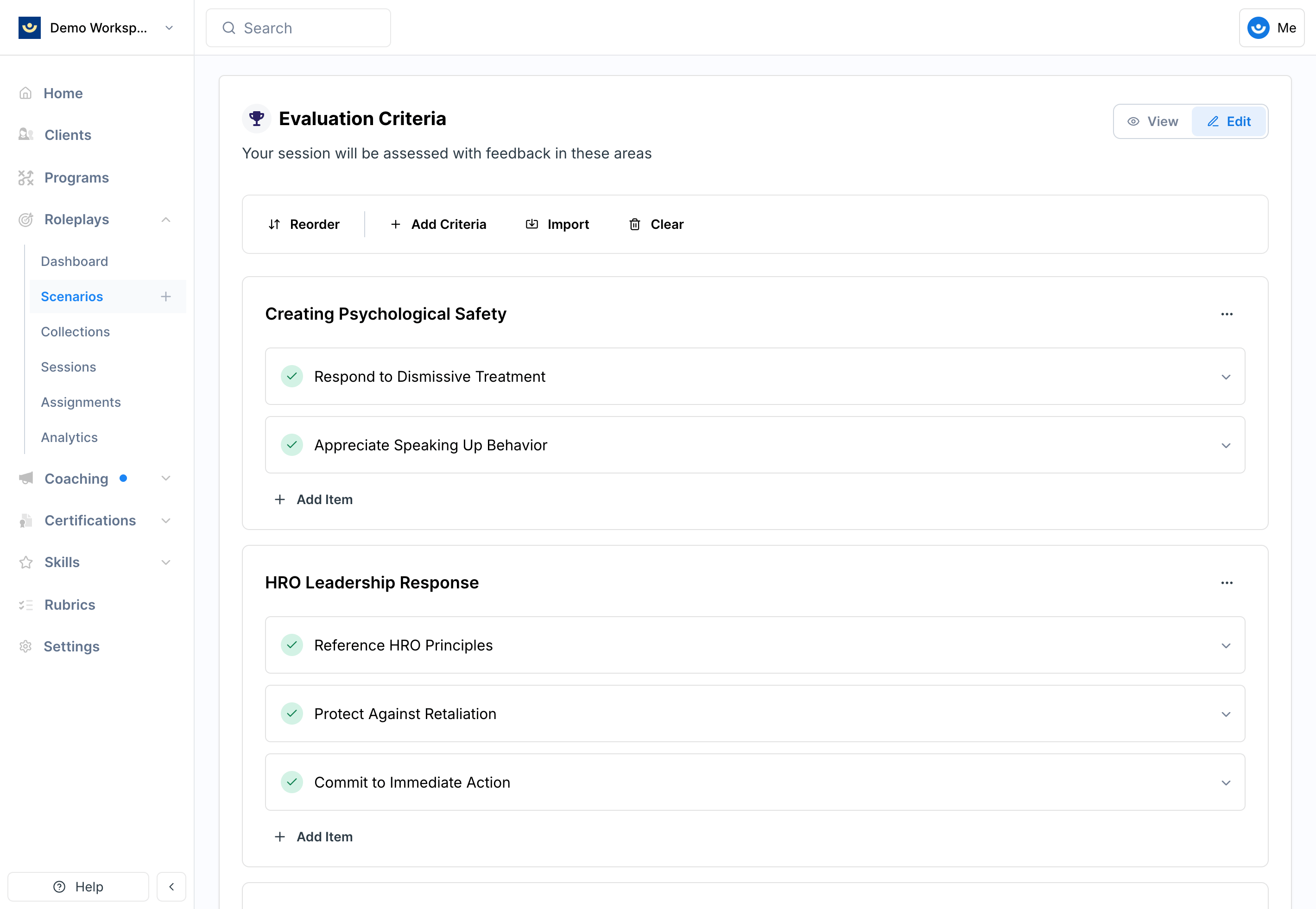
2
Decide how to handle existing criteria
Before importing, decide whether you want the rubric to replace or add to the current criteria:
- Replace — clear existing criteria first so the imported rubric is the only evaluation framework
- Add — leave existing criteria in place and the imported items will be added alongside them
3
Click Import and find your rubric
Click the Import option in the evaluation criteria section, then use the search field to find and select the rubric you want.
4
Preview and select categories
Before finalizing, preview the rubric to see all available categories. You can import all of them or select only the criteria relevant to this roleplay. Click Add to Scenario when ready.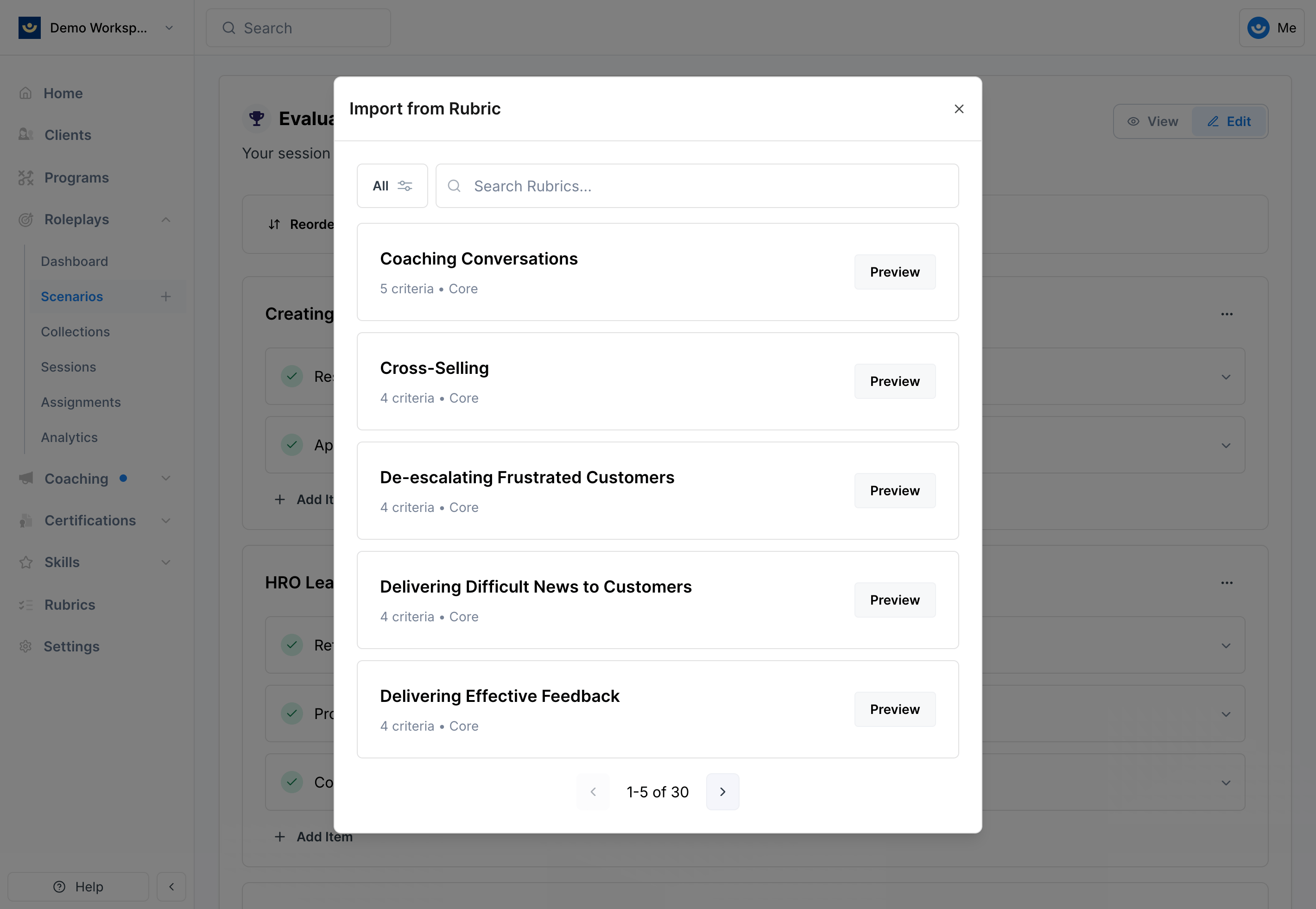
5
Review the imported criteria
The selected criteria will appear in the roleplay exactly as defined in the rubric. You can click the link to the original rubric to review scoring definitions or make edits if needed.
Tips
- Name rubrics clearly so they’re easy to find during import
- Remove redundant criteria before importing to avoid overlap with existing items
- Preview categories carefully — importing only what’s relevant keeps evaluations focused