

Add a Quiz to a Page
1
Insert the block
In the course editor, open the slash menu on any page and choose Quiz. See Add Content Blocks for how blocks work in general.
2
Choose how to build the questions
The block offers two tabs: Build from scratch to write questions yourself, or Generate with AI to draft them for you.
3
Configure the settings
Set the passing score, the maximum attempts, and whether the quiz renders inline on the page.
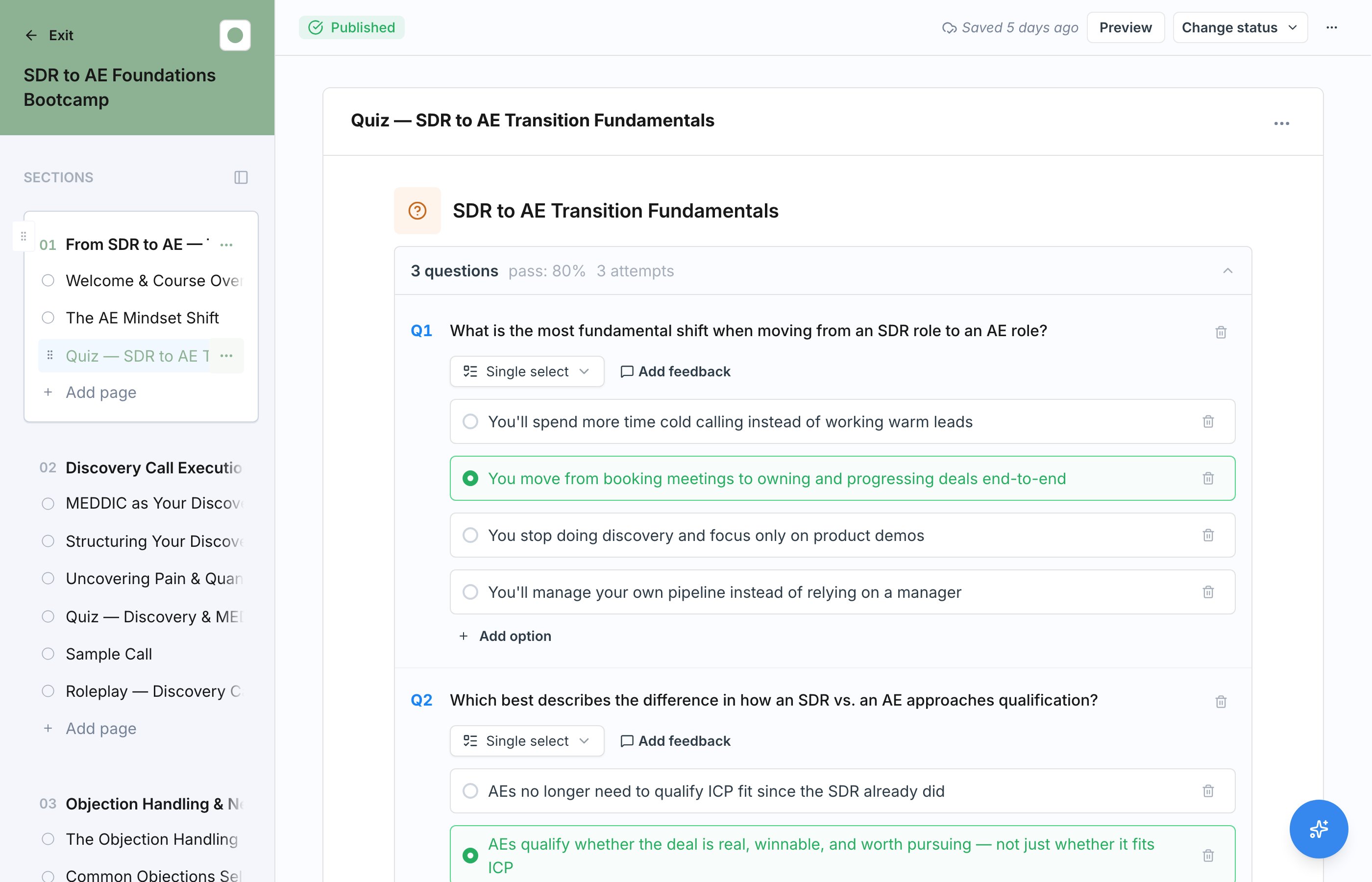
Generate Questions with AI
On the Generate with AI tab, choose what the quiz should cover:- This page generates questions from the content of the current page.
- This whole section generates questions from every page in the section, useful for an end-of-section check.
Quiz Settings
Open the quiz’s block settings to change any of these.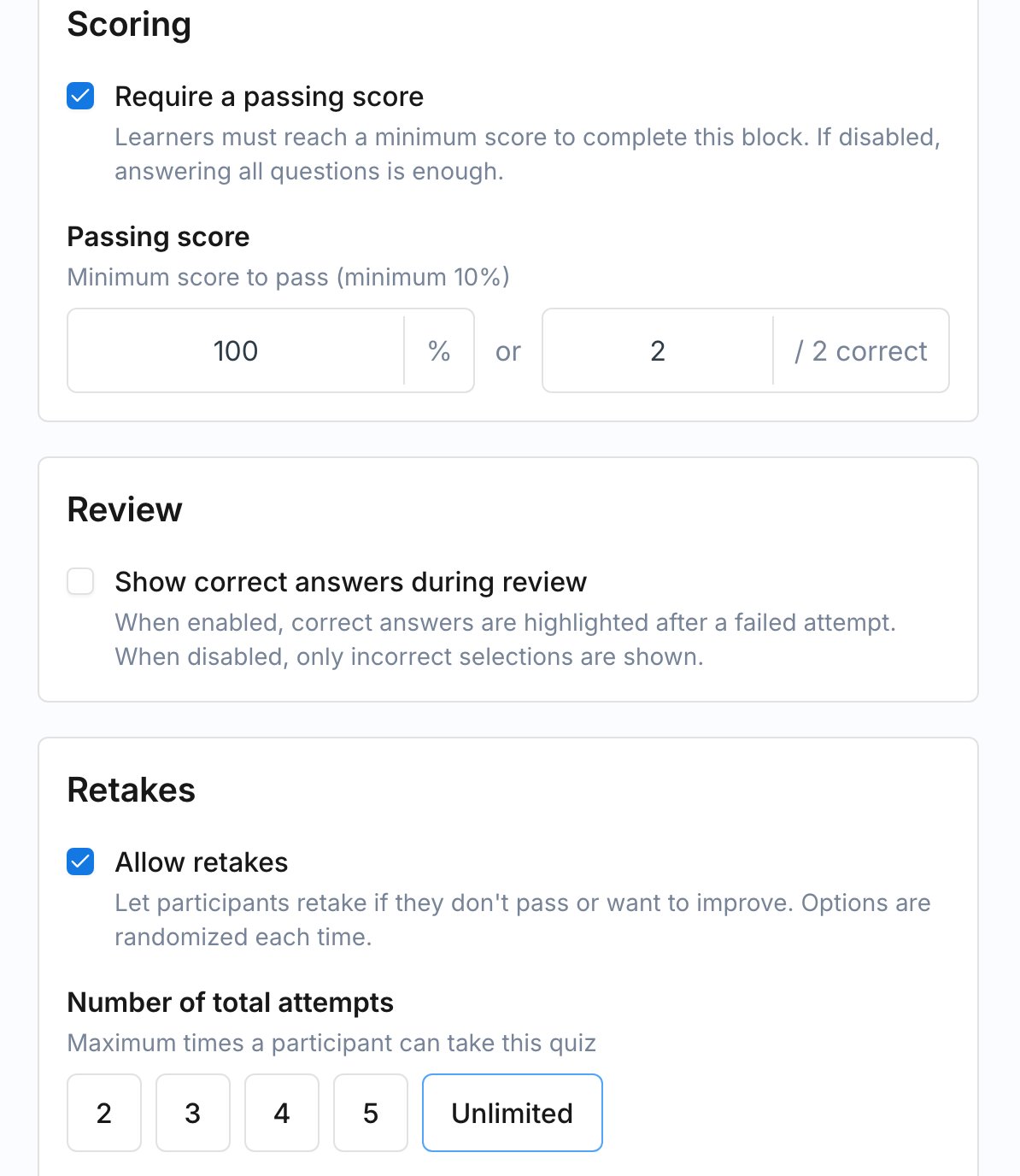
What Learners See
In the course player, the quiz shows the percentage needed to pass and how many attempts remain. After submitting, learners see Passed or Did not pass along with their remaining attempts, and can choose:- Review Mistakes to see which answers were wrong
- Try Again to use another attempt
- Continue to move on after passing
Mark the block Optional if the quiz is for self-assessment only and should not block completion.