

Find a Course
Head to the Courses dashboard to see everything in one place:- Currently Enrolled shows the courses you are already working through.
- Course Catalog shows courses open for self-enrollment.
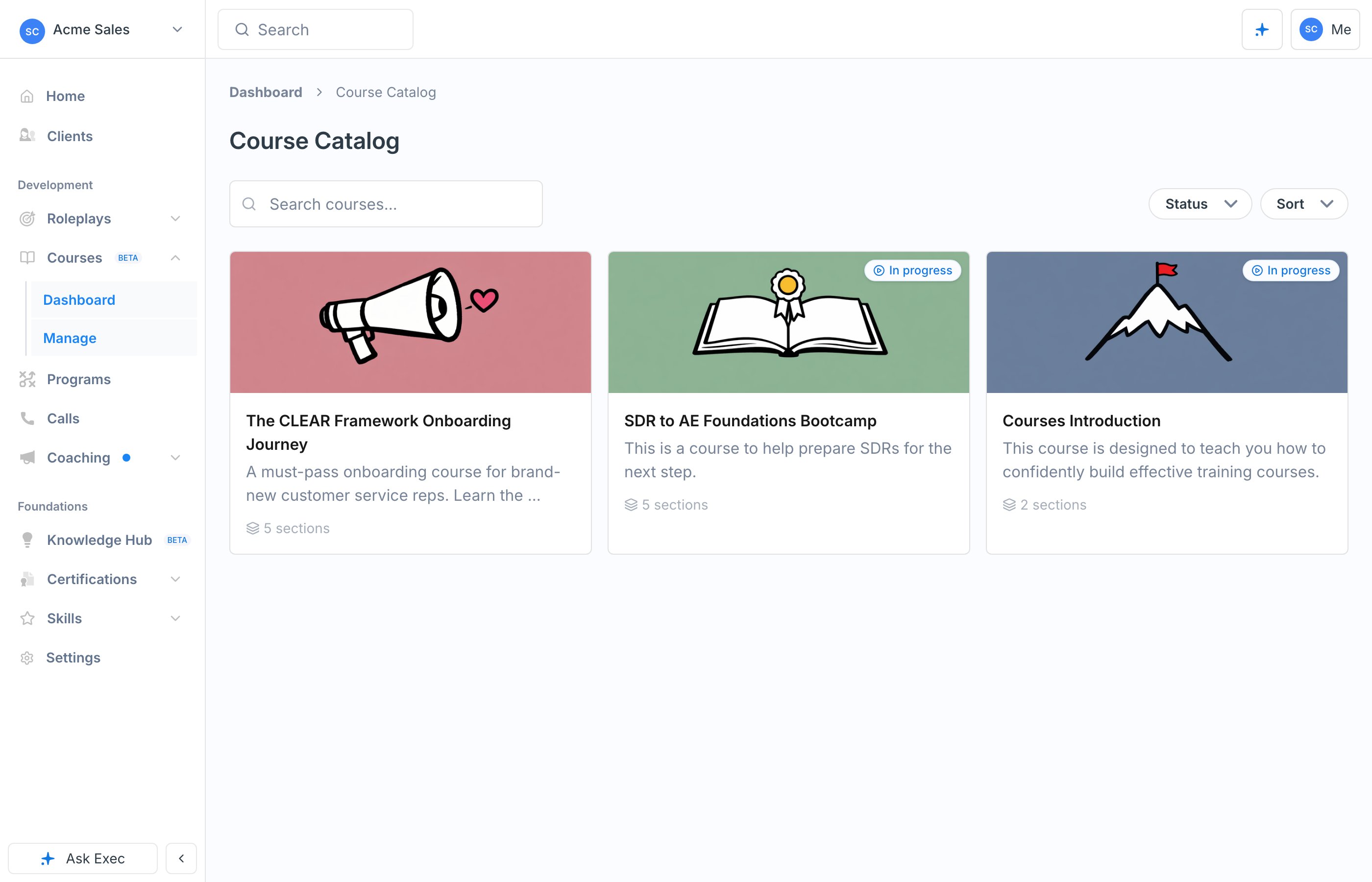
Some courses are assigned to you directly by an admin, sometimes with a due date. Those appear under Currently Enrolled automatically, no enrollment step needed.
Work Through the Course
Courses open in a full-screen player. Each page holds the content for one step: text to read, videos to watch, quizzes, roleplays, and more. The bar at the bottom tells you exactly where you stand: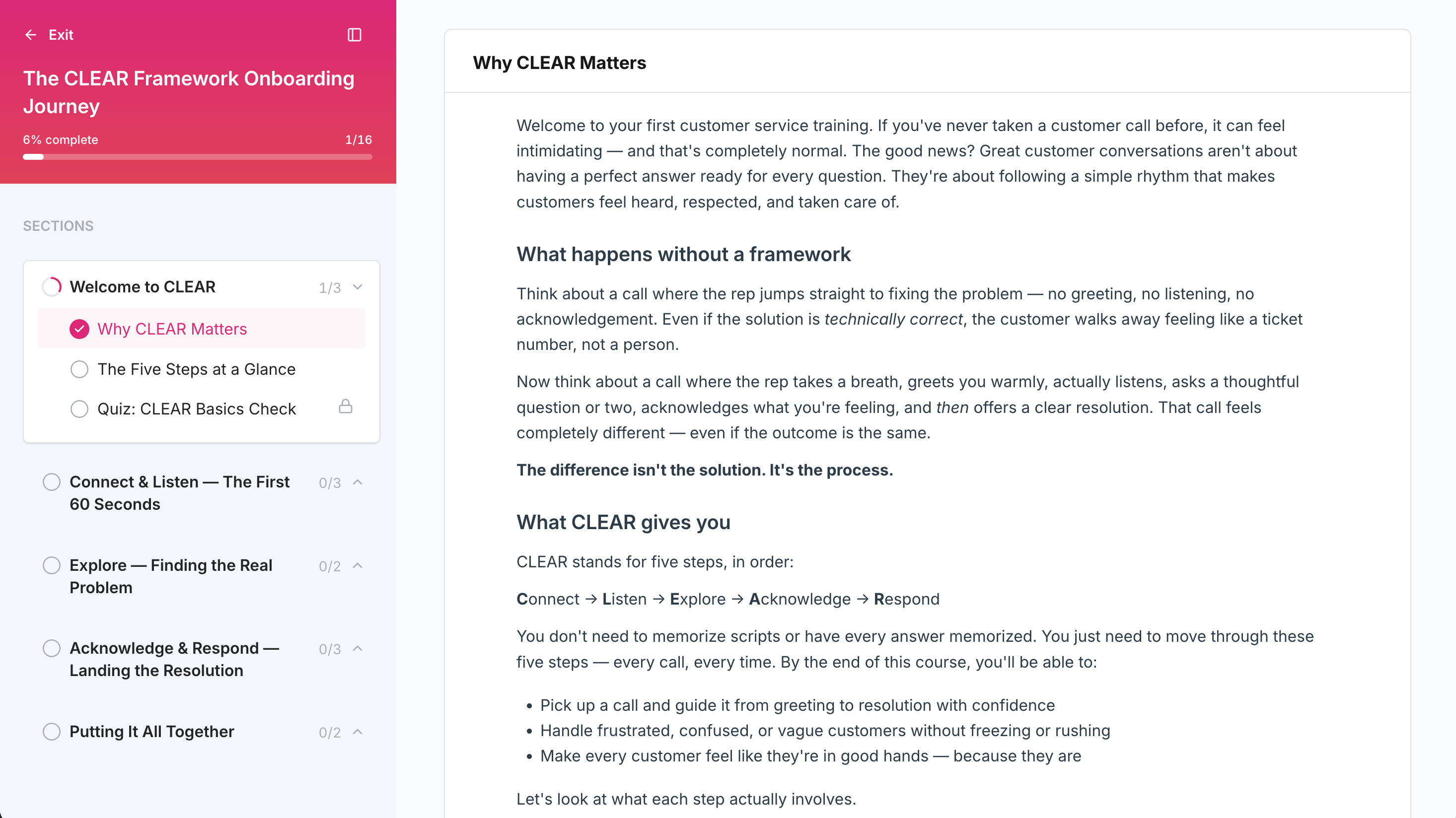
- Continue to page or Complete Section appears when you’ve met the page’s requirements and can move on.
- Finish this page to continue means something on the page still needs your attention, like a video you haven’t watched enough of or a quiz you haven’t passed.
Pass Quizzes
Quizzes show the % to pass and how many attempts you have up front, so you know the target before you start.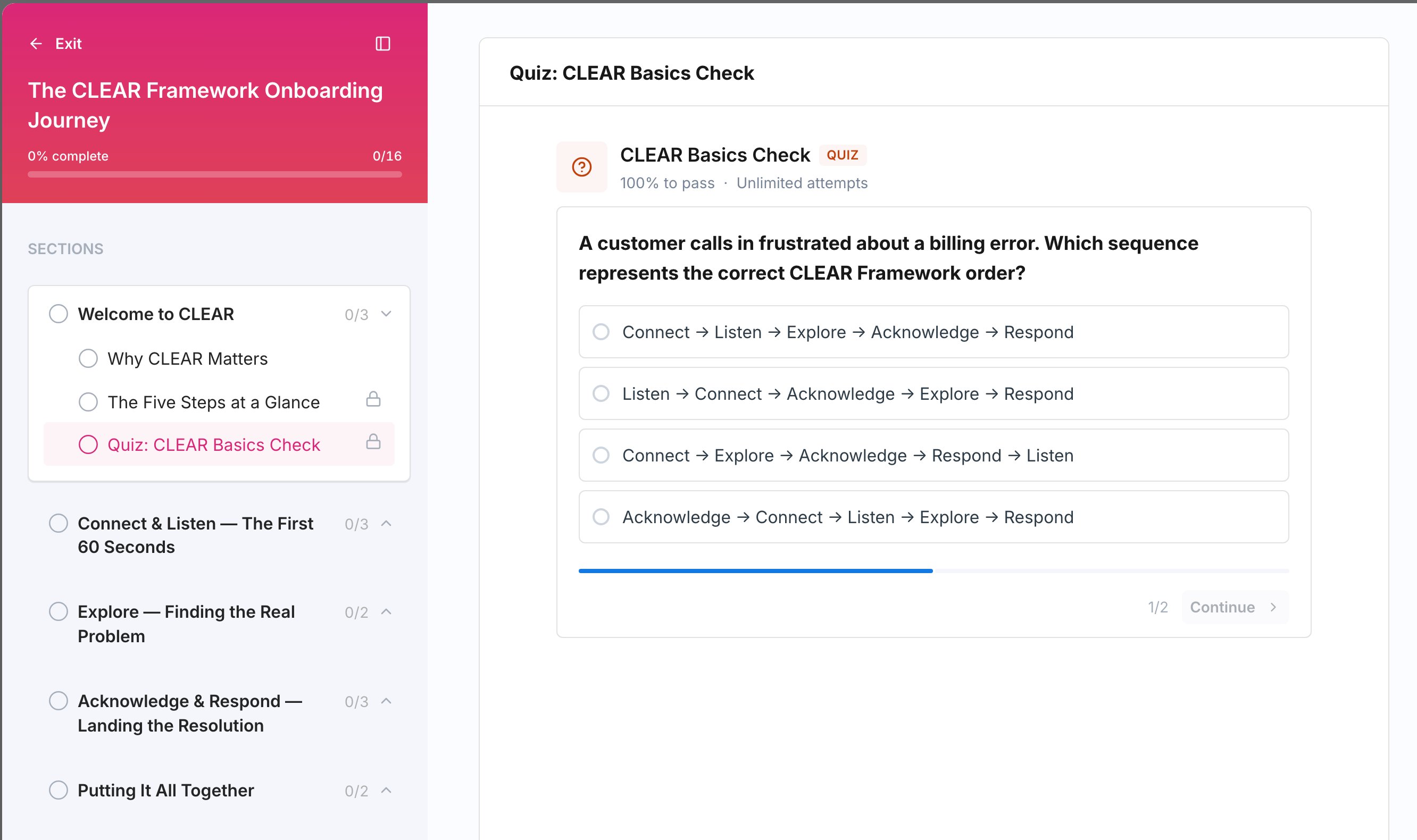
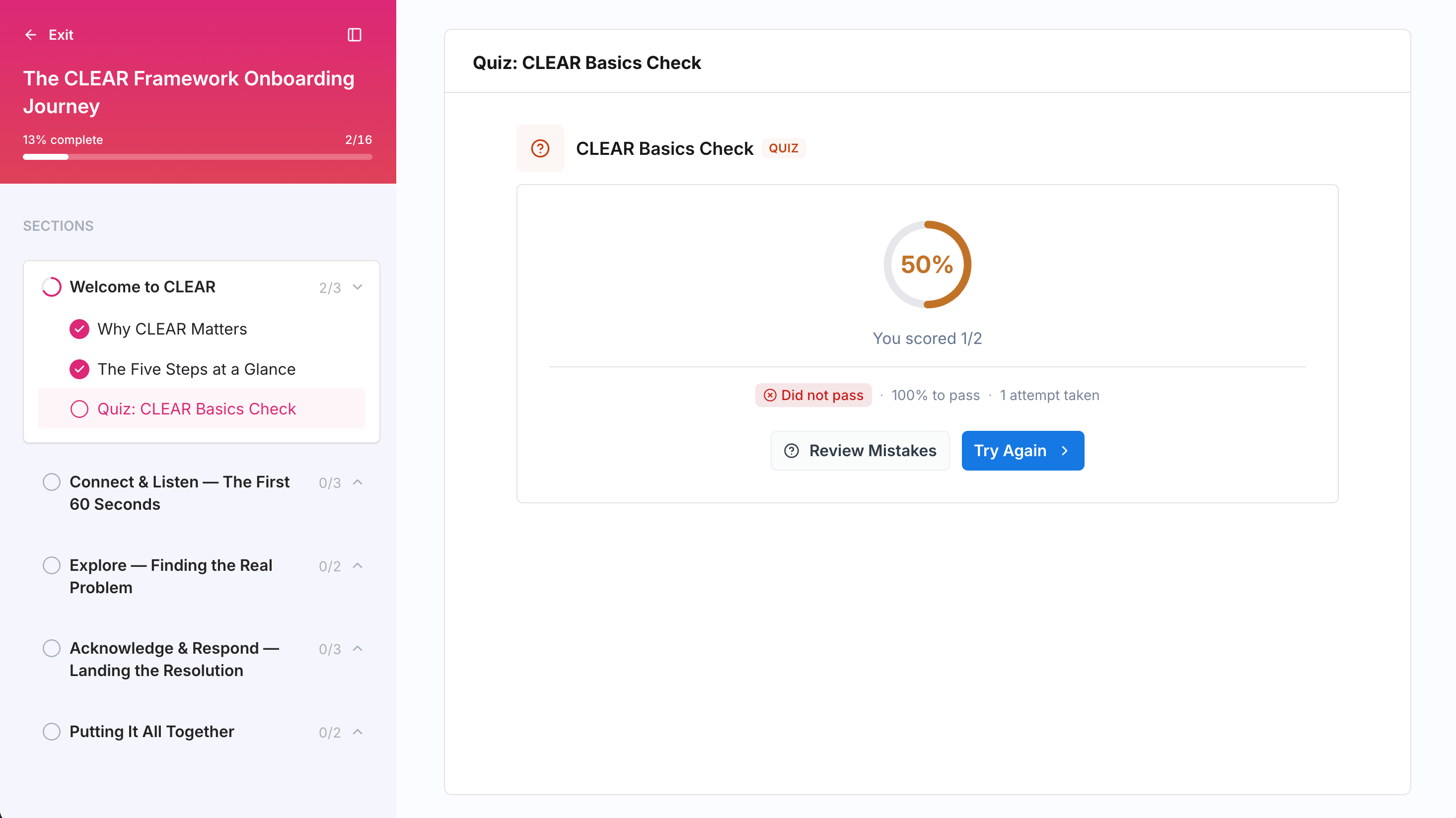
- Review Mistakes to see what you got wrong
- Try Again if you have attempts remaining
- Continue once you’ve passed
Practice with Roleplays
Some pages include a roleplay: a live AI conversation where you practice the skill you just learned. The course sets a minimum rank (Bronze, Silver, or Gold) you need to reach, and you may get multiple attempts to hit it. See AI Roleplays for how roleplay conversations work.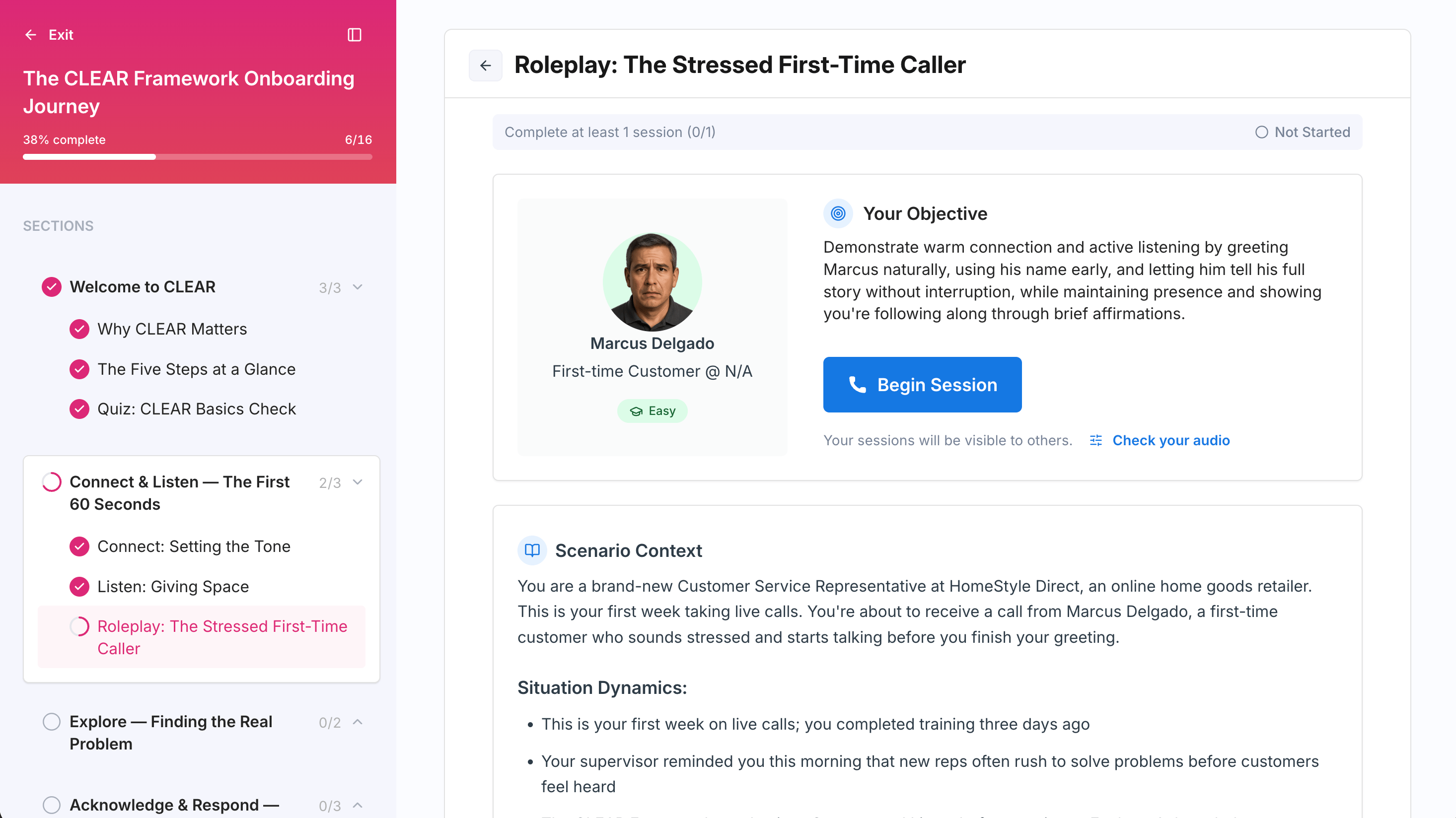
Finish the Course
When you complete the final section, the player shows Course complete with the message “You’ve finished every section. Nice work.” If the course has a certification attached, click View certificate to see your credential. Otherwise, use Back to course.If You Don’t Pass or Run Out of Time
Two things can end a course without a completion:- You didn’t pass this course means you ran out of attempts on a quiz or roleplay.
- You didn’t finish in time means the course’s close date passed before you completed it.
Related Pages
Nudges and Re-enrollment
Reminders, re-enrolling, and requesting more time.
Certifications
How completing a course earns you a certificate.