

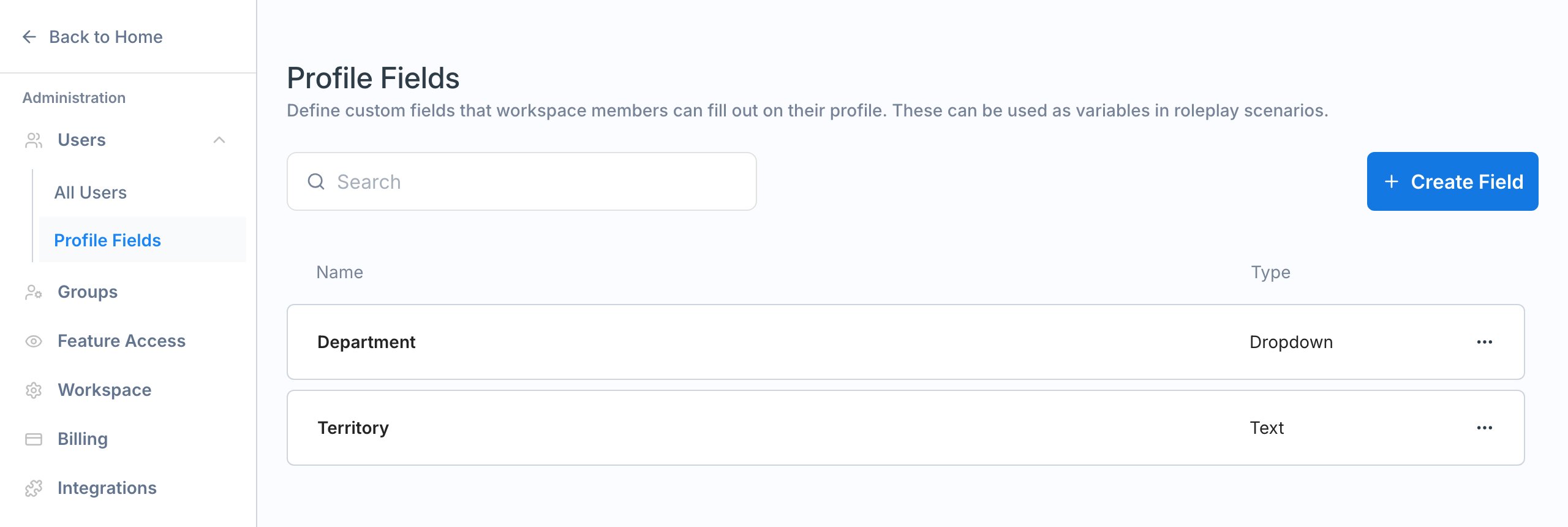
Field types
Use Dropdown whenever the answer comes from a known list, such as departments or regions. It keeps values consistent, which makes filtering reliable and is required for conditional context.
Create a field
1
Open Profile Fields
Go to Settings > Users > Profile Fields and click Create Field.
2
Name the field and choose a type
Enter a Name of up to 60 characters, such as “Department” or “Region”, then choose Dropdown or Text. The name is what members see on their profile, and it must be unique in the workspace.
3
Add options (Dropdown only)
Type each option in its own box and click Add Option for another.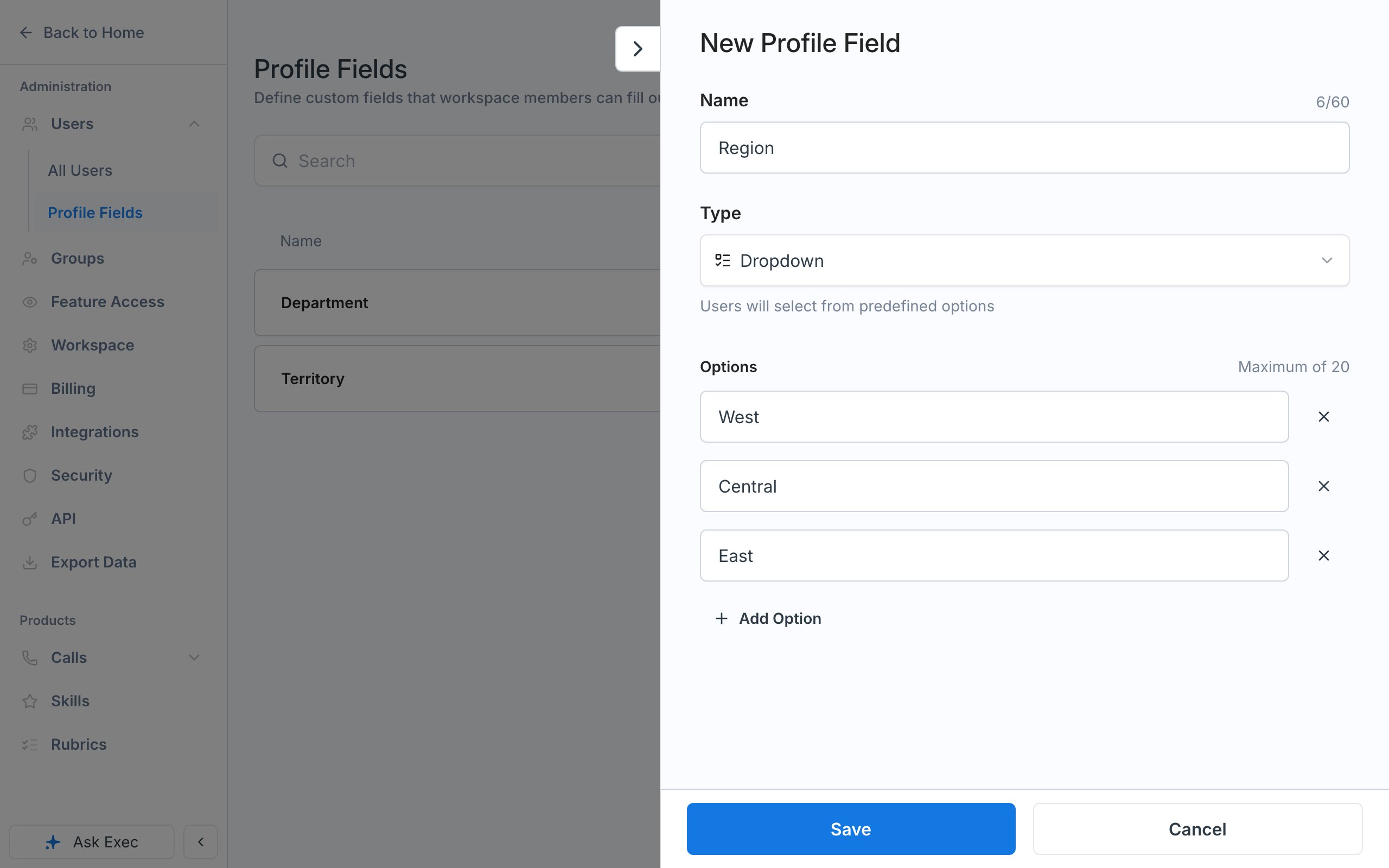
4
Save
Click Save. The field appears on every member’s Account panel right away.
Edit or delete a field
Click a field to edit its name, options, or type, and drag fields by their handle to change the order they appear in. To delete one, open the row’s … menu and select Delete Field. If a scenario uses the field, both the edit panel and the delete confirmation show This field is currently being used, with a count of the scenarios and conditional context rules that rely on it.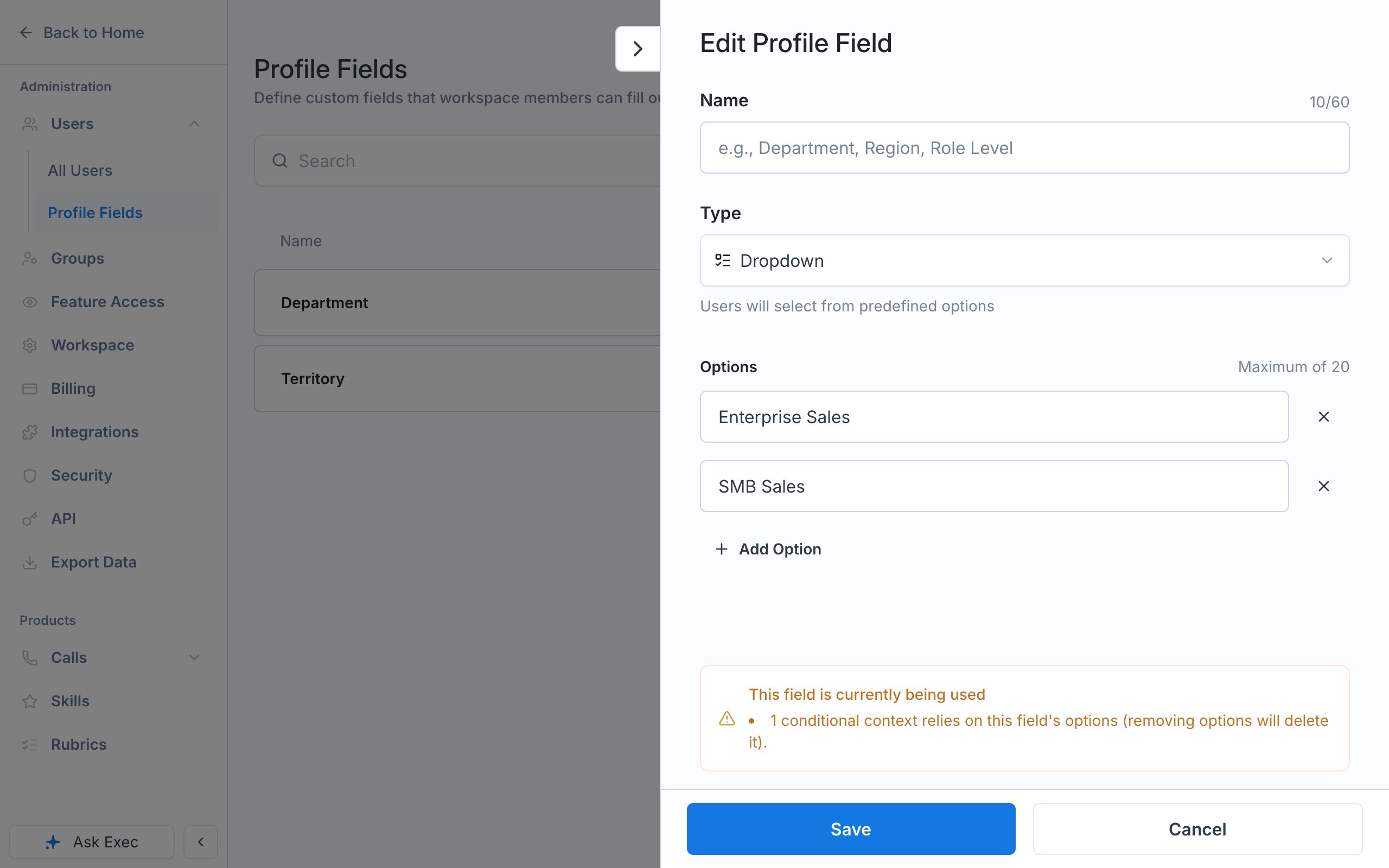
Set values
Members fill in their own values by clicking their profile picture in the top-right corner and selecting Account. If a roleplay needs a value they haven’t set, Exec asks for it before the session starts and saves the answer to their profile.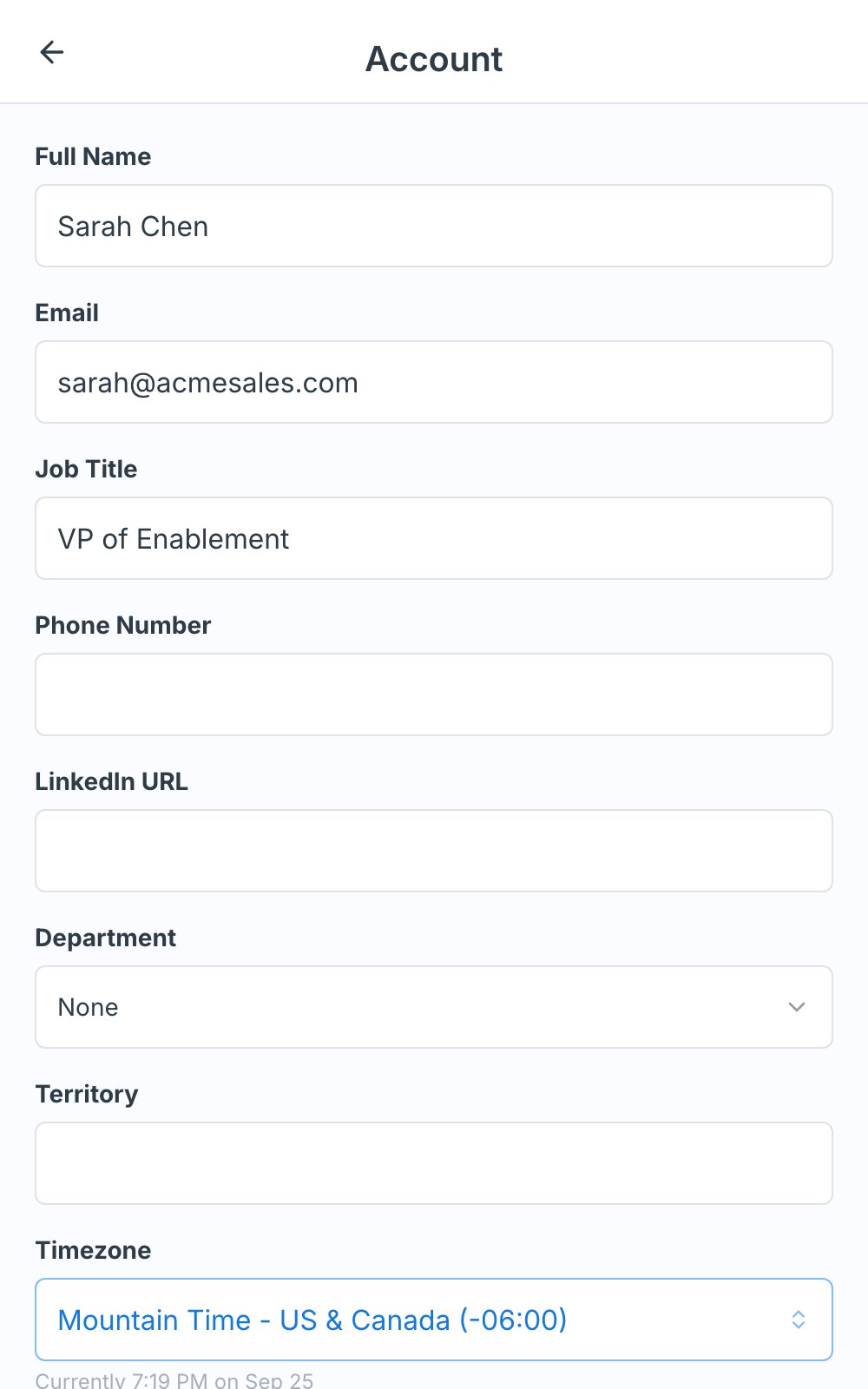
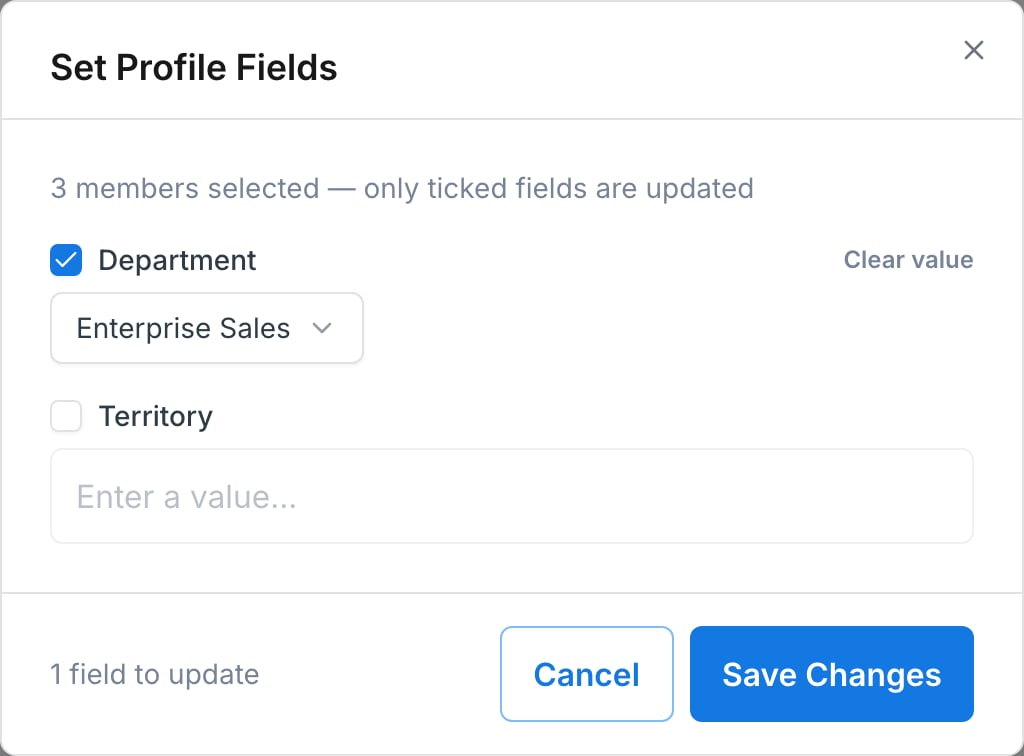
- One member: open the row’s … menu and select Edit Profile Fields. Use Clear value to empty a field.
- Many members: tick the members, click Set Profile Fields in the bulk action bar, then tick only the fields to update.
Use profile fields in roleplays
- Conditional context adds background to the AI character when a member’s dropdown value matches a rule, so one scenario can play differently for Enterprise and SMB reps.
- Variables insert a member’s value directly into scenario text. Type
{{user_plus the field name in lowercase with underscores for spaces, then}}. For example, a field named Territory becomes{{user_territory}}.