

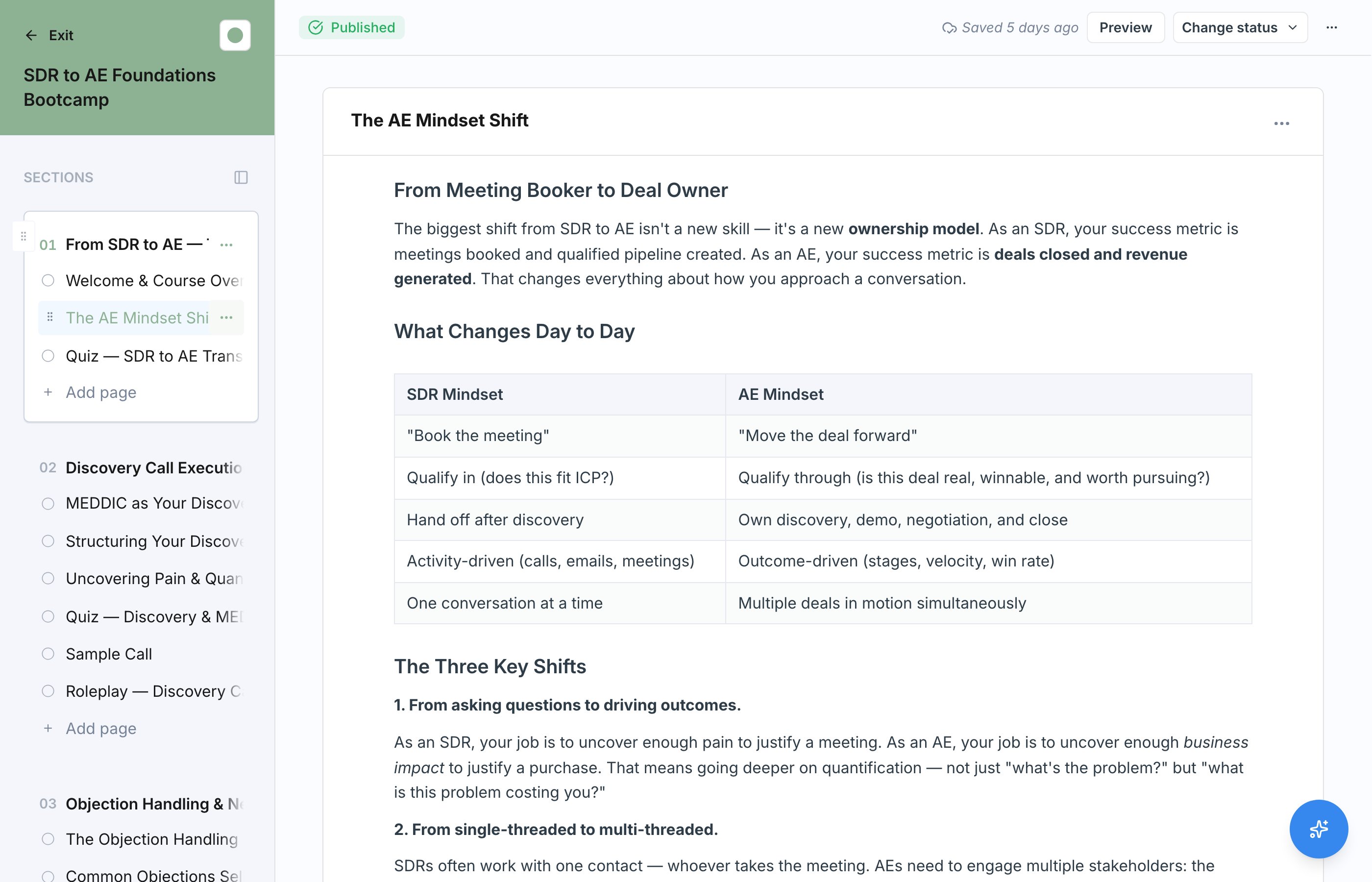
The Sections Rail
In the left rail of the editor you will find the Sections. It lists every section in your course, with each section’s pages nested beneath it. This is your course outline: use it to move between pages while you work.1
Add a section
Click Add Section in the left rail. Sections are the top-level chapters of your course, so name them around a theme or milestone, like “Preparing for the Call” or “Handling Objections”.
2
Add pages to the section
Add pages within the section to break it into digestible steps. Each page is a rich-text document where you write prose and insert content blocks.
3
Reorder as needed
Sections and pages are ordered, and learners move through them in the order shown in the rail. Drag and drop them until the flow reads the way you want a learner to experience it.
Optional Pages
Pages can be marked Optional. Optional pages are available to learners but not required for completing the course, which makes them a good home for reference material, bonus depth, or supporting resources that not everyone needs. Toggle a page optional from either the three-dots menu in the page header or the page’s context menu in the sections rail — both open the same Mark page as optional action.What Happens to Required Blocks on the Page
Completion tracking ignores blocks on optional pages, so any required blocks left on an optional page would never actually gate the learner. To keep the page’s state consistent, marking a page optional flips every required block on that page to optional at the same time — quizzes, roleplays, videos, slide decks, files, articles, and text. When the page contains required special blocks (like a quiz with a passing score, or a required video), you’ll see a confirmation first:Make this page optional? This page contains 2 videos and 1 quiz marked as required. Making the page optional makes these blocks optional too.Select Make page optional to cascade the change, or Cancel to leave the page required. Pages that only have text cascade silently — text blocks don’t expose a requiredness toggle in the editor.
Gating: Sequential Unlock
Each section has two Section Settings toggles that control how learners move through it:- Gate this section requires the previous section to be complete first, so learners work through your sections in order.
- Sequential pages requires participants to complete each page in order within the section.
Preview as a Learner
Use the preview view to see the course exactly as a learner will, without saving any progress. Preview is the fastest way to check pacing, confirm gating behaves the way you expect, and catch pages that feel too long or too thin before you publish.Course Theme and Publishing
Two more controls live in the editor header alongside the course title:- Course theme sets the course’s color, which carries through the header and the learner’s player. Pick one of the brand presets or choose a custom color. Every new course starts on a random preset, so set this if you want the course on-brand.
- Publish changes pushes your draft live. Your edits stay in the draft version until you publish; see Publish and Versioning for how drafts, versions, and enrolled learners interact.
Next Steps
Add Content Blocks
Fill your pages with text, articles, videos, slides, quizzes, files, and roleplays.
Publish and Versioning
Publish your draft and understand how versions work.