

1. Wrong Microphone Selected
The most common issue. You may be connected to a different audio input (AirPods, external headset, etc.) instead of your intended microphone. Click the microphone icon in your browser’s address bar and use the dropdown to select the correct device — typically your built-in microphone.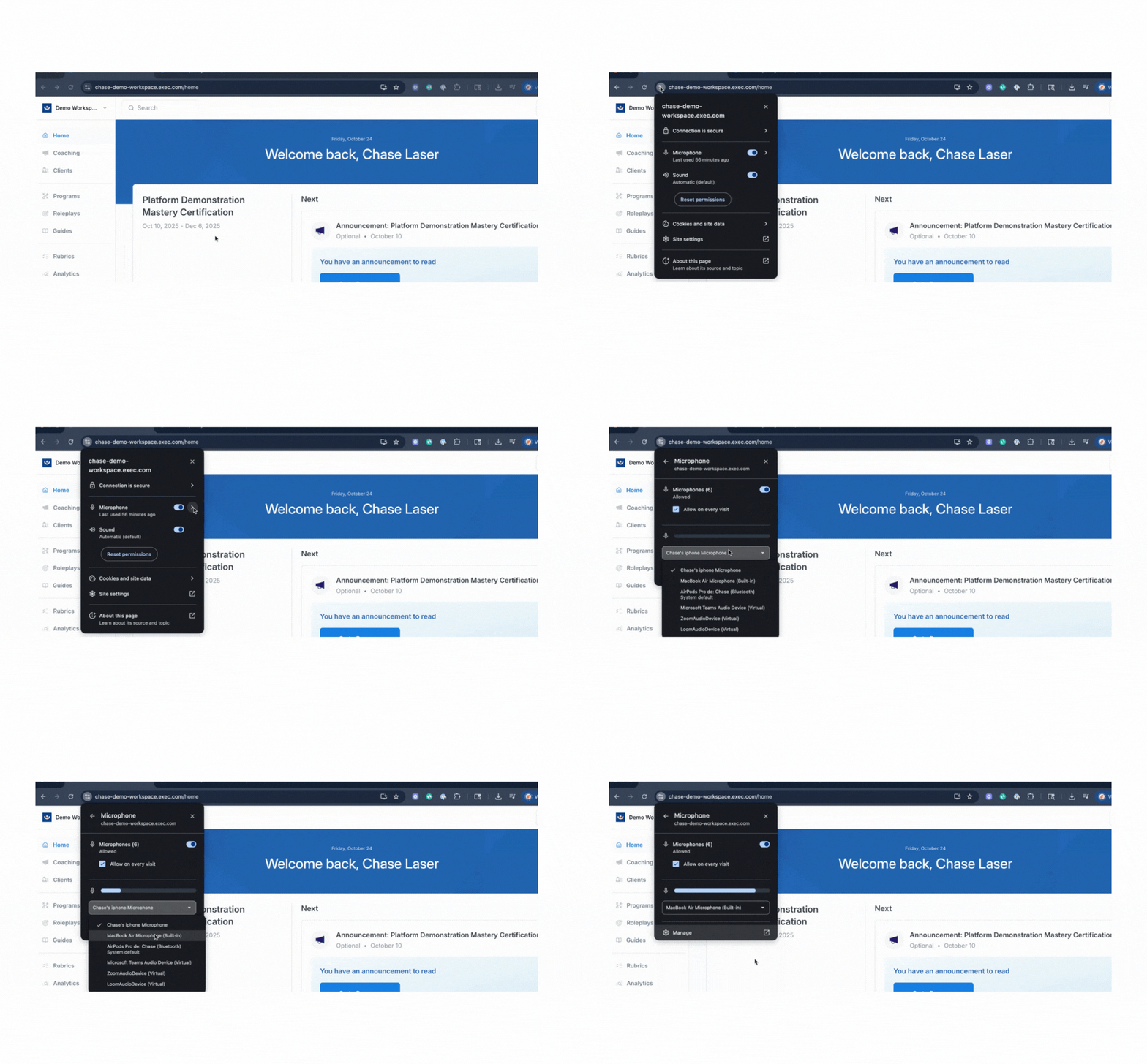
2. Microphone Permission Not Granted
If you dismissed or declined the microphone prompt when starting a session, the AI won’t have access to your audio. Refresh the page and click Begin Session again. When the permission prompt appears, select your preferred microphone from the dropdown before clicking Allow.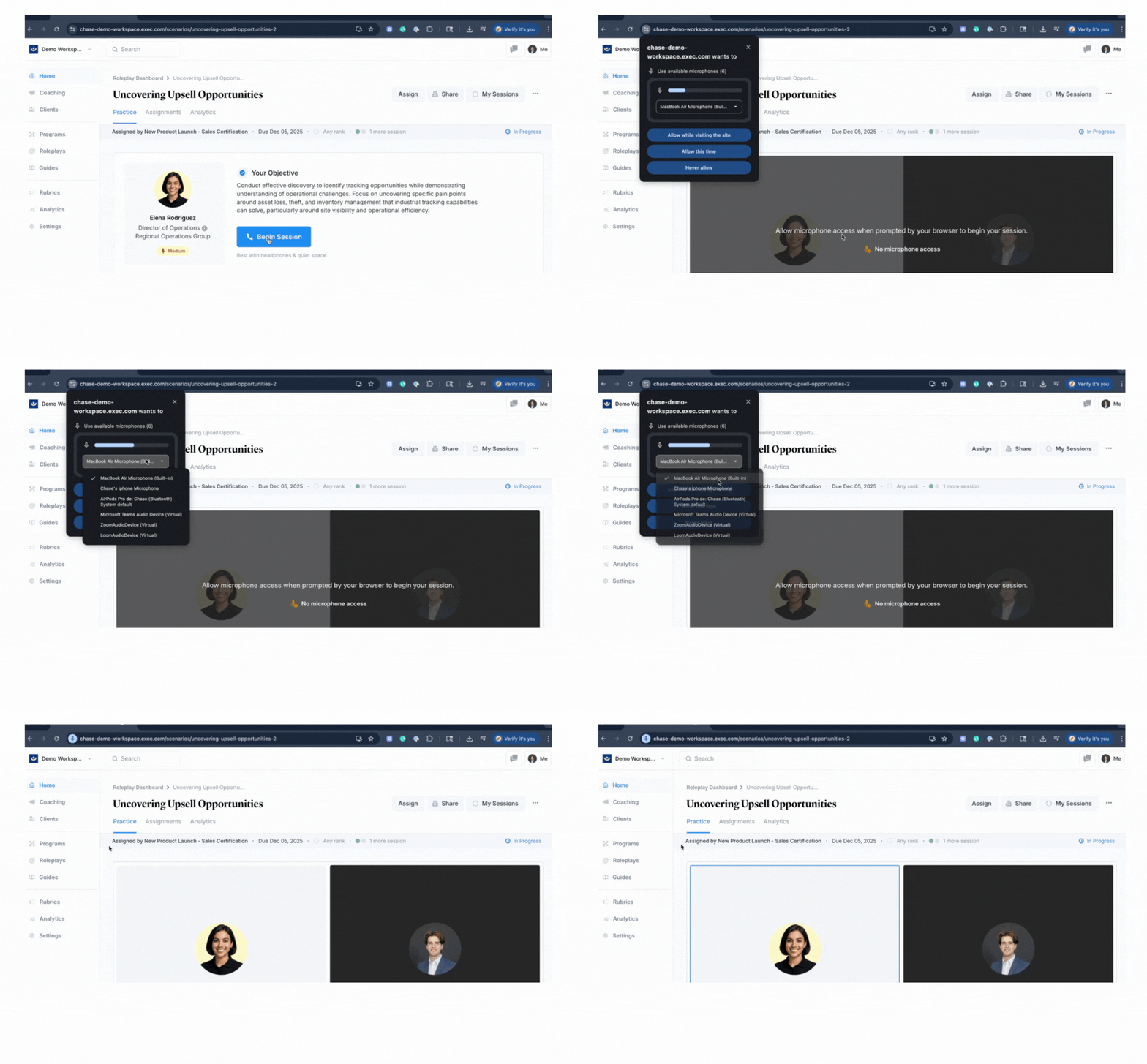
3. Reset Microphone Permissions
If you’ve granted the wrong permissions or want to start fresh, you can reset them. Click the microphone icon in your browser’s address bar, select Reset Permissions from the dropdown, then refresh the page and select your preferred microphone when prompted.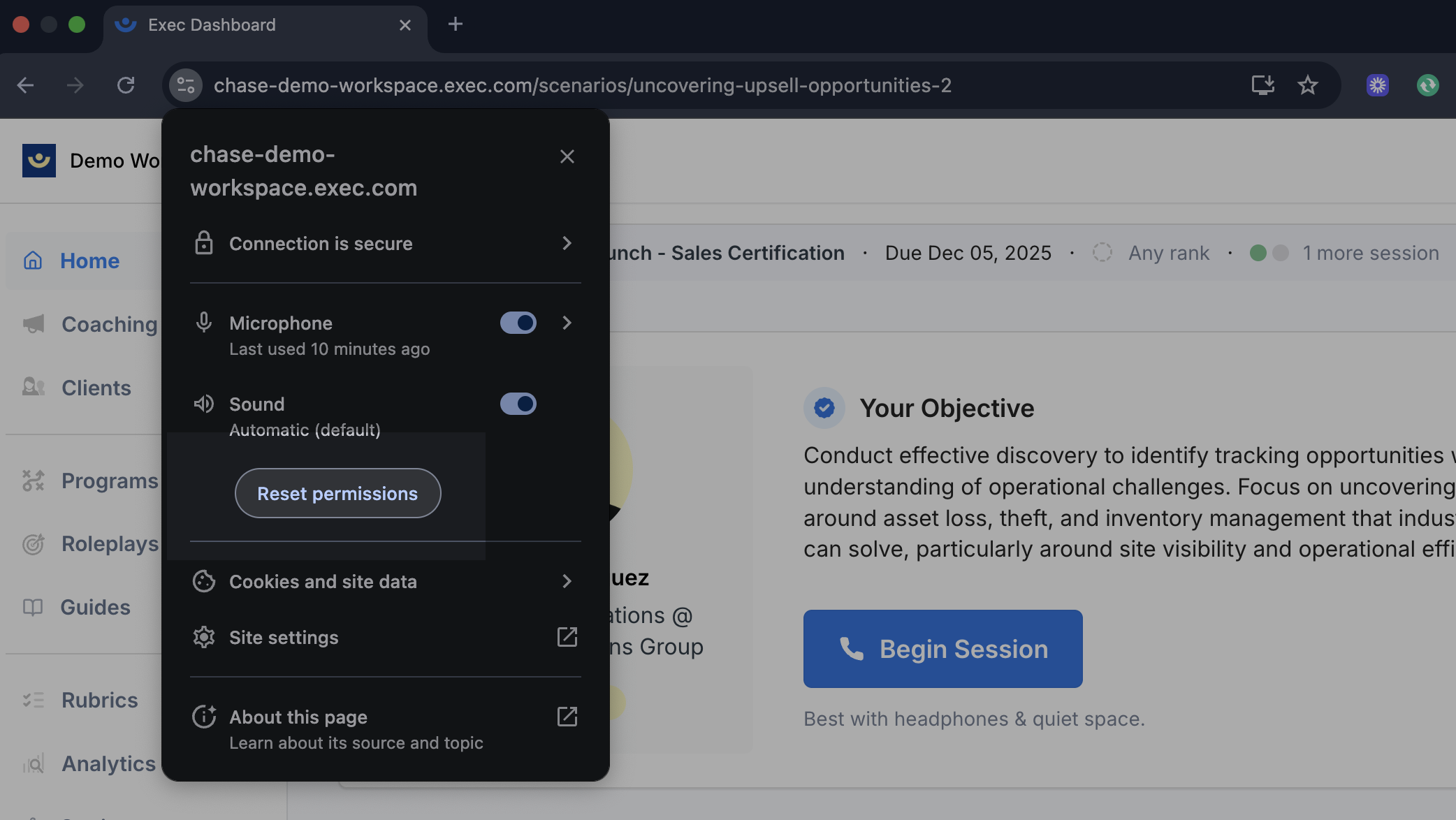
4. Microphone Muted at the System Level
Your system settings may have muted your microphone input even if browser permissions are set correctly. Check your system sound settings to confirm your microphone isn’t muted.5. Browser Audio Routing Issue
Occasionally the browser may not route audio input correctly. Click the microphone icon in your browser’s address bar, select Reset permissions, refresh the page, and go through the setup process again.Quick Checklist
If the AI still can’t hear you after working through the above:- Check which device is selected via the microphone icon in your browser’s address bar
- Switch to your built-in microphone or preferred input device
- Verify microphone permissions are granted, not blocked
- Confirm your microphone isn’t muted at the system level
- Reset permissions and refresh if needed
Best Practices
- Verify before clicking Allow — when the permission prompt appears, check your microphone selection in the dropdown before granting access
- Use your built-in mic as default — it’s usually the most reliable option unless you specifically need an external device
- Disconnect unused Bluetooth devices — nearby AirPods or wireless headsets can cause your system to automatically route audio away from your preferred microphone
- Test before important sessions — run a quick practice roleplay first to confirm everything is working