

1. You Selected a Chrome Tab Instead of Window
The most common cause. When you share a specific browser tab, the AI can only see that exact tab — if you navigate away, it loses visibility. Return to the tab where your roleplay is running and the AI should regain visibility. For future sessions, use Window or Entire Screen instead.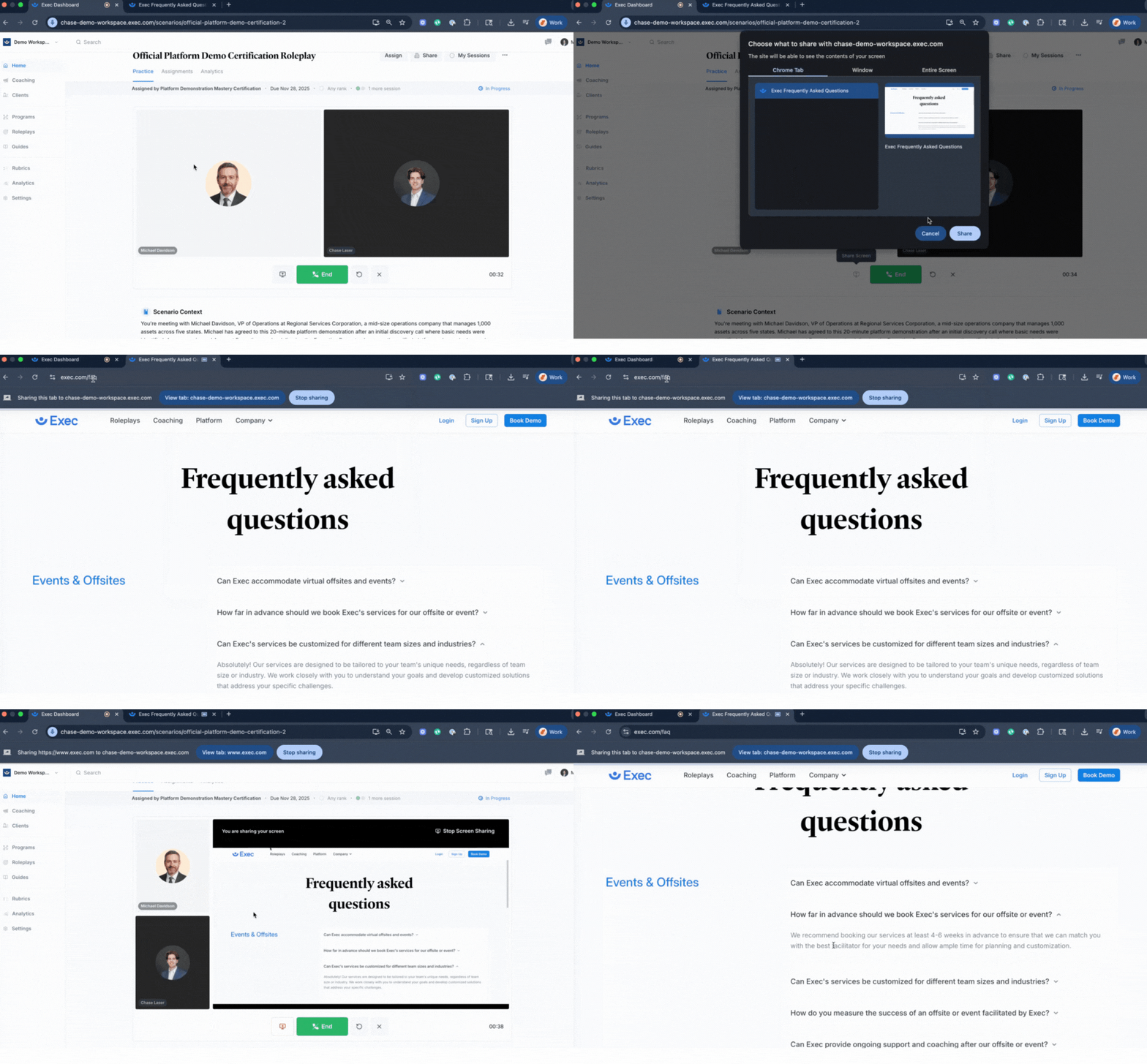
2. Screen Sharing Permission Not Granted
If you declined or dismissed the screen sharing prompt, the AI won’t have access to your screen. Refresh the page and click the Screen Share button again. When the browser prompt appears, select your sharing option and click Share.3. Wrong Window or Application Selected
You may have selected the wrong window during setup, so the AI is looking at something other than what you intended. Click Stop Sharing in your browser or the Exec session, then restart screen sharing and carefully select the correct window or screen.4. Browser Glitch
Occasionally the browser encounters an issue that disrupts screen sharing. Refresh the page and rejoin the session. If the problem continues, try clearing your browser cache or switching to Chrome.Quick Checklist
If the AI still can’t see your screen:- Switch from Chrome Tab to Window or Entire Screen mode
- Verify you granted screen sharing permissions when prompted
- Confirm you selected the correct window or application
- Stop and restart screen sharing
- Refresh your browser or switch to Chrome if issues persist
Best Practices
- Use Window or Entire Screen — ensures the AI maintains consistent visibility as you navigate
- Check your selection before clicking Share — double-check the sharing prompt before confirming
- Test before important sessions — run a quick practice roleplay first to confirm screen sharing works