

Need to drop the session entirely instead of moving it? See Cancel a Coaching Session for how cancellations and refunds work.
How to reschedule
1
Open the session and choose Reschedule
Go to Coaching > Sessions in the sidebar, open the upcoming session you want to move, and click the three-dot menu in the top-right of the session header. Choose Reschedule.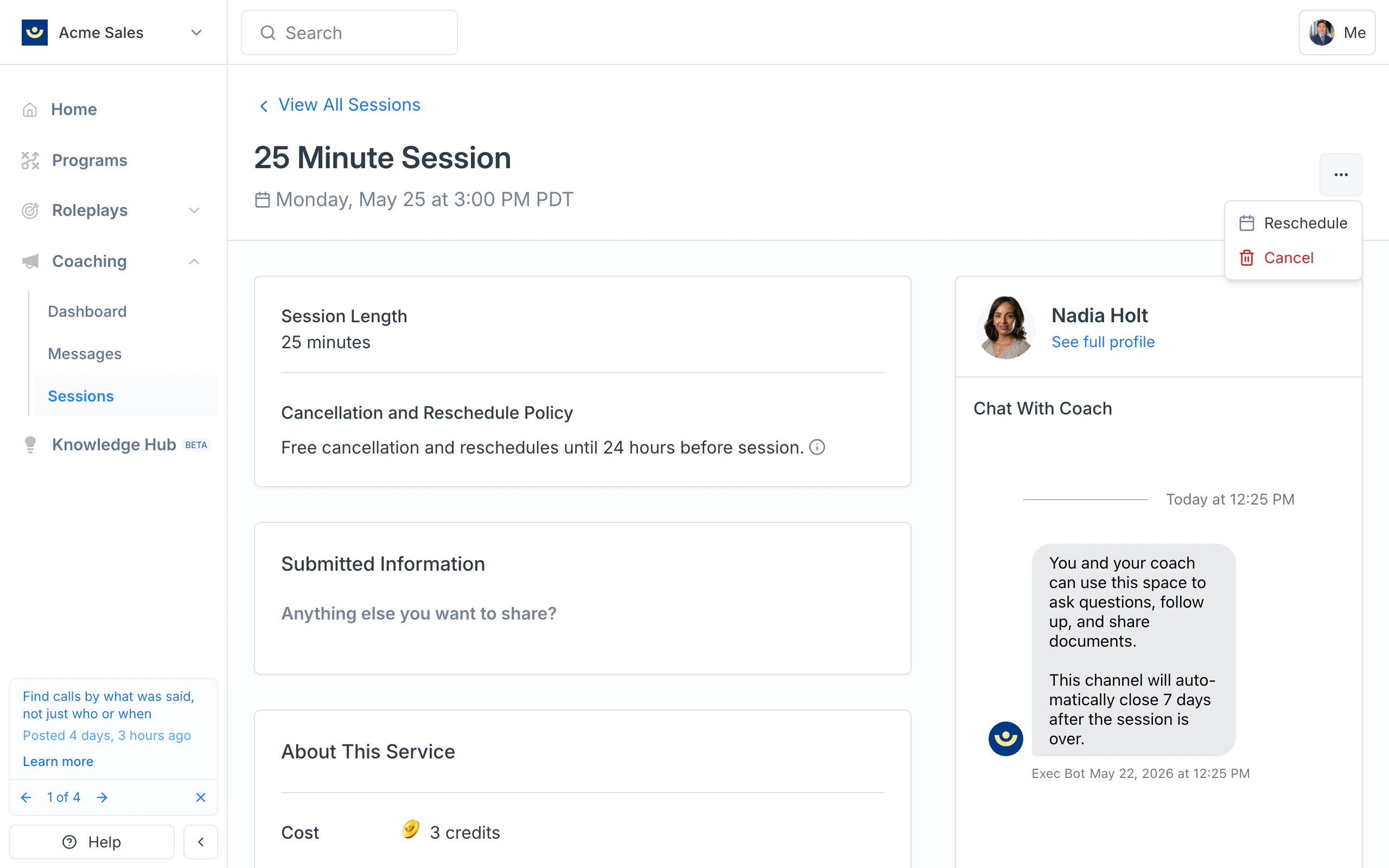
2
Pick a new time
The reschedule page shows when the session is currently scheduled, along with a calendar of your coach’s open times. Pick a new day on the calendar, then choose an available time slot. Times are shown in your local timezone, which you can change with the dropdown.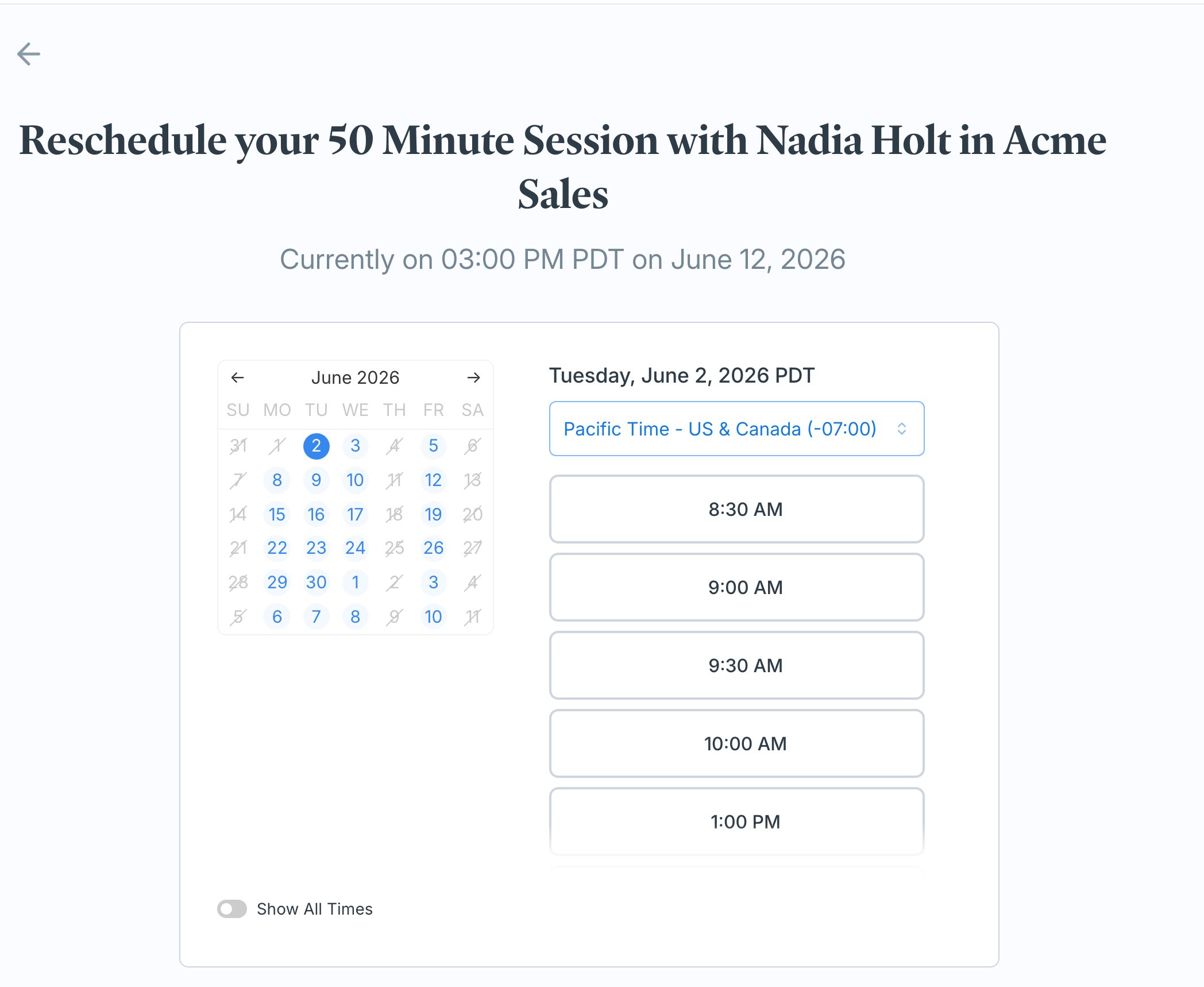
3
Confirm the new time
A Confirm Reschedule dialog summarizes the new time and whether any reschedule fee applies. Add an optional message for your coach if you’d like, then click Reschedule Session. Changed your mind? Click Nevermind to close without moving anything.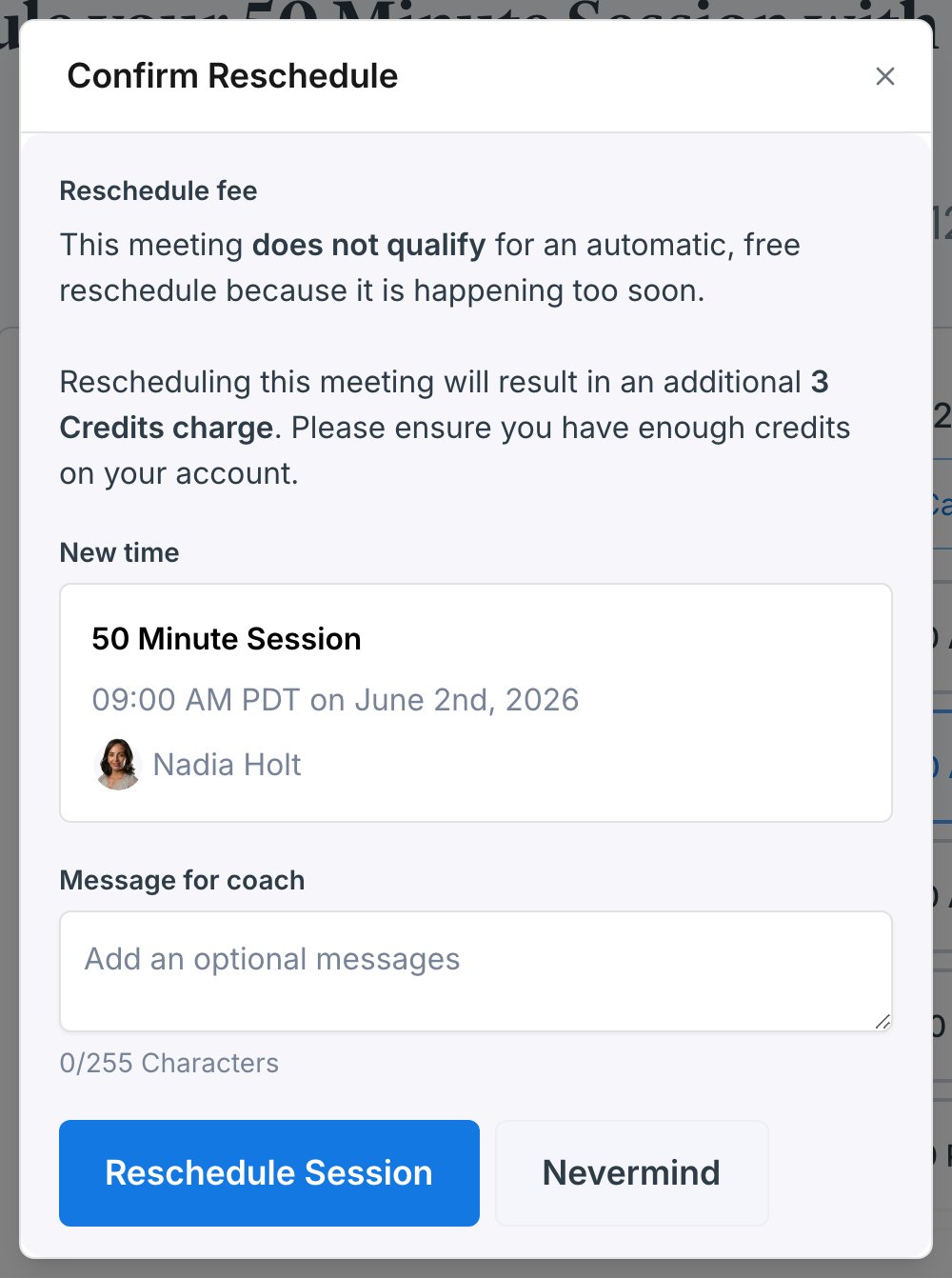
Reschedule policy
Reschedules follow the same 24-hour cancellation and reschedule policy as cancellations: reschedule at least 24 hours before the session starts and there’s no charge. The exact window is shown on the session detail page under Cancellation and Reschedule Policy.- More than 24 hours before the session - the Confirm Reschedule dialog shows that the meeting qualifies for a free reschedule, and your credits carry over to the new time at no extra cost.
- Less than 24 hours before the session - the dialog warns that the session no longer qualifies for a free reschedule because it’s happening too soon, and moving it costs an additional charge in credits. Make sure you have enough credits on your account, or reach out to your coach or [email protected] if you need an exception.
What happens after you reschedule
Once the reschedule goes through:- The session moves to the new time and shows the updated time in your Sessions list and on your Coaching Dashboard.
- You and your coach both get an email with the new details, including any message you added.
- The original time is released, so another learner can book it.