

Join the call
1
Open your session
Go to Coaching > Sessions and open your upcoming session.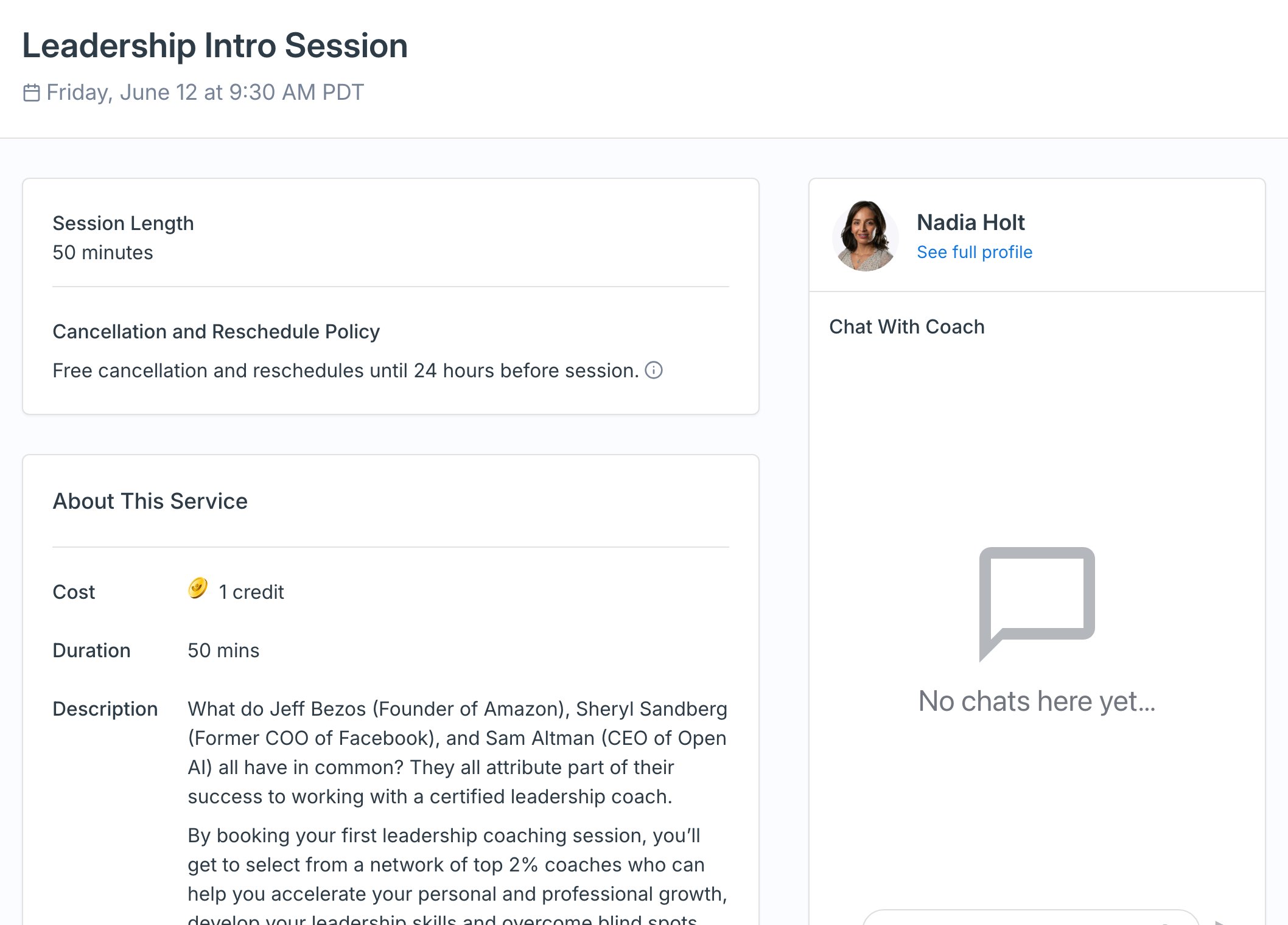
2
Click Join Session
A few minutes before the start time, a Join Session button appears at the top of the session page. Click it and the video call opens in a new tab.
3
Or use the meeting link
You can also find the call link any time under Session Location on the session page, in case you want to join from another device.
Times show in your local timezone
Session times display in your computer’s local timezone, with the timezone shown right in the time (for example, “Tuesday, Mar 12 at 2:30 PM EST”). If you’re traveling or you booked across timezones, double-check that abbreviation - a timezone mix-up is the most common reason people miss a session.Message your coach
Need to reach your coach before or after the session? Use Chat With Coach on the session page (or Coaching > Messages). It’s the best way to share context ahead of time, or give a heads-up if you’re running a few minutes late.If you can’t get in
A few quick things to try if you’re having trouble joining:- Check your Google account. If the call is a Google Meet, make sure you’re signed in to the right Google account. If you’re in a personal or different work account, you may be left in a waiting room.
- Refresh and rejoin. Reload the session page and click Join Session again.
- Message your coach. Use Chat With Coach to let them know you’re having trouble - they can often help you in.
- Still stuck? Email [email protected] and we’ll jump in.