

Don’t have a coach yet? Go to Coaching > Dashboard and click Find My Coach (or Browse Coaches) to get matched first. Once a coach is on your dashboard, you can schedule with them anytime.
How to book a session
1
Find your coach and click Schedule
Go to Coaching > Dashboard. Under Your Coaches you’ll see everyone you’ve been matched with. Find the coach you want to work with and click Schedule on their card.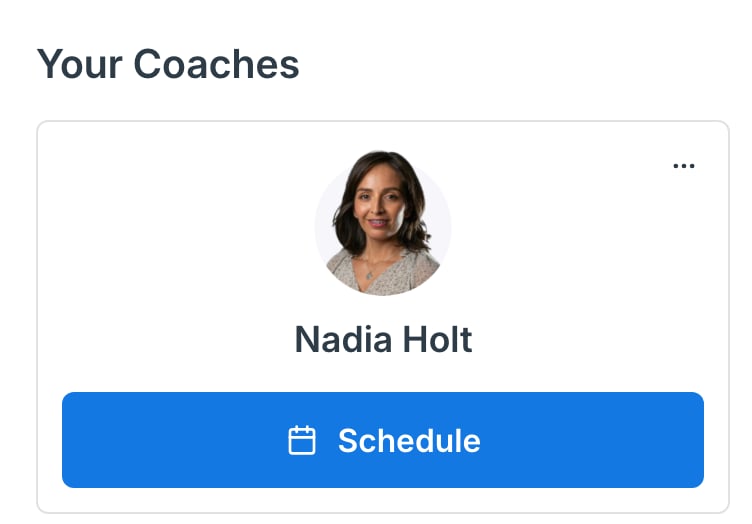
2
Choose your session type
Pick a Coaching Type (the area you want to work on) from the dropdown, then choose a Session Type - the length of the session. Each option uses a set number of credits.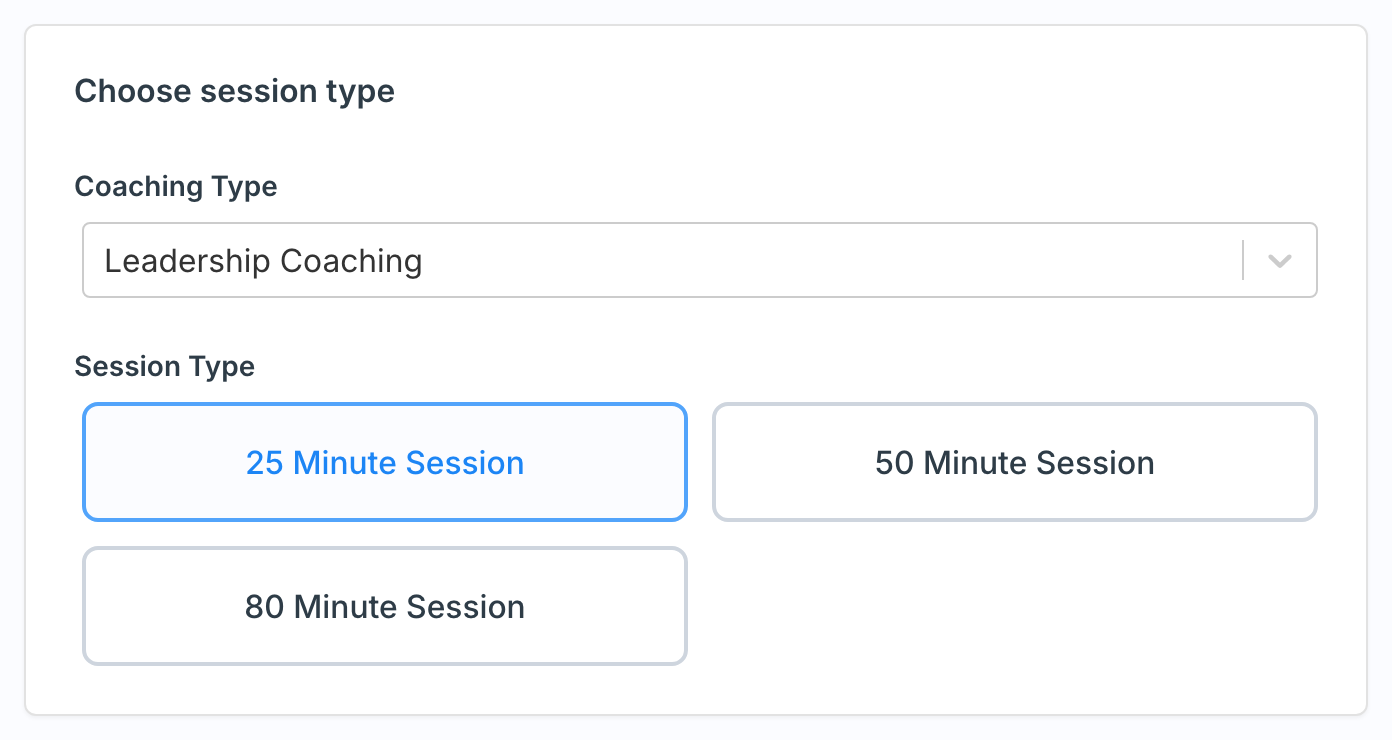
3
Pick a time and book
Pick a day, then a time. Use the arrows to step one day at a time, or click the date next to the calendar icon to open the full calendar and jump to any available day. Once a day is selected, click an available time slot. Times are shown in your local timezone, which you can change with the dropdown below. The credit cost appears at the bottom - click Book Now to confirm.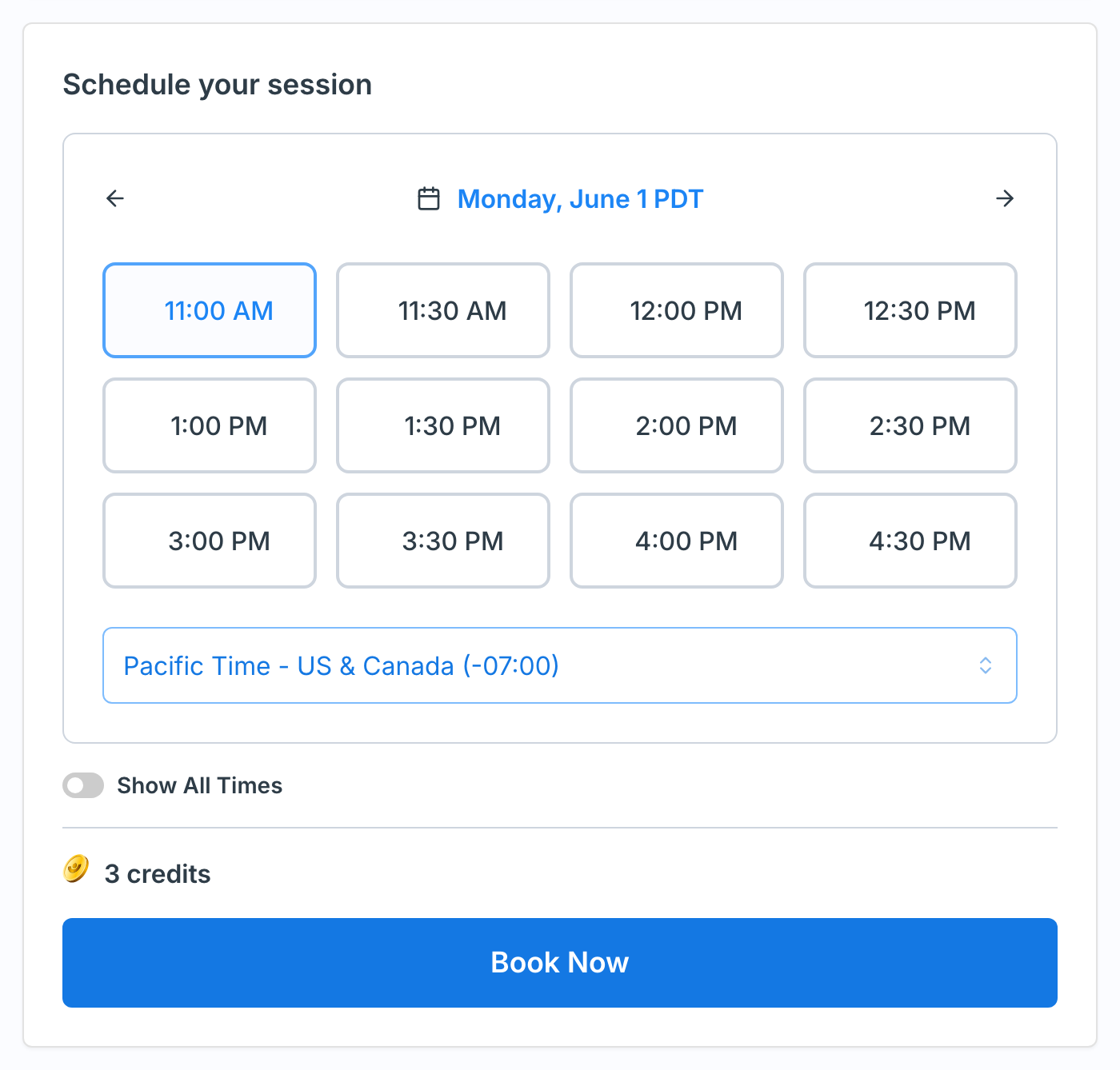
Some coaches review booking requests before confirming. For those coaches the button reads Request Booking instead of Book Now, and you can select more than one time that works for you - the coach picks one and confirms.
Credits
Booking a session uses credits from your balance, shown as Available to you on the Sessions page and Coaching Dashboard. The number of credits a session costs depends on its length, and it’s displayed right above the Book Now button before you confirm. If you’re out of credits, you’ll see a Buy Credits prompt. Click it to top up, then come back and finish booking. If your workspace handles credits for you, reach out to your admin instead.What happens after you book
Once your booking goes through:- The session appears in your Sessions list and on your Coaching Dashboard under upcoming sessions.
- You and your coach both get an email confirmation with the session details.
- Open the session anytime from Coaching > Sessions to see the meeting link, the time, and the cancellation policy.