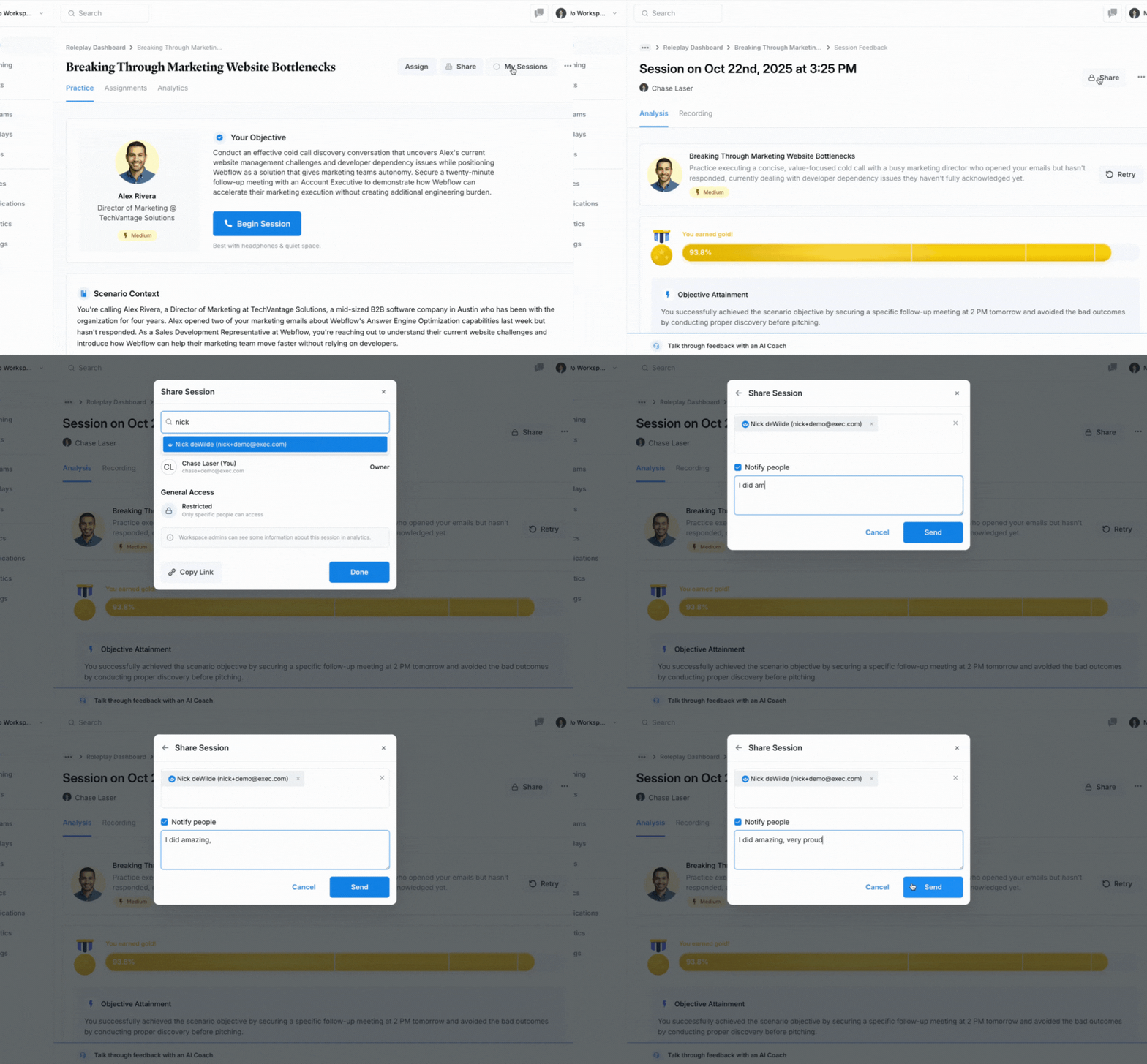
After completing a roleplay session, you can view your feedback and insights, revisit past attempts, and share your results with managers or teammates.
Who can already see your sessions
Before sharing, note that some users can already view your sessions:
- Workspace admins can see all sessions
- Your manager can see your sessions
- Scenario monitors can see sessions if monitoring is enabled
For details, see Session visibility.
Viewing Your Session History
From the Roleplay Page
The simplest way to access your session history:
-
Navigate to the roleplay (the one you originally used or linked from your training)
-
Click the My Sessions button
-
You’ll see a history of all your previous attempts for that specific scenario
If My Sessions Shows No History
If nothing appears when you click My Sessions, try one of these options:
Option 1: Refresh and Check
Simply refresh the roleplay page and check if your session has populated in the history.
Option 2: Navigate Through Roleplays Menu
- Click Roleplays in the left-hand navigation menu
- Search for your specific scenario
- Select your scenario from the results
- Click the My Sessions button
- Your session history should now appear
Option 3: Return from Your Training Path
Go back through your training workflow (e.g., Lessonly) and return to the roleplay page, then check My Sessions again.
Sharing Session Results
Once you’ve located your session, you can share the results with your manager or other team members.
If You Just Completed a Session
Wait for the feedback page to fully load before sharing. If you try to share while results are still processing, the recipient may not see your complete feedback.
If You’re Returning to Share Results Later
- Go to the roleplay page
- Click My Sessions
- Select the specific session you want to share
- If you don’t see your recent session, refresh the page and wait for it to process
How to Share
Once you’re on your session results page:
-
Click the Share button
-
Add your manager’s name in the recipient field
-
(Optional but recommended) Check Notify to alert your manager via email
-
(Optional) Add a note with context or comments about your session
-
Click Share
-
Copy the generated link if you need to send it separately
Pro Tip: Always add a note when sharing results. A brief comment like “This was my first attempt at handling pricing objections” gives your manager helpful context for their feedback.
Finding a Specific Scenario
If you need to locate a particular scenario to view its session history:
- Click Roleplays in the left-hand navigation menu
- Use the search bar to find your scenario by name
- Select the scenario from the results
- Click My Sessions to view your attempt history
✅ In short: Access your sessions through the My Sessions button on any roleplay page. If your history doesn’t appear, try refreshing or navigating through the Roleplays menu. When sharing, wait for feedback to fully load and consider adding a note for context.