

- Sales presentations — Practice demoing your product while handling objections in real time
- Interview training — Share a portfolio, resume, or case presentation with the AI interviewer
- Leadership scenarios — Walk through a strategy deck while the AI roleplays a skeptical executive
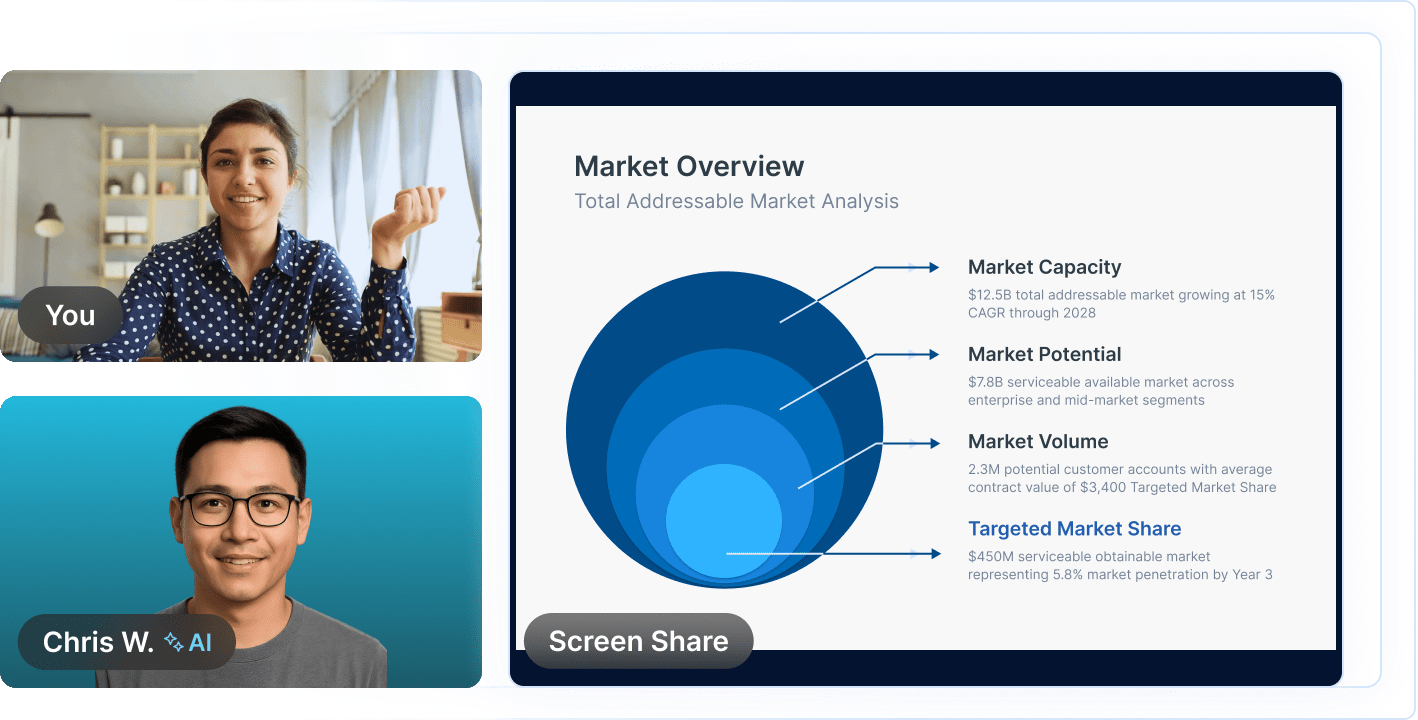
Enable Screen Sharing on a Scenario
Screen sharing is off by default. Creators and admins can enable it per scenario.1
Open the scenario in the Studio
Click the three-dot menu (⋯) in the top-right of the scenario and select Edit Scenario, or click any pencil icon on the page.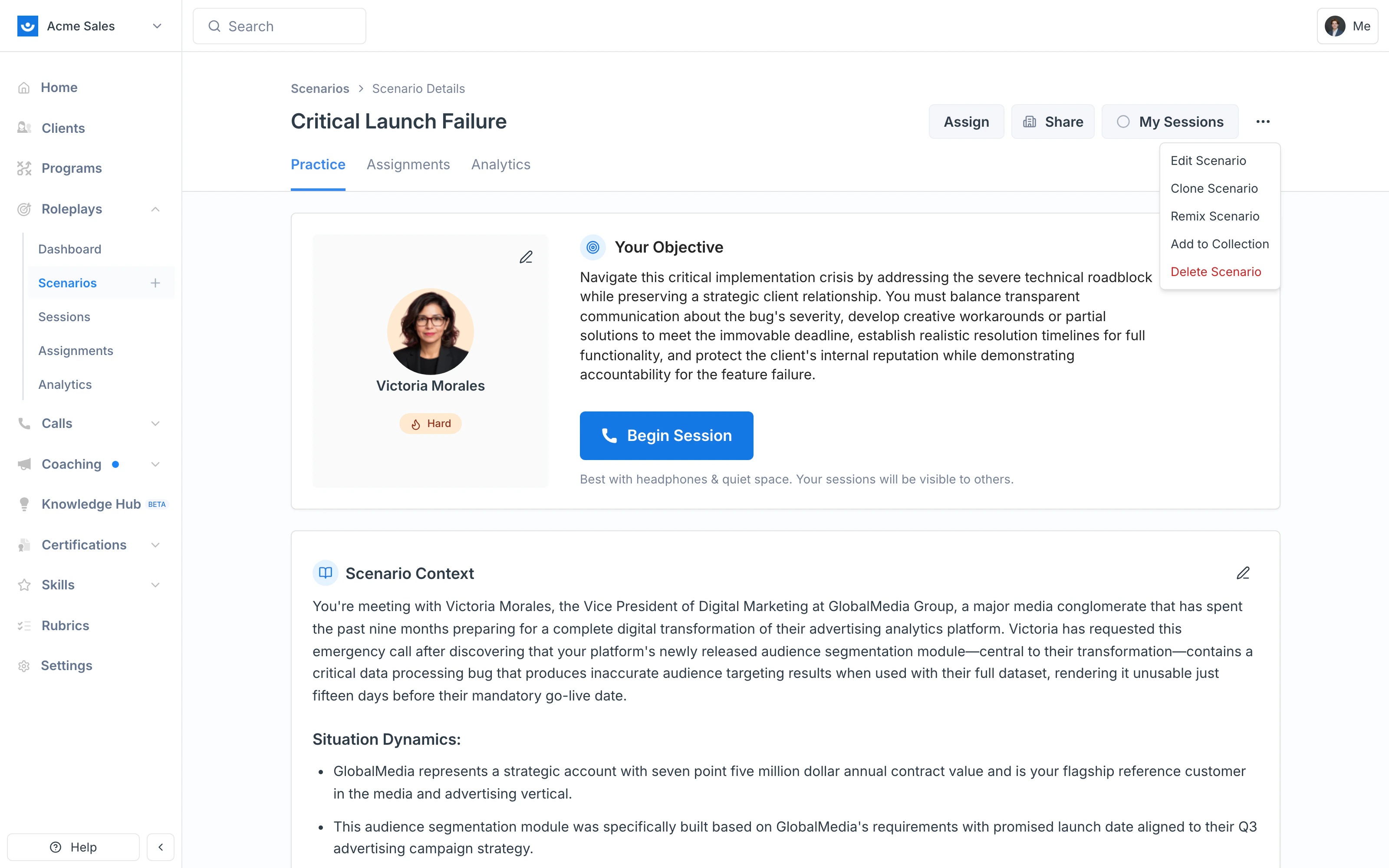
2
Go to the Session Settings tab
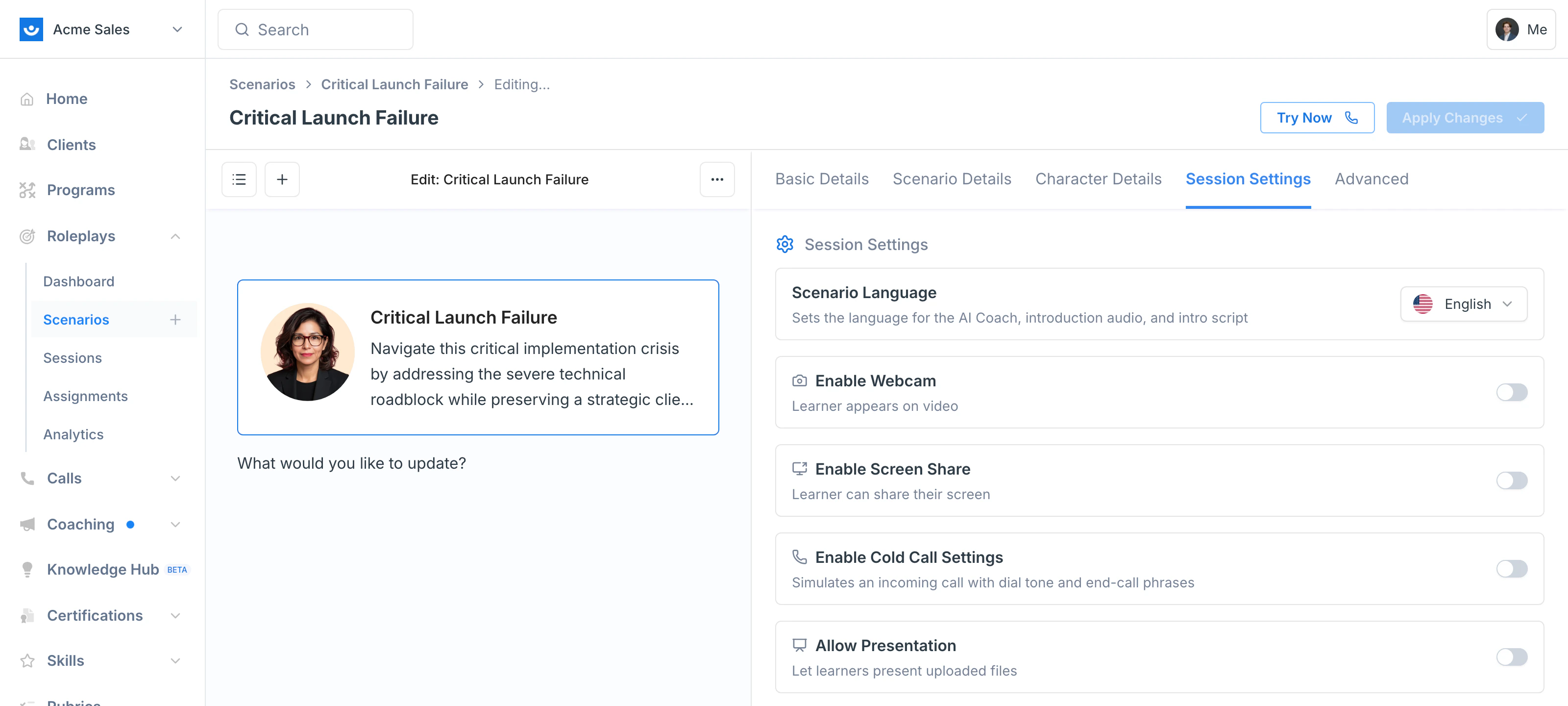
3
Toggle Enable Screen Share on and click Apply Changes
The toggle turns blue when on, and Apply Changes activates in the top-right.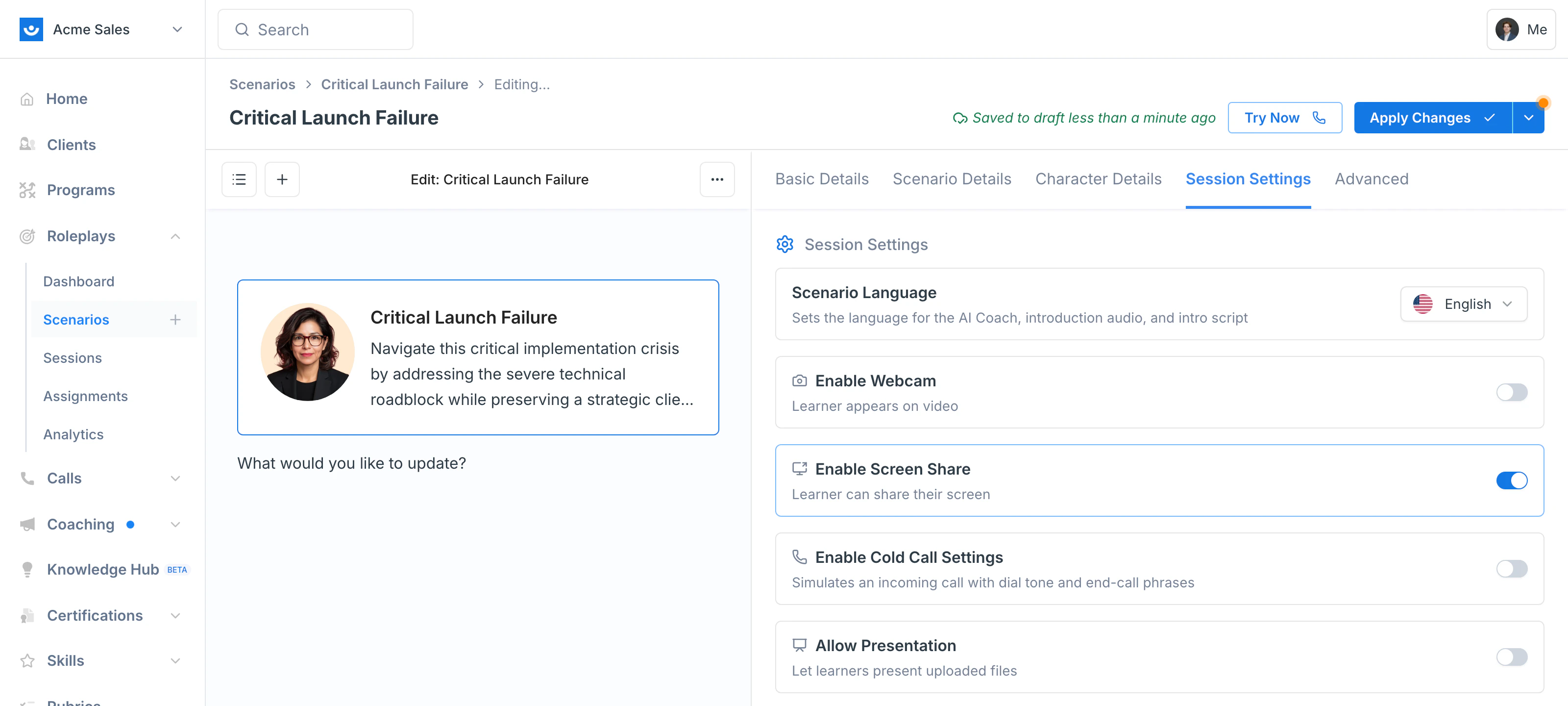
Start Sharing During a Session
Once screen sharing is enabled on a scenario, participants will see a Screen Share button when they begin their session. This is located directly to the right of the green End button. Click it to start sharing.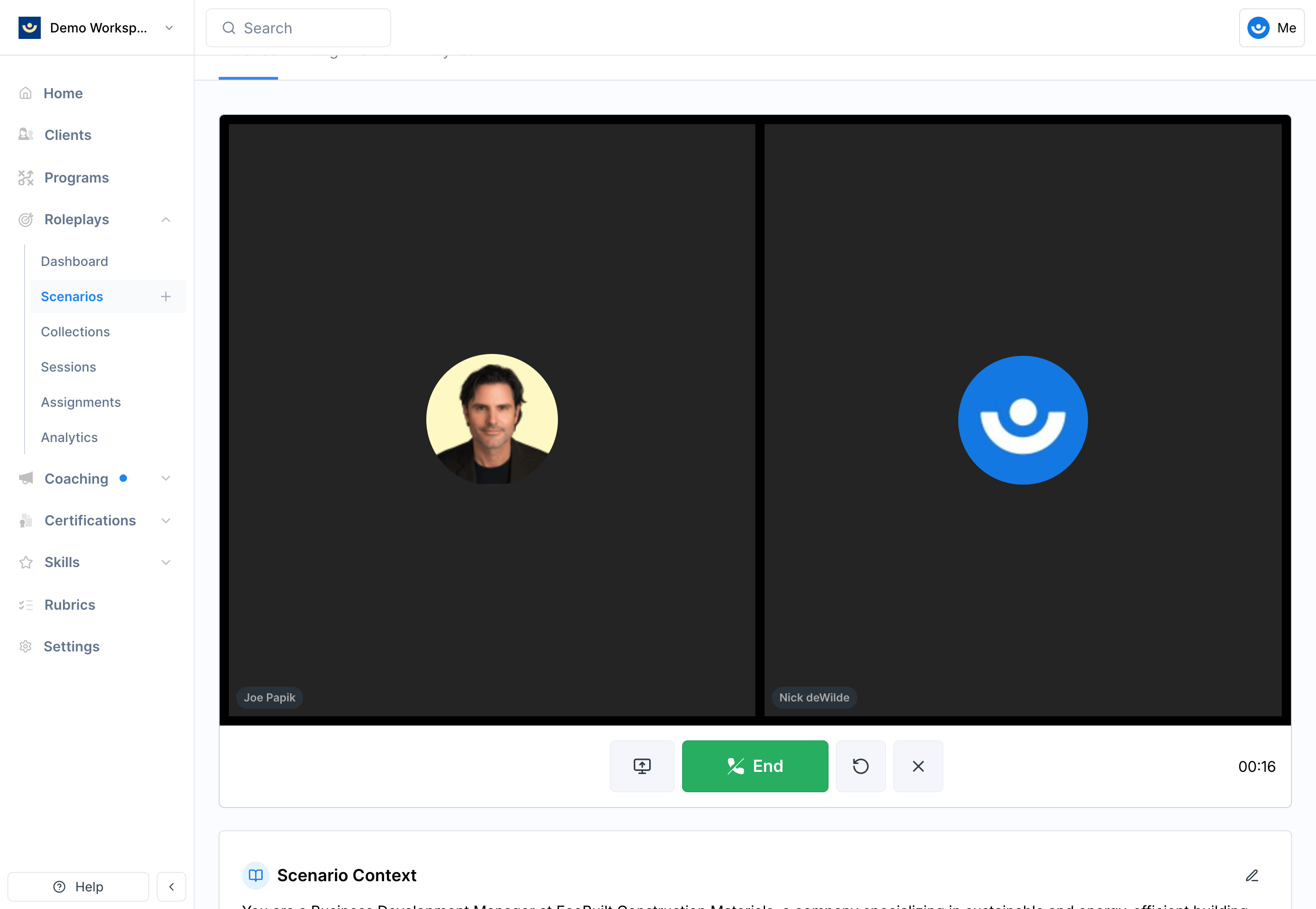
- Entire Screen — shares everything on your display
- Window — shares one application window
- Chrome Tab — shares a single browser tab
Best Practices
- Share only what’s relevant — a focused window keeps the session on track
- Test before a live training — run a short session first to confirm sharing is working as expected
- Stay in context — the AI character responds to whatever is on your screen, so avoid pulling up unrelated content mid-session