Documentation Index

Fetch the complete documentation index at: https://docs.exec.com/llms.txt

Use this file to discover all available pages before exploring further.

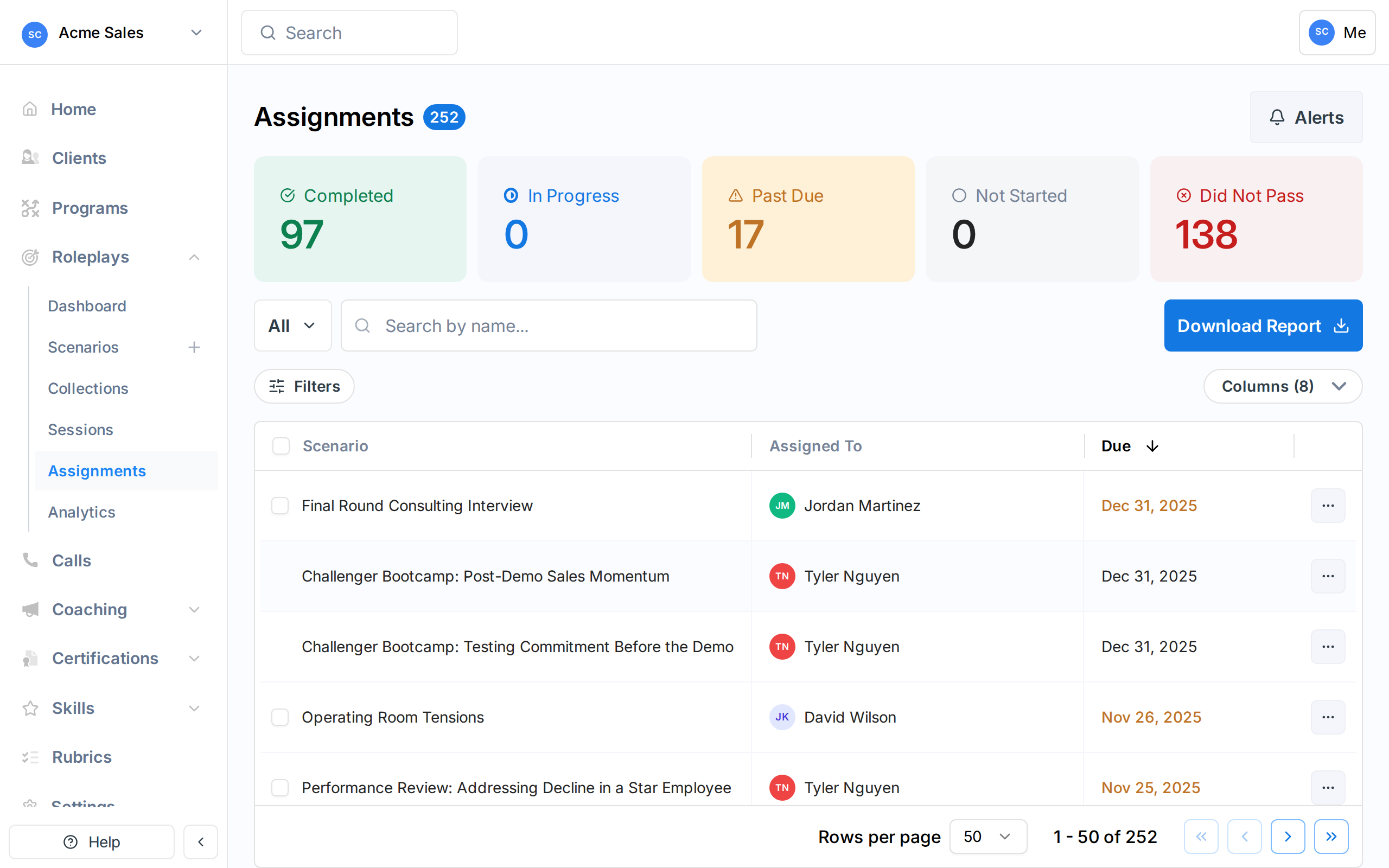
The Assignments page is your central hub for tracking who has been assigned what, their progress, and whether they are on track. Access it from the sidebar under Roleplays > Assignments.
Assignments dashboard showing status cards and assignment table
You can also view assignments for a specific scenario by navigating to that scenario and clicking the Assignments tab.

Status Overview

At the top of the page, five status cards give you a quick summary of all assignments:
StatusMeaning
CompletedThe assignee met all completion requirements (score and attempt minimums)
In ProgressThe assignee has started at least one roleplay session but hasn’t met requirements yet
Past DueThe due date has passed and the assignment is not yet complete
Not StartedThe assignee has not attempted the scenario
Did Not PassThe assignee reached the maximum number of attempts without meeting the score requirement
These counts update as you apply filters, so you always see a summary that matches your current view.

The Assignments Table

Each row in the table represents one assignment and shows:
ColumnWhat it shows
Assigned ToThe person the scenario was assigned to
ScenarioThe scenario name (visible when viewing all assignments, not from a specific scenario’s tab)
DueThe assignment deadline. Highlighted in yellow if past due
ProgressNumber of completed attempts vs. required attempts
Best ScoreThe assignee’s highest score across all attempts, shown with the corresponding rank icon
Req’d ScoreThe minimum score needed to pass, if one was set
StatusCurrent assignment status with a colored indicator
Assigned ByWho created the assignment, or the program name if it came from a program
Click any row to open the assignment detail drawer on the right side of the screen.

Assignment Detail Drawer

Clicking an assignment row opens a detail panel showing:
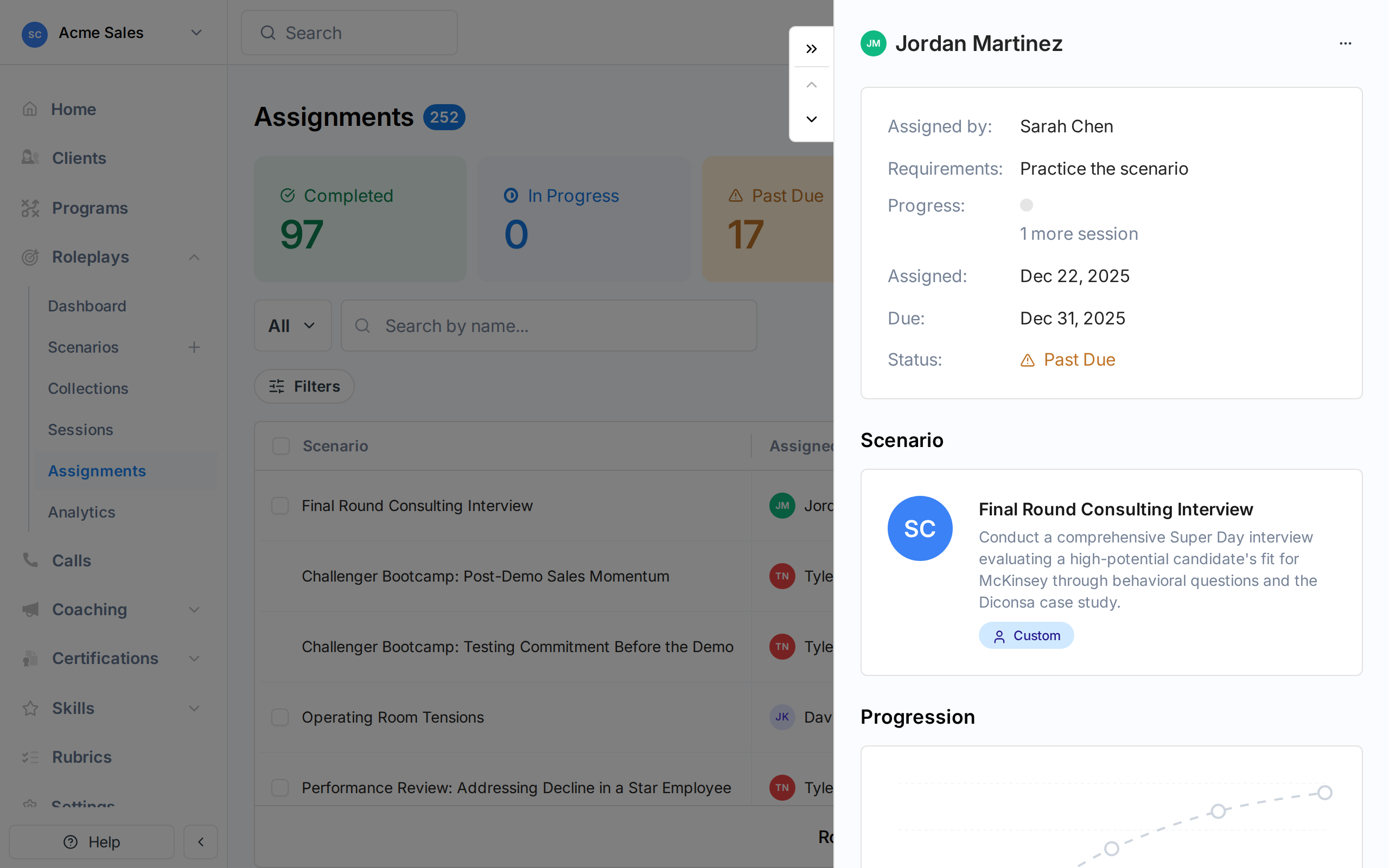
Assignment detail drawer showing assignee info, requirements, status, scenario card, and progression chart
  • Assignment details - Who assigned it, requirements, progress, dates, and status
  • Scenario card - The assigned scenario with its description and difficulty. Click to navigate to the scenario.
  • Score progression chart - A visual chart of the assignee’s scores across all attempts
  • Session history - A list of every roleplay session with the date, score, and rank. Click a session to view the full feedback.
Use the arrow buttons to navigate between assignments without closing the drawer. For non-program assignments that aren’t yet completed, the three-dot menu in the drawer lets you Edit or Delete the assignment.

Filtering Assignments

Use the filter bar to narrow down the assignments table:
FilterOptions
CollectionFilter by scenario collection (available on the main Assignments page)
ScenarioFilter by specific scenarios (available on the main Assignments page)
Assigned ToFilter by individual people or groups
StatusNot Started, In Progress, Past Due, Completed, Did Not Pass
Assigned ByFilter by assigner, with quick options for “Assigned By Me”, “Assigned By People”, and “Assigned By Programs”
You can also use the search bar to find assignments by name, email, or scenario title. Filters and search work together.

Editing an Assignment

To change the due date or completion requirements on a single assignment:
1

Find the assignment

Locate the assignment in the table, or open its detail drawer.
2

Open the edit dialog

Click the three-dot menu on the row and select Edit. Or click Edit from the detail drawer’s menu.
3

Make changes

Update the due date, minimum score, minimum attempts, or maximum attempts.
4

Save

Click Save to apply the changes.
Program-based assignments cannot be edited from this page. To change their deadlines, use the program’s participant management to grant extensions.

Deleting Assignments

To remove an assignment, click the three-dot menu on the row and select Delete. A confirmation dialog shows the scenario name, assignee, and due date before you confirm.
Deleting an assignment cannot be undone. The assignee will no longer see the assignment, but their completed roleplay sessions are preserved.
Program-based assignments cannot be deleted individually. Remove the participant from the program instead.

Bulk Actions

Select multiple assignments using the checkboxes to unlock bulk actions:
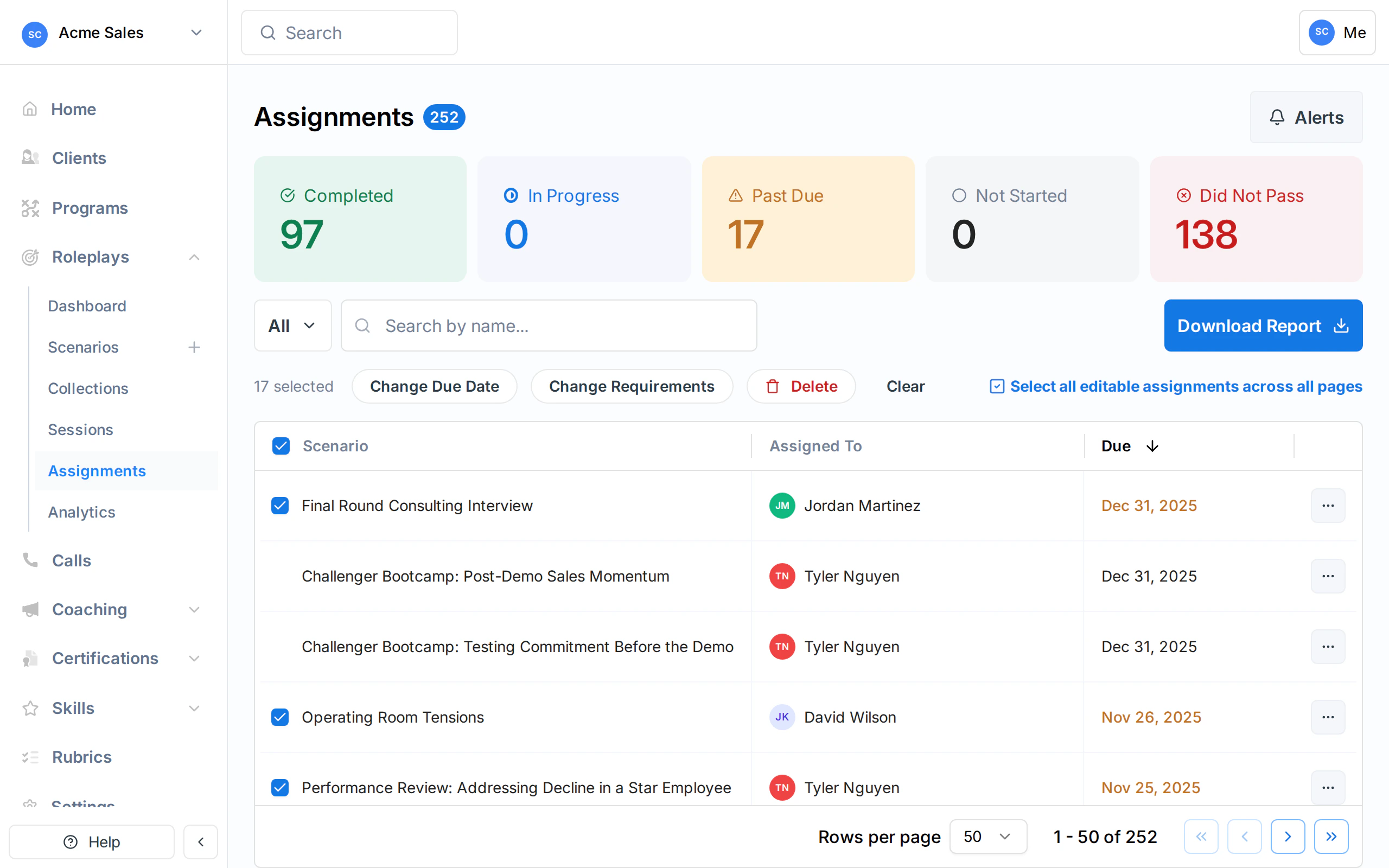
Bulk actions bar showing Change Due Date, Change Requirements, Delete, and Select All options
  1. Change Due Date - Set a new due date for all selected assignments at once
  2. Change Requirements - Update the minimum score, minimum attempts, or maximum attempts for all selected assignments
  3. Delete - Remove all selected assignments (with confirmation)
When you select all visible rows on a page, a Select all editable assignments across all pages option appears, letting you apply bulk actions to your entire filtered set.
Completed assignments and program-based assignments cannot be bulk-edited. They are excluded from the selection automatically.

Email Notifications

Exec sends automatic email reminders to keep assignees on track:
EmailWhen it’s sent
New assignmentImmediately when the assignment is created
3-day reminderEvery 3 days if the assignee hasn’t started (repeats until they do)
Due tomorrowThe day before the due date
Past dueOnce, after the deadline passes
CompletionWhen the assignee meets all requirements
These emails include the scenario name, difficulty, due date, completion requirements, and a direct link to practice.

Weekly Digest

In addition to individual reminders, Exec can send a weekly assignment digest summarizing all open assignments. Toggle this from the Alerts button in the top-right corner of the Assignments page.
1

Click the Alerts button

The Alerts button (bell icon) is in the top-right corner of the Assignments page.
2

Toggle the weekly digest

Enable or disable the weekly assignment digest email. When enabled, you receive a summary of all outstanding assignments once per week.

Exporting Assignment Data

Use the export button in the table controls to download assignment data as a CSV file. The export includes all columns visible in the table and respects your current filters and search.

Getting Help

Need help managing assignments? Contact us at [email protected].