

Who Can Assign
By default, workspace admins and group admins can create assignments. Group admins can assign scenarios to members of their own groups. Workspace admins can expand this by changing the minimum assignment permission level in workspace settings. When set to Member, any workspace member can assign scenarios.Assigning a Scenario
1
Open the Assign dialog
Navigate to the scenario you want to assign and click the Assign button in the top-right corner.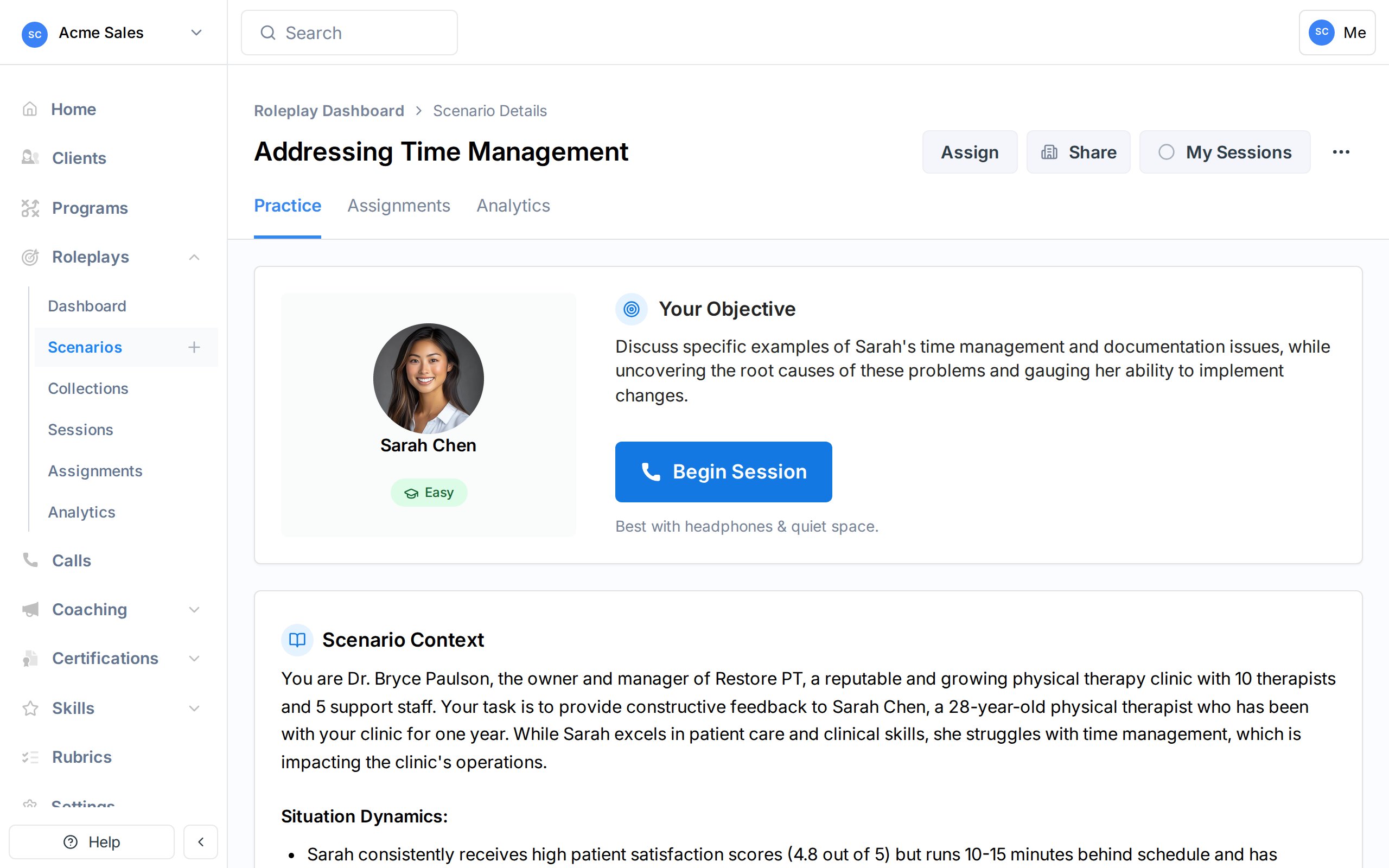
2
Select people and groups
Search for and select the individuals or groups you want to assign the scenario to. You can mix both in a single assignment. The dialog also shows current assignments for this scenario.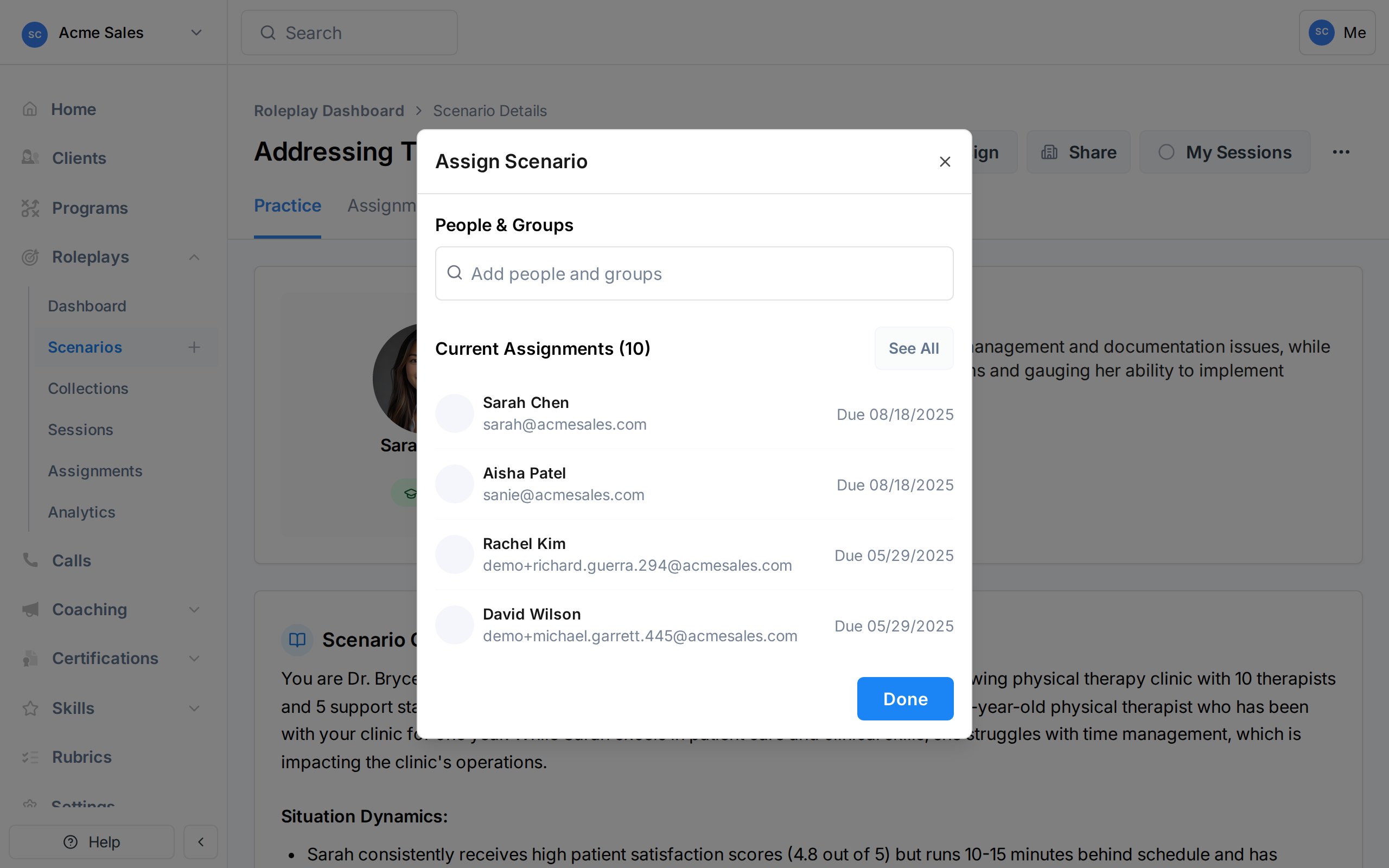
If you are a group admin (not a workspace admin), the groups shown are limited to groups you manage. Selected groups will not include members who are group admins.
3
Set a due date and completion requirements
After selecting people, the dialog advances to the configuration step. Set a due date, timezone, and optionally configure completion criteria: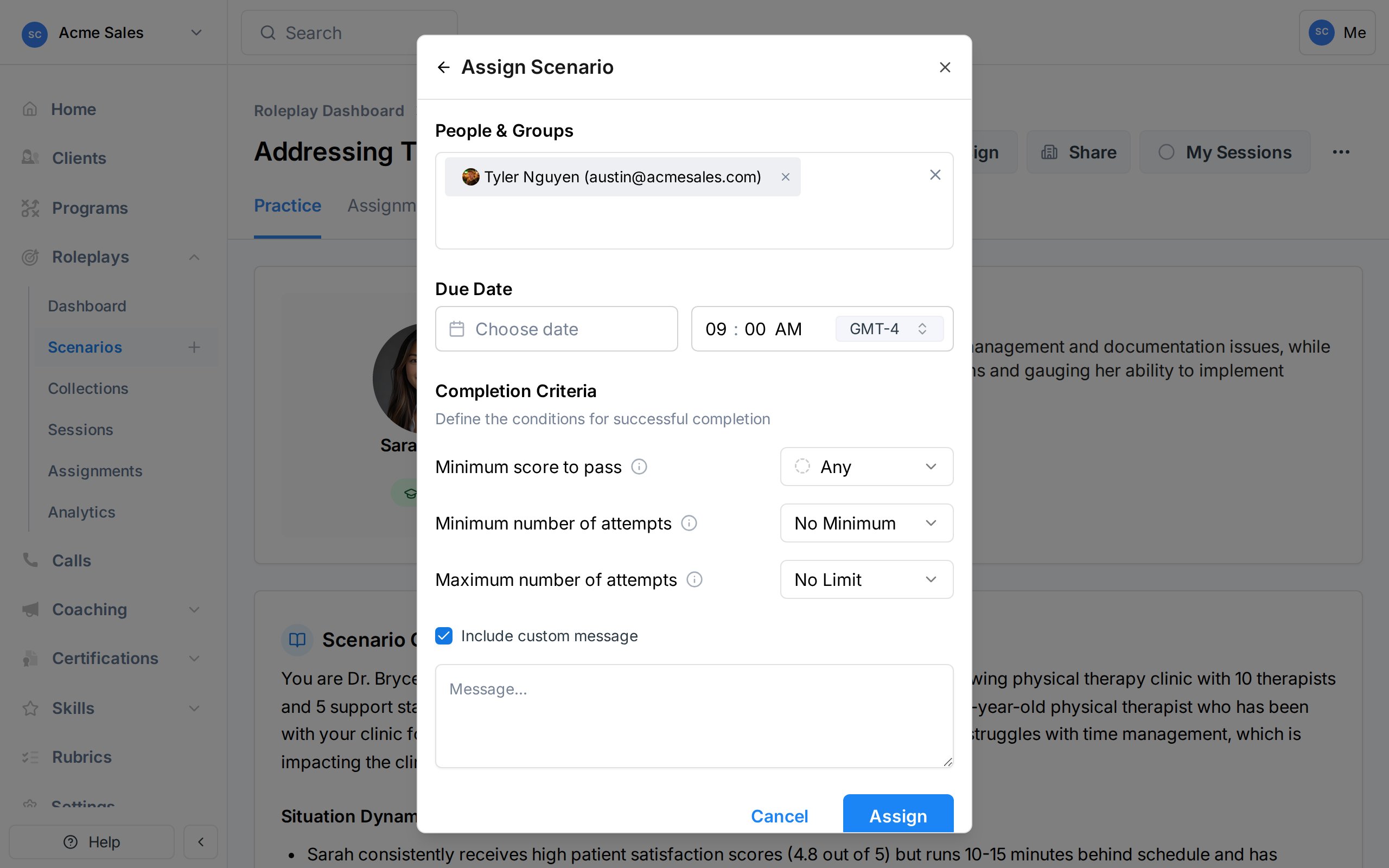
- Minimum score to pass - The minimum rank the assignee must achieve on their best attempt. Options: Any (no minimum), Bronze (50-74%), Silver (75-89%), or Gold (90-100%).
- Minimum number of attempts - How many times the assignee must practice the scenario (1-10).
- Maximum number of attempts - A cap on how many times the assignee can attempt the scenario (1-10). After reaching the maximum, the assignment locks.
4
Add a custom message (optional)
Check Include custom message to write a personalized note that appears in the assignment notification email. Use this to explain why the scenario matters or what to focus on.
5
Click Assign
The assignment is created immediately. Each assignee receives an email notification with the scenario details, due date, and your custom message (if included).
Assigning From a Collection
When you assign from a collection page instead of an individual scenario, the dialog adds a third step where you select which scenarios from the collection to include. The people, due date, and completion requirements you set apply to all selected scenarios. This is useful when you want to assign a set of related scenarios (e.g., a full discovery call series) to the same group with the same deadline.How Completion Works
Exec automatically tracks whether an assignment is complete based on the criteria you set:
When all requirements are met, the assignment status changes to Completed automatically. Assignees can also manually submit their assignment, which locks it from further attempts.
Program-Based Assignments
When a roleplay is included as a component in a Program, assignments are created automatically for all enrolled participants. These program-based assignments:- Cannot be deleted individually (they are managed through the program)
- Show the program name instead of an individual assigner in the Assignments table
- Support deadline extensions granted through the program’s participant management