

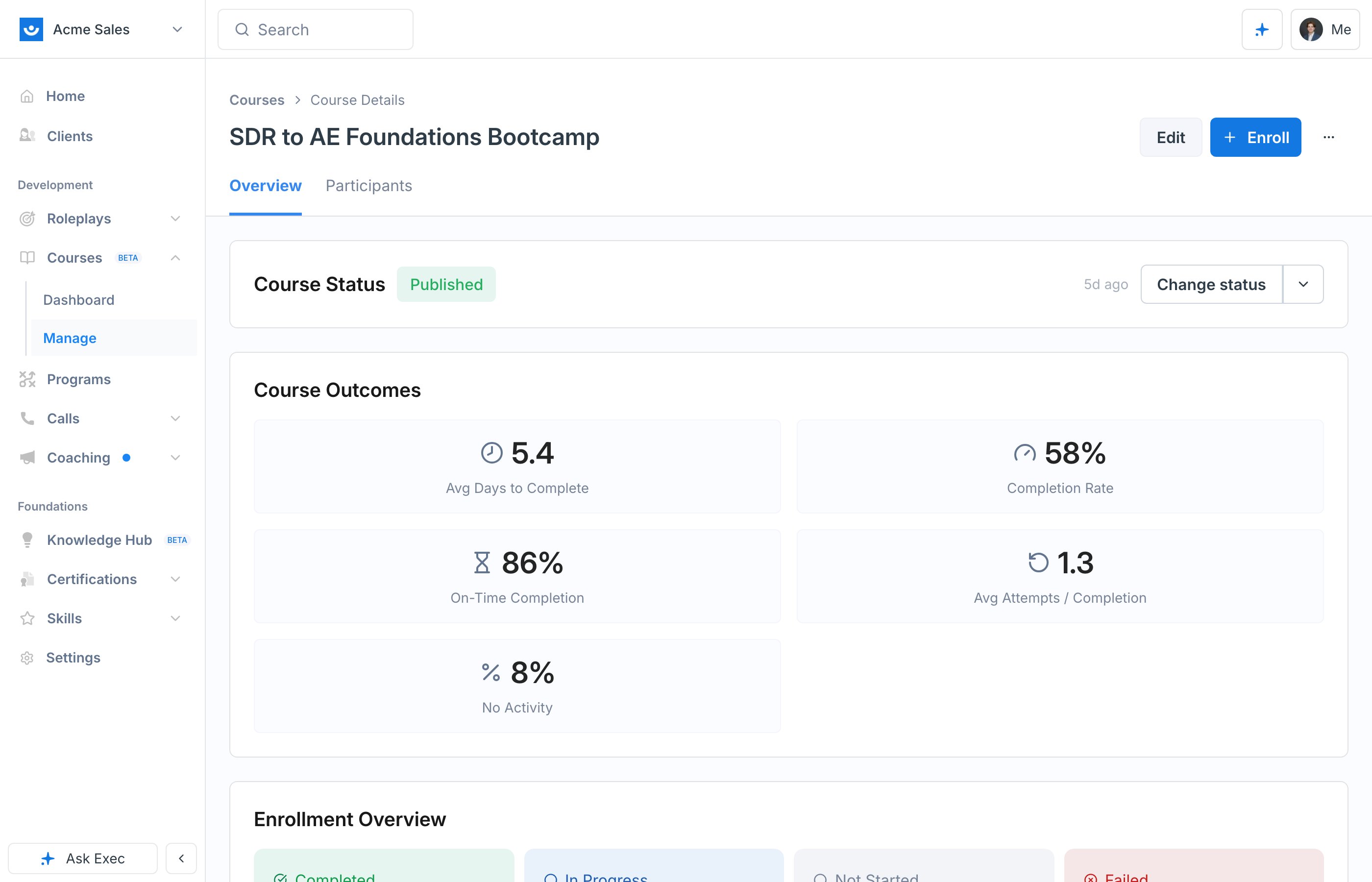
Course Outcomes
The Overview tab leads with the metrics that tell you whether the course is working:Enrollment Overview
Below the outcomes, the Enrollment Overview breaks the cohort into Completed, In Progress, Not Started, and Failed, so you can see the shape of the whole group in one view.Spot At-Risk Learners
The At Risk table surfaces learners who are past due or trending that way:- Not Started: enrolled 7 or more days ago and hasn’t begun
- In Progress: started, but no activity in the last 7 days
Handle Failed Enrollments
The Failed table lists learners who didn’t complete, with the reason for each: Failed at: <block> (they ran out of attempts on a specific quiz or roleplay), Course closed before completion, or Did not finish in time. Select learners and click Re-enroll selected to give them a fresh attempt.Section Breakdown
The section breakdown shows how many learners have started and completed each section, with a toggle between % and #. A section where lots of learners stall is your signal to revisit that content.Drill Into a Single Learner
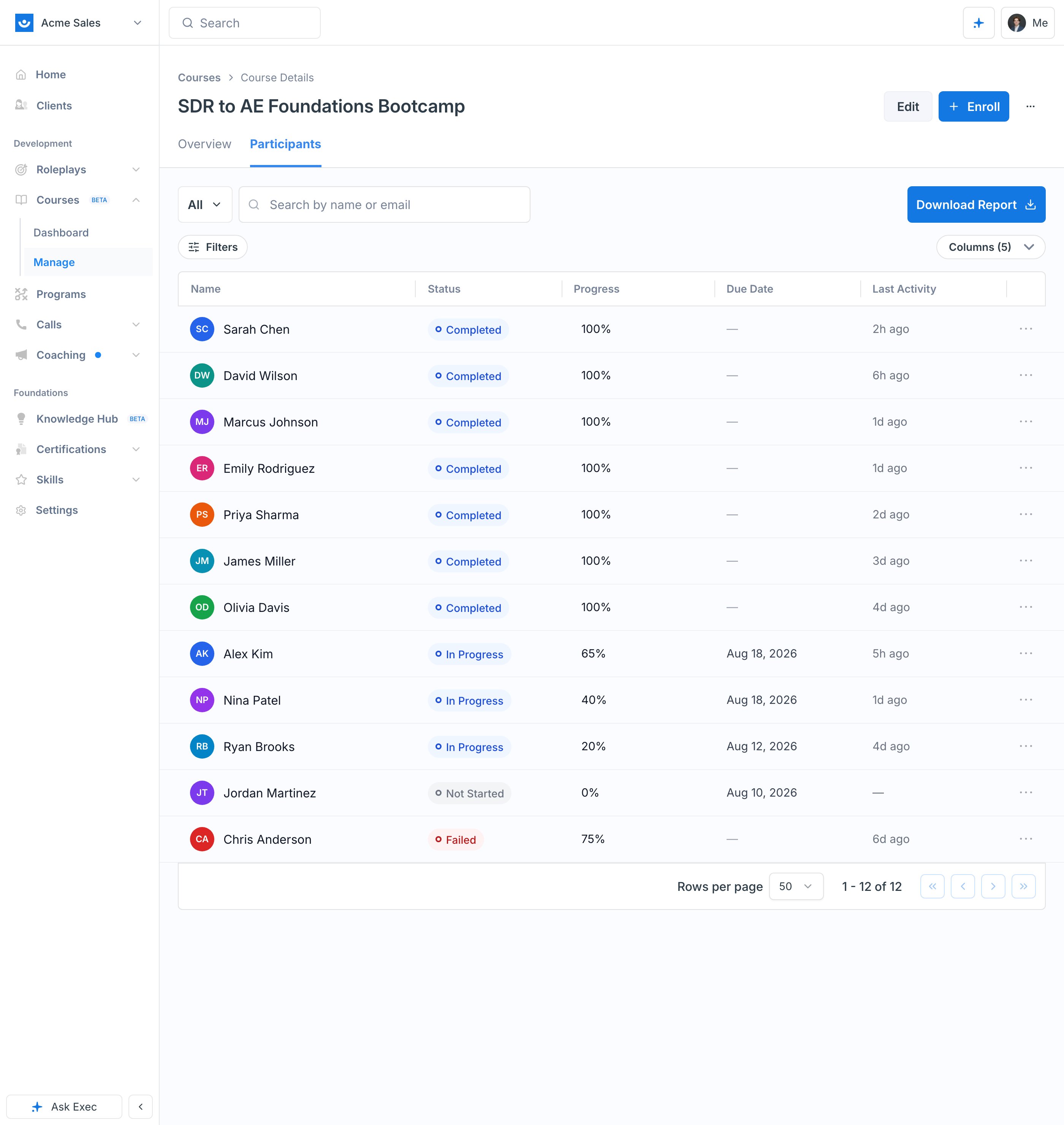
The Participants tab lists every enrollment with name, status, progress, due date, and last activity. Three more columns are available from the columns toggle and hidden until you turn them on:- Enrolled shows the date the learner was enrolled on their current attempt, useful for sorting by cohort or spotting stale enrollments.
- Version shows the course version the learner is pinned to, with an info icon when that is not the current published version. See Publish and Versioning.
- Attempts shows how many attempts the learner has taken on the course.
- Progress Overview: percent complete and pages completed
- Per-section status, so you can see exactly where they are
- Deadline editing, to adjust their due date or close date
- A Nudge action for a one-off reminder
Export the Cohort
You can export the full cohort to a spreadsheet for reporting outside Exec or deeper analysis of your own. The export covers who has completed, who is in progress, and who has not started. The download matches the columns you have turned on, so if you want the course version or attempt count in the file, switch those columns on before exporting.Related Pages
Nudges and Re-enrollment
Remind at-risk learners and re-enroll those who didn’t finish.
Enroll Participants
Assign courses and set due and close dates.