

Nudge Learners Who Are Behind
A nudge is a reminder email you send to learners who are overdue or behind. The At Risk table on the course dashboard surfaces exactly who needs one:- Not Started: enrolled 7+ days ago and has not begun
- In Progress: no activity in 7 days
- Past Due: past their due date
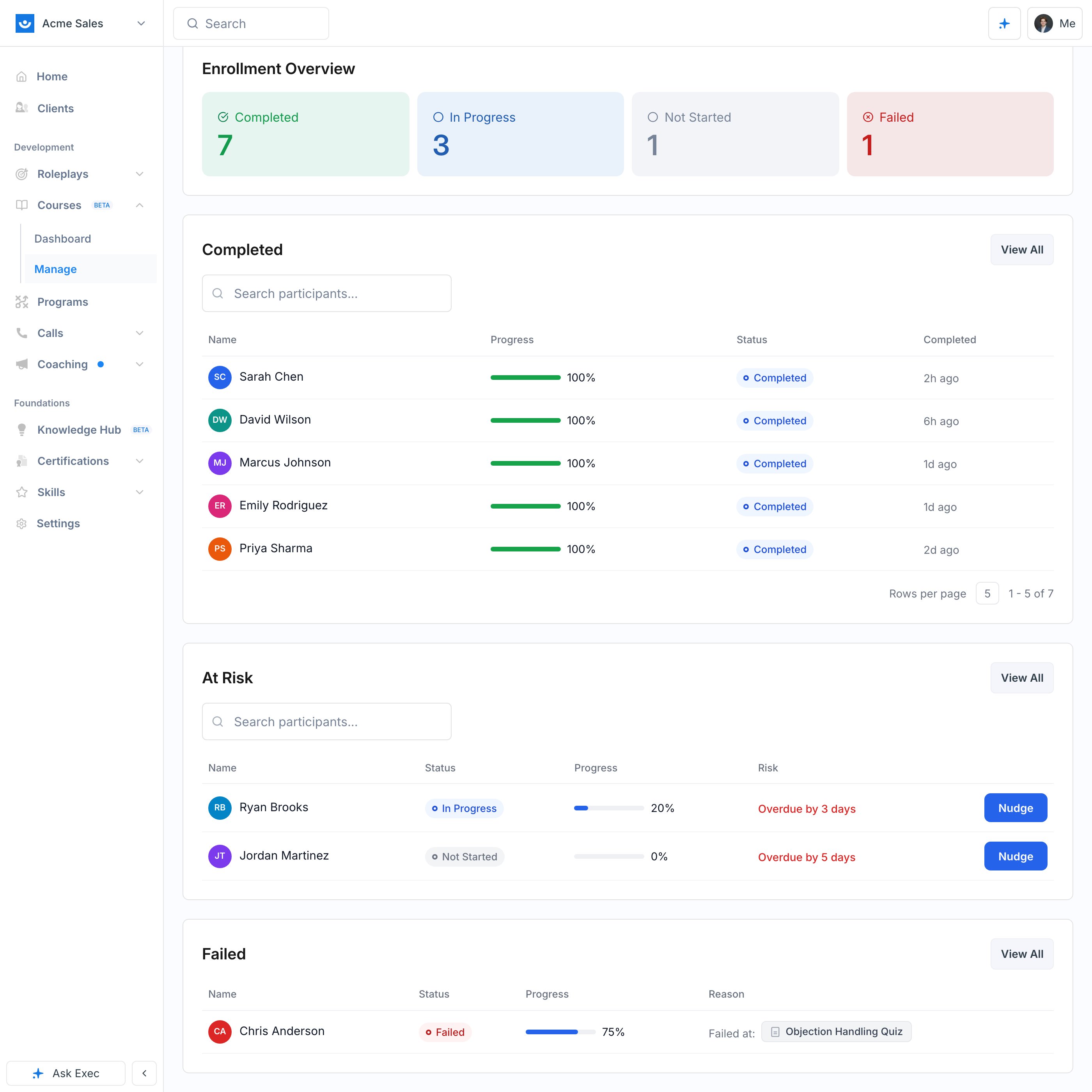
Nudges are rate-limited to once per 24 hours per learner, so you cannot accidentally spam someone by clicking twice.
Extend a Deadline
Sometimes the right move is more time, not another email. Open the learner’s enrollment detail from the Participants tab to see their progress and edit their deadlines. Pushing out a close date before it passes keeps the learner active instead of letting them slip into Did Not Complete.Re-enroll Learners Who Did Not Complete
A Did Not Complete enrollment means the learner either failed a required block (Did Not Pass) or ran out of time when the close date passed (Did Not Finish). Re-enrolling gives them a clean slate: the prior attempt is soft-deleted and a fresh enrollment starts from the beginning. As an admin, select learners in the Failed table on the course dashboard and choose Re-enroll selected. This works for anyone who Did Not Complete, whatever the reason. Learners can re-enroll themselves only when they self-enrolled in the first place and Did Not Complete. Assigned learners cannot restart on their own.Re-enroll applies only to enrollments that Did Not Complete. To put a learner who is partway through, or who already completed, onto a newer version of the course, Unenroll them from the Participants tab and enroll them again. The fresh enrollment pins to the current published version. See Publish and Versioning.
Learner Requests
When a learner hits a failure state, the course player gives them self-service options:- Re-enroll in Course, when they qualify to restart on their own
- Request Re-enrollment, which asks an admin to re-enroll them
- Request More Time, which asks an admin to extend their deadline
Next Steps
Track Progress and Analytics
The full course dashboard, including the At Risk and Failed tables.
Enroll Participants
How enrollment, due dates, and close dates work in the first place.