

This is an admin task. Creating and managing groups is available to workspace admins. You can also appoint group admins to manage a single group. Credit features appear only when coaching is enabled.
What groups are for
A group is a named collection of members. You can use groups to:- Organize your team - segment members by department, cohort, region, or whatever structure fits.
- Control coaching access - give a group access to specific coaching services, or set a per-session credit limit.
- Manage credits together - give a group its own credit wallet and let a group admin distribute credits within it.
- Assign work in bulk - assign programs and roleplay scenarios to a whole group at once.
- Tag and filter - because a member can belong to many groups, groups double as tags. Use them to label members (for example, “New Hires” or “Pilot”) and filter your Members list by group.
Create a group
1
Open Groups
Go to Workspace > Groups in your admin settings, then click + Add Group.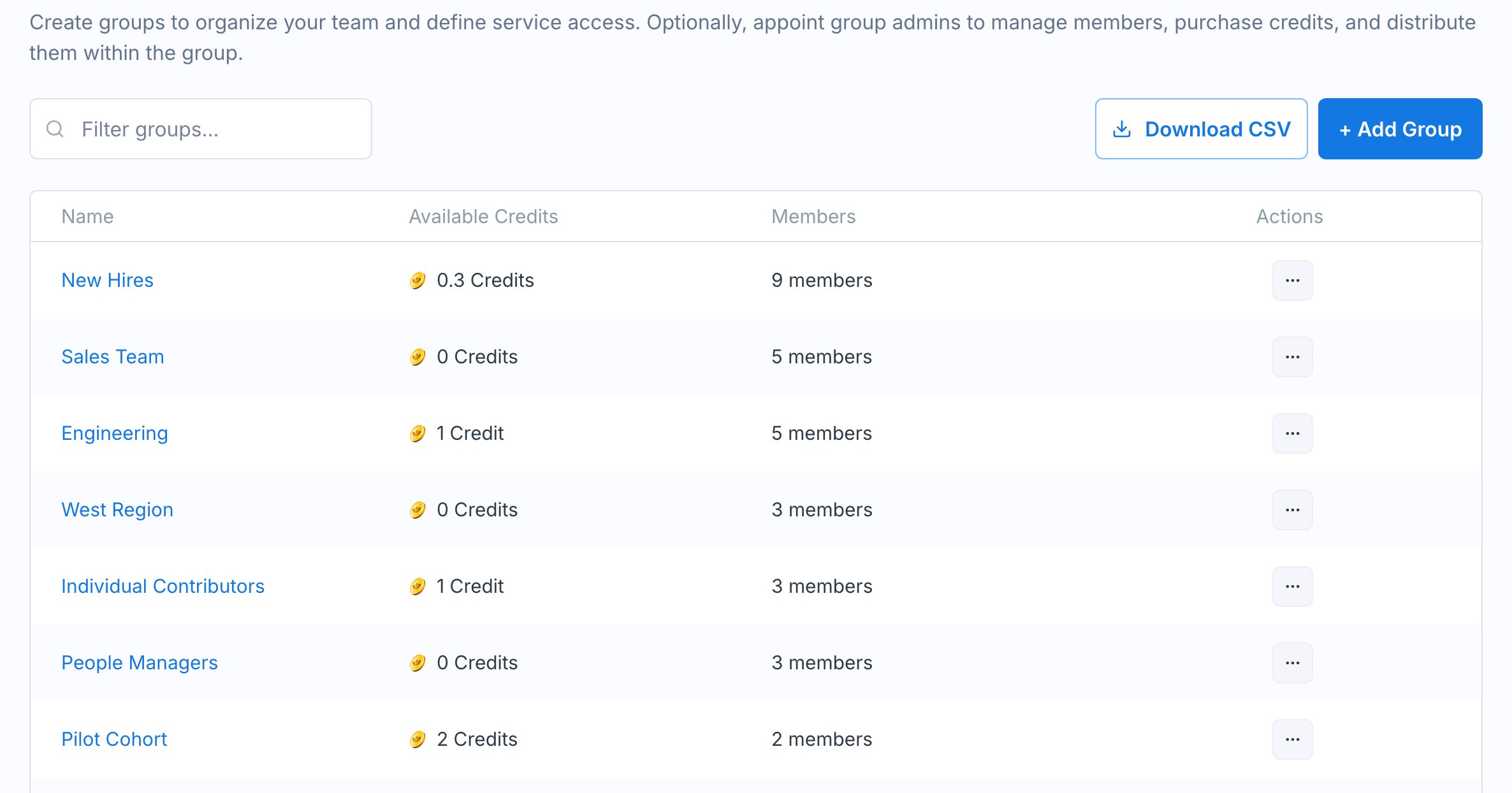
2
Name it and add members
In the Add Group dialog, give the group a name and optionally add members by email.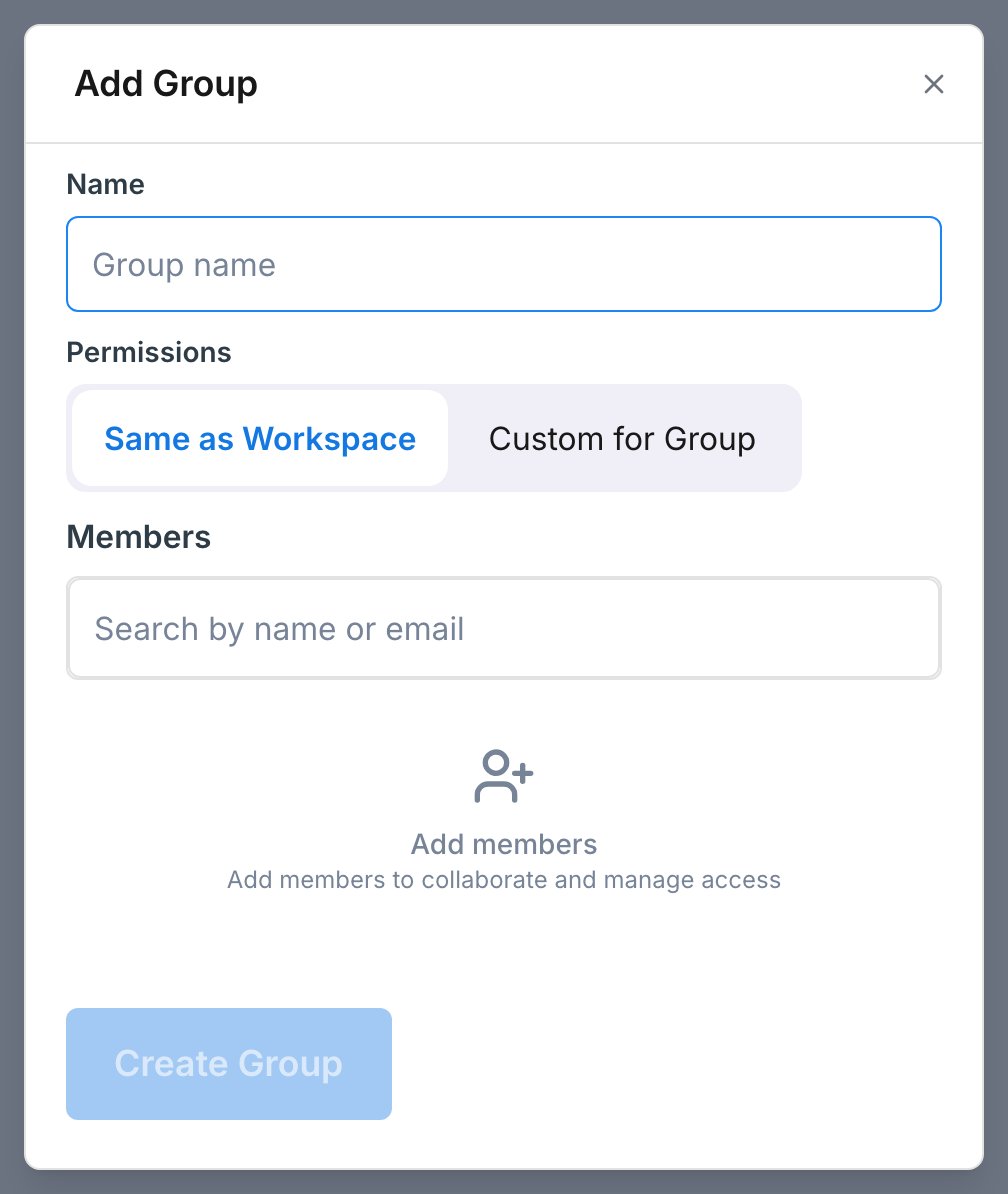
3
Set permissions (optional)
If coaching is enabled, choose Same as Workspace to inherit your workspace defaults, or Custom for Group to control which coaching services the group can access and set a per-session credit limit. Then click Create Group.
Add and remove people
Add members to the group. On the group’s page, find the Group Members section and click + Add Members, then enter the emails of the workspace members to add. Remove a member. In the Group Members table, open a member’s actions menu and choose Remove From Group. This only removes them from the group, not from your workspace. Tag a member from the Members list. You can also assign groups from the other direction: on your Members list, open a member’s menu (or select several at once) and choose Set Groups to check the groups they belong to. This is the quickest way to use groups as tags.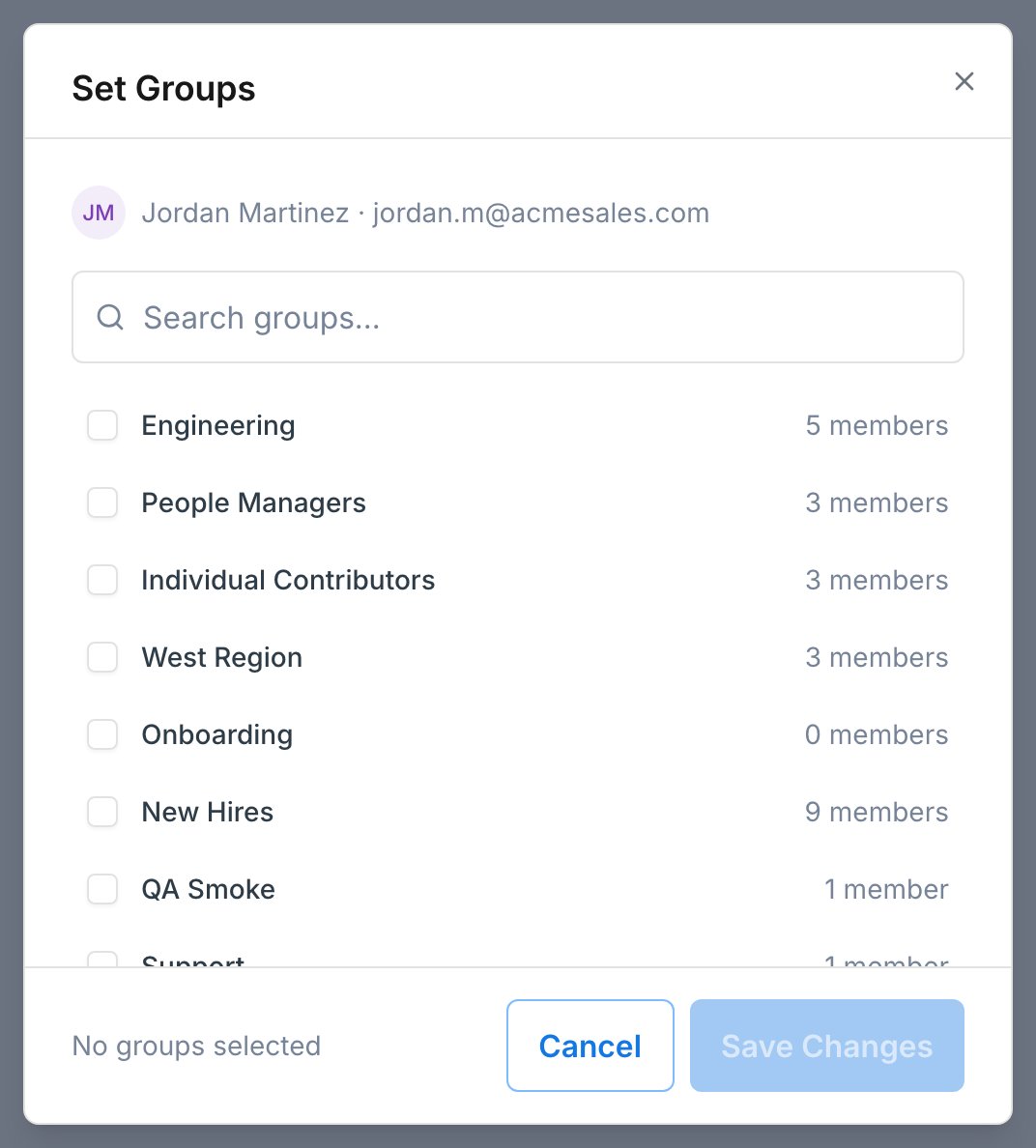
Appoint a group admin
A group admin manages a single group without being a full workspace admin. They can add and remove members and distribute the group’s credits, but they can’t rename or delete the group or change its permissions. To appoint one, open the Group Members table, open a member’s actions menu, and choose Make Group Admin - their row then shows a Group Admin badge. Choose Revoke Admin Rights to remove it. Only workspace admins can appoint group admins.Manage group credits
Groups can hold their own pool of coaching credits, so a group admin can hand them out without touching the rest of the workspace’s balance.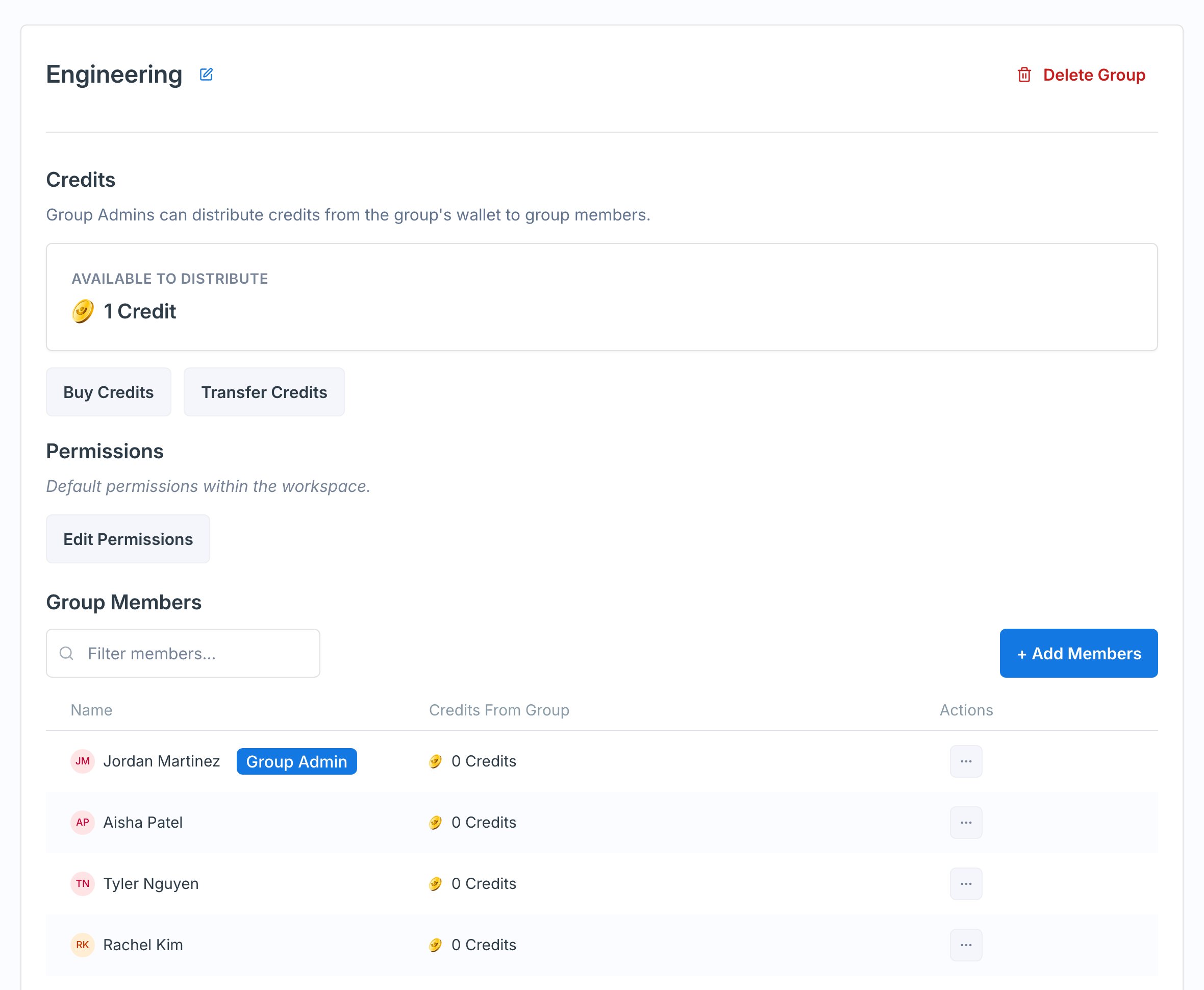
- Fund the group. From the Groups list or the group’s page, use Transfer Credits to move credits from your workspace into the group’s wallet. The group page shows this balance as Available to Distribute.
- Distribute to members. From the group’s Group Members table, a workspace or group admin can transfer credits from the group wallet to individual members.
- Leftover credits. If you delete a group that still has credits, those credits move back to your workspace account.