

Configuring LTI requires the Professional or Enterprise plan. If your workspace is on Free or Starter, the LTI settings page shows an upgrade prompt with a link to billing instead of the endpoint URLs, manual form, and dynamic registration button described below.
When in doubt, look for a “Dynamic Registration URL” or “Register external tool from URL” option in your LMS’s LTI settings — that’s the fast path. If you only see fields for issuer, client ID, keyset URL etc., use the manual flow.
Open the LTI settings page
1
Open Workspace settings
Click your profile avatar, then Workspace settings.
2
Open Integrations
From the left sidebar under Administration, click Integrations.
3
Open LTI 1.3
Under the Learning section, click the LTI 1.3 card. You land on the LTI settings page.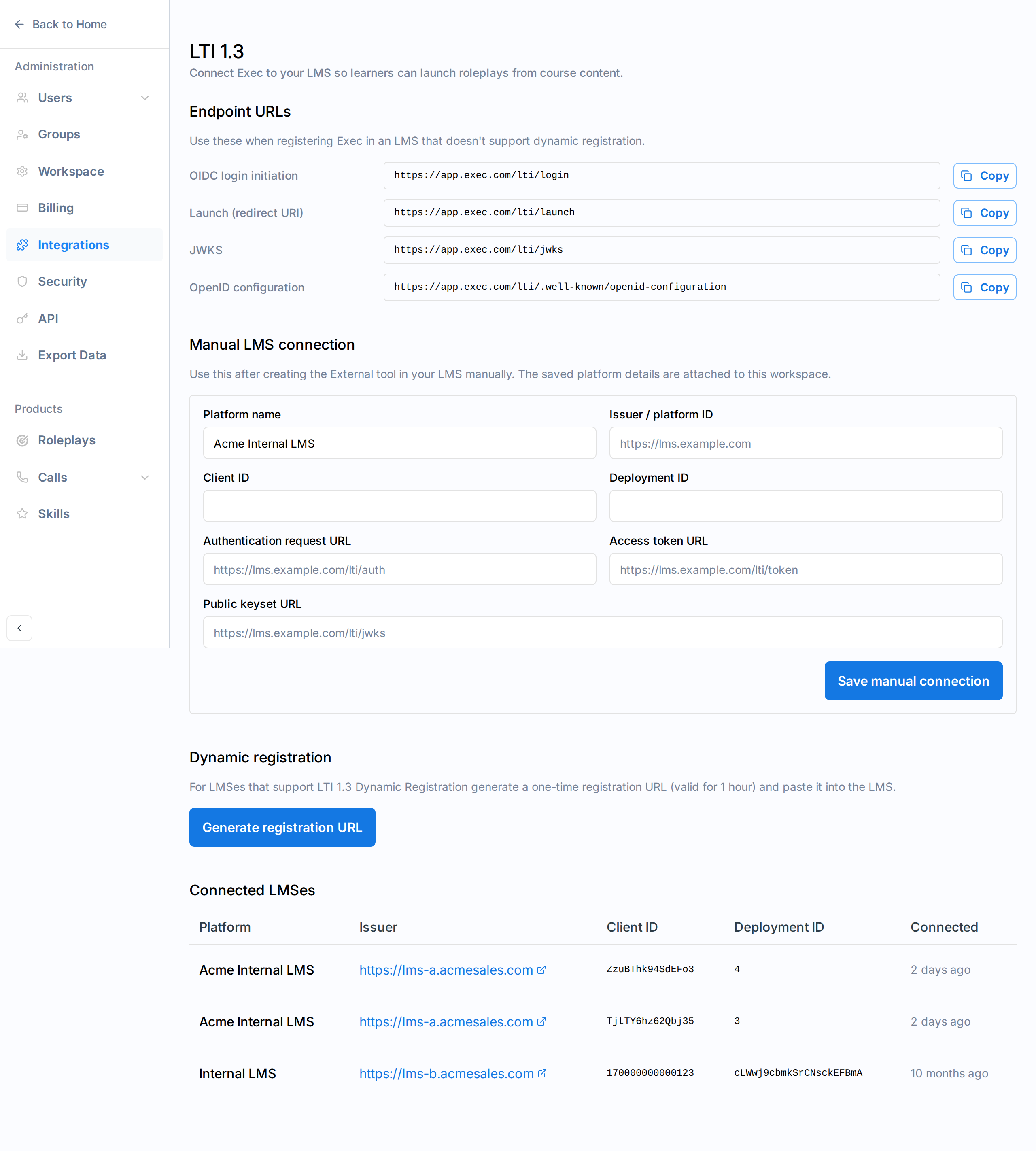
- Endpoint URLs — The four URLs your LMS needs when registering Exec as a tool.
- Manual LMS connection — A form for pasting platform details from LMSes that don’t support dynamic registration.
- Dynamic registration — A button that mints a one-time URL for LMSes that do.
- Connected LMSes — The list of platforms already wired up to this workspace.
Endpoint URLs
These four URLs uniquely identify Exec to your LMS. Every LTI 1.3 LMS asks for some subset of them when you register an external tool.
Use the Copy button next to each URL to copy it to your clipboard.
These URLs are stable per environment. You only need to copy them once when registering Exec in your LMS.
Dynamic registration
For LMSes that support LTI 1.3 Dynamic Registration. The LMS opens a one-time URL we generate, exchanges configuration with Exec automatically, and the connection appears in Connected LMSes with no manual copy-paste.1
Generate a registration URL
On the LTI settings page, click Generate registration URL in the Dynamic registration section.Exec creates a signed URL valid for 1 hour and copies it to your clipboard. The URL is also displayed below the button so you can copy it again if needed.
2
Paste the URL into your LMS
In your LMS’s LTI 1.3 settings, find the field labelled “Dynamic Registration URL”, “Register from URL”, or similar, and paste the URL Exec generated. Submit the form.Your LMS will open Exec’s registration endpoint in a popup or new tab.
3
Wait for confirmation
Once the LMS finishes exchanging configuration with Exec, the popup shows a “Registration complete” message and closes automatically.The new connection now shows in the Connected LMSes table on the LTI settings page.
Manual connection
For LMSes that don’t support dynamic registration. You first create the External tool inside the LMS using Exec’s Endpoint URLs, then paste the platform details the LMS gives you back into Exec. This is a two-sided handshake:- In your LMS: create an External tool / LTI 1.3 platform, paste in Exec’s four endpoint URLs, save. The LMS gives you back its own issuer, client ID, deployment ID, authentication URL, token URL, and public keyset URL.
- In Exec: open the LTI settings page, paste those values into the Manual LMS connection form, and save.
Step 1 — Create the External tool in your LMS
The exact field names vary by LMS. Match them like this:
A few settings to check while you’re there:
- Configure the LMS to use a keyset URL (not an inline public key) so key rotation works automatically.
- Enable Assignment and Grade Services if you want grade passback — without it, scores won’t post back to the gradebook.
- Enable Deep Linking (sometimes labelled Content selection) if your LMS offers it, so instructors can pick scenarios from inside the LMS instead of pasting
scenario_idvalues by hand. - If your LMS offers a launch container choice, either New window or Embed / iframe works. Iframe launches show learners a one-click Continue to Exec button before opening the scenario — see What learners see for details.
Step 2 — Save the platform details in Exec
1
Open the Manual LMS connection form
On the LTI settings page, scroll to Manual LMS connection.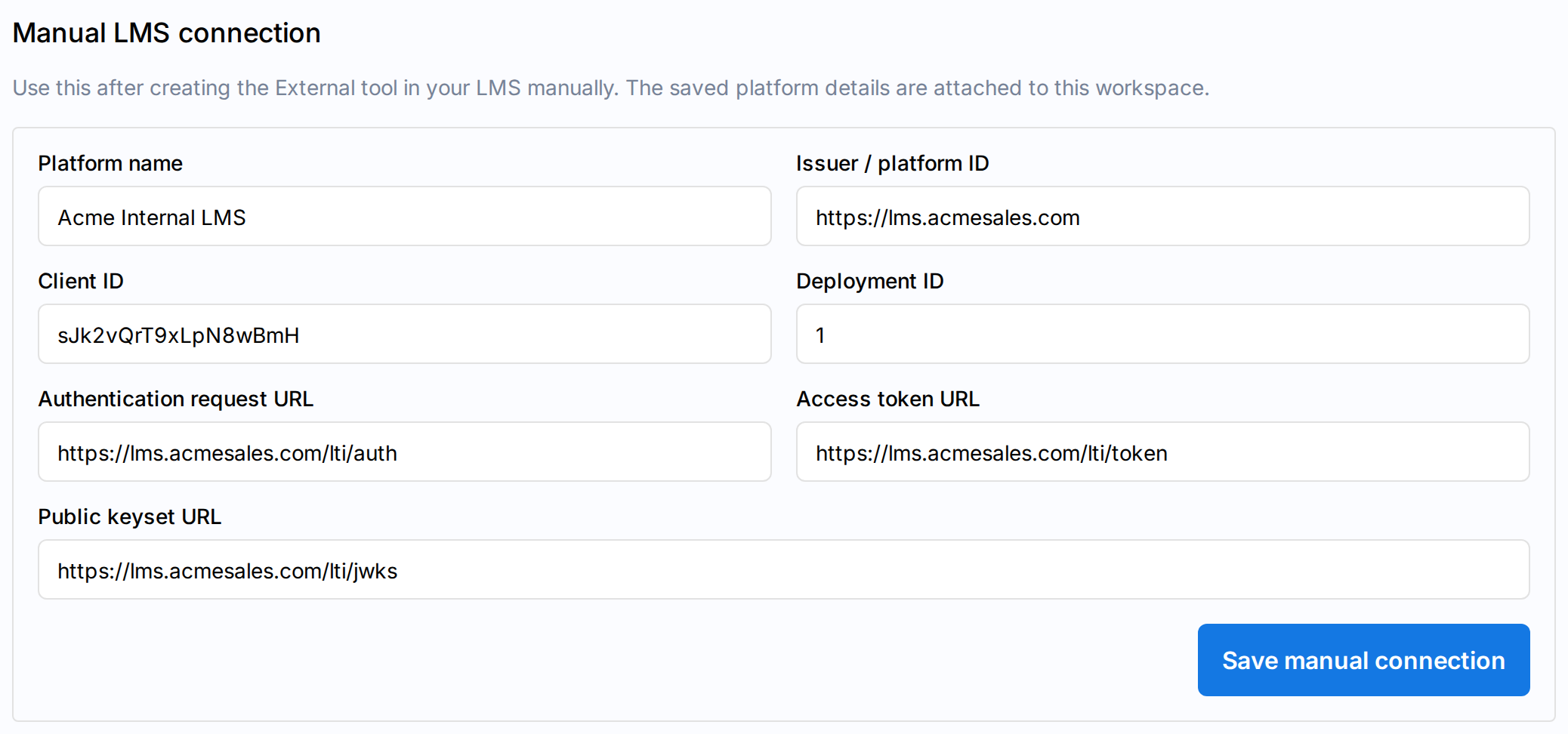
2
Fill in the form
Paste the values your LMS issued you:
- Platform name — A label for this connection (e.g., “Internal LMS” or your LMS product name).
- Issuer / platform ID — The LMS’s issuer URL, usually the site URL (e.g.,
https://lms.example.com). - Client ID — The client ID the LMS generated when you saved the External tool.
- Deployment ID — The deployment ID for this tool registration. Most LMSes give you a single deployment ID; if you have several, separate them with spaces or commas.
- Authentication request URL — Your LMS’s OIDC authorization endpoint.
- Access token URL — Your LMS’s token endpoint.
- Public keyset URL — Your LMS’s JWKS URL (where Exec fetches your LMS’s public keys).
3
Save the connection
Click Save manual connection. Exec validates the URLs and saves the configuration. You’ll see a “LTI configuration saved” toast and the new platform appears in the Connected LMSes table.
Connected LMSes
Once a connection is saved (manual or dynamic), it appears in the Connected LMSes table at the bottom of the page.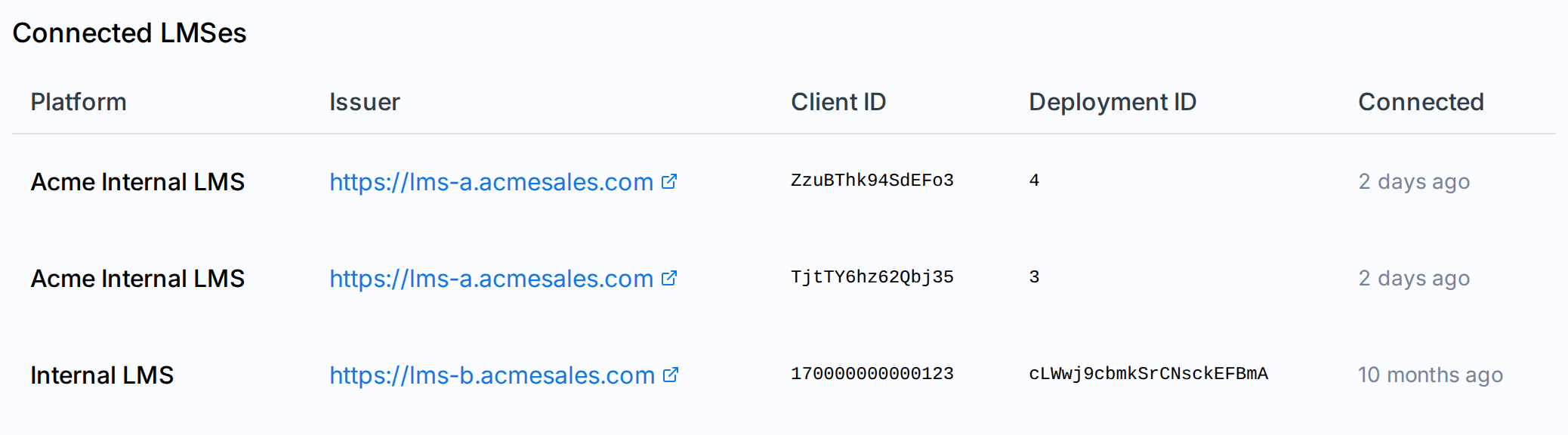
Each row is one (issuer, client ID) pair. If your LMS issues distinct client IDs for separate courses or tenants, you’ll see one row per pair.