

When to Use Scenario-Specific Instructions
Add scenario-specific instructions when:- The rubric criteria are too general for a particular roleplay
- You need graders (or AI evaluation) to look for specific behaviors or details
- A scenario requires additional context not captured in the base rubric
- You want to fine-tune how a skill is assessed without modifying the original rubric
Prerequisites
The roleplay must use evaluation criteria imported from a rubric
You must have editing access to the roleplay
Step 1: Open Evaluation Criteria
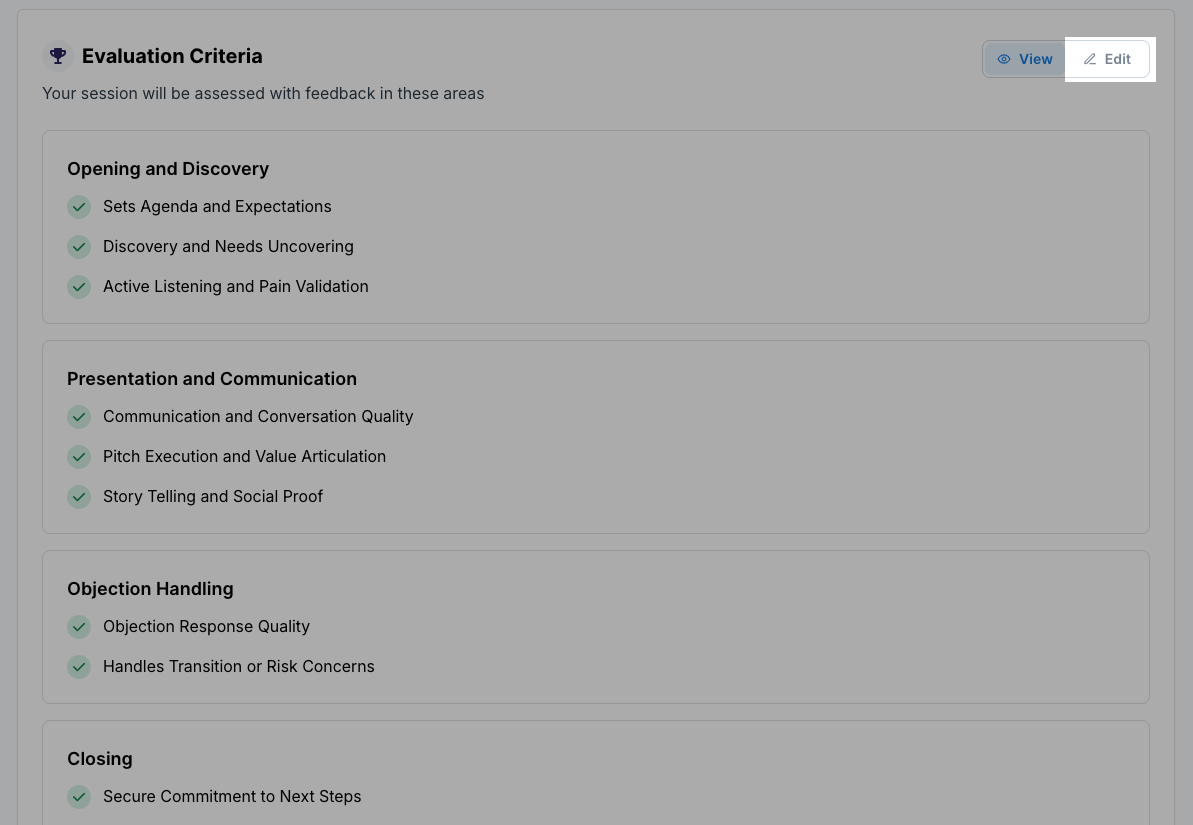
- Open the roleplay you want to edit.
- Scroll to the Evaluation Criteria section.
- Click Edit.
Step 2: Select the Criterion to Customize
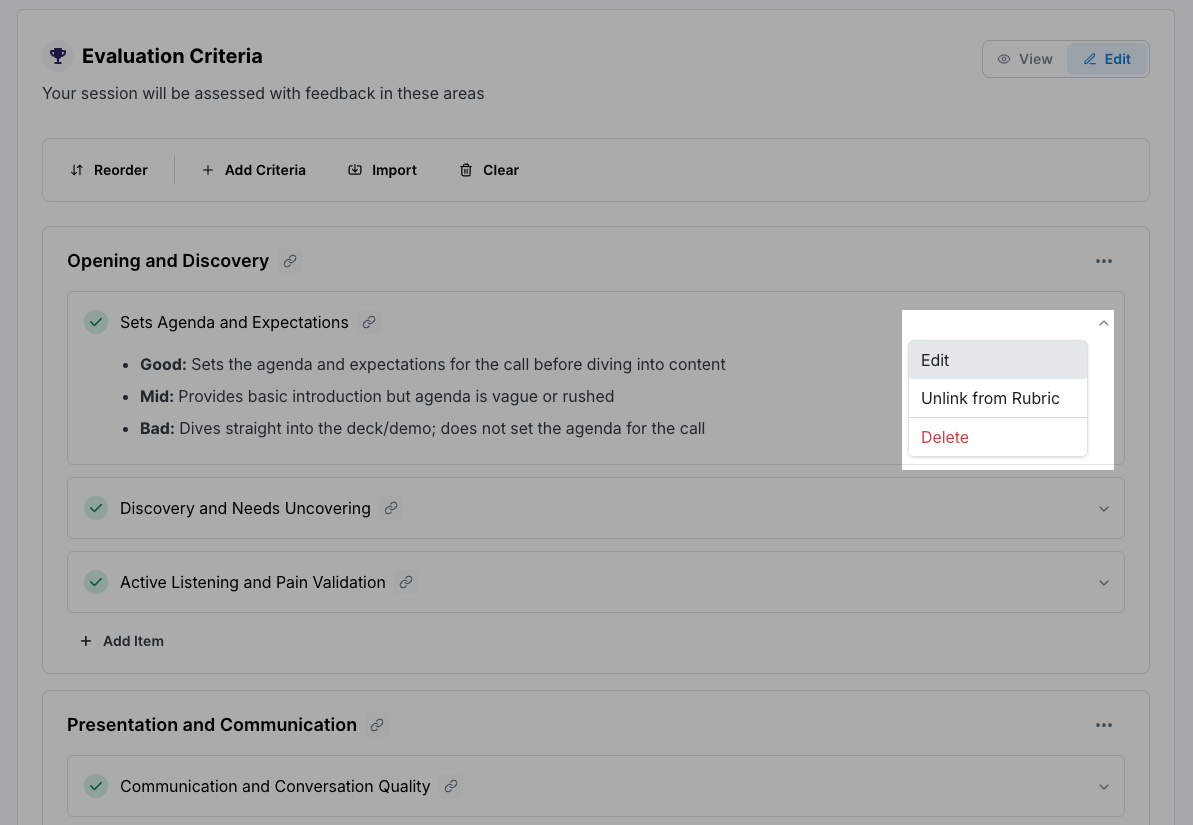
- Find the specific rubric criterion you want to adjust.
- Click the three dots (⋯) next to that criterion.
- Select Edit.
Step 3: Add Scenario-Specific Instructions
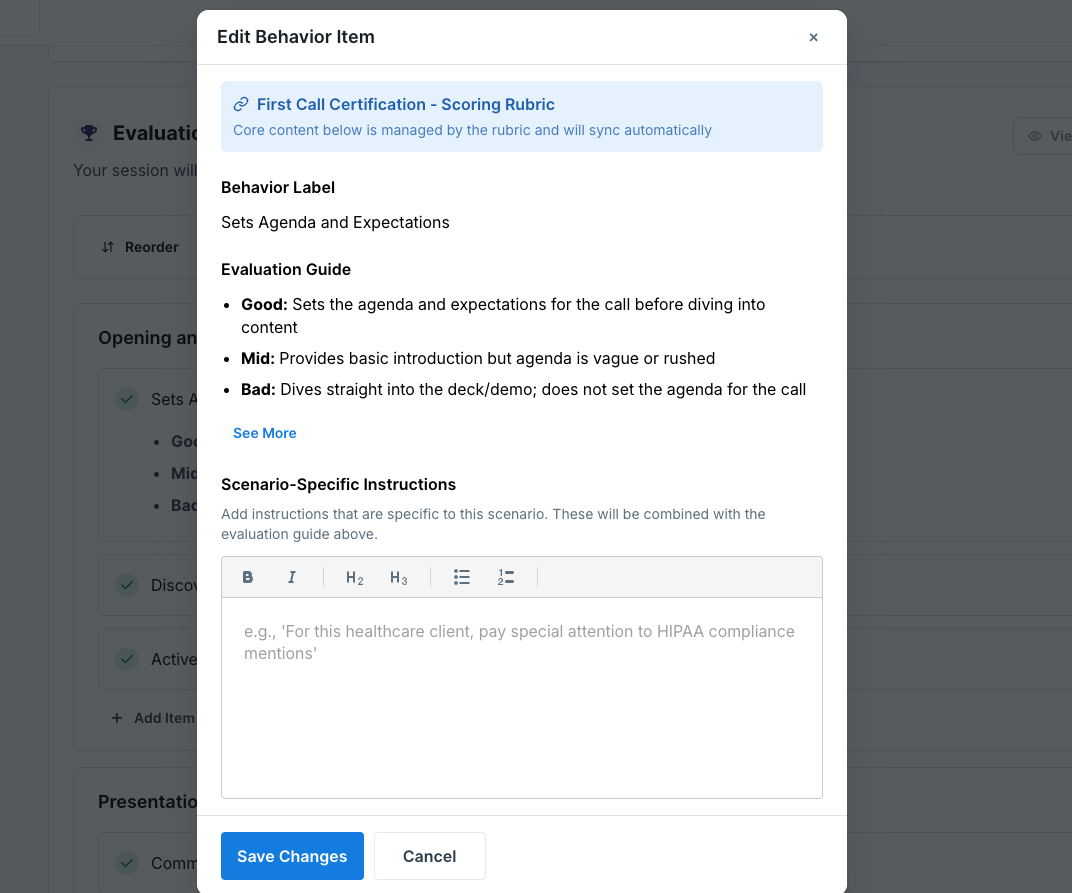
Example: If the rubric criterion is Discovery and Needs Uncovering and the general guidance is: “Ask at least two open-ended questions” You could add scenario-specific instructions such as: “At least one open-ended question must uncover the customer’s current pain points with their logistics vendor.” These instructions add precision without changing the rubric itself.
Step 4: Save Your Changes
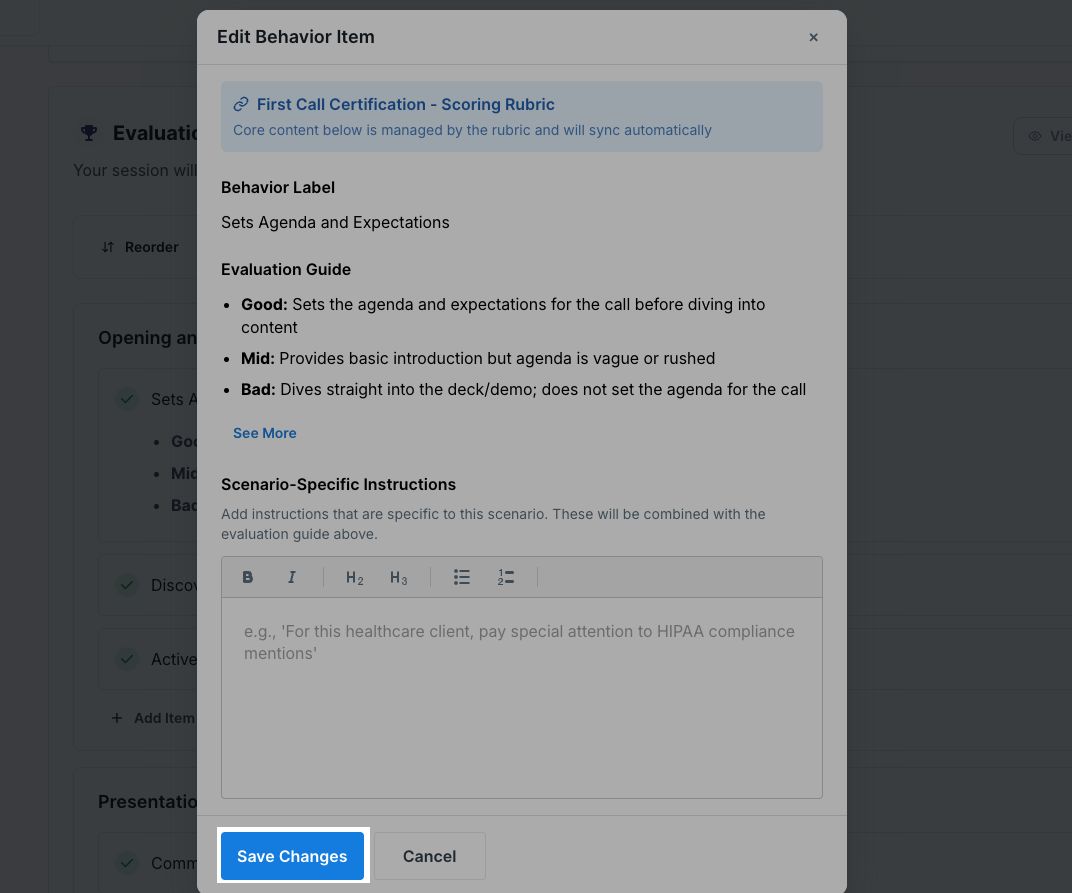
- Click Save Changes.
- The criterion will now display scenario-specific context.
How Scenario-Specific Instructions Are Used
- They supplement (not replace) rubric criteria
- They apply only to the current scenario
- They are used during evaluation to guide scoring
- They do not affect other roleplays using the same rubric