> ## Documentation Index
> Fetch the complete documentation index at: https://docs.exec.com/llms.txt
> Use this file to discover all available pages before exploring further.
# Complete Your First Roleplay
Everything you need to start a roleplay, have the conversation, review your results, and improve with the AI Coach before trying again.
## Video walkthrough
Before you can run a roleplay, the scenarios themselves need to exist. If your workspace hasn't built any yet, see the [Beginner Guide to Building Scenarios](/roleplays/ai-agent).
***
## Step 1: Find a Scenario
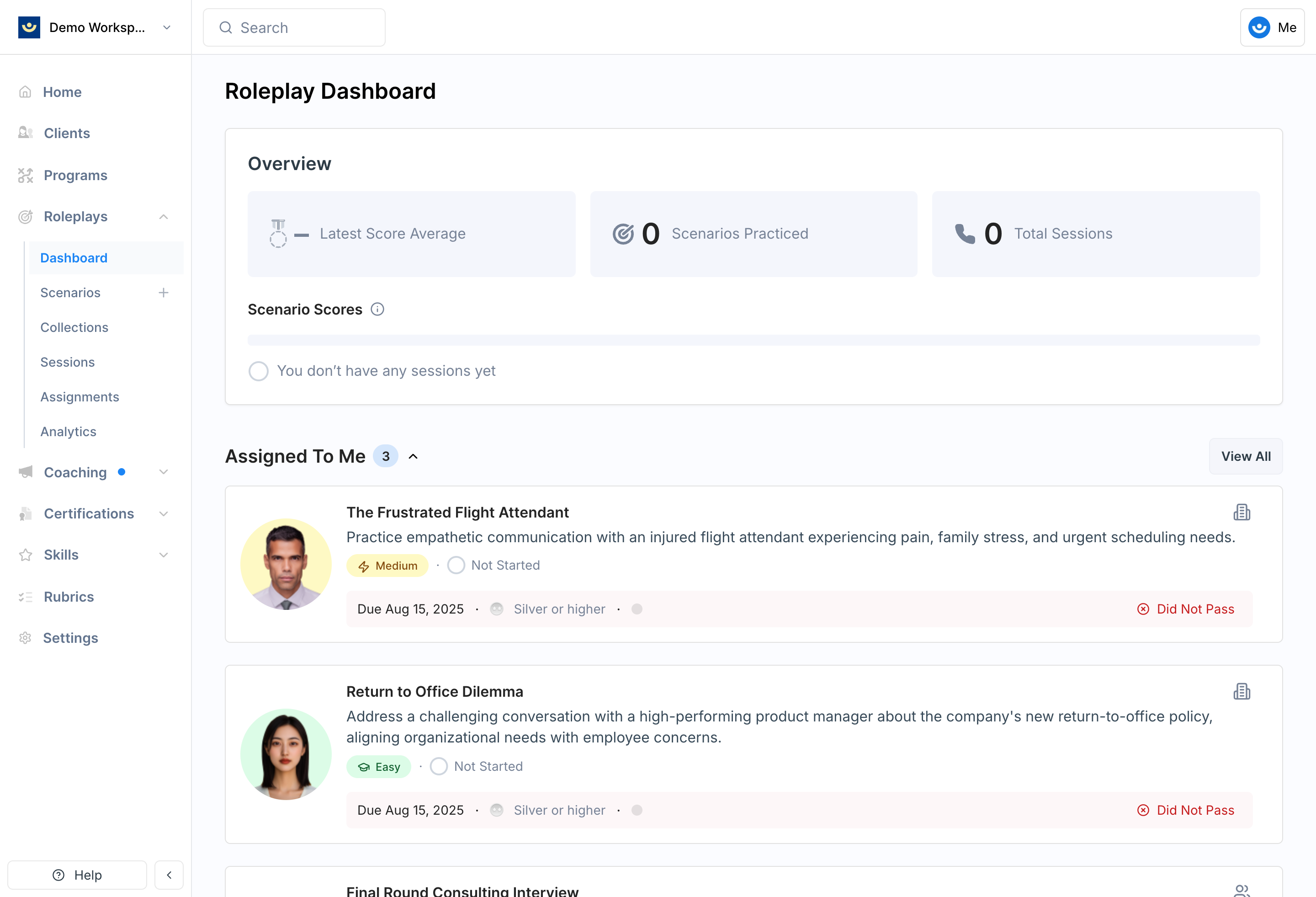
After logging in, click **Roleplays** in the left navigation to open your dashboard. The top of the page shows an **Overview** of your activity (latest average score, scenarios practiced, total sessions, and score distribution). Below that:
* **Assigned To Me** - roleplays assigned specifically to you, at the top so they're easy to find
* **Recent** - scenarios you've played most recently
* Scenarios you've **created** yourself, lower down
You can also browse the full scenario library, which is organized into **Assigned to Me**, **Workspace**, and **Created by Me** views.
 ***
## Step 2: Review the Scenario Details
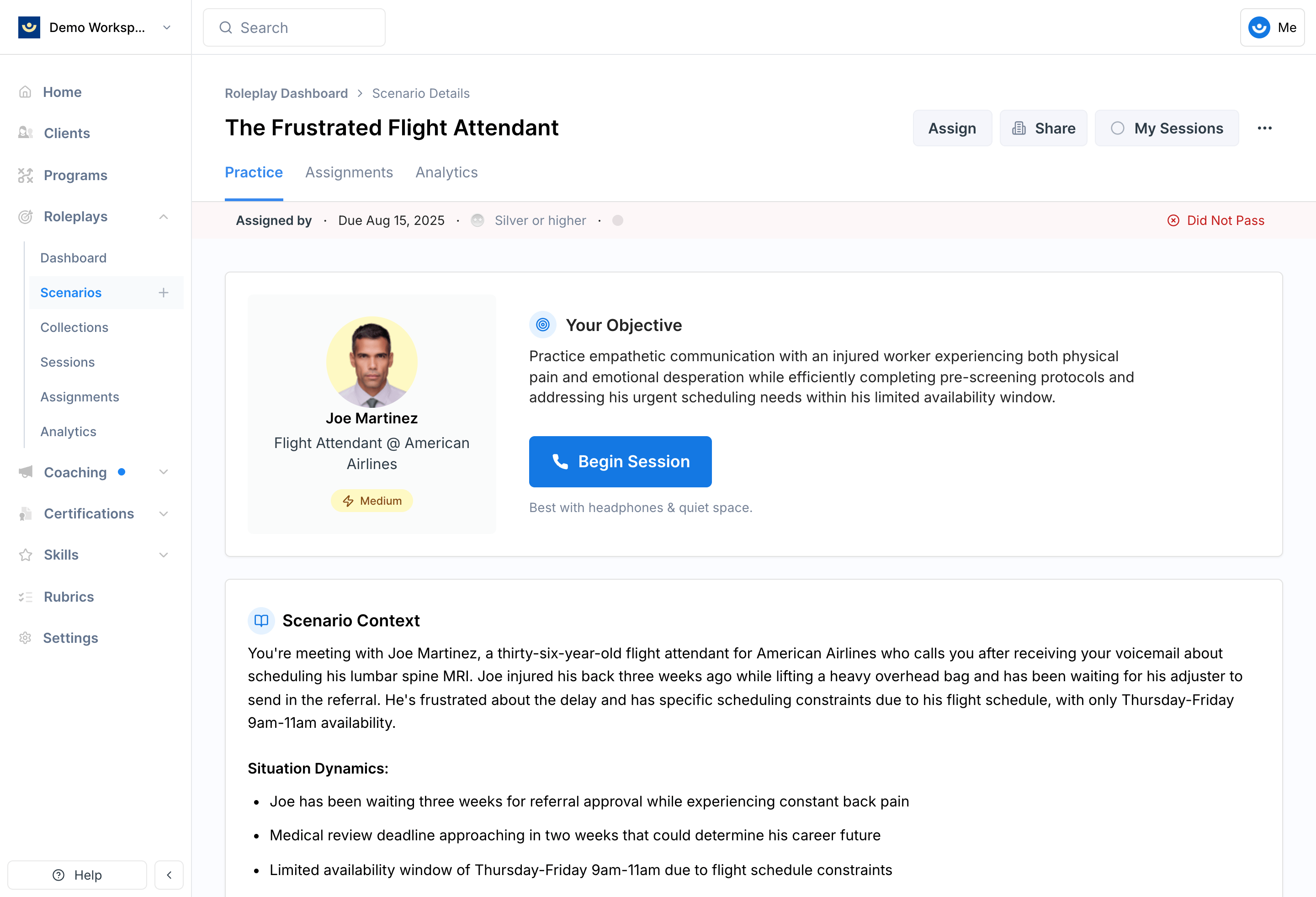
Click into any scenario to open it. Before starting, read through:
* **Character profile** - who you'll be speaking with (their name, role, and company)
* **Your Objective** - what you're trying to achieve in the conversation
* **Scenario Context** - the situation, background, and dynamics that will help you in the conversation
* **Presentation Materials** - any files attached to the scenario for you to reference or share
* **Evaluation Criteria** - listed at the bottom, these are everything you'll be graded on
When you're ready, click **Begin Session**.
***
## Step 2: Review the Scenario Details
Click into any scenario to open it. Before starting, read through:
* **Character profile** - who you'll be speaking with (their name, role, and company)
* **Your Objective** - what you're trying to achieve in the conversation
* **Scenario Context** - the situation, background, and dynamics that will help you in the conversation
* **Presentation Materials** - any files attached to the scenario for you to reference or share
* **Evaluation Criteria** - listed at the bottom, these are everything you'll be graded on
When you're ready, click **Begin Session**.
 ***
## Step 3: Run the Session
The first time you run a roleplay, your browser asks for microphone access - click **Allow**. If the scenario has a webcam enabled, you'll be asked for camera access too; otherwise the call is audio only.
A short intro sets up the context, followed by a ding. The AI character speaks first, then it's your turn.
Respond naturally. The character reacts to what you say, just like a real call. If the scenario supports it, you can [share your screen](/roleplays/screenshare/enable) to walk through a demo or document.
**End the session with the green End button to save it.** When you're done, click the green **End** button to keep your session and generate feedback. The **X** (close) button **discards** the session without saving, so only use it if you want to scrap the attempt entirely.
Choose "Allow while visiting the site" when granting microphone access so you won't be prompted again on future sessions.
***
## Step 4: Wait for Your Feedback
After you end the session, Exec analyzes the conversation and prepares your scorecard ("Preparing Insights"). Scoring can take a few minutes. You don't have to wait on the page - your completed sessions are always available from **My Sessions** in the top right.
***
## Step 5: Review Your Results
Open **My Sessions** (top right) to see every session you've run. Each one shows a **medal** - **Gold**, **Silver**, or **Bronze** - and a numeric score (for example, 87.5%), so you can track progress across attempts.
***
## Step 3: Run the Session
The first time you run a roleplay, your browser asks for microphone access - click **Allow**. If the scenario has a webcam enabled, you'll be asked for camera access too; otherwise the call is audio only.
A short intro sets up the context, followed by a ding. The AI character speaks first, then it's your turn.
Respond naturally. The character reacts to what you say, just like a real call. If the scenario supports it, you can [share your screen](/roleplays/screenshare/enable) to walk through a demo or document.
**End the session with the green End button to save it.** When you're done, click the green **End** button to keep your session and generate feedback. The **X** (close) button **discards** the session without saving, so only use it if you want to scrap the attempt entirely.
Choose "Allow while visiting the site" when granting microphone access so you won't be prompted again on future sessions.
***
## Step 4: Wait for Your Feedback
After you end the session, Exec analyzes the conversation and prepares your scorecard ("Preparing Insights"). Scoring can take a few minutes. You don't have to wait on the page - your completed sessions are always available from **My Sessions** in the top right.
***
## Step 5: Review Your Results
Open **My Sessions** (top right) to see every session you've run. Each one shows a **medal** - **Gold**, **Silver**, or **Bronze** - and a numeric score (for example, 87.5%), so you can track progress across attempts.
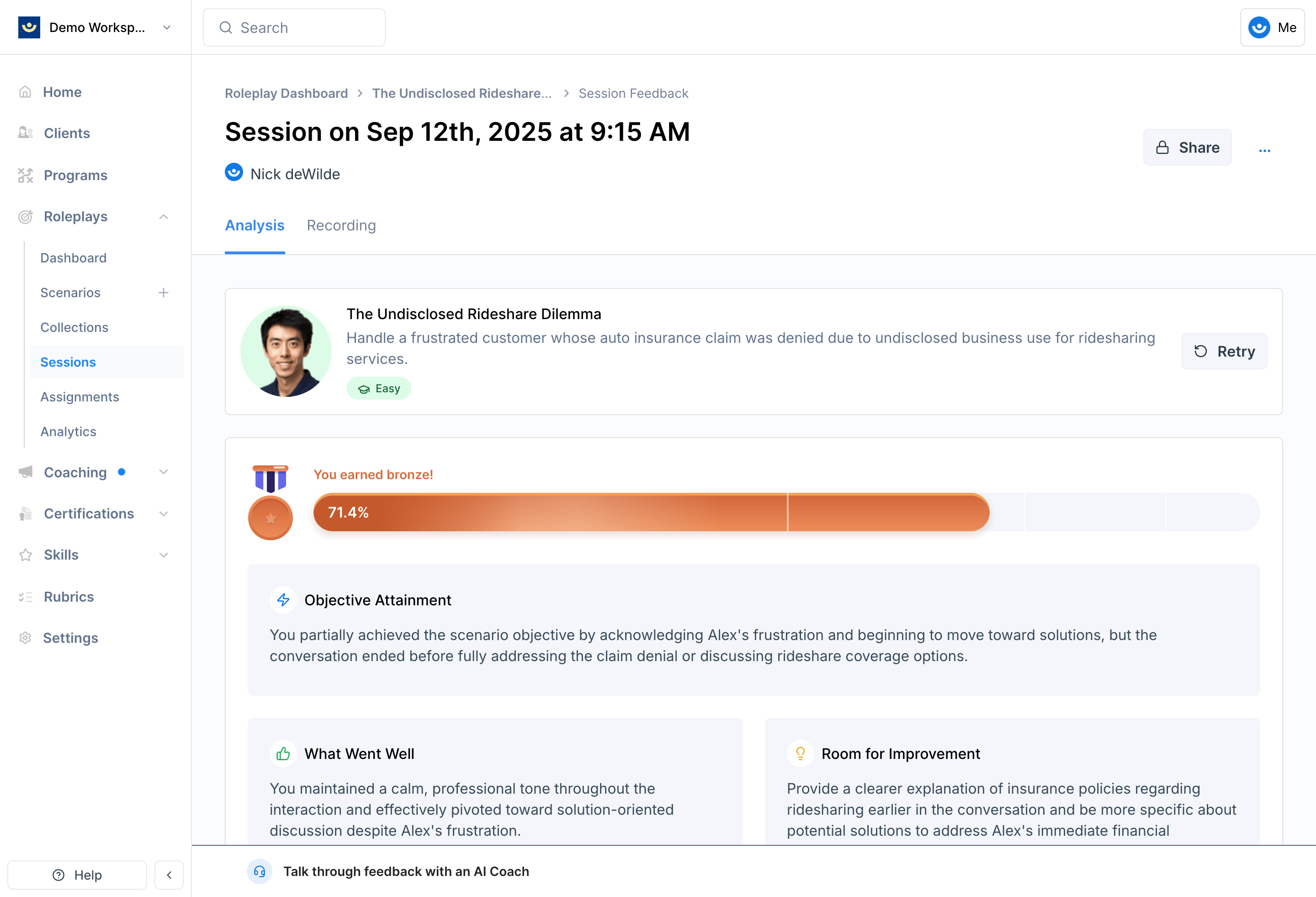 Click into a session for the full scorecard:
* A summary at the top: **Objective Attainment**, **What Went Well**, and **Room for Improvement**, alongside your medal
* Each **evaluation criterion** with a status icon - a green checkmark for areas you did well, an orange icon for "fair" (partially met), and a red icon for areas you missed
* Click into any criterion for a breakdown of what you did well, where you missed the mark, examples of what you said, and a **"What might I have said?"** suggestion with stronger phrasing
For a deeper guide to reading your scorecard, see [Interpret Your Results](/roleplays/interpret-results) and [View Previous Sessions](/roleplays/previous-sessions).
***
## Step 6: Practice with the AI Coach
If you'd rather talk through your feedback than read it, click the **AI Coach** pill in the bottom-right corner and then **Start Call**. The coach can recap how you did, answer questions about where you could improve, and even **roleplay a specific moment again** so you can practice the exact part you struggled with.
See [Use the AI Coach](/roleplays/ai-coach) for more.
***
## Step 7: Try Again
Roleplays are meant to be repeated. When you're ready, click **Retry** from the session view to run the scenario again and improve your score. See [Retake a Roleplay](/roleplays/retake-roleplay).
Don't be discouraged by a low first score. Each session gives you targeted feedback, and your scores climb as you practice.
***
## Getting Help
**Need help?** Contact us at [hello@exec.com](mailto:hello@exec.com) for guidance on running roleplays or any questions about getting started.
Click into a session for the full scorecard:
* A summary at the top: **Objective Attainment**, **What Went Well**, and **Room for Improvement**, alongside your medal
* Each **evaluation criterion** with a status icon - a green checkmark for areas you did well, an orange icon for "fair" (partially met), and a red icon for areas you missed
* Click into any criterion for a breakdown of what you did well, where you missed the mark, examples of what you said, and a **"What might I have said?"** suggestion with stronger phrasing
For a deeper guide to reading your scorecard, see [Interpret Your Results](/roleplays/interpret-results) and [View Previous Sessions](/roleplays/previous-sessions).
***
## Step 6: Practice with the AI Coach
If you'd rather talk through your feedback than read it, click the **AI Coach** pill in the bottom-right corner and then **Start Call**. The coach can recap how you did, answer questions about where you could improve, and even **roleplay a specific moment again** so you can practice the exact part you struggled with.
See [Use the AI Coach](/roleplays/ai-coach) for more.
***
## Step 7: Try Again
Roleplays are meant to be repeated. When you're ready, click **Retry** from the session view to run the scenario again and improve your score. See [Retake a Roleplay](/roleplays/retake-roleplay).
Don't be discouraged by a low first score. Each session gives you targeted feedback, and your scores climb as you practice.
***
## Getting Help
**Need help?** Contact us at [hello@exec.com](mailto:hello@exec.com) for guidance on running roleplays or any questions about getting started.