> ## Documentation Index
> Fetch the complete documentation index at: https://docs.exec.com/llms.txt
> Use this file to discover all available pages before exploring further.
# Skill Insights and Resources
> Dive into a single skill: its dashboard, the roleplays and Knowledge Hub content tied to it, and the AI Analyst that generates new practice
Every skill has its own detail view where you can see how your team is doing on it, find the content tied to it, and generate new practice. Open it from the **Skills Dashboard** (click **Skills** in the navigation, then a skill under **Top Performing** or **Needing Attention**) or by clicking any skill name in your analytics.
## The skill dashboard
The **Dashboard** tab gives you the health of a single skill at a glance:
* **Skill Health** - an overall proficiency percentage plus **Members**, **Total Observations**, **Proficient+ Members**, and **Members Need Coaching**
* **Avg. Proficiency Over Time** - how the skill is trending across your workspace
* **Member Proficiency** - the distribution of people across proficiency tiers
* **Participants** - a per-person table with **Observations** (the number of sessions where the skill was tied to a criterion), **Score**, **Lift**, and **Coaching Needs**
* **Feedback** - real feedback from sessions on this skill, filterable by **Source** and **Grade**
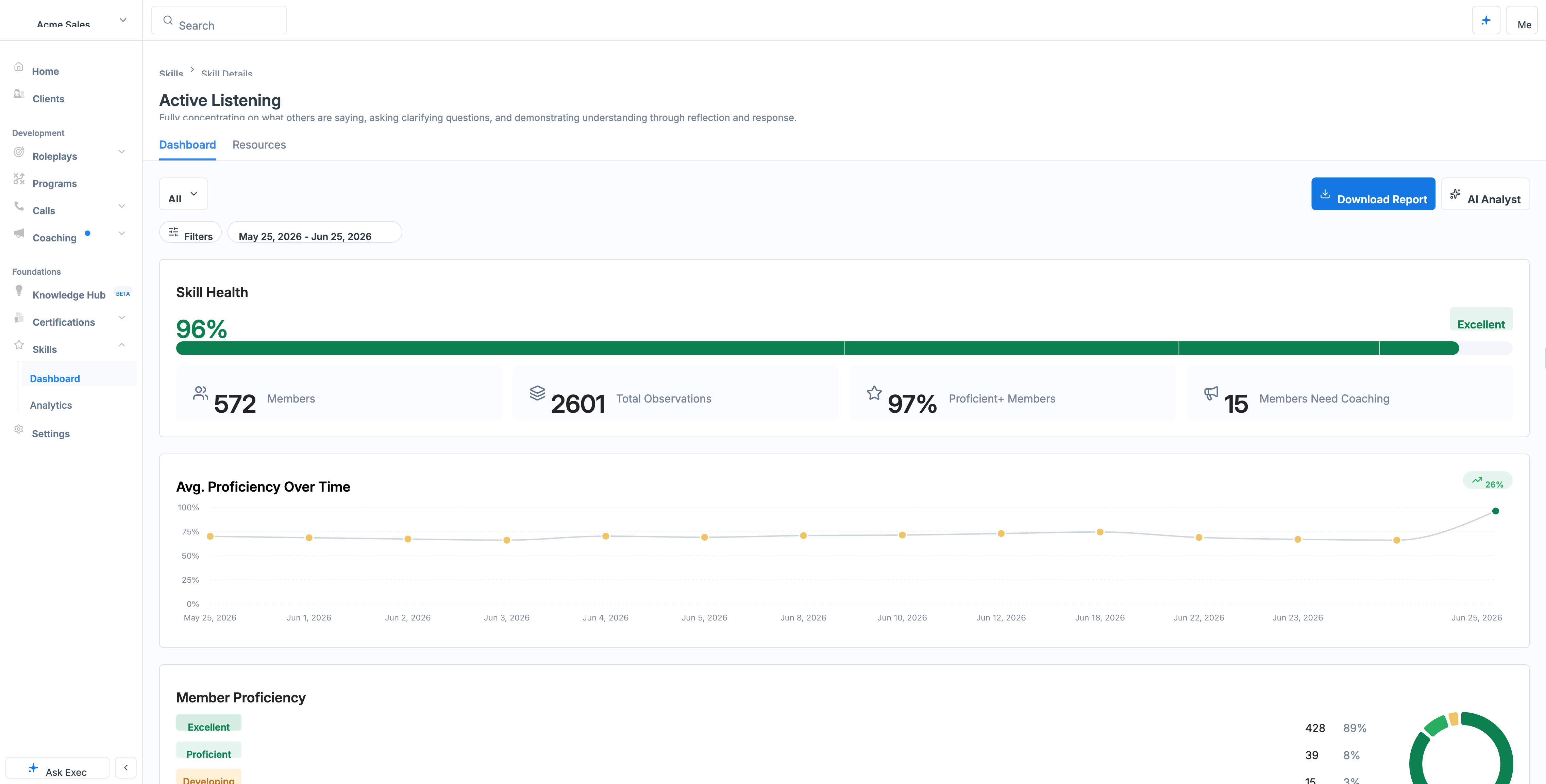 Filter the whole view by user or group, click **Download Report** for a CSV, and **save a view** (for example, "Account Executives") to return to the same slice next time. For the workspace-wide reporting heatmaps, see [Skill Proficiency and Reports](/skills/proficiency-reports); for session-level performance, see [Analyze Skill Performance](/skills/analyze-performance).
## The Resources tab
The **Resources** tab gathers all the content tied to a skill in one place, so you can see exactly what your team has to learn and practice it:
* Switch between **All Resources**, **AI Roleplays**, and **Knowledge Hub**
* **Search** by name, filter by status (**Published**, **Draft**, **Archived**), sort by newest or oldest, and toggle grid or list view
* Use the **+** (add) action to create a new scenario or Knowledge Hub article that is automatically linked to this skill
This makes a skill the home for its own practice: the roleplays that build it and the guides that explain it live together, and anything new you create here is linked to the skill from the start.
## The AI Analyst
Open the **AI Analyst** from a skill's dashboard to turn the data into action. It opens a chat where you can ask about your members' performance (for example, why a team is excelling on a skill, or where they are struggling), and it can generate new content for you directly:
* **Create custom AI Roleplay** - generate and assign a custom scenario to practice the skill
* **Create a guide** - generate a Knowledge Hub page that helps learners improve the skill
Everything the AI Analyst creates is linked back to the skill, so it appears in the **Resources** tab and starts feeding the skill's data as people use it. See [Creating Scenarios](/roleplays/ai-agent) and the [Knowledge Hub](/knowledge-hub/overview) for more on the content it produces.
## Getting Help
**Need help?** Contact us at [hello@exec.com](mailto:hello@exec.com) for guidance on using skill insights, resources, or the AI Analyst.
Filter the whole view by user or group, click **Download Report** for a CSV, and **save a view** (for example, "Account Executives") to return to the same slice next time. For the workspace-wide reporting heatmaps, see [Skill Proficiency and Reports](/skills/proficiency-reports); for session-level performance, see [Analyze Skill Performance](/skills/analyze-performance).
## The Resources tab
The **Resources** tab gathers all the content tied to a skill in one place, so you can see exactly what your team has to learn and practice it:
* Switch between **All Resources**, **AI Roleplays**, and **Knowledge Hub**
* **Search** by name, filter by status (**Published**, **Draft**, **Archived**), sort by newest or oldest, and toggle grid or list view
* Use the **+** (add) action to create a new scenario or Knowledge Hub article that is automatically linked to this skill
This makes a skill the home for its own practice: the roleplays that build it and the guides that explain it live together, and anything new you create here is linked to the skill from the start.
## The AI Analyst
Open the **AI Analyst** from a skill's dashboard to turn the data into action. It opens a chat where you can ask about your members' performance (for example, why a team is excelling on a skill, or where they are struggling), and it can generate new content for you directly:
* **Create custom AI Roleplay** - generate and assign a custom scenario to practice the skill
* **Create a guide** - generate a Knowledge Hub page that helps learners improve the skill
Everything the AI Analyst creates is linked back to the skill, so it appears in the **Resources** tab and starts feeding the skill's data as people use it. See [Creating Scenarios](/roleplays/ai-agent) and the [Knowledge Hub](/knowledge-hub/overview) for more on the content it produces.
## Getting Help
**Need help?** Contact us at [hello@exec.com](mailto:hello@exec.com) for guidance on using skill insights, resources, or the AI Analyst.