> ## Documentation Index
> Fetch the complete documentation index at: https://docs.exec.com/llms.txt
> Use this file to discover all available pages before exploring further.
# Create and Manage Skills
> Define skills, link them to rubrics, and manage your skills library
Skills represent the competencies your organization wants to track and develop. As a workspace admin, you create skills, connect them to your rubric criteria, and manage your skills library over time.
***
## Creating a Skill
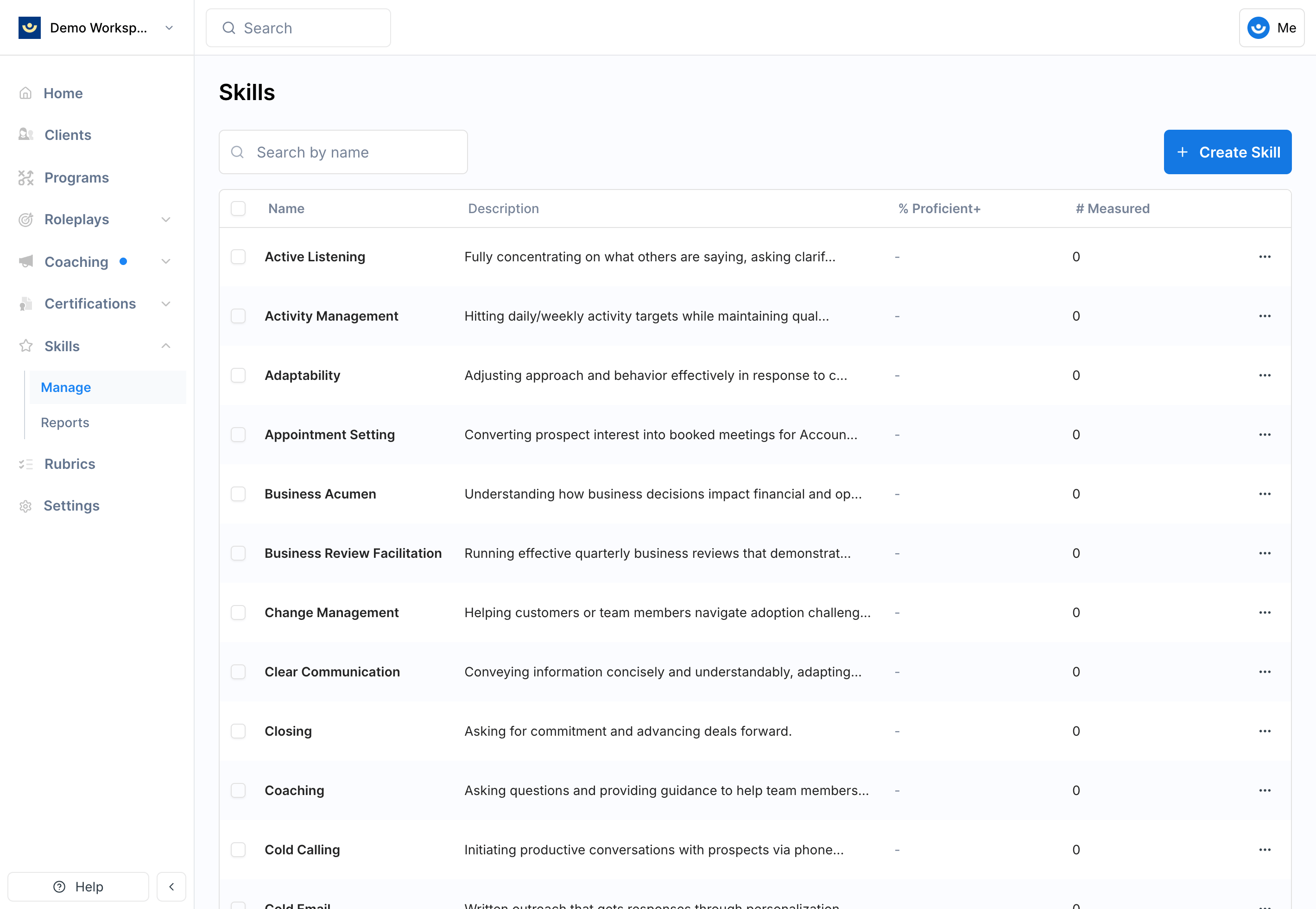
From the left sidebar, click **Skills**.
Click the **Create Skill** button at the top of the page.
 * **Name** (required): A clear name for the competency you are tracking. Must be unique within your workspace. Examples: "Objection Handling," "Discovery Questions," "Empathy."
* **Description** (required): Describe what this skill measures. This helps other admins understand the intent and helps Exec's AI accurately tag content.
* **Name** (required): A clear name for the competency you are tracking. Must be unique within your workspace. Examples: "Objection Handling," "Discovery Questions," "Empathy."
* **Description** (required): Describe what this skill measures. This helps other admins understand the intent and helps Exec's AI accurately tag content.
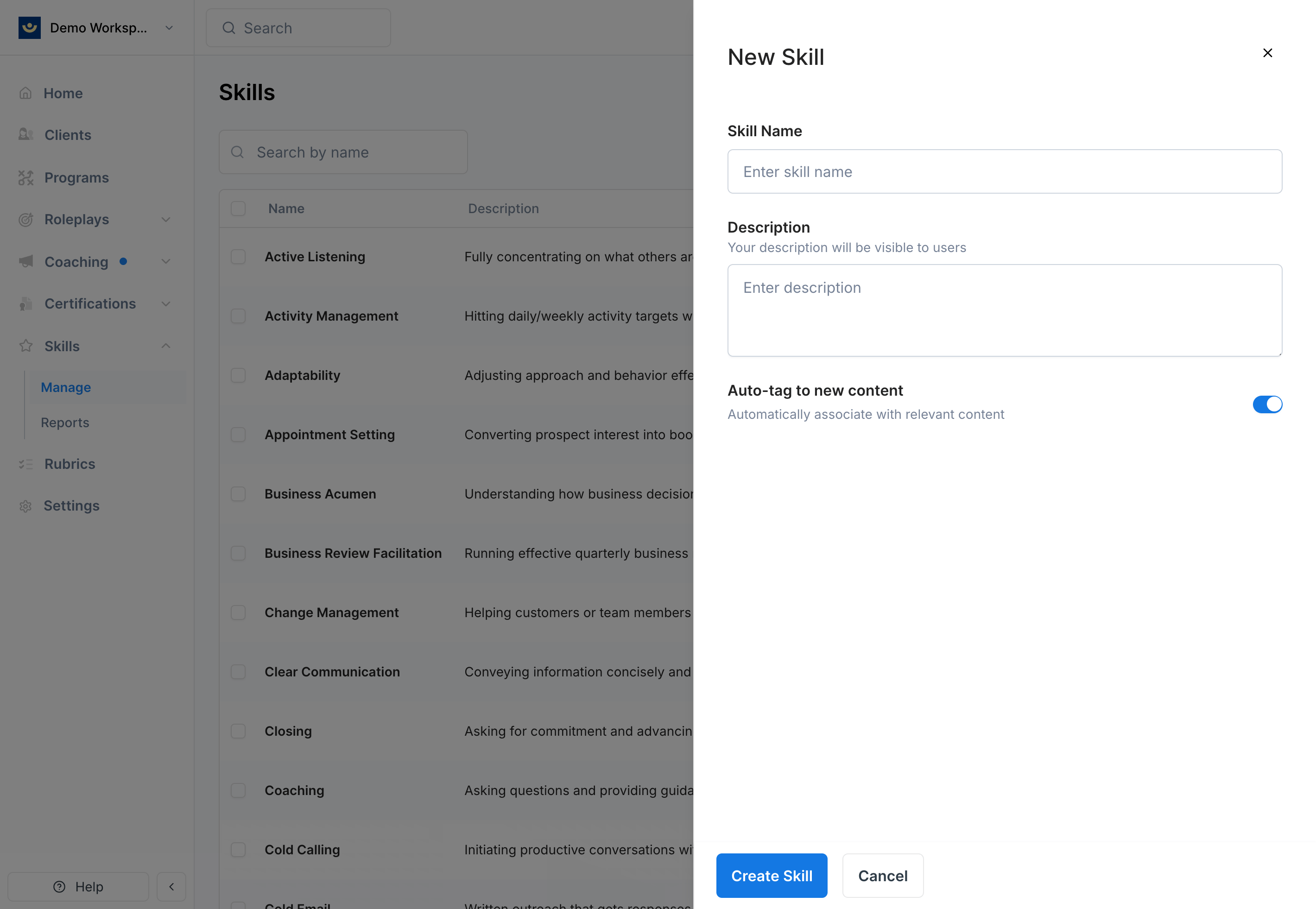 The **Auto-tag to new content** toggle is on by default. When enabled, Exec uses AI to automatically link this skill to relevant evaluation criteria in new scenarios you create.
Leave auto-tagging on for most skills. It saves time and ensures new scenarios automatically contribute to skill tracking. You can always adjust the associations manually later.
Click **Save**. The skill appears in your skills table and is ready to be tracked.
***
## How Skills Connect to Scenarios
Skills are not assigned directly to scenarios. Instead, they connect through evaluation criteria:
**Scenario → Rubric Criteria → Criterion Items → Skills**
Each evaluation criterion in a rubric contains one or more criterion items (specific behaviors to evaluate). Each criterion item can be linked to one or more skills. When a learner gets graded on a criterion item, that grade counts toward every skill linked to it.
This structure applies to both AI roleplay scenarios and call scoring rubrics. A single skill like "Objection Handling" can be tracked across many different scenarios and call types, giving you a complete picture of each person's capability.
### Automatic Skill Tagging
When auto-tagging is enabled on a skill, Exec's AI reviews the criterion items in new scenarios and automatically links relevant ones to the skill. This happens when you create or import scenarios.
You can also manually trigger auto-tagging from the scenario editor by clicking **Associate Skills**.
Auto-tagging applies to new content by default. Existing scenarios are not retroactively tagged unless you manually trigger skill association from the scenario editor.
### Manual Skill Association
You can also link skills to criterion items by hand. In the rubric or scenario editor, each criterion item card shows its linked skills. Click the skill tags to add or remove associations.
This is useful when you want precise control over which skills are tracked for specific behaviors, or when you want to adjust what the AI suggested.
For more on building rubrics, see [Create a Rubric](/roleplays/rubrics/create) and [Edit Rubrics](/roleplays/rubrics/edit).
***
## The Skills Management Table
The Skills page shows all your workspace skills with the following columns:
| Column | What it shows |
| ----------------- | ------------------------------------------------------------------- |
| **Name** | Skill name (click to open the proficiency drawer) |
| **Description** | Brief description of the skill |
| **% Proficient+** | Percentage of measured participants at Proficient or Excellent tier |
| **# Measured** | Number of participants who have been scored on this skill |
| **Actions** | Edit or delete the skill |
The **% Proficient+** column is color-coded for quick scanning: green (75%+ proficient), yellow (50–74%), red (below 50%).
Click any skill row to open a proficiency drawer showing detailed workspace-wide data for that skill. See [Skill Proficiency and Reports](/skills/proficiency-reports#viewing-proficiency-on-the-skills-page) for details.
***
## Editing a Skill
Click the **actions menu** (three dots) on any skill row and select **Edit**. You can change the name, description, and auto-tag setting.
Changing a skill's name does not affect historical data. All past observations remain associated with the skill.
***
## Archiving Skills
To remove a skill, click the **actions menu** and select **Delete**. To archive multiple skills at once, select them using the checkboxes and click **Delete Selected**.
Archived skills are removed from your skills table and stop being tracked in new sessions. Historical data from past sessions is preserved — it just no longer appears in your analytics views.
Archiving is permanent from the UI. If you need to restore an archived skill, contact us at [hello@exec.com](mailto:hello@exec.com).
***
## Getting Help
**Need help setting up your skills?** Contact us at [hello@exec.com](mailto:hello@exec.com) for guidance on skill definitions, rubric associations, or auto-tagging configuration.
The **Auto-tag to new content** toggle is on by default. When enabled, Exec uses AI to automatically link this skill to relevant evaluation criteria in new scenarios you create.
Leave auto-tagging on for most skills. It saves time and ensures new scenarios automatically contribute to skill tracking. You can always adjust the associations manually later.
Click **Save**. The skill appears in your skills table and is ready to be tracked.
***
## How Skills Connect to Scenarios
Skills are not assigned directly to scenarios. Instead, they connect through evaluation criteria:
**Scenario → Rubric Criteria → Criterion Items → Skills**
Each evaluation criterion in a rubric contains one or more criterion items (specific behaviors to evaluate). Each criterion item can be linked to one or more skills. When a learner gets graded on a criterion item, that grade counts toward every skill linked to it.
This structure applies to both AI roleplay scenarios and call scoring rubrics. A single skill like "Objection Handling" can be tracked across many different scenarios and call types, giving you a complete picture of each person's capability.
### Automatic Skill Tagging
When auto-tagging is enabled on a skill, Exec's AI reviews the criterion items in new scenarios and automatically links relevant ones to the skill. This happens when you create or import scenarios.
You can also manually trigger auto-tagging from the scenario editor by clicking **Associate Skills**.
Auto-tagging applies to new content by default. Existing scenarios are not retroactively tagged unless you manually trigger skill association from the scenario editor.
### Manual Skill Association
You can also link skills to criterion items by hand. In the rubric or scenario editor, each criterion item card shows its linked skills. Click the skill tags to add or remove associations.
This is useful when you want precise control over which skills are tracked for specific behaviors, or when you want to adjust what the AI suggested.
For more on building rubrics, see [Create a Rubric](/roleplays/rubrics/create) and [Edit Rubrics](/roleplays/rubrics/edit).
***
## The Skills Management Table
The Skills page shows all your workspace skills with the following columns:
| Column | What it shows |
| ----------------- | ------------------------------------------------------------------- |
| **Name** | Skill name (click to open the proficiency drawer) |
| **Description** | Brief description of the skill |
| **% Proficient+** | Percentage of measured participants at Proficient or Excellent tier |
| **# Measured** | Number of participants who have been scored on this skill |
| **Actions** | Edit or delete the skill |
The **% Proficient+** column is color-coded for quick scanning: green (75%+ proficient), yellow (50–74%), red (below 50%).
Click any skill row to open a proficiency drawer showing detailed workspace-wide data for that skill. See [Skill Proficiency and Reports](/skills/proficiency-reports#viewing-proficiency-on-the-skills-page) for details.
***
## Editing a Skill
Click the **actions menu** (three dots) on any skill row and select **Edit**. You can change the name, description, and auto-tag setting.
Changing a skill's name does not affect historical data. All past observations remain associated with the skill.
***
## Archiving Skills
To remove a skill, click the **actions menu** and select **Delete**. To archive multiple skills at once, select them using the checkboxes and click **Delete Selected**.
Archived skills are removed from your skills table and stop being tracked in new sessions. Historical data from past sessions is preserved — it just no longer appears in your analytics views.
Archiving is permanent from the UI. If you need to restore an archived skill, contact us at [hello@exec.com](mailto:hello@exec.com).
***
## Getting Help
**Need help setting up your skills?** Contact us at [hello@exec.com](mailto:hello@exec.com) for guidance on skill definitions, rubric associations, or auto-tagging configuration.