> ## Documentation Index
> Fetch the complete documentation index at: https://docs.exec.com/llms.txt
> Use this file to discover all available pages before exploring further.
# Use a Template
> How to use pre-built templates to quickly build structured, effective roleplay scenarios
## Overview
Conversation templates are a form-fill building method inside the Scenario Studio. Instead of describing your scenario from scratch, you select a template for a specific conversation type and fill in the relevant details — the AI Agent handles the rest.
Templates ask you the right questions for each scenario type. Because discovery calls, performance reviews, and objection-handling conversations each have different dynamics, each template is designed to surface the details that matter most for that situation.
Templates take more time upfront than voice or chat, but they produce the most consistent results — especially when building multiple scenarios or working with team members who aren't subject matter experts.
***
## Build a Scenario from a Template
From your dashboard, navigate to Scenario Studio.
On the Scenario Studio page, click **Use Template**. You'll see a collection of templates organized by department — Sales, Management, HR, and others.
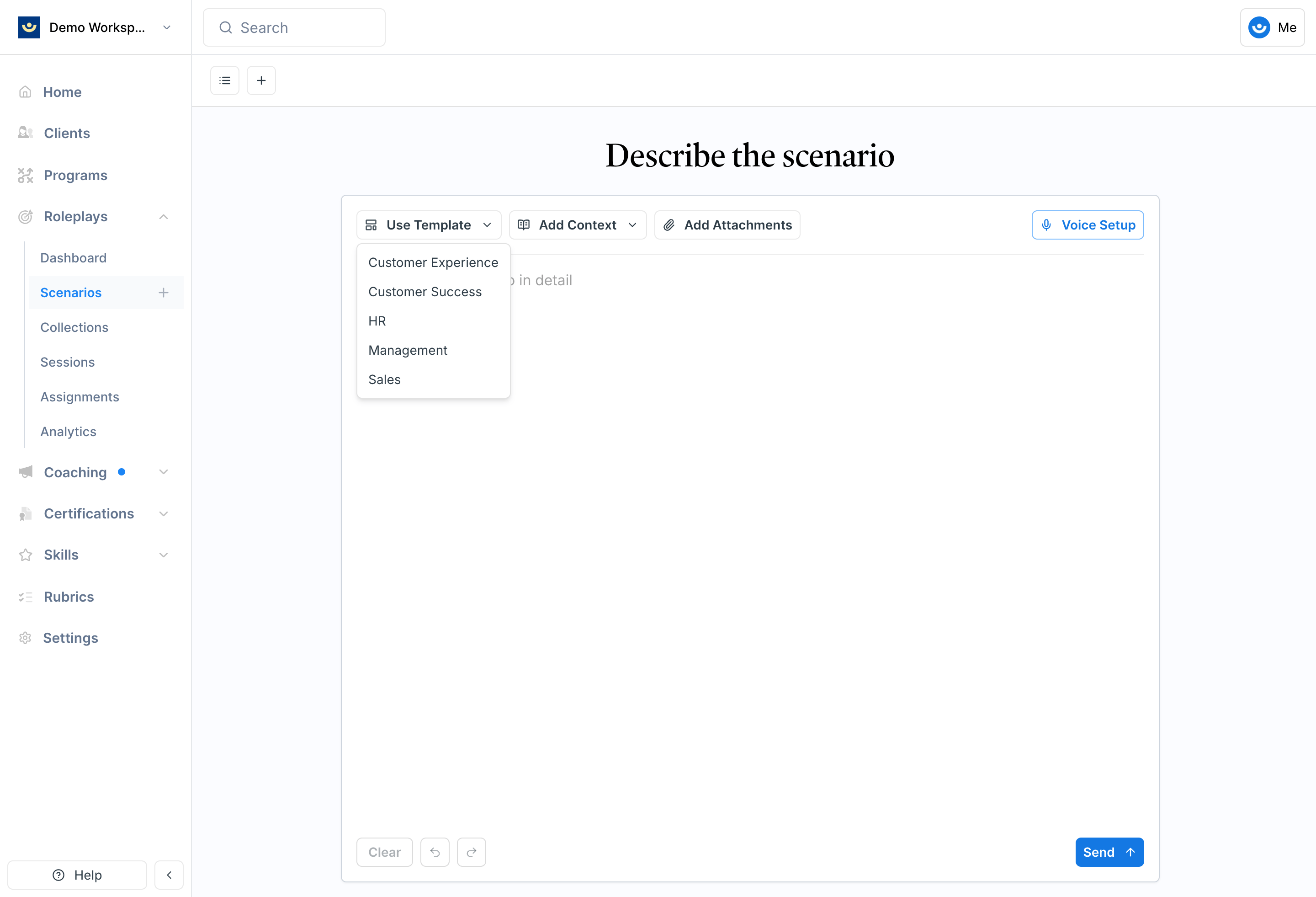 Hover over the relevant department category, then select the specific type of conversation you want to build.
Complete each field in the form. Depending on the template, you may be asked for details like:
* The context of the conversation (role, company, situation)
* The other person's perspective or background
* The stakes or desired outcomes
* The difficulty level
Fill in as much as you can — the more detail you provide, the more realistic and targeted the roleplay will be.
Hover over the relevant department category, then select the specific type of conversation you want to build.
Complete each field in the form. Depending on the template, you may be asked for details like:
* The context of the conversation (role, company, situation)
* The other person's perspective or background
* The stakes or desired outcomes
* The difficulty level
Fill in as much as you can — the more detail you provide, the more realistic and targeted the roleplay will be.
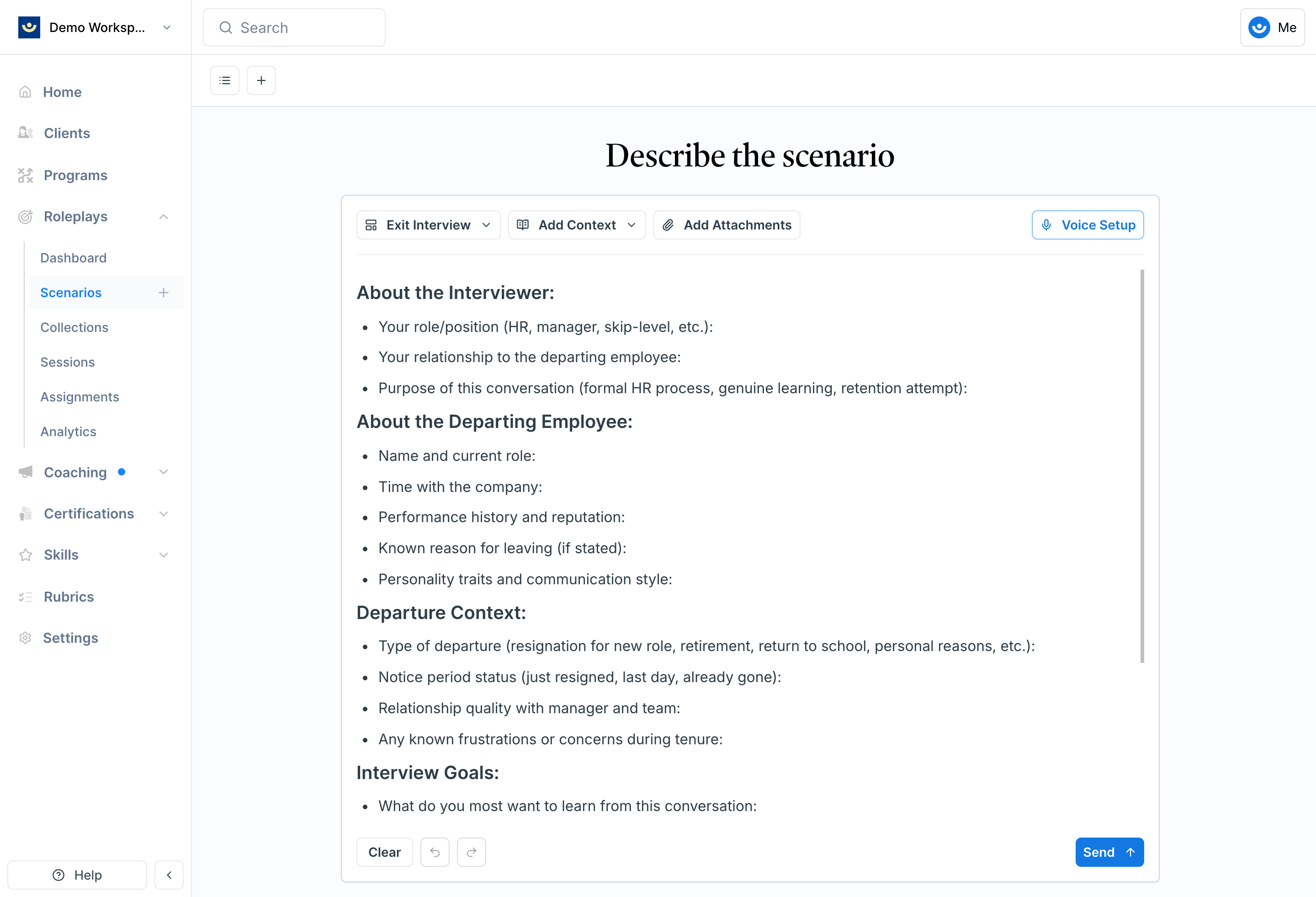 Once the template is complete, click **Submit**. The AI Agent will use your inputs to build the scenario. Review the draft and refine through chat if needed.
***
## Let the AI Agent Fill Out the Template for You
If you don't want to complete the template fields manually, you can attach supporting materials and prompt the AI Agent to do it for you.
This is useful when you have an existing document — a call recording summary, a certification overview, a process guide — that contains everything needed to build the scenario.
Choose a template as described above. Leave the fields blank.
Click **Add Attachments** and upload the relevant file (PDF, Word doc, etc.).
In the text field at the bottom of the page, type a prompt instructing the agent to fill in the template. For example:
> Using the PDF attached below, please fill out the template above and build a roleplay accordingly.
Click **Submit**. The AI Agent will read your attachment, complete the template fields, and build the roleplay from the information provided.
This approach works well for scaling scenario creation across your team — share a document and a template, and the AI Agent takes care of the rest.
***
## Getting Help
**Need help?** Contact us at [hello@exec.com](mailto:hello@exec.com) for guidance on using templates or any questions about Scenario Studio.
Once the template is complete, click **Submit**. The AI Agent will use your inputs to build the scenario. Review the draft and refine through chat if needed.
***
## Let the AI Agent Fill Out the Template for You
If you don't want to complete the template fields manually, you can attach supporting materials and prompt the AI Agent to do it for you.
This is useful when you have an existing document — a call recording summary, a certification overview, a process guide — that contains everything needed to build the scenario.
Choose a template as described above. Leave the fields blank.
Click **Add Attachments** and upload the relevant file (PDF, Word doc, etc.).
In the text field at the bottom of the page, type a prompt instructing the agent to fill in the template. For example:
> Using the PDF attached below, please fill out the template above and build a roleplay accordingly.
Click **Submit**. The AI Agent will read your attachment, complete the template fields, and build the roleplay from the information provided.
This approach works well for scaling scenario creation across your team — share a document and a template, and the AI Agent takes care of the rest.
***
## Getting Help
**Need help?** Contact us at [hello@exec.com](mailto:hello@exec.com) for guidance on using templates or any questions about Scenario Studio.