> ## Documentation Index
> Fetch the complete documentation index at: https://docs.exec.com/llms.txt
> Use this file to discover all available pages before exploring further.
# Screen Sharing
> Let participants share live content with the AI character during a roleplay
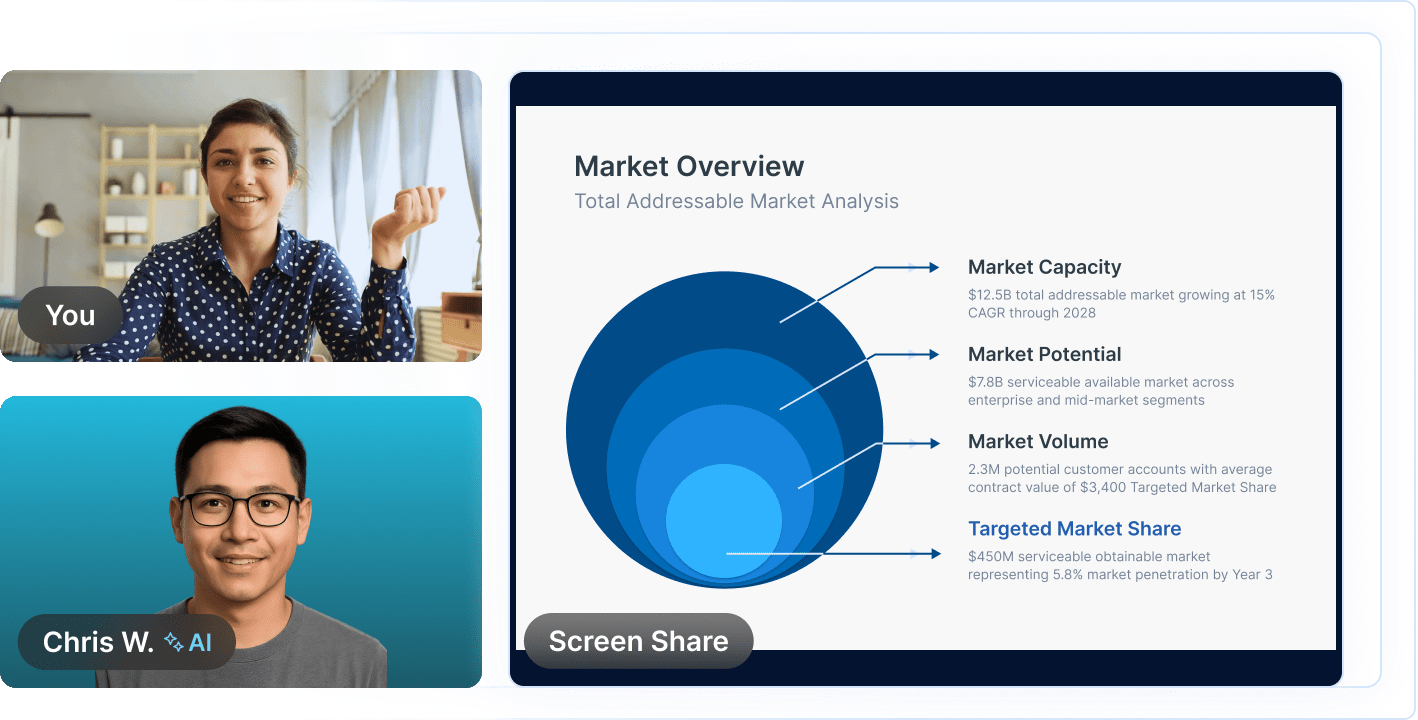
Screen sharing lets participants show live content — slides, documents, or applications — directly to the AI character during a roleplay. This makes interactions more realistic and is especially useful for:
* **Sales presentations** — Practice demoing your product while handling objections in real time
* **Interview training** — Share a portfolio, resume, or case presentation with the AI interviewer
* **Leadership scenarios** — Walk through a strategy deck while the AI roleplays a skeptical executive
 ***
## Enable Screen Sharing on a Scenario
Screen sharing is off by default. Creators and admins can enable it per scenario.
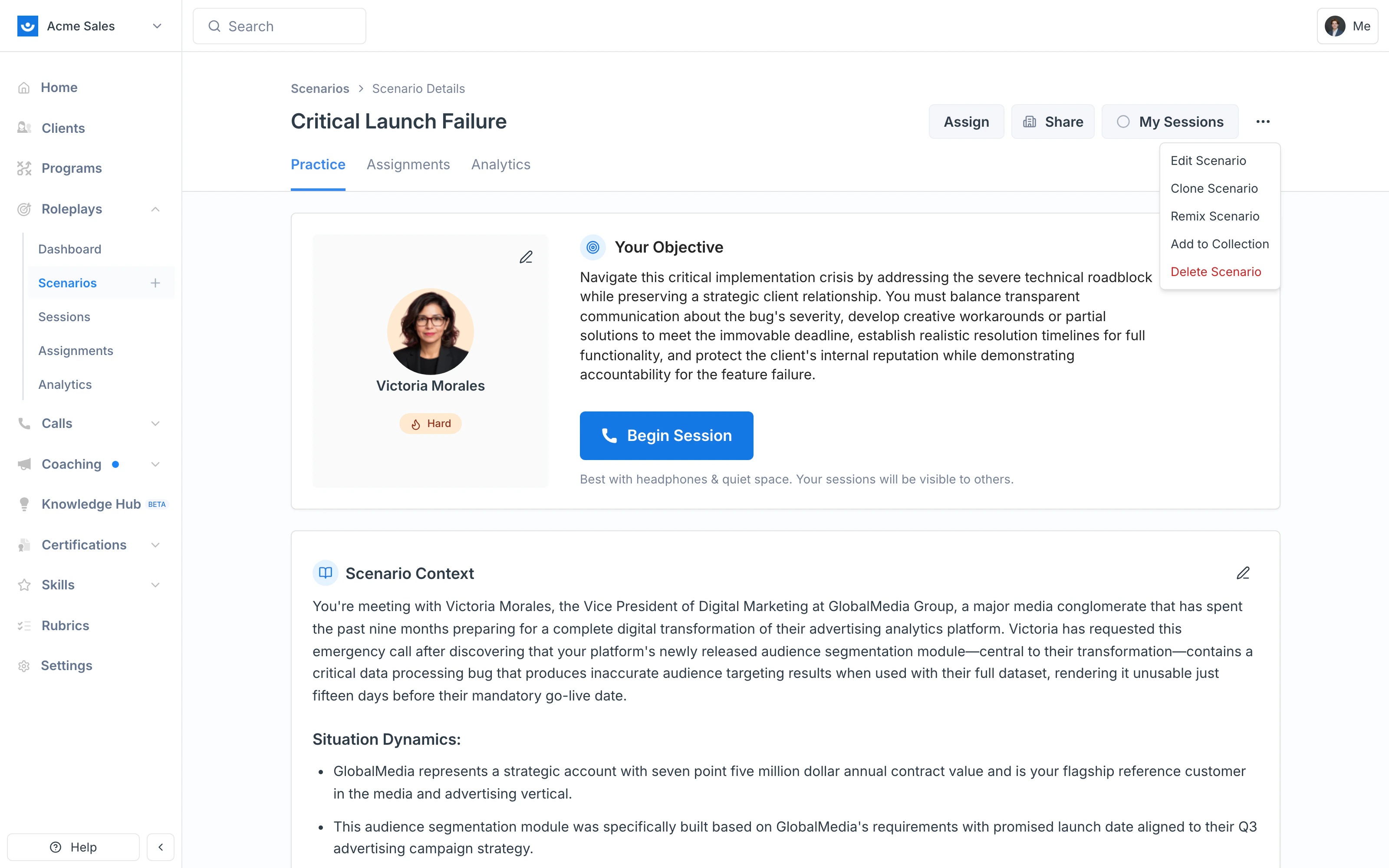
Click the **three-dot menu (⋯)** in the top-right of the scenario and select **Edit Scenario**, or click any pencil icon on the page.
***
## Enable Screen Sharing on a Scenario
Screen sharing is off by default. Creators and admins can enable it per scenario.
Click the **three-dot menu (⋯)** in the top-right of the scenario and select **Edit Scenario**, or click any pencil icon on the page.
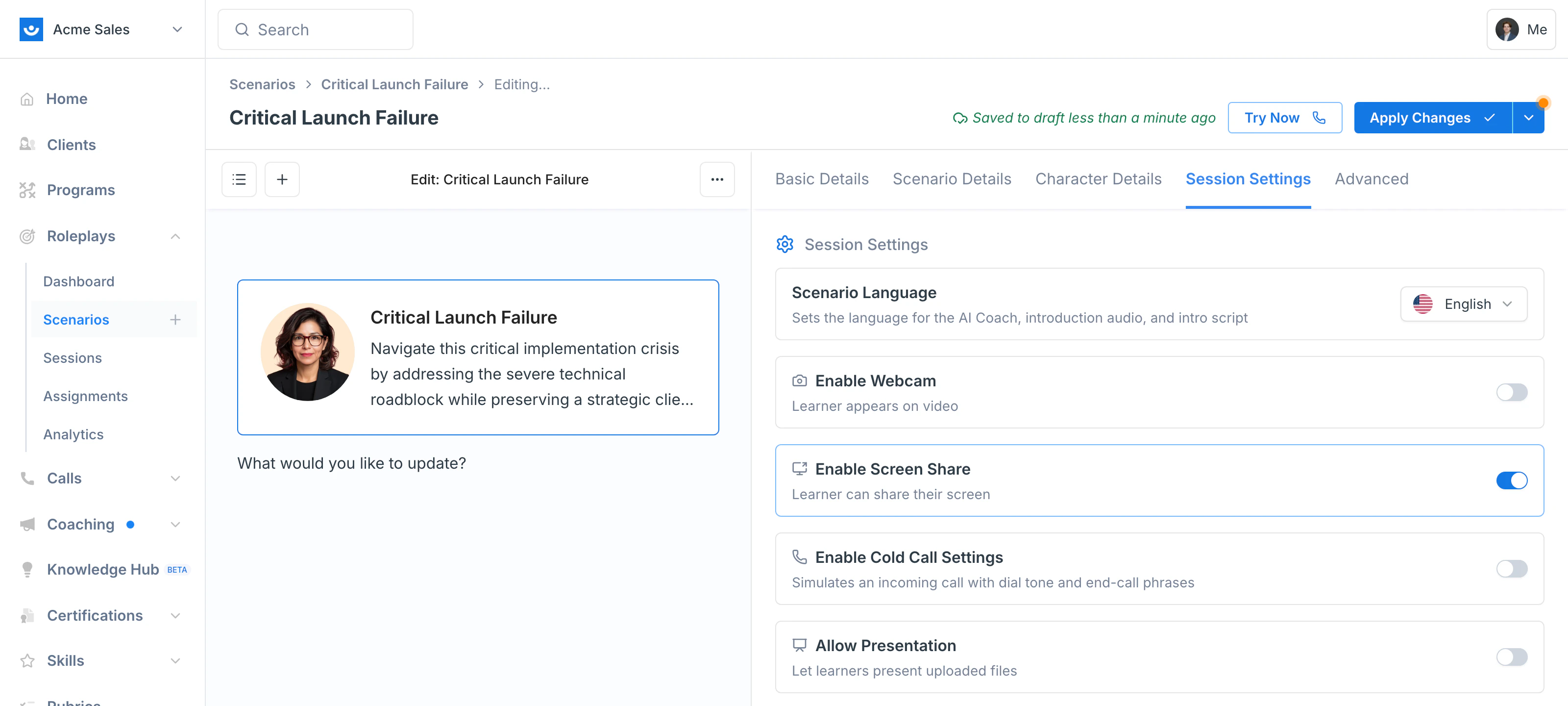
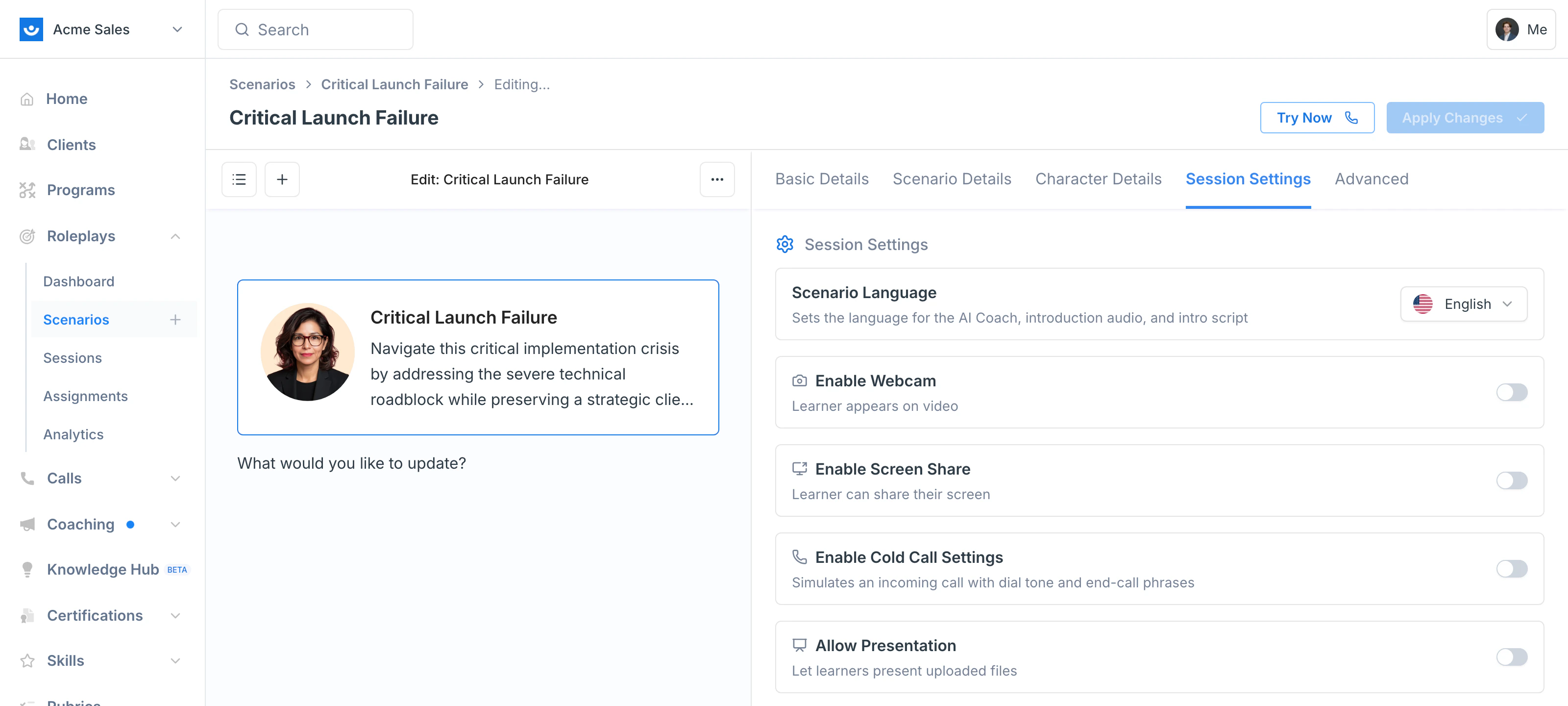 The toggle turns blue when on, and **Apply Changes** activates in the top-right.
 ***
## Start Sharing During a Session
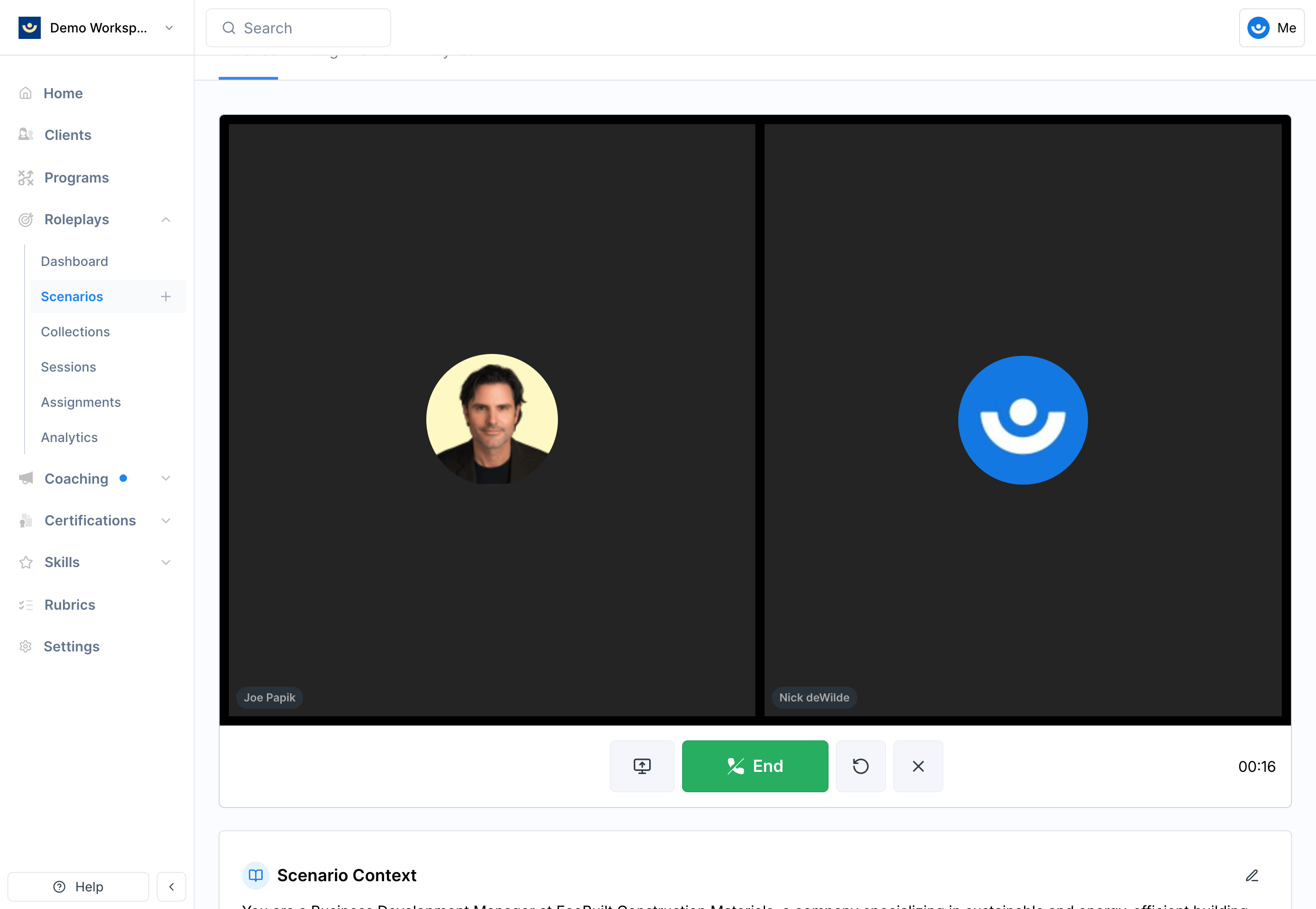
Once screen sharing is enabled on a scenario, participants will see a **Screen Share** button when they begin their session. This is located directly to the right of the green End button. Click it to start sharing.
***
## Start Sharing During a Session
Once screen sharing is enabled on a scenario, participants will see a **Screen Share** button when they begin their session. This is located directly to the right of the green End button. Click it to start sharing.
 In Google Chrome, you'll be prompted to choose what to share:
* **Entire Screen** — shares everything on your display
* **Window** — shares one application window
* **Chrome Tab** — shares a single browser tab
Window mode is recommended. It keeps the AI character focused on the right content and avoids distractions from other apps or tabs. If you choose Chrome Tab, make sure to return to the Exec roleplay tab after selecting it.
***
## Best Practices
* **Share only what's relevant** — a focused window keeps the session on track
* **Test before a live training** — run a short session first to confirm sharing is working as expected
* **Stay in context** — the AI character responds to whatever is on your screen, so avoid pulling up unrelated content mid-session
***
## Getting Help
**Need help?** Contact us at [hello@exec.com](mailto:hello@exec.com) for guidance on setting up screen sharing or any questions about roleplay sessions.
In Google Chrome, you'll be prompted to choose what to share:
* **Entire Screen** — shares everything on your display
* **Window** — shares one application window
* **Chrome Tab** — shares a single browser tab
Window mode is recommended. It keeps the AI character focused on the right content and avoids distractions from other apps or tabs. If you choose Chrome Tab, make sure to return to the Exec roleplay tab after selecting it.
***
## Best Practices
* **Share only what's relevant** — a focused window keeps the session on track
* **Test before a live training** — run a short session first to confirm sharing is working as expected
* **Stay in context** — the AI character responds to whatever is on your screen, so avoid pulling up unrelated content mid-session
***
## Getting Help
**Need help?** Contact us at [hello@exec.com](mailto:hello@exec.com) for guidance on setting up screen sharing or any questions about roleplay sessions.