> ## Documentation Index
> Fetch the complete documentation index at: https://docs.exec.com/llms.txt
> Use this file to discover all available pages before exploring further.
# Sharing & Viewing Permissions
> Control who can access, assign, monitor, or edit your roleplays
Exec's sharing options give you precise control over who can access, share, monitor, or edit a roleplay. Understanding each permission level ensures roleplays are distributed intentionally, progress is visible to the right people, and content stays easy to manage at scale.
Sharing grants access without a deadline. To require people to **complete** a scenario by a due date, [assign it](/roleplays/assign-scenarios) instead.
***
## Permission Levels
The person can view and practice the roleplay.
This is the **default permission** assigned when you use the **Assign** button.
**Best for:** Learners and individual contributors who don't need management or sharing access.
The person can view, practice, and share the roleplay with others in the workspace, but cannot edit it.
**Best for:** Managers, facilitators, or L\&D partners helping distribute roleplays across teams.
The person can view assignment activity and track learner progress through the **Assignments** tab.
**Important:** If the roleplay is set to **Private** or **Restricted**, users with Can Monitor access won't see it directly in their workspace. They'll still be able to see assigned learners, activity status, and completion progress, and can access full roleplay details by clicking into an assignment from the Assignments tab. If the roleplay is set to **Workspace** visibility, they can see activity directly.
**Best for:** Managers, HR, or L\&D leaders who need progress visibility without editing access.
The person can view, practice, share, and edit the roleplay. This is the highest level of access.
**Best for:** Roleplay creators, program owners, and admins responsible for maintaining or iterating on content.
***
## Permission Summary
| **Permission** | **View** | **Practice** | **Share** | **Monitor Progress** | **Edit** |
| :------------- | :------- | :----------- | :-------- | :------------------- | :------- |
| Can View | ✔️ | ✔️ | ❌ | ❌ | ❌ |
| Can Share | ✔️ | ✔️ | ✔️ | ❌ | ❌ |
| Can Monitor | ❌\* | ❌\* | ❌ | ✔️ | ❌ |
| Can Edit | ✔️ | ✔️ | ✔️ | ✔️ | ✔️ |
*\*Visibility depends on whether the roleplay is set to Private/Restricted or Workspace visibility.*
***
## How to Share a Roleplay
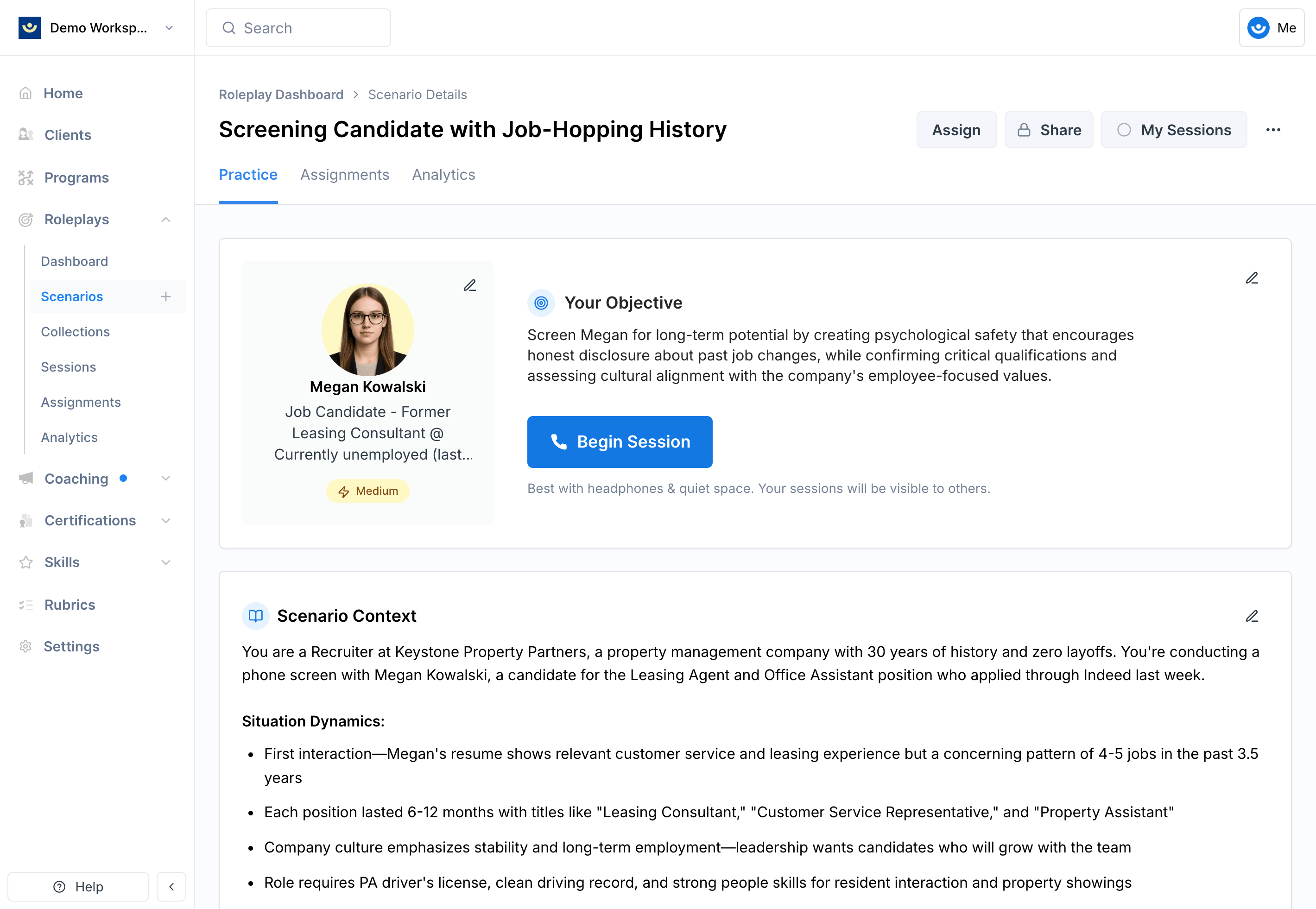 Type their name or email address. They must already be a member of your workspace.
Choose the appropriate access level from the dropdown.
Use **Can View** for learners, **Can Share** for facilitators, **Can Monitor** for managers who only need visibility, and **Can Edit** sparingly to maintain content quality.
***
## Getting Help
**Need help?** Contact us at [hello@exec.com](mailto:hello@exec.com) for guidance on sharing roleplays or managing permissions.
Type their name or email address. They must already be a member of your workspace.
Choose the appropriate access level from the dropdown.
Use **Can View** for learners, **Can Share** for facilitators, **Can Monitor** for managers who only need visibility, and **Can Edit** sparingly to maintain content quality.
***
## Getting Help
**Need help?** Contact us at [hello@exec.com](mailto:hello@exec.com) for guidance on sharing roleplays or managing permissions.