> ## Documentation Index
> Fetch the complete documentation index at: https://docs.exec.com/llms.txt
> Use this file to discover all available pages before exploring further.
# Conditional Context
> Tailor AI character knowledge based on each participant's profile
Conditional Context lets you add extra background information to a scenario's AI character based on who is doing the roleplay. Instead of creating separate scenarios for different teams, regions, or roles, you define rules like "If Department = Engineering, include this technical context" and the AI adapts automatically.
Conditional Context requires **dropdown-type profile fields** configured in your workspace. If you haven't set those up yet, see [Prerequisites](#prerequisites) below.
***
## How It Works
Each rule has two parts:
1. **A condition** - a specific profile field value (e.g., Department = "Enterprise Sales")
2. **Additional context** - background information the AI character receives when the condition matches
When a participant starts the roleplay, the system checks their profile against all the rules you've defined. Every matching rule's context gets added to the AI character's knowledge, so the conversation feels relevant to that person's role.
A single scenario can have multiple conditional context rules. If a participant matches more than one (e.g., they're in "Enterprise Sales" AND in the "West" region), all matching contexts are combined.
***
## Prerequisites
Conditional Context uses **dropdown profile fields** - custom fields that workspace members fill out on their profile. You need at least one dropdown field configured before you can add conditional context rules.
Navigate to your workspace settings and open the **Profile Fields** page. This is where you define the fields that appear on every member's profile.
Click **Create Field**, give it a name (e.g., "Department", "Region", "Product Line"), set the type to **Dropdown**, and add your options.
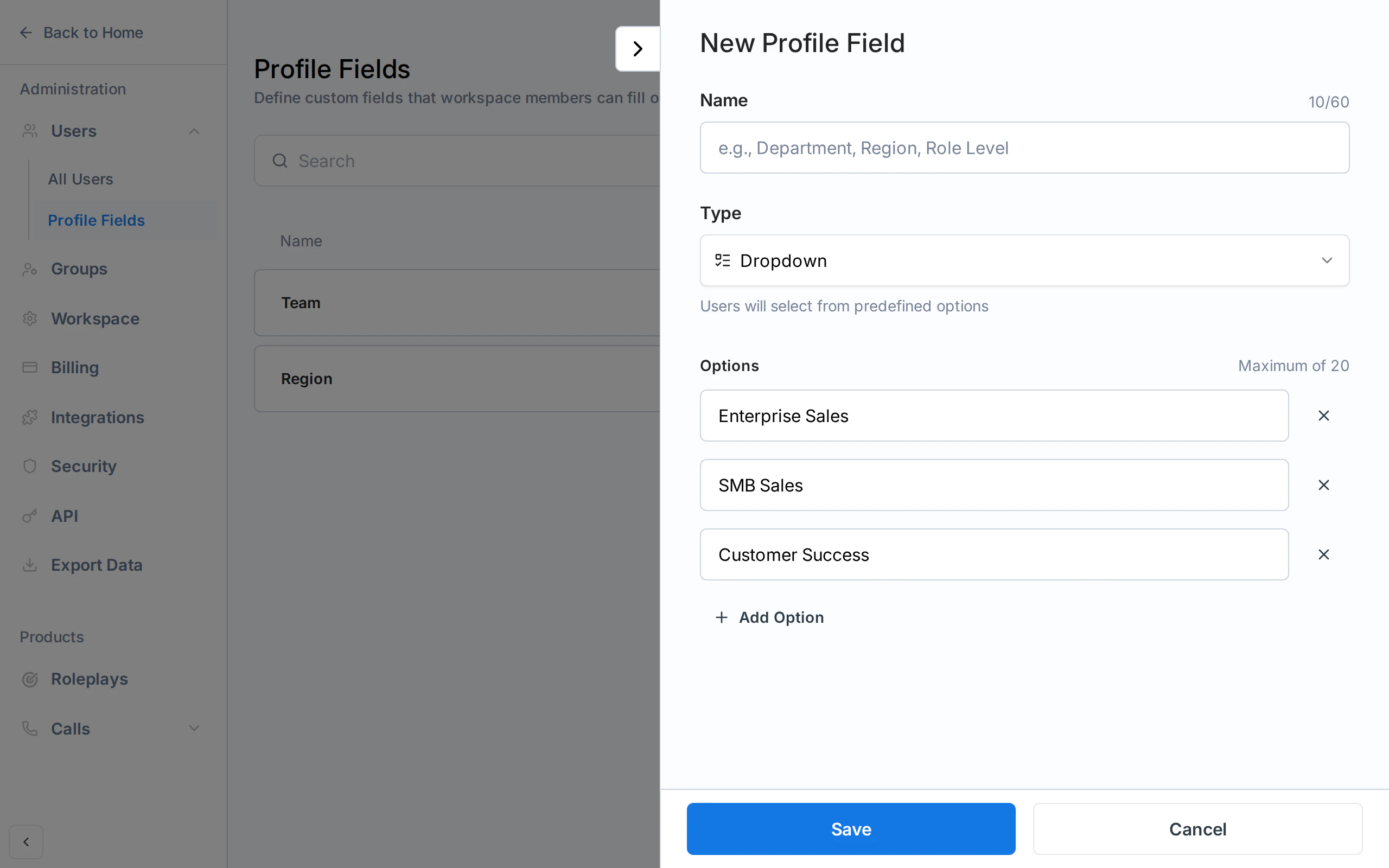 Each workspace member selects their value for the field on their Account page. The system uses these selections to match conditional context rules at runtime.
***
## Adding Conditional Context to a Scenario
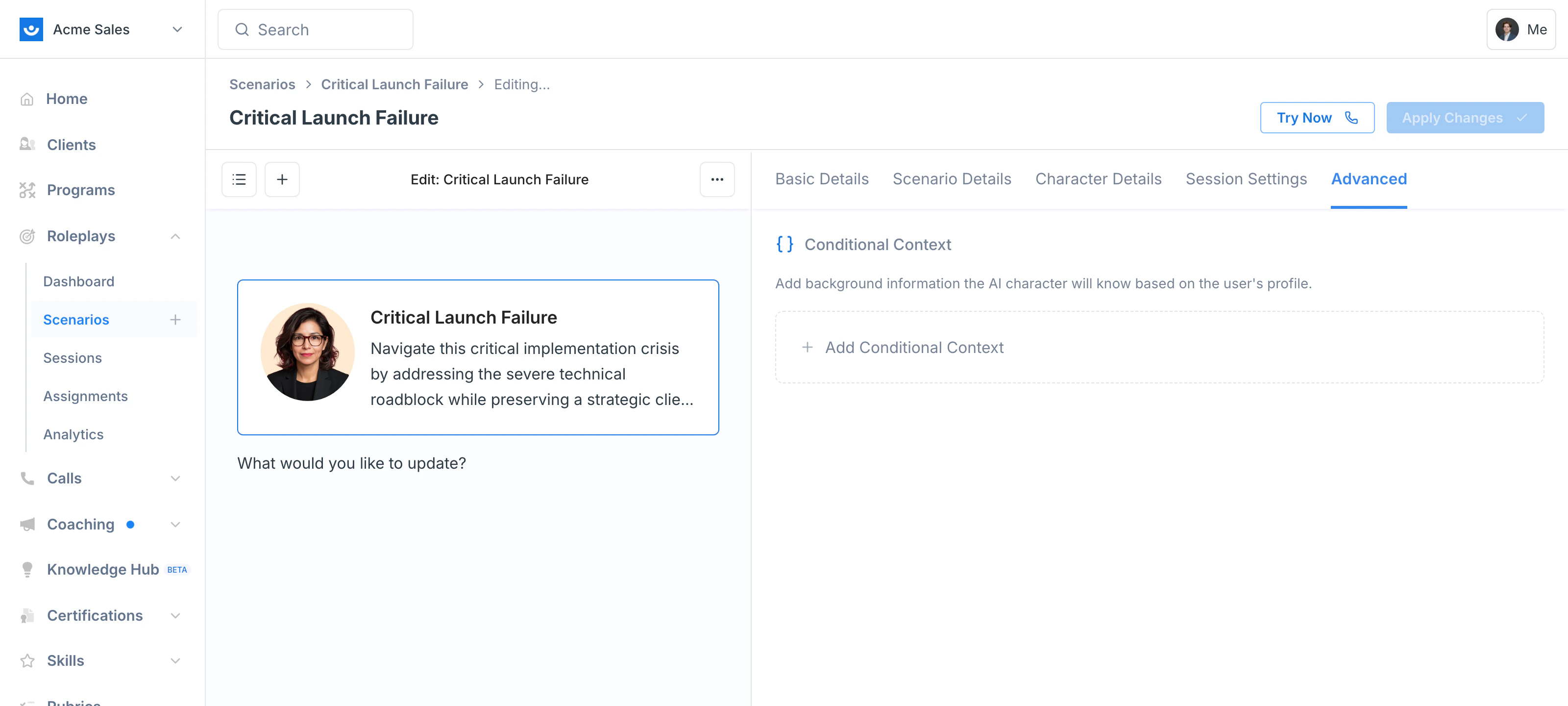
Click any **pencil icon** on a scenario you own, or open the **three-dot menu (⋯)** in the top-right and select **Edit Scenario**.
In the Scenario Studio, select the **Advanced** tab. You'll see the Conditional Context section.
Each workspace member selects their value for the field on their Account page. The system uses these selections to match conditional context rules at runtime.
***
## Adding Conditional Context to a Scenario
Click any **pencil icon** on a scenario you own, or open the **three-dot menu (⋯)** in the top-right and select **Edit Scenario**.
In the Scenario Studio, select the **Advanced** tab. You'll see the Conditional Context section.
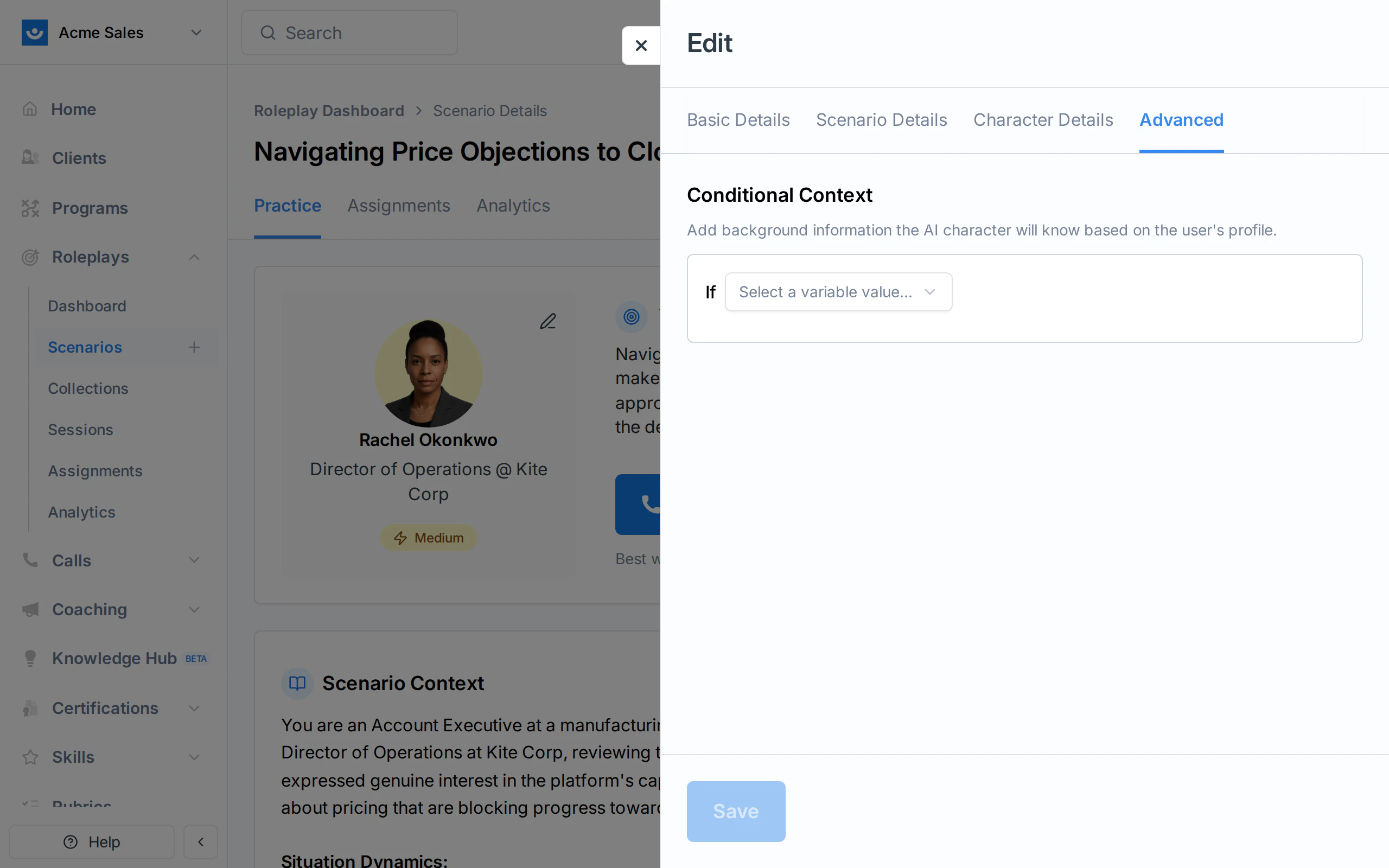
 A form appears with a dropdown to select a profile field value.
Select a profile field value from the **If** dropdown. The dropdown shows all available options across your workspace's dropdown profile fields, formatted as `Field Name = "Option"`.
A form appears with a dropdown to select a profile field value.
Select a profile field value from the **If** dropdown. The dropdown shows all available options across your workspace's dropdown profile fields, formatted as `Field Name = "Option"`.
 In the rich text editor below, write the background information the AI character should know when this condition matches. This could include:
* Product-specific details relevant to the participant's team
* Regional pricing, competitors, or regulations
* Role-appropriate objections or concerns
In the rich text editor below, write the background information the AI character should know when this condition matches. This could include:
* Product-specific details relevant to the participant's team
* Regional pricing, competitors, or regulations
* Role-appropriate objections or concerns
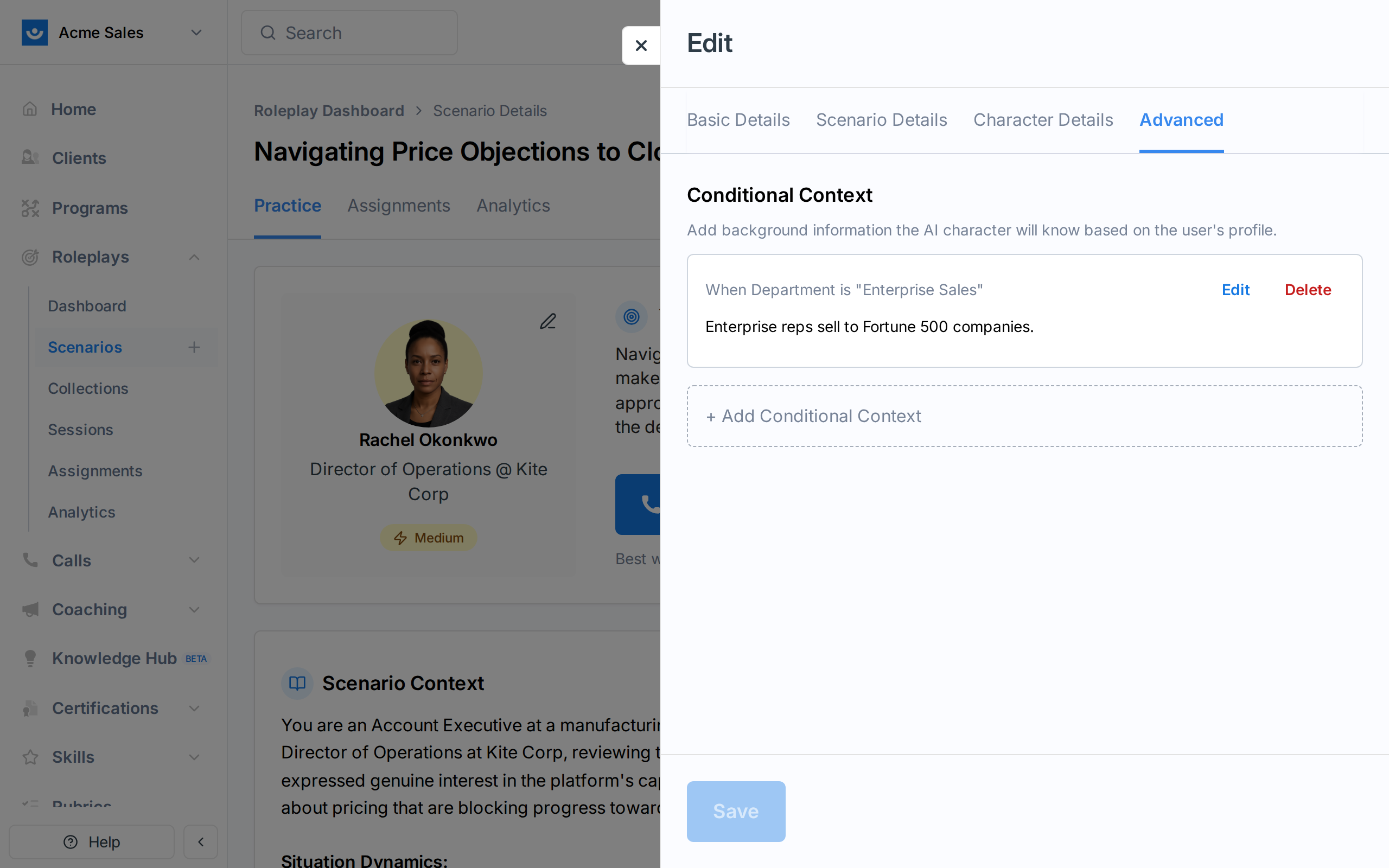
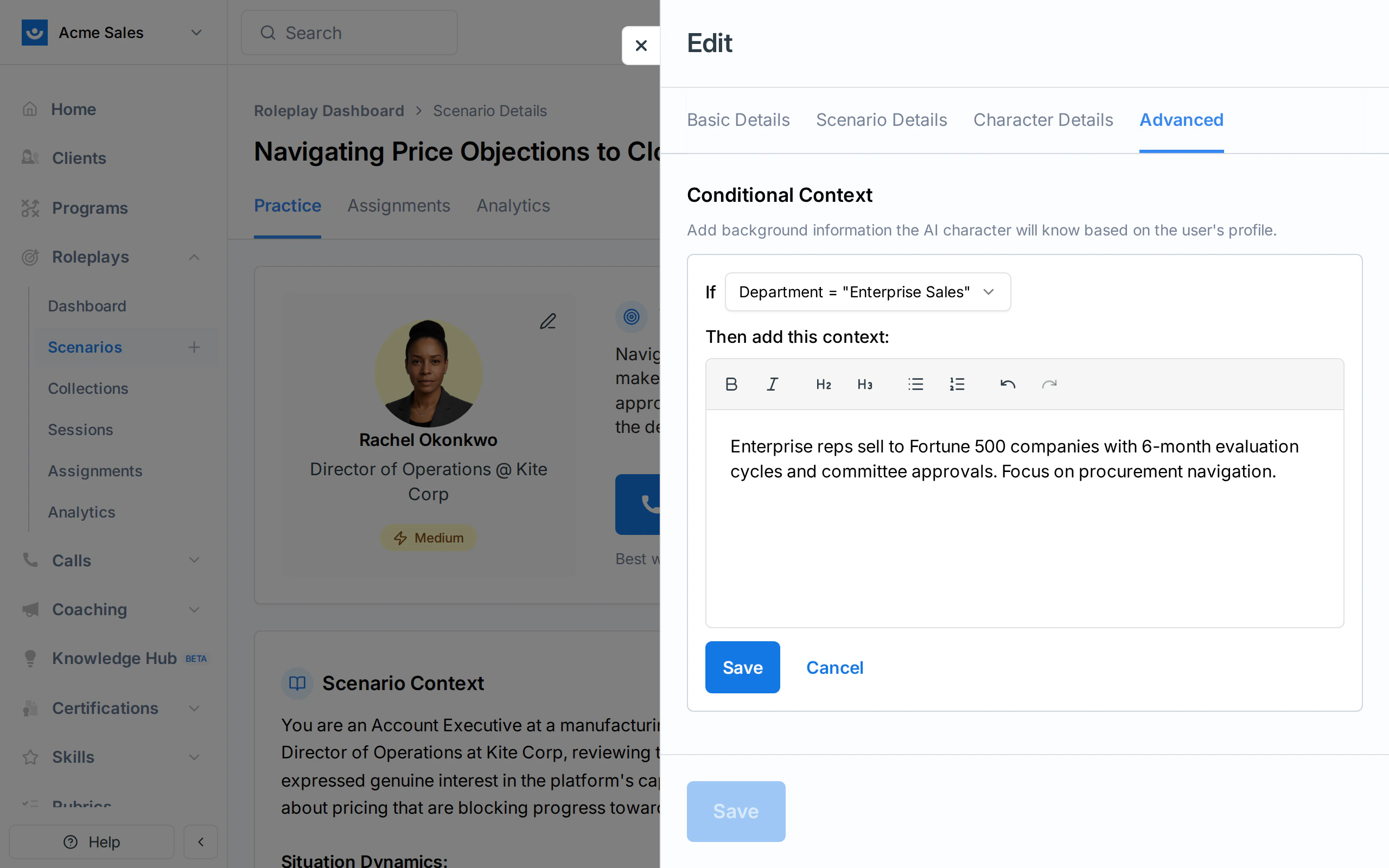 Click **Save**. The rule appears as a card showing the condition and context. You can add more rules, edit existing ones, or delete them.
 ***
## Example
Imagine you have a cold-calling scenario used by both your SMB and Enterprise sales teams. Without conditional context, the AI character behaves the same way for everyone. With it, you can make the experience feel tailored:
| Condition | Additional Context |
| ------------------- | ---------------------------------------------------------------------------------------------------------------------------------------------------------------------------- |
| Team = "SMB" | "You run a 15-person startup. Budget decisions are made quickly. You're cost-sensitive and comparing 3 vendors this week." |
| Team = "Enterprise" | "You're VP of Procurement at a Fortune 500. Purchases require committee approval and a 6-month evaluation cycle. You've been burned by a failed vendor migration last year." |
The same scenario now gives SMB reps practice with fast-moving, price-focused buyers while Enterprise reps face longer sales cycles and procurement complexity.
***
## Managing Rules
* **Edit** - Click **Edit** on any rule to update the context text. The condition (profile field value) cannot be changed; delete and recreate the rule instead.
* **Delete** - Click **Delete** to remove a rule. This takes effect immediately.
* **Limits** - Each profile field option can only have one conditional context rule per scenario. Once all available options have rules, the "+ Add Conditional Context" button is replaced with a message indicating all options are covered.
If you delete a profile field option in Settings, any conditional context rules tied to that option are also deleted.
***
## Example
Imagine you have a cold-calling scenario used by both your SMB and Enterprise sales teams. Without conditional context, the AI character behaves the same way for everyone. With it, you can make the experience feel tailored:
| Condition | Additional Context |
| ------------------- | ---------------------------------------------------------------------------------------------------------------------------------------------------------------------------- |
| Team = "SMB" | "You run a 15-person startup. Budget decisions are made quickly. You're cost-sensitive and comparing 3 vendors this week." |
| Team = "Enterprise" | "You're VP of Procurement at a Fortune 500. Purchases require committee approval and a 6-month evaluation cycle. You've been burned by a failed vendor migration last year." |
The same scenario now gives SMB reps practice with fast-moving, price-focused buyers while Enterprise reps face longer sales cycles and procurement complexity.
***
## Managing Rules
* **Edit** - Click **Edit** on any rule to update the context text. The condition (profile field value) cannot be changed; delete and recreate the rule instead.
* **Delete** - Click **Delete** to remove a rule. This takes effect immediately.
* **Limits** - Each profile field option can only have one conditional context rule per scenario. Once all available options have rules, the "+ Add Conditional Context" button is replaced with a message indicating all options are covered.
If you delete a profile field option in Settings, any conditional context rules tied to that option are also deleted.