> ## Documentation Index
> Fetch the complete documentation index at: https://docs.exec.com/llms.txt
> Use this file to discover all available pages before exploring further.
# Collections
> Group scenarios together with a drag-and-drop sidebar
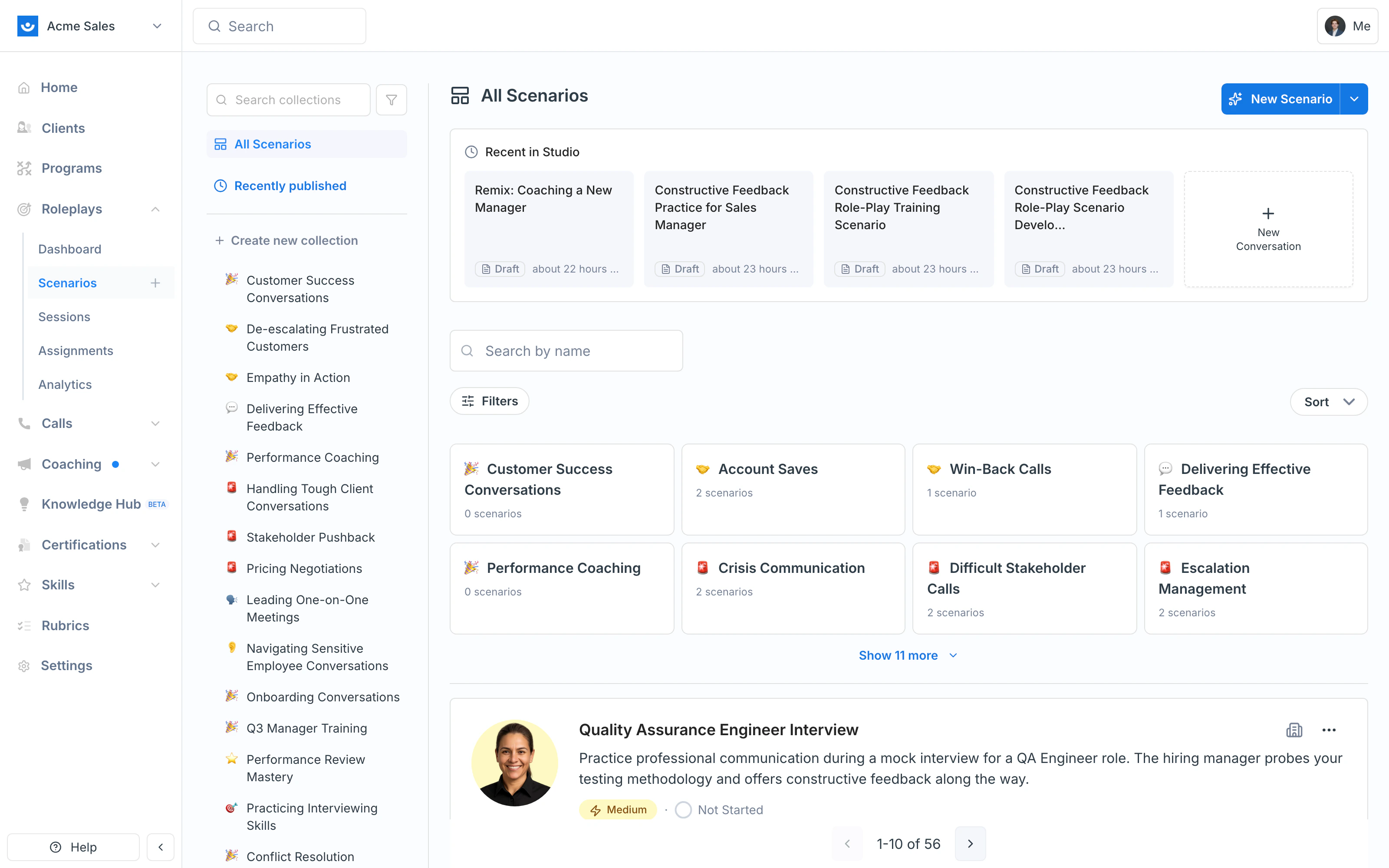
Collections let you group related scenarios together so they're easier to manage, share, and navigate. Instead of a growing list of standalone scenarios, you can bundle them by topic, skill area, or training program — making it easier for both admins and learners to find what they need.
Collections live in the left rail of the **Scenarios** page. You add scenarios to a collection by dragging them in, and you can nest one collection inside another to build sub-folders.
 ***
## Creating a Collection
From the left navigation, click **Roleplays → Scenarios**. The Collections rail appears on the left side of the page.
Just below the **All Scenarios** entry at the top of the rail, click **+ Create new collection**.
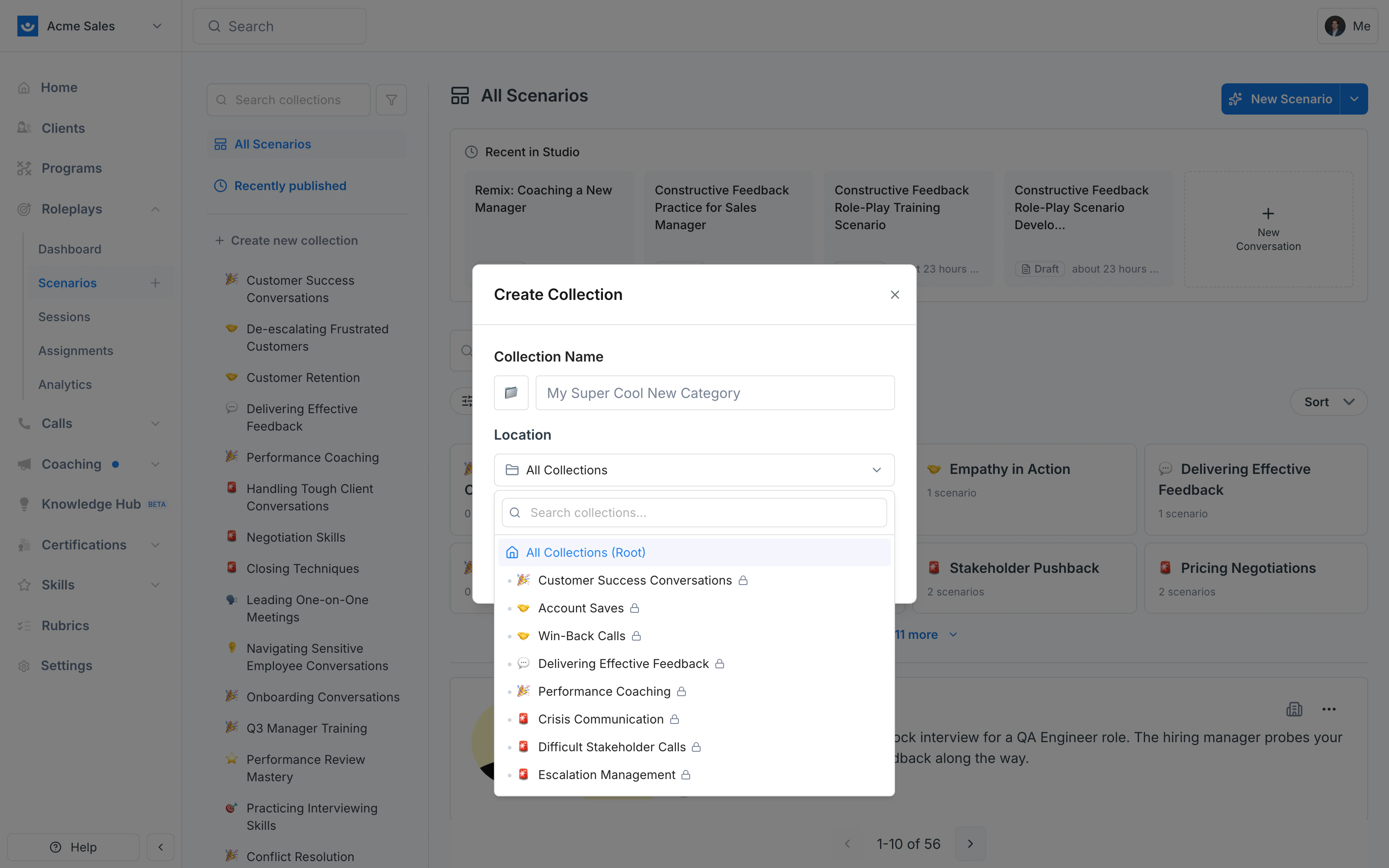
Give it a clear name (e.g., "Manager Coaching Toolkit") and pick a **Location**. Leave it as **All Collections** to keep it at the top level, or pick an existing collection to nest the new one inside it.
***
## Creating a Collection
From the left navigation, click **Roleplays → Scenarios**. The Collections rail appears on the left side of the page.
Just below the **All Scenarios** entry at the top of the rail, click **+ Create new collection**.
Give it a clear name (e.g., "Manager Coaching Toolkit") and pick a **Location**. Leave it as **All Collections** to keep it at the top level, or pick an existing collection to nest the new one inside it.
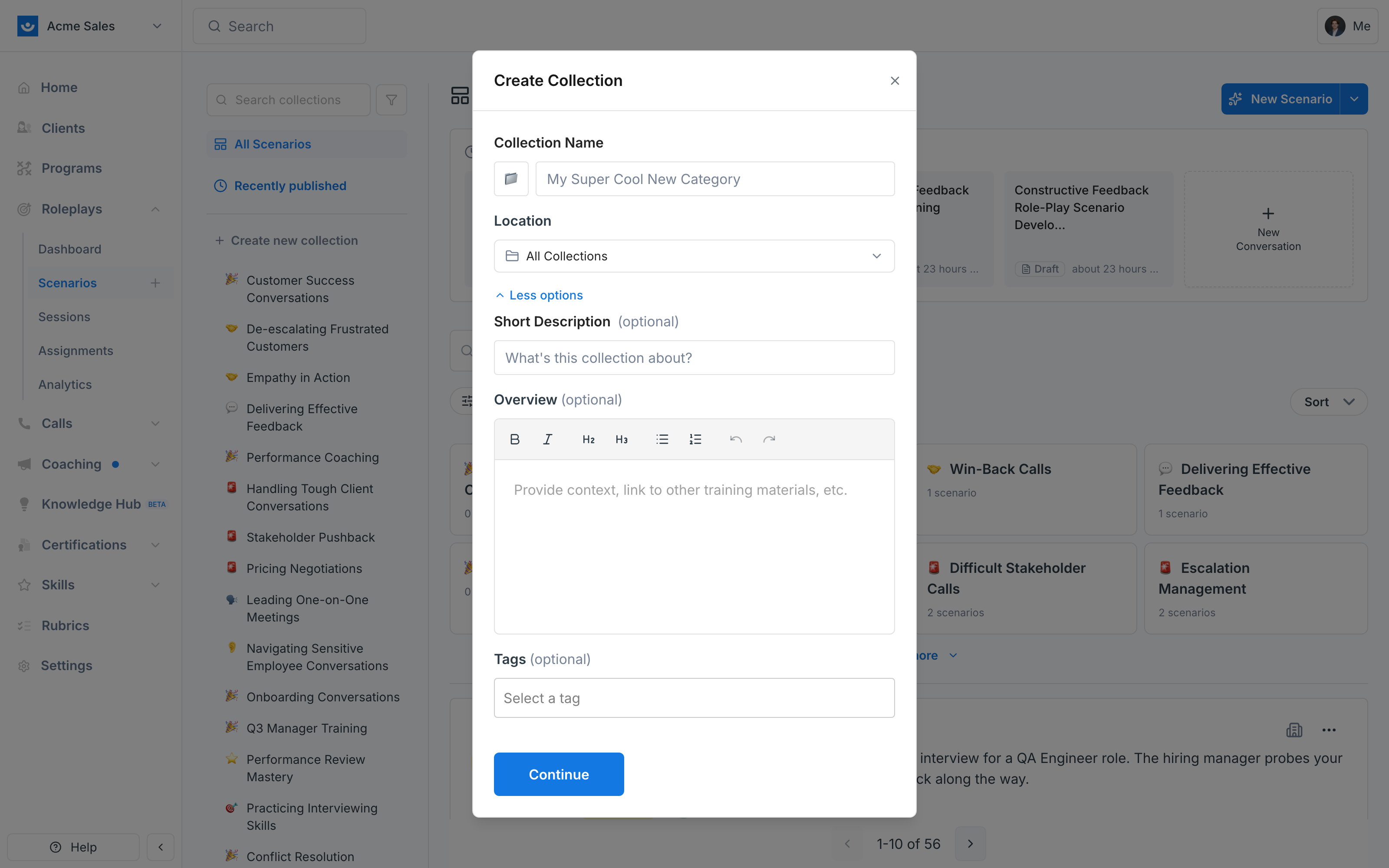
 Click **+ More options** to add a short description, a rich-text overview, and tags. These appear when learners or admins open the collection, so they're worth filling in for collections you plan to share.
 The collection appears in the sidebar immediately. You can start adding scenarios right away.
***
## Adding Scenarios to a Collection
Drag a scenario from the main list and drop it onto a collection in the sidebar. The collection highlights with a red outline when you're over a valid drop target.
The collection appears in the sidebar immediately. You can start adding scenarios right away.
***
## Adding Scenarios to a Collection
Drag a scenario from the main list and drop it onto a collection in the sidebar. The collection highlights with a red outline when you're over a valid drop target.
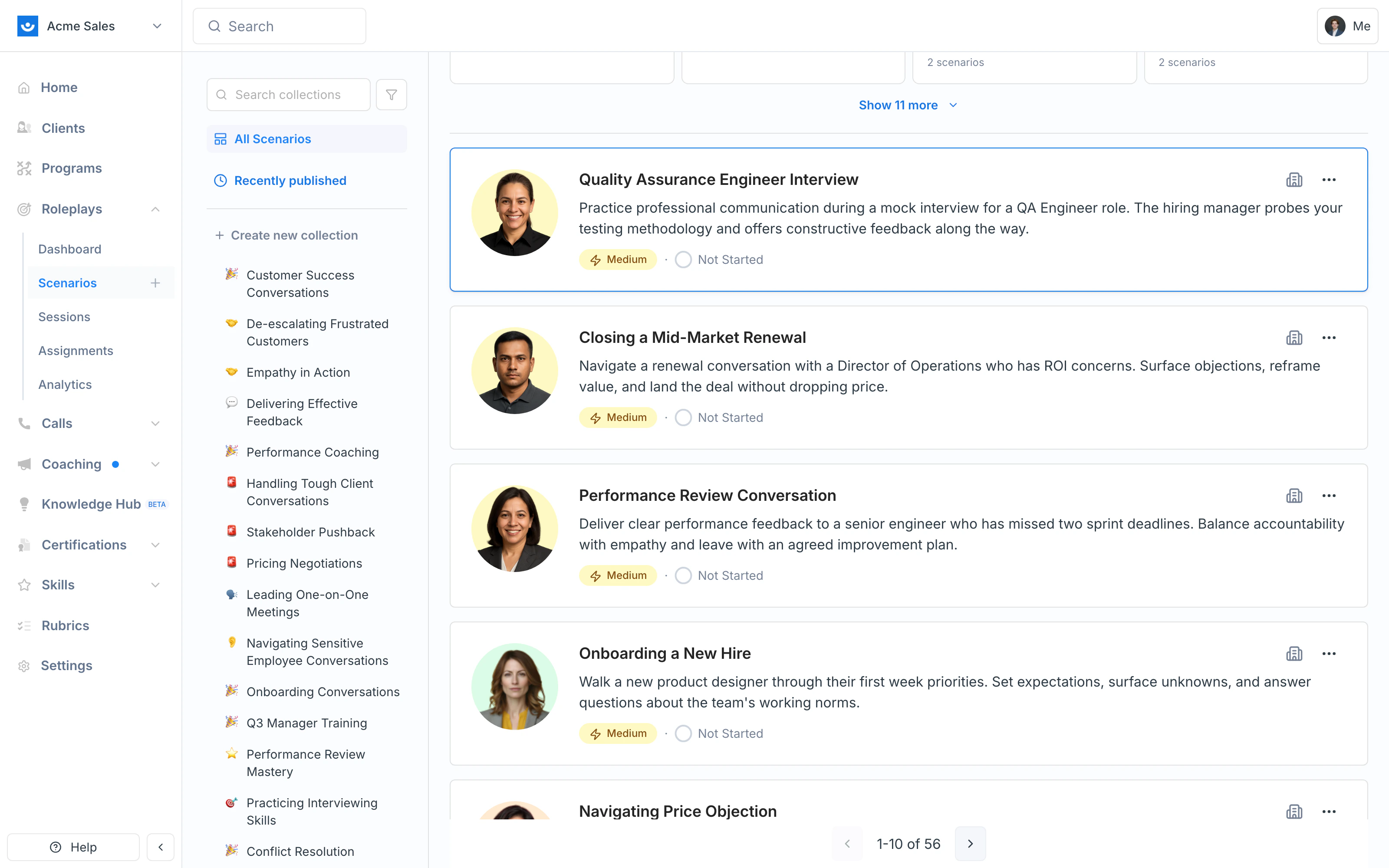 You can drag the same scenario into multiple collections — it doesn't move the scenario, it just adds it to the grouping. Removing a scenario from a collection doesn't delete the scenario itself.
***
## Nesting Collections (Sub-collections)
Collections can live inside other collections. Two ways to nest:
* **At creation time** — set the **Location** field to an existing collection in the Create Collection dialog
* **After creation** — drag a collection from the sidebar and drop it onto another collection
Nested collections behave like folders inside folders. The parent collection's view shows both scenarios and any sub-collections inside it.
Use nesting to mirror how your team thinks about training. For example: a top-level **Sales Onboarding** collection with sub-collections for **Discovery**, **Demos**, **Objection Handling**, and **Negotiation**.
***
## Managing Collections
To edit, share, or delete a collection, hover over it in the sidebar (or open it and use the actions in the top-right). You can update the name, description, overview, and tags at any time.
**Edit** — Update the name, description, overview, tags, or change the Location to move it into or out of another collection.
Use the **Autofill** button on the description and overview fields to have the AI Agent generate them automatically based on the scenarios in the collection.
**Delete** — Remove a collection that's no longer relevant. This only removes the grouping — the individual scenarios stay in your workspace.
***
## Tips
* **Align to learning goals** — Build collections around competencies or training modules (e.g., "Manager Coaching Toolkit") rather than generic categories
* **Use nesting for structure** — Sub-collections let you keep a clean top-level rail while still organizing details (e.g., quarterly cohorts under a parent program)
* **Tag consistently** — Use tags alongside collections to improve searchability
* **Keep it current** — Periodically review collections to make sure they reflect your active training priorities
***
## Getting Help
**Need help?** Contact us at [hello@exec.com](mailto:hello@exec.com) for guidance on organizing your scenario library or any questions about collections.
You can drag the same scenario into multiple collections — it doesn't move the scenario, it just adds it to the grouping. Removing a scenario from a collection doesn't delete the scenario itself.
***
## Nesting Collections (Sub-collections)
Collections can live inside other collections. Two ways to nest:
* **At creation time** — set the **Location** field to an existing collection in the Create Collection dialog
* **After creation** — drag a collection from the sidebar and drop it onto another collection
Nested collections behave like folders inside folders. The parent collection's view shows both scenarios and any sub-collections inside it.
Use nesting to mirror how your team thinks about training. For example: a top-level **Sales Onboarding** collection with sub-collections for **Discovery**, **Demos**, **Objection Handling**, and **Negotiation**.
***
## Managing Collections
To edit, share, or delete a collection, hover over it in the sidebar (or open it and use the actions in the top-right). You can update the name, description, overview, and tags at any time.
**Edit** — Update the name, description, overview, tags, or change the Location to move it into or out of another collection.
Use the **Autofill** button on the description and overview fields to have the AI Agent generate them automatically based on the scenarios in the collection.
**Delete** — Remove a collection that's no longer relevant. This only removes the grouping — the individual scenarios stay in your workspace.
***
## Tips
* **Align to learning goals** — Build collections around competencies or training modules (e.g., "Manager Coaching Toolkit") rather than generic categories
* **Use nesting for structure** — Sub-collections let you keep a clean top-level rail while still organizing details (e.g., quarterly cohorts under a parent program)
* **Tag consistently** — Use tags alongside collections to improve searchability
* **Keep it current** — Periodically review collections to make sure they reflect your active training priorities
***
## Getting Help
**Need help?** Contact us at [hello@exec.com](mailto:hello@exec.com) for guidance on organizing your scenario library or any questions about collections.