> ## Documentation Index
> Fetch the complete documentation index at: https://docs.exec.com/llms.txt
> Use this file to discover all available pages before exploring further.
# Assign Scenarios
> Assign roleplay scenarios to individuals or groups with deadlines and completion requirements
Assignments let you push specific roleplay scenarios to people on your team with a due date and completion criteria. Assignees receive an email notification and see the assignment on their dashboard. You can track their progress from the [Assignments page](/roleplays/manage-assignments).
***
## Who Can Assign
By default, **workspace admins** and **group admins** can create assignments. Group admins can assign scenarios to members of their own groups.
Workspace admins can expand this by changing the **minimum assignment permission level** in workspace settings. When set to **Member**, any workspace member can assign scenarios.
***
## Assigning a Scenario
Navigate to the scenario you want to assign and click the **Assign** button in the top-right corner.
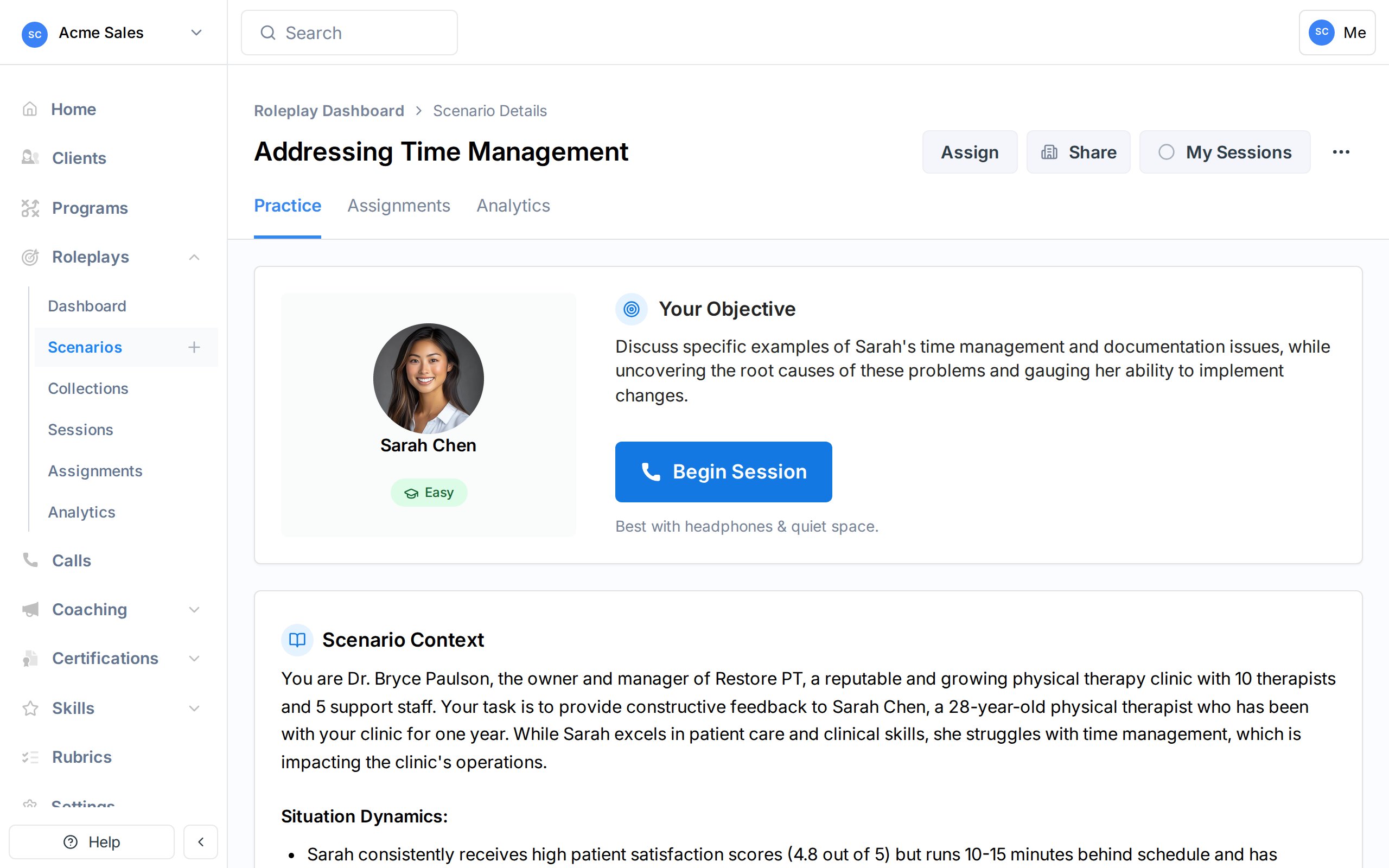 The Assign dialog opens showing a people and groups selector. You can also assign scenarios from a collection page, which lets you select multiple scenarios at once.
Search for and select the individuals or groups you want to assign the scenario to. You can mix both in a single assignment. The dialog also shows current assignments for this scenario.
The Assign dialog opens showing a people and groups selector. You can also assign scenarios from a collection page, which lets you select multiple scenarios at once.
Search for and select the individuals or groups you want to assign the scenario to. You can mix both in a single assignment. The dialog also shows current assignments for this scenario.
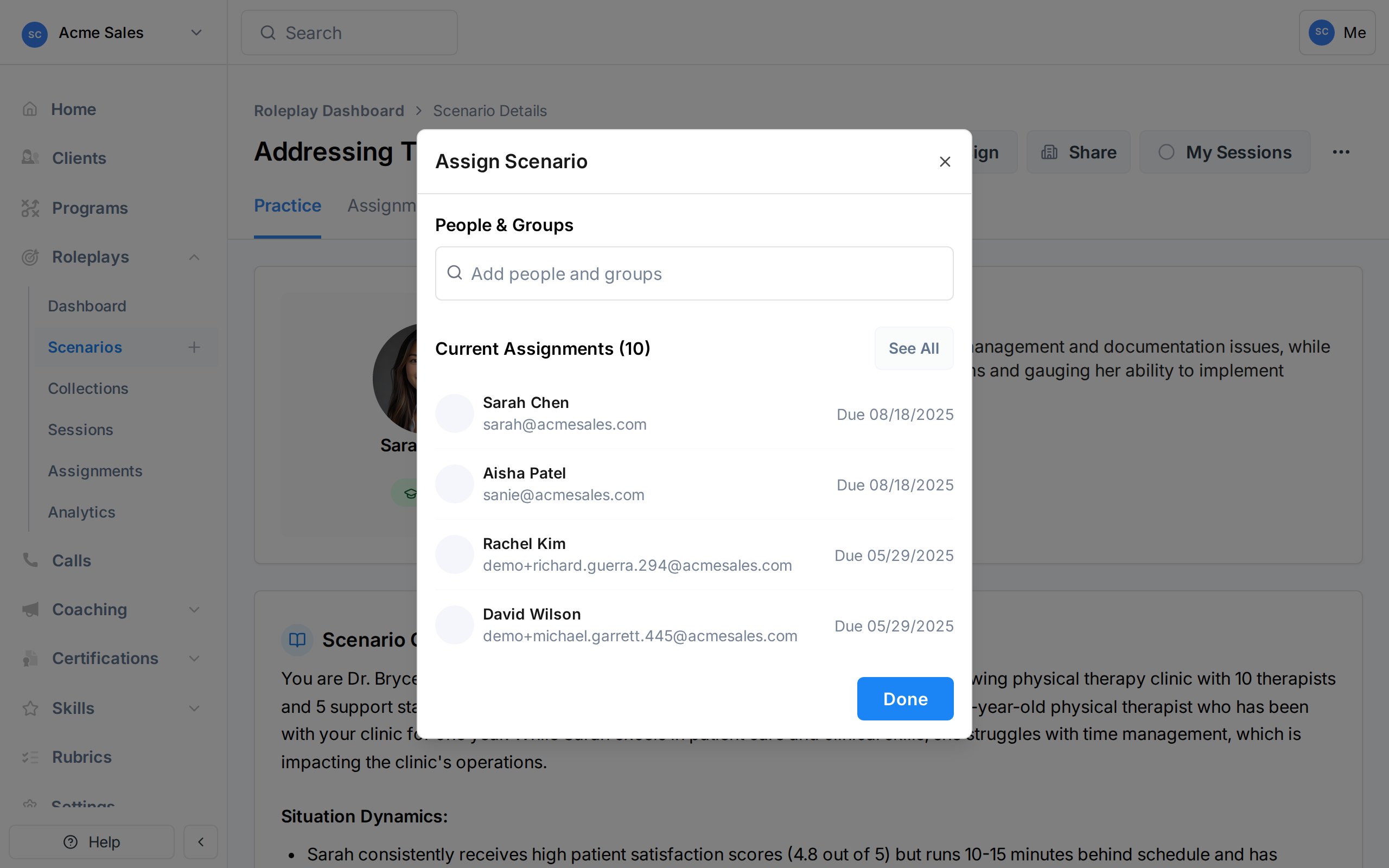 If you are a group admin (not a workspace admin), the groups shown are limited to groups you manage. Selected groups will not include members who are group admins.
After selecting people, the dialog advances to the configuration step. Set a due date, timezone, and optionally configure completion criteria:
If you are a group admin (not a workspace admin), the groups shown are limited to groups you manage. Selected groups will not include members who are group admins.
After selecting people, the dialog advances to the configuration step. Set a due date, timezone, and optionally configure completion criteria:
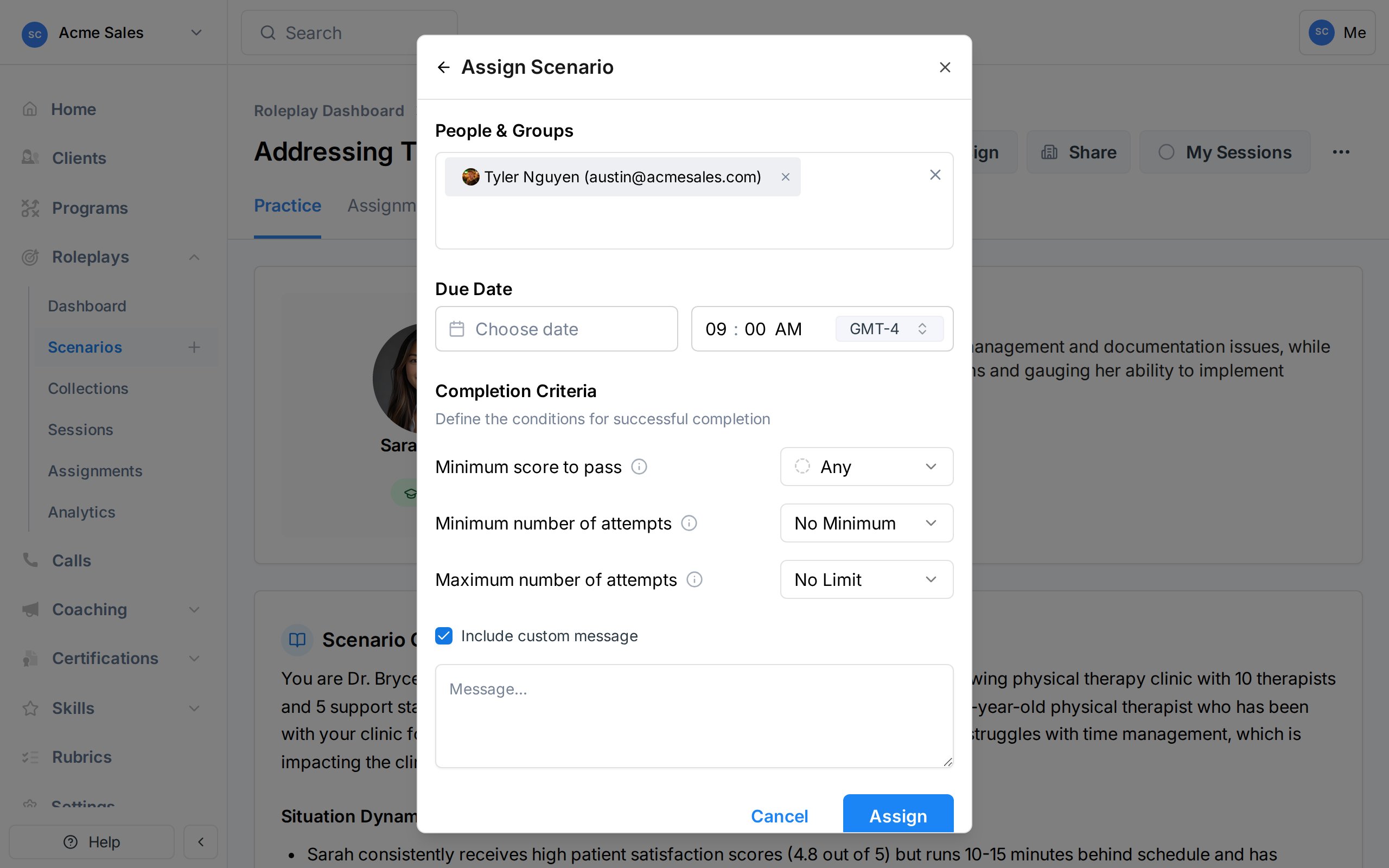 * **Minimum score to pass** - The minimum rank the assignee must achieve on their best attempt. Options: Any (no minimum), Bronze (50-74%), Silver (75-89%), or Gold (90-100%).
* **Minimum number of attempts** - How many times the assignee must practice the scenario (1-10).
* **Maximum number of attempts** - A cap on how many times the assignee can attempt the scenario (1-10). After reaching the maximum, the assignment locks.
If you leave these at their defaults, the assignee needs just one attempt at any score to complete the assignment.
Check **Include custom message** to write a personalized note that appears in the assignment notification email. Use this to explain why the scenario matters or what to focus on.
The assignment is created immediately. Each assignee receives an email notification with the scenario details, due date, and your custom message (if included).
***
## Assigning From a Collection
When you assign from a **collection** page instead of an individual scenario, the dialog adds a third step where you select which scenarios from the collection to include. The people, due date, and completion requirements you set apply to all selected scenarios.
This is useful when you want to assign a set of related scenarios (e.g., a full discovery call series) to the same group with the same deadline.
***
## How Completion Works
Exec automatically tracks whether an assignment is complete based on the criteria you set:
| Criteria | How it's evaluated |
| -------------------- | ------------------------------------------------------------------------------------------------------------------------------------- |
| **Minimum score** | The assignee's **best score** across all attempts must meet or exceed the required rank |
| **Minimum attempts** | The assignee must complete at least this many roleplay sessions |
| **Maximum attempts** | After this many sessions, the assignment locks. If the assignee hasn't met the score requirement, the status becomes **Did Not Pass** |
When all requirements are met, the assignment status changes to **Completed** automatically. Assignees can also manually submit their assignment, which locks it from further attempts.
If you set both a minimum score and maximum attempts, make sure the max is high enough to give the assignee a fair chance to improve. For example, requiring Gold with only 1 attempt is very demanding.
***
## Program-Based Assignments
When a roleplay is included as a component in a [Program](/programs/overview), assignments are created automatically for all enrolled participants. These program-based assignments:
* Cannot be deleted individually (they are managed through the program)
* Show the program name instead of an individual assigner in the Assignments table
* Support deadline extensions granted through the program's participant management
You can still view and track program-based assignments from the Assignments page alongside standalone assignments.
***
## Getting Help
Need help with assignments? Contact us at [hello@exec.com](mailto:hello@exec.com).
* **Minimum score to pass** - The minimum rank the assignee must achieve on their best attempt. Options: Any (no minimum), Bronze (50-74%), Silver (75-89%), or Gold (90-100%).
* **Minimum number of attempts** - How many times the assignee must practice the scenario (1-10).
* **Maximum number of attempts** - A cap on how many times the assignee can attempt the scenario (1-10). After reaching the maximum, the assignment locks.
If you leave these at their defaults, the assignee needs just one attempt at any score to complete the assignment.
Check **Include custom message** to write a personalized note that appears in the assignment notification email. Use this to explain why the scenario matters or what to focus on.
The assignment is created immediately. Each assignee receives an email notification with the scenario details, due date, and your custom message (if included).
***
## Assigning From a Collection
When you assign from a **collection** page instead of an individual scenario, the dialog adds a third step where you select which scenarios from the collection to include. The people, due date, and completion requirements you set apply to all selected scenarios.
This is useful when you want to assign a set of related scenarios (e.g., a full discovery call series) to the same group with the same deadline.
***
## How Completion Works
Exec automatically tracks whether an assignment is complete based on the criteria you set:
| Criteria | How it's evaluated |
| -------------------- | ------------------------------------------------------------------------------------------------------------------------------------- |
| **Minimum score** | The assignee's **best score** across all attempts must meet or exceed the required rank |
| **Minimum attempts** | The assignee must complete at least this many roleplay sessions |
| **Maximum attempts** | After this many sessions, the assignment locks. If the assignee hasn't met the score requirement, the status becomes **Did Not Pass** |
When all requirements are met, the assignment status changes to **Completed** automatically. Assignees can also manually submit their assignment, which locks it from further attempts.
If you set both a minimum score and maximum attempts, make sure the max is high enough to give the assignee a fair chance to improve. For example, requiring Gold with only 1 attempt is very demanding.
***
## Program-Based Assignments
When a roleplay is included as a component in a [Program](/programs/overview), assignments are created automatically for all enrolled participants. These program-based assignments:
* Cannot be deleted individually (they are managed through the program)
* Show the program name instead of an individual assigner in the Assignments table
* Support deadline extensions granted through the program's participant management
You can still view and track program-based assignments from the Assignments page alongside standalone assignments.
***
## Getting Help
Need help with assignments? Contact us at [hello@exec.com](mailto:hello@exec.com).