> ## Documentation Index
> Fetch the complete documentation index at: https://docs.exec.com/llms.txt
> Use this file to discover all available pages before exploring further.
# Programs Overview
> Organize training into structured learning paths with deadlines, components, and progress tracking
## Video walkthrough
Programs let you combine multiple training activities into a single, structured learning path. Instead of assigning roleplays, videos, and surveys one at a time, you bundle them into a program with clear timelines and track everyone's progress in one place.
## When to Use a Program
Use programs when you need to:
* **Run cohort-based training** with start and end dates
* **Combine multiple activities** like roleplays, surveys, videos, and coaching into one path
* **Track completion** across participants and components
* **Issue certifications** automatically when participants finish
For one-off roleplay practice, you do not need a program. Just [assign scenarios directly](/roleplays/assign-scenarios).
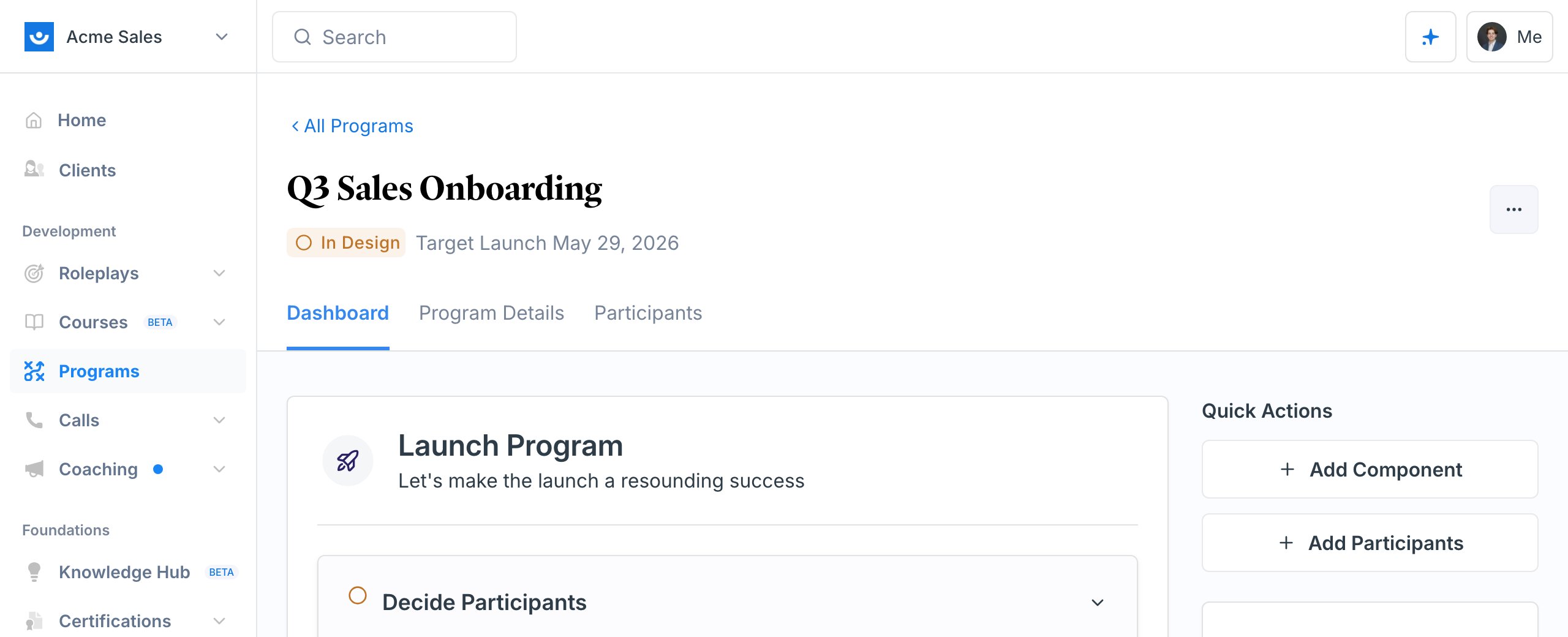 ## What Goes Inside a Program
Programs are made up of **components** - the individual activities participants complete. You can mix and match eight types:
Share information or instructions with participants. No action required from them.
Capture feedback or assess knowledge with custom questions.
Practice with AI-powered conversation simulations. Set completion criteria like minimum rank or number of attempts.
Assign a video for participants to watch.
Assign an article or document for participants to read.
Give participants tasks or assignments to complete.
Connect participants with expert coaches for personalized sessions.
Schedule group sessions with a shared meeting link.
Each component has its own launch date, due date, and close date. You can set prerequisites so participants must complete one component before unlocking the next.
[Learn how to add components ->](/programs/add-components)
## How Programs Work
Give it a name and a target launch date. Optionally link a certification to issue when participants finish.
You can also generate a full program with AI - describe what you want and Exec builds the components for you. If you've saved your materials to the [Knowledge Hub](/knowledge-hub/overview), use **Create > Program** on a document to have Exec generate a multi-week program from it, automatically pulling in the connected scenarios and content. Or **Clone** an existing program for a new cohort and just reset the launch date.
[Create a program ->](/programs/create-program)
Build out the learning path by adding the activities your participants will complete. Set dates, choose participants, and configure prerequisites.
[Add components ->](/programs/add-components)
Add participants by email. Enrolling someone can also **assign them a seat right from the program**, so first-time users get a license and an account-activation email automatically when the program launches, with no separate trip to Settings. Schedule enrollment emails for launch day.
[Manage participants ->](/programs/manage-participants)
When everything is ready, launch the program. Participants receive enrollment emails and can start working through their assigned components.
[Launch your program ->](/programs/launch-and-lifecycle)
Monitor completion rates, view survey responses, check roleplay performance, and send reminders to participants who fall behind.
[Track progress ->](/programs/track-progress)
## Program Lifecycle
Your Programs list shows where each program stands at a glance.
## What Goes Inside a Program
Programs are made up of **components** - the individual activities participants complete. You can mix and match eight types:
Share information or instructions with participants. No action required from them.
Capture feedback or assess knowledge with custom questions.
Practice with AI-powered conversation simulations. Set completion criteria like minimum rank or number of attempts.
Assign a video for participants to watch.
Assign an article or document for participants to read.
Give participants tasks or assignments to complete.
Connect participants with expert coaches for personalized sessions.
Schedule group sessions with a shared meeting link.
Each component has its own launch date, due date, and close date. You can set prerequisites so participants must complete one component before unlocking the next.
[Learn how to add components ->](/programs/add-components)
## How Programs Work
Give it a name and a target launch date. Optionally link a certification to issue when participants finish.
You can also generate a full program with AI - describe what you want and Exec builds the components for you. If you've saved your materials to the [Knowledge Hub](/knowledge-hub/overview), use **Create > Program** on a document to have Exec generate a multi-week program from it, automatically pulling in the connected scenarios and content. Or **Clone** an existing program for a new cohort and just reset the launch date.
[Create a program ->](/programs/create-program)
Build out the learning path by adding the activities your participants will complete. Set dates, choose participants, and configure prerequisites.
[Add components ->](/programs/add-components)
Add participants by email. Enrolling someone can also **assign them a seat right from the program**, so first-time users get a license and an account-activation email automatically when the program launches, with no separate trip to Settings. Schedule enrollment emails for launch day.
[Manage participants ->](/programs/manage-participants)
When everything is ready, launch the program. Participants receive enrollment emails and can start working through their assigned components.
[Launch your program ->](/programs/launch-and-lifecycle)
Monitor completion rates, view survey responses, check roleplay performance, and send reminders to participants who fall behind.
[Track progress ->](/programs/track-progress)
## Program Lifecycle
Your Programs list shows where each program stands at a glance.
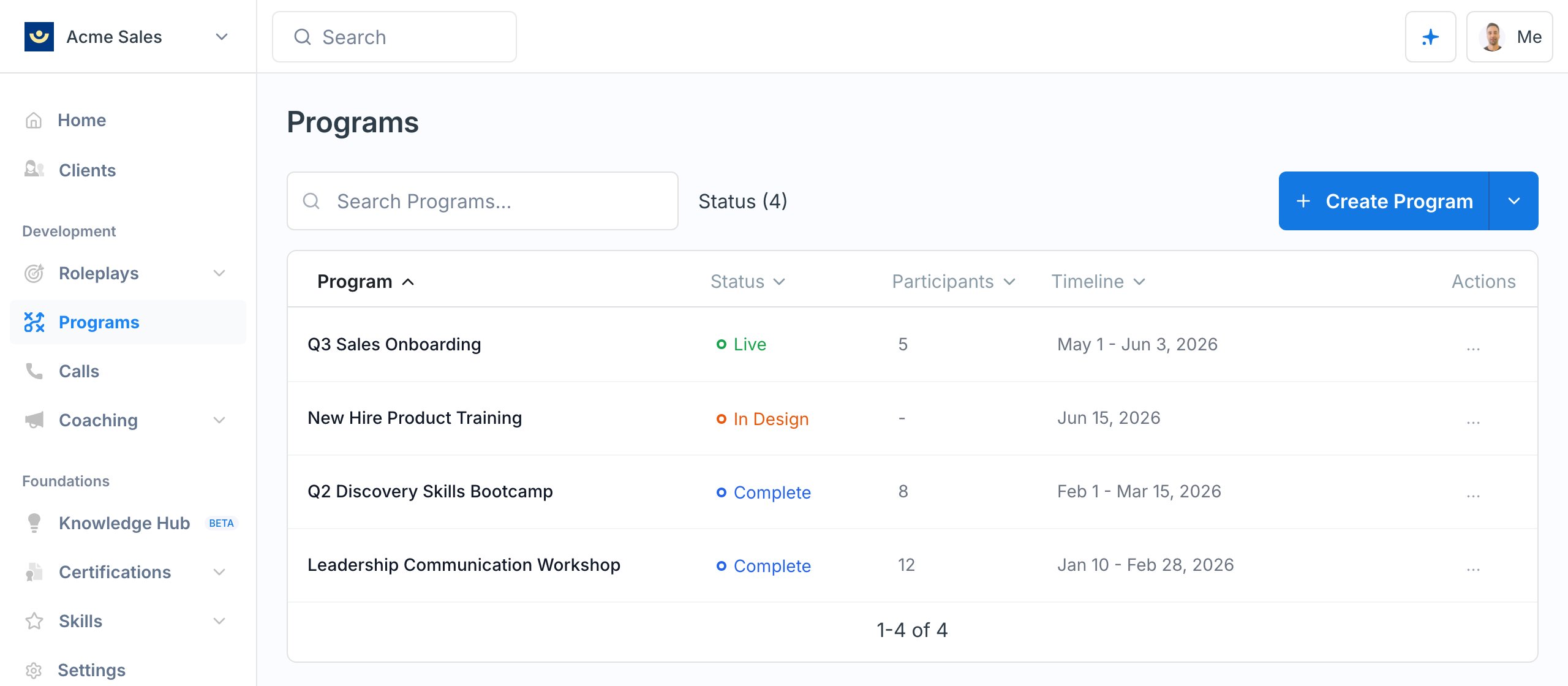 Every program moves through a series of statuses:
| Status | What it means |
| ---------------- | ------------------------------------------------------------------------------------------------------------- |
| **In Design** | You are building the program. Components and participants can be added freely. |
| **Launch Ready** | The program has at least one component and participants. Ready to go live. |
| **Live** | Participants have been notified and can see their assigned components. |
| **Complete** | The program has ended. All ongoing components are closed and completion statuses are finalized. |
| **Archived** | The program was removed before launch. Scheduled invitations are cancelled and reserved credits are restored. |
The transition from In Design to Launch Ready happens automatically when you have added at least one component and enrolled participants. You control the transitions to Live, Complete, and Archived.
[Learn more about the program lifecycle ->](/programs/launch-and-lifecycle)
## Roles
Programs have two roles:
| Role | What they can do |
| ---------------- | ------------------------------------------------------------------------------------------------------------------- |
| **Program Lead** | Create and edit components, manage participants, launch the program, grant deadline extensions, view all analytics. |
| **Participant** | View assigned components, complete activities, track their own progress. |
Workspace admins can access all programs regardless of role.
## Programs and Certifications
When you link a certification to a program, participants who complete all required components are automatically certified when the program ends. You can track certification progress in real time through the pipeline dashboard.
[Learn about program certifications ->](/programs/certifications)
## Getting Help
Need help setting up a program? Contact us at [hello@exec.com](mailto:hello@exec.com).
Every program moves through a series of statuses:
| Status | What it means |
| ---------------- | ------------------------------------------------------------------------------------------------------------- |
| **In Design** | You are building the program. Components and participants can be added freely. |
| **Launch Ready** | The program has at least one component and participants. Ready to go live. |
| **Live** | Participants have been notified and can see their assigned components. |
| **Complete** | The program has ended. All ongoing components are closed and completion statuses are finalized. |
| **Archived** | The program was removed before launch. Scheduled invitations are cancelled and reserved credits are restored. |
The transition from In Design to Launch Ready happens automatically when you have added at least one component and enrolled participants. You control the transitions to Live, Complete, and Archived.
[Learn more about the program lifecycle ->](/programs/launch-and-lifecycle)
## Roles
Programs have two roles:
| Role | What they can do |
| ---------------- | ------------------------------------------------------------------------------------------------------------------- |
| **Program Lead** | Create and edit components, manage participants, launch the program, grant deadline extensions, view all analytics. |
| **Participant** | View assigned components, complete activities, track their own progress. |
Workspace admins can access all programs regardless of role.
## Programs and Certifications
When you link a certification to a program, participants who complete all required components are automatically certified when the program ends. You can track certification progress in real time through the pipeline dashboard.
[Learn about program certifications ->](/programs/certifications)
## Getting Help
Need help setting up a program? Contact us at [hello@exec.com](mailto:hello@exec.com).