> ## Documentation Index
> Fetch the complete documentation index at: https://docs.exec.com/llms.txt
> Use this file to discover all available pages before exploring further.
# Manage Program Participants
> Enroll participants, manage roles, grant extensions, and send reminders
Once your program has components, you need participants. This page covers enrolling people, managing their roles, handling deadline extensions, and keeping participants on track with reminders.
***
## Enrolling Participants
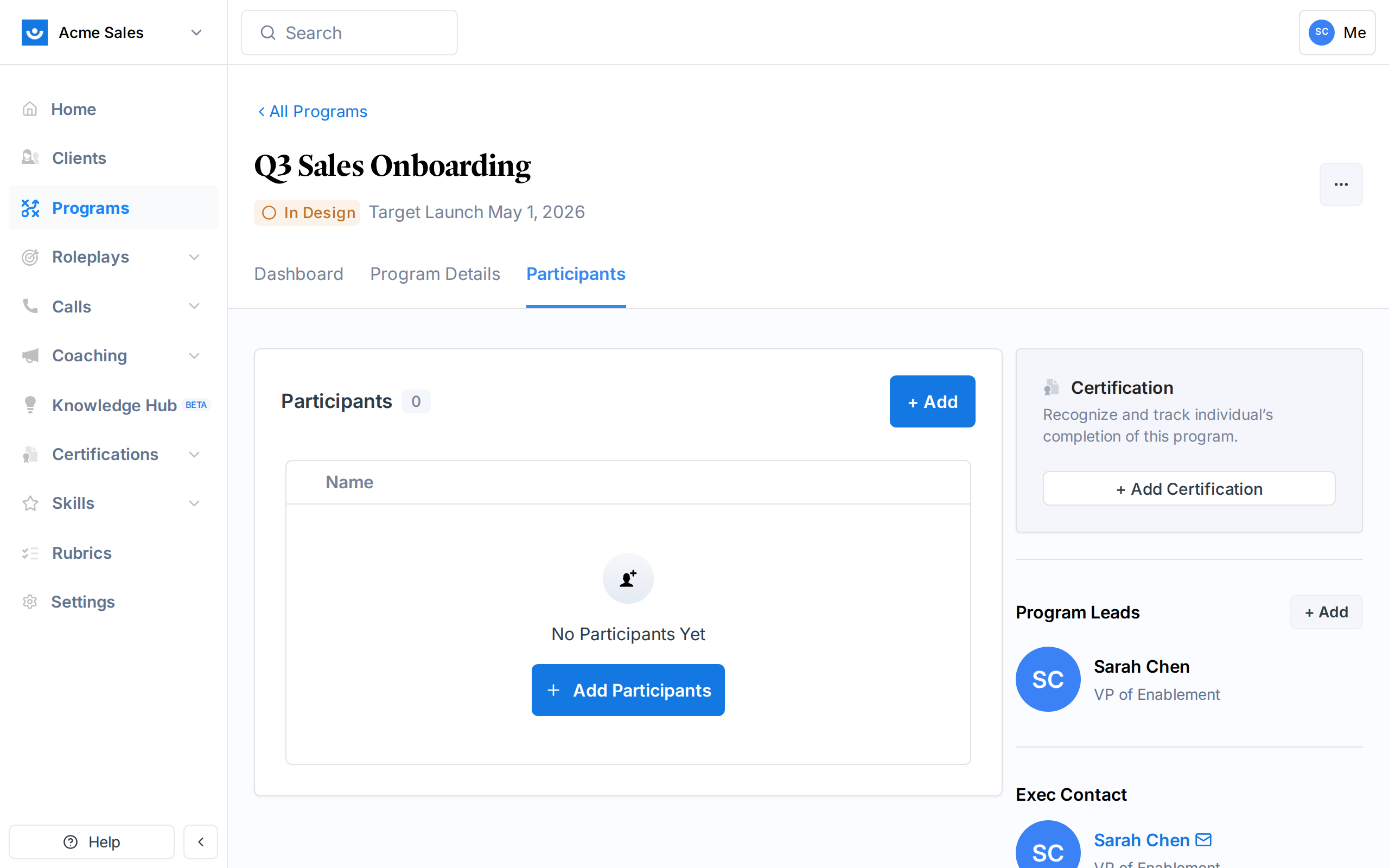
Navigate to your program and click the **Participants** tab. You can also click **Add Participants** from the quick actions panel on the right side of the dashboard.
 The enrollment drawer opens on the right side of the screen.
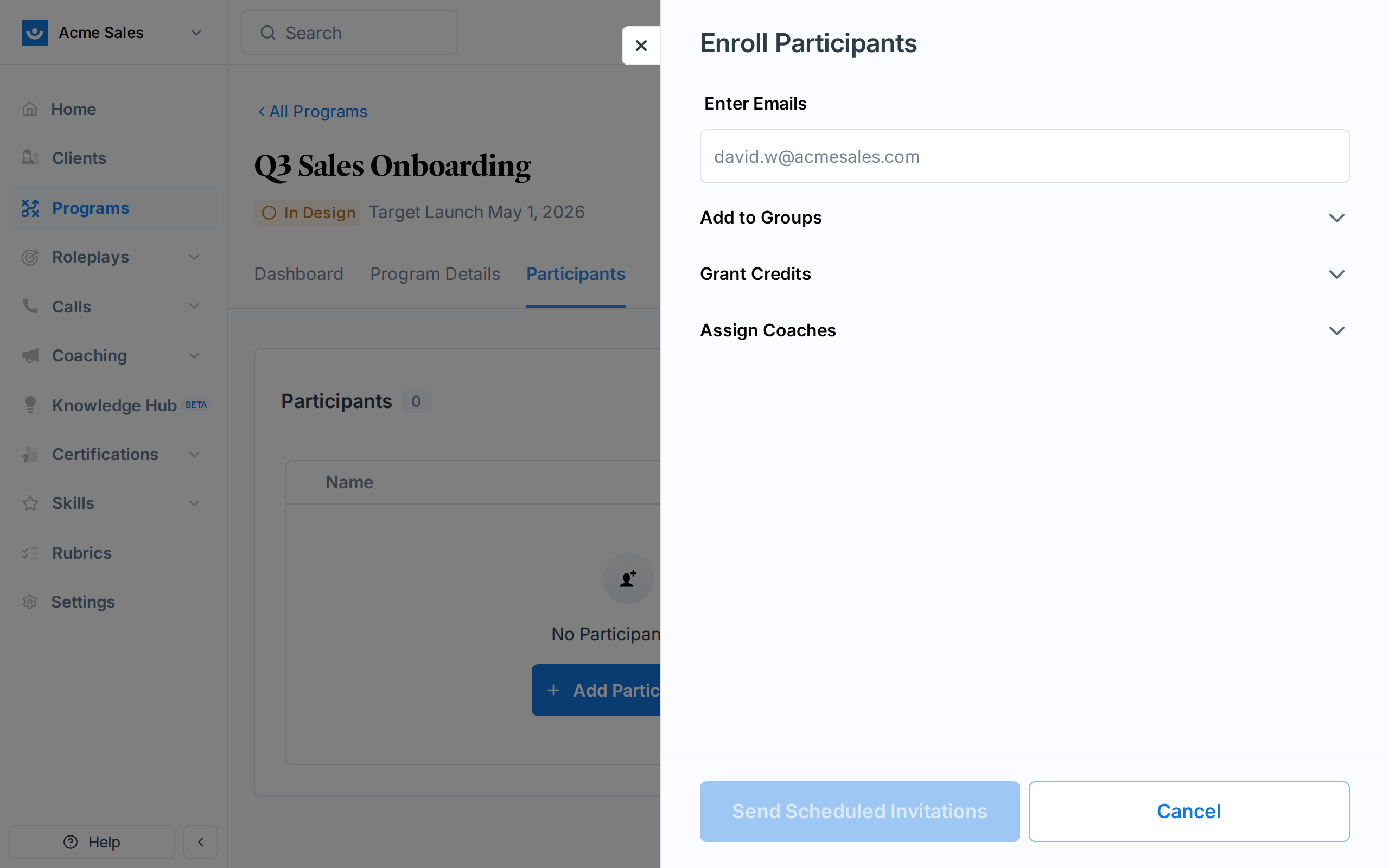 Type or paste email addresses. You can enter them:
* One at a time, pressing Enter after each
* As a comma-separated list (paste from a spreadsheet column or email list)
Exec validates each email and sorts them into categories:
* **New users**: Will receive a workspace invitation along with program enrollment
* **Existing workspace members**: Already in your workspace, enrolled directly
* **Already enrolled**: Already in this program (skipped)
* **Invalid**: Not a valid email format
If you are enrolling people who are not yet in your workspace, they will receive a workspace invitation. Make sure you have enough seats available. Exec warns you if seats are insufficient.
Review the summary and click to enroll. Participants are added to the program immediately.
### Scheduling Enrollment Emails
Enrollment emails notify participants that they have been added to a program. These are sent on the program's launch date by default. On the program dashboard, the **Launch Panel** shows the scheduled email date and subject line:
> **Subject:** "Please read: You're enrolled in \[Program Name]"
You can mark the launch email scheduling step as complete from the launch checklist on the program dashboard.
***
## Program Roles
Programs have two roles: **Lead** and **Participant**. Workspace admins can manage any program regardless of role.
| Role | How it is assigned | What they can do |
| ------------------- | ----------------------------------------------------------------------- | ----------------------------------------------------------------------- |
| **Program Lead** | Added by workspace admins from the right panel on the program dashboard | Full management of their program (see permissions below) |
| **Participant** | Enrolled via the Participants tab | View assigned components, complete activities, track their own progress |
| **Workspace Admin** | Assigned at the workspace level | Everything a lead can do, across all programs in the workspace |
### Lead Permissions
Program leads have full management access to their specific program:
| Action | Program Lead | Participant | Workspace Admin |
| ---------------------------------- | ------------ | ----------- | ------------------ |
| Add/edit/delete components | Yes | No | Yes (all programs) |
| Launch the program | Yes | No | Yes |
| Enroll/remove participants | Yes | No | Yes |
| Grant deadline extensions | Yes | No | Yes |
| Send nudge reminders | Yes | No | Yes |
| Close components early | Yes | No | Yes |
| End the program | Yes | No | Yes |
| View all participant progress | Yes | No | Yes |
| View analytics | Yes | No | Yes |
| Edit program details (name, dates) | Yes | No | Yes |
| Complete assigned components | No | Yes | No |
| View own progress | No | Yes | No |
Program lead permissions are scoped to the programs they lead. A lead on Program A cannot manage Program B unless they are also a lead on that program or a workspace admin.
### Adding Program Leads
Program leads are added from the **Program Leads** section on the right panel of the program dashboard. Click **+ Add** to invite a lead by email. A program can have multiple leads.
### Removing Program Leads
Click the remove button next to a lead's name in the Program Leads section. A program must always have at least one lead.
***
## The Participants Table
The Participants tab shows all enrolled participants with their progress. The table includes:
| Column | What it shows |
| ------------------- | ---------------------------------------------------------------------------------------------------- |
| **Name** | Participant name and avatar. Shows "(Removed)" if the participant has been removed. |
| **Status** | Completion status for the selected component (Completed, In Progress, Not Started, Past Due, etc.) |
| **Due Date** | Component due date. Shown in blue if an extension has been granted, with the extended date on hover. |
| **Completion Date** | When the participant completed the component |
| **Last Reminded** | When the participant was last sent a nudge |
| **Actions** | View responses, nudge, grant extension, or revoke extension |
You can search participants by name, sort by any column, and paginate through results.
For **1:1 Coaching** components, the table shows different columns: coaching stage, assigned coach, intro session status, regular session status, and credits used.
***
## Granting Deadline Extensions
When participants need more time, you can extend their due dates on a per-component basis.
From the component's participant table, click **Grant Extension** in the actions menu. Or select multiple participants and use the bulk action.
Choose specific participants or select **All Participants** to extend the deadline for everyone.
Pick a new due date using the calendar. The date must be in the future.
The **Send email notifications** checkbox is on by default. Toggle it off if you do not want participants to know about the extension.
Click to grant the extension. Extended due dates appear in blue in the participants table.
If the component has related components (child components or components that depend on it as a prerequisite), you will see a notice that the extension also affects those related components.
### Revoking Extensions
To revoke a previously granted extension, click **Revoke Extension** from the participant's actions menu. Their due date reverts to the original.
***
## Sending Nudges
Nudges are reminder notifications sent to participants who have not completed a component. They are useful for keeping participants on track without manually following up.
From the component's participant table, click the nudge icon or select **Nudge** from the actions menu.
The panel shows two groups:
* **Nudgeable participants**: People who can receive a reminder
* **Cannot be nudged**: People who are ineligible, with the reason shown (already completed, recently nudged, component not active, etc.)
There is a 15-minute cooldown between nudges for the same participant. If someone was nudged within the last 15 minutes, they appear in the "Cannot be nudged" group.
Click to send nudges to all eligible participants. A progress indicator shows how many have been sent. You can stop the process mid-way if needed.
Nudges are not available for announcements, group meetings, or 1:1 coaching components.
***
## Removing Participants
To remove a participant from a program:
1. Find them in the participants table
2. Click the actions menu and select **Remove**
3. Confirm the removal
Removing a participant cannot be undone. They will lose access to the program. Their historical data (completed responses, session records) is preserved but they are marked as removed.
Removed participants appear grayed out in the table with a "(Removed)" label next to their name.
***
## Getting Help
Need help managing participants? Contact us at [hello@exec.com](mailto:hello@exec.com).
Type or paste email addresses. You can enter them:
* One at a time, pressing Enter after each
* As a comma-separated list (paste from a spreadsheet column or email list)
Exec validates each email and sorts them into categories:
* **New users**: Will receive a workspace invitation along with program enrollment
* **Existing workspace members**: Already in your workspace, enrolled directly
* **Already enrolled**: Already in this program (skipped)
* **Invalid**: Not a valid email format
If you are enrolling people who are not yet in your workspace, they will receive a workspace invitation. Make sure you have enough seats available. Exec warns you if seats are insufficient.
Review the summary and click to enroll. Participants are added to the program immediately.
### Scheduling Enrollment Emails
Enrollment emails notify participants that they have been added to a program. These are sent on the program's launch date by default. On the program dashboard, the **Launch Panel** shows the scheduled email date and subject line:
> **Subject:** "Please read: You're enrolled in \[Program Name]"
You can mark the launch email scheduling step as complete from the launch checklist on the program dashboard.
***
## Program Roles
Programs have two roles: **Lead** and **Participant**. Workspace admins can manage any program regardless of role.
| Role | How it is assigned | What they can do |
| ------------------- | ----------------------------------------------------------------------- | ----------------------------------------------------------------------- |
| **Program Lead** | Added by workspace admins from the right panel on the program dashboard | Full management of their program (see permissions below) |
| **Participant** | Enrolled via the Participants tab | View assigned components, complete activities, track their own progress |
| **Workspace Admin** | Assigned at the workspace level | Everything a lead can do, across all programs in the workspace |
### Lead Permissions
Program leads have full management access to their specific program:
| Action | Program Lead | Participant | Workspace Admin |
| ---------------------------------- | ------------ | ----------- | ------------------ |
| Add/edit/delete components | Yes | No | Yes (all programs) |
| Launch the program | Yes | No | Yes |
| Enroll/remove participants | Yes | No | Yes |
| Grant deadline extensions | Yes | No | Yes |
| Send nudge reminders | Yes | No | Yes |
| Close components early | Yes | No | Yes |
| End the program | Yes | No | Yes |
| View all participant progress | Yes | No | Yes |
| View analytics | Yes | No | Yes |
| Edit program details (name, dates) | Yes | No | Yes |
| Complete assigned components | No | Yes | No |
| View own progress | No | Yes | No |
Program lead permissions are scoped to the programs they lead. A lead on Program A cannot manage Program B unless they are also a lead on that program or a workspace admin.
### Adding Program Leads
Program leads are added from the **Program Leads** section on the right panel of the program dashboard. Click **+ Add** to invite a lead by email. A program can have multiple leads.
### Removing Program Leads
Click the remove button next to a lead's name in the Program Leads section. A program must always have at least one lead.
***
## The Participants Table
The Participants tab shows all enrolled participants with their progress. The table includes:
| Column | What it shows |
| ------------------- | ---------------------------------------------------------------------------------------------------- |
| **Name** | Participant name and avatar. Shows "(Removed)" if the participant has been removed. |
| **Status** | Completion status for the selected component (Completed, In Progress, Not Started, Past Due, etc.) |
| **Due Date** | Component due date. Shown in blue if an extension has been granted, with the extended date on hover. |
| **Completion Date** | When the participant completed the component |
| **Last Reminded** | When the participant was last sent a nudge |
| **Actions** | View responses, nudge, grant extension, or revoke extension |
You can search participants by name, sort by any column, and paginate through results.
For **1:1 Coaching** components, the table shows different columns: coaching stage, assigned coach, intro session status, regular session status, and credits used.
***
## Granting Deadline Extensions
When participants need more time, you can extend their due dates on a per-component basis.
From the component's participant table, click **Grant Extension** in the actions menu. Or select multiple participants and use the bulk action.
Choose specific participants or select **All Participants** to extend the deadline for everyone.
Pick a new due date using the calendar. The date must be in the future.
The **Send email notifications** checkbox is on by default. Toggle it off if you do not want participants to know about the extension.
Click to grant the extension. Extended due dates appear in blue in the participants table.
If the component has related components (child components or components that depend on it as a prerequisite), you will see a notice that the extension also affects those related components.
### Revoking Extensions
To revoke a previously granted extension, click **Revoke Extension** from the participant's actions menu. Their due date reverts to the original.
***
## Sending Nudges
Nudges are reminder notifications sent to participants who have not completed a component. They are useful for keeping participants on track without manually following up.
From the component's participant table, click the nudge icon or select **Nudge** from the actions menu.
The panel shows two groups:
* **Nudgeable participants**: People who can receive a reminder
* **Cannot be nudged**: People who are ineligible, with the reason shown (already completed, recently nudged, component not active, etc.)
There is a 15-minute cooldown between nudges for the same participant. If someone was nudged within the last 15 minutes, they appear in the "Cannot be nudged" group.
Click to send nudges to all eligible participants. A progress indicator shows how many have been sent. You can stop the process mid-way if needed.
Nudges are not available for announcements, group meetings, or 1:1 coaching components.
***
## Removing Participants
To remove a participant from a program:
1. Find them in the participants table
2. Click the actions menu and select **Remove**
3. Confirm the removal
Removing a participant cannot be undone. They will lose access to the program. Their historical data (completed responses, session records) is preserved but they are marked as removed.
Removed participants appear grayed out in the table with a "(Removed)" label next to their name.
***
## Getting Help
Need help managing participants? Contact us at [hello@exec.com](mailto:hello@exec.com).