> ## Documentation Index
> Fetch the complete documentation index at: https://docs.exec.com/llms.txt
> Use this file to discover all available pages before exploring further.
# Launch and Manage Your Program
> Understand the program lifecycle from design through completion, and how to launch, end, and archive programs
Programs move through a defined lifecycle. Understanding each stage helps you plan your training rollouts and manage programs effectively.
***
## Program Statuses
| Status | What is happening | What you can do |
| ---------------- | ----------------------------------------------------------------------------------- | ---------------------------------------------------------------------------------------------- |
| **In Design** | Building the program. Adding components and configuring settings. | Add/edit/remove components, enroll participants, set dates |
| **Launch Ready** | The program has at least one component and enrolled participants. Ready to go live. | Everything from In Design, plus launch the program |
| **Live** | Participants have been notified and are working through components. | Monitor progress, adjust components, grant extensions, close components early, end the program |
| **Complete** | The program has ended. All statuses are finalized. | View final results |
| **Archived** | The program was removed before it launched. | View archived program (read-only) |
### Automatic Transitions
The transition between **In Design** and **Launch Ready** is automatic. When your program has at least one component and enrolled participants, the status moves to Launch Ready. If you remove all components or participants, it moves back to In Design.
All other transitions are manual - you decide when to launch, end, or archive.
***
## Preparing to Launch
When your program reaches **Launch Ready** status, the program dashboard shows a launch checklist:
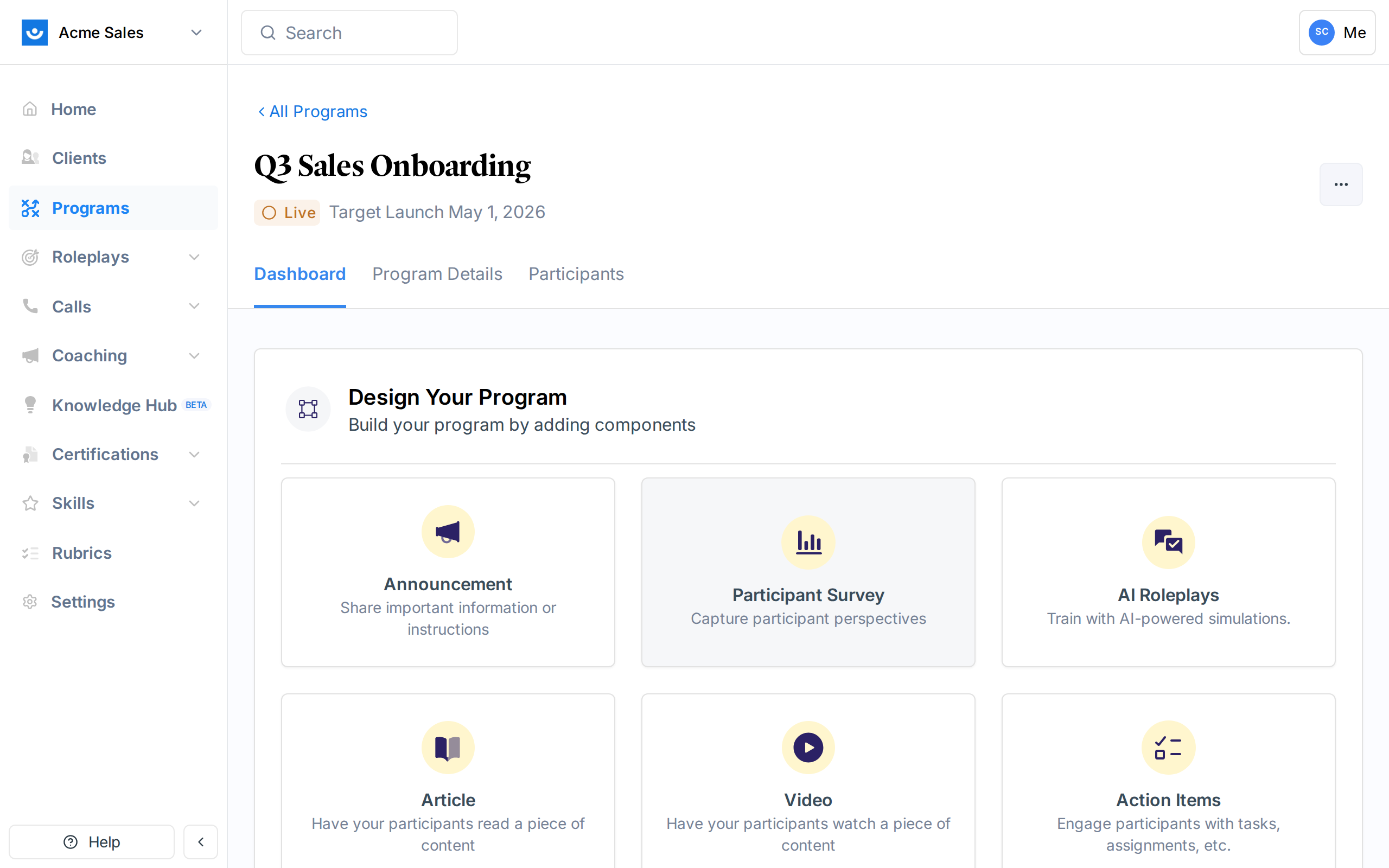 Confirm that the right people are enrolled. The checklist shows whether participants have been added.
[Manage participants ->](/programs/manage-participants)
Optionally configure pre-launch communications. The recommendation is to send at least two emails from you or an influential leader before the automated enrollment email goes out. Mark this step as complete when ready.
When the program launches, an automated email goes to all enrolled participants:
> **Subject:** "Please read: You're enrolled in \[Program Name]"
>
> **From:** [hello@exec.com](mailto:hello@exec.com)
The email is sent on the launch date you configured.
***
## Launching a Program
You have two options for launching:
### Launch Now
Click **Launch Now** on the launch panel. A confirmation dialog appears:
> "All of your participants will be notified. This is not reversible."
Click **Launch Now** to confirm. The program immediately becomes **Live**.
### Schedule for Later
If your target launch date is in the future, the program launches automatically when that date arrives. You can also click **Edit Schedule** to change the launch date and time.
### What Happens at Launch
When a program launches, several things happen automatically:
1. **Status changes** to **Live**
2. **Enrollment emails** are sent to all participants
3. **Components set to auto-launch** have their launch dates synced to the program's launch date
4. **Roleplay scenario permissions** are synced so participants can access assigned scenarios
5. **Program leads** receive a "program is live" notification email
Launching cannot be undone. Once a program is live, you cannot return it to In Design or Launch Ready. Make sure components, participants, and dates are set before launching.
***
## Managing a Live Program
While a program is live, you can:
* **Add new components**: New activities can be added at any time
* **Edit existing components**: Update dates, content, participants, and settings
* **Close components early**: End a component before its scheduled close date. This finalizes participant statuses for that component.
* **Grant deadline extensions**: Give participants more time on specific components
* **Send nudges**: Remind participants to complete pending work
* **Add participants**: New participants can be enrolled into a live program. They gain access to all "all participants" components.
* **Remove participants**: Remove someone who should no longer be in the program
***
## Ending a Program
When your program's training period is over, end it to finalize results.
From the program dashboard or the programs list, click the actions menu and select **End Program**.
A confirmation dialog explains what will happen:
* All **ongoing components** are closed (participant statuses are finalized)
* All **upcoming and in-design components** are removed
* The program status changes to **Complete**
After the program ends:
* **Program leads** receive a completion email with pass/fail statistics
* **Participants** receive a status notification email
* If a **certification** is linked, certificates are automatically issued to participants who completed all required components
When a program ends, each participant's final status is calculated based on their completion of required components. Participants who completed all required components are marked **Complete**. Those who did not are marked **Did Not Pass**. Optional components do not count toward this calculation.
***
## Archiving a Program
Archiving is for programs that were never launched. It removes the program from your active list and cancels any scheduled invitations.
From the programs list, click the actions menu on the program you want to archive and select **Archive**.
A confirmation dialog explains what will happen:
* Scheduled participant invitations are cancelled
* Reserved credits are restored to your workspace account
* The program moves to **Archived** status
You can only archive programs that have not been launched (In Design or Launch Ready status). Once a program is live, you must end it instead.
***
## Lifecycle Summary
```
In Design ──→ Launch Ready ──→ Live ──→ Complete
│ │
└── Archive └── Archive
```
* **In Design** and **Launch Ready** can be archived
* **Live** can only be ended (Complete)
* **Complete** is a final state
***
## Program Notifications
Exec sends automatic email notifications at key points in the program lifecycle. All program emails are skipped for demo programs.
### Notification Reference
| Notification | When it's sent | Who receives it |
| ---------------------- | --------------------------------------------------------------- | ----------------------------------------------------------------- |
| **Enrollment email** | When participants are added to the program | New participants |
| **Program live** | When the program launches | Program leads only |
| **Component launch** | When a component's start date arrives (checked every 5 minutes) | Participants assigned to that component |
| **Component reminder** | Before the component due date (configurable per component) | Participants who haven't completed it |
| **Nudge** | Manually triggered by a lead or admin | Selected participants (15-minute cooldown per person) |
| **Coaching intro** | When a 1:1 coaching component launches | Participants who need to select a coach |
| **Coaching reminder** | Every 3 days while coaching intro is active | Participants who haven't booked a session |
| **Program ended** | When the program is ended | Leads (with pass/fail stats) and participants (with their status) |
### Component Launch Emails
When a component's start date arrives and the program is live, Exec automatically sends a launch email to all participants. The email content varies by component type:
* **Surveys, Action Items, Articles, Videos** - "Please take the \[component name]" with a link to complete it
* **Announcements** - The announcement content is included directly in the email body
* **1:1 Coaching** - "Find My Coach" prompt with a link to select a coach
Component launch emails are only sent once per participant per component. If you change a component's start date after it was already sent, participants who already received the email won't get a second one.
### Automatic Reminders
Exec can send reminder emails before a component's due date. These are configured per component when you set it up. Reminders are checked hourly and sent once per participant per component.
For urgent follow-ups, use the manual **nudge** feature instead of waiting for automatic reminders. Nudges can be sent at any time with a 15-minute cooldown between sends to the same person.
***
## Getting Help
Need help managing your program lifecycle? Contact us at [hello@exec.com](mailto:hello@exec.com).
Confirm that the right people are enrolled. The checklist shows whether participants have been added.
[Manage participants ->](/programs/manage-participants)
Optionally configure pre-launch communications. The recommendation is to send at least two emails from you or an influential leader before the automated enrollment email goes out. Mark this step as complete when ready.
When the program launches, an automated email goes to all enrolled participants:
> **Subject:** "Please read: You're enrolled in \[Program Name]"
>
> **From:** [hello@exec.com](mailto:hello@exec.com)
The email is sent on the launch date you configured.
***
## Launching a Program
You have two options for launching:
### Launch Now
Click **Launch Now** on the launch panel. A confirmation dialog appears:
> "All of your participants will be notified. This is not reversible."
Click **Launch Now** to confirm. The program immediately becomes **Live**.
### Schedule for Later
If your target launch date is in the future, the program launches automatically when that date arrives. You can also click **Edit Schedule** to change the launch date and time.
### What Happens at Launch
When a program launches, several things happen automatically:
1. **Status changes** to **Live**
2. **Enrollment emails** are sent to all participants
3. **Components set to auto-launch** have their launch dates synced to the program's launch date
4. **Roleplay scenario permissions** are synced so participants can access assigned scenarios
5. **Program leads** receive a "program is live" notification email
Launching cannot be undone. Once a program is live, you cannot return it to In Design or Launch Ready. Make sure components, participants, and dates are set before launching.
***
## Managing a Live Program
While a program is live, you can:
* **Add new components**: New activities can be added at any time
* **Edit existing components**: Update dates, content, participants, and settings
* **Close components early**: End a component before its scheduled close date. This finalizes participant statuses for that component.
* **Grant deadline extensions**: Give participants more time on specific components
* **Send nudges**: Remind participants to complete pending work
* **Add participants**: New participants can be enrolled into a live program. They gain access to all "all participants" components.
* **Remove participants**: Remove someone who should no longer be in the program
***
## Ending a Program
When your program's training period is over, end it to finalize results.
From the program dashboard or the programs list, click the actions menu and select **End Program**.
A confirmation dialog explains what will happen:
* All **ongoing components** are closed (participant statuses are finalized)
* All **upcoming and in-design components** are removed
* The program status changes to **Complete**
After the program ends:
* **Program leads** receive a completion email with pass/fail statistics
* **Participants** receive a status notification email
* If a **certification** is linked, certificates are automatically issued to participants who completed all required components
When a program ends, each participant's final status is calculated based on their completion of required components. Participants who completed all required components are marked **Complete**. Those who did not are marked **Did Not Pass**. Optional components do not count toward this calculation.
***
## Archiving a Program
Archiving is for programs that were never launched. It removes the program from your active list and cancels any scheduled invitations.
From the programs list, click the actions menu on the program you want to archive and select **Archive**.
A confirmation dialog explains what will happen:
* Scheduled participant invitations are cancelled
* Reserved credits are restored to your workspace account
* The program moves to **Archived** status
You can only archive programs that have not been launched (In Design or Launch Ready status). Once a program is live, you must end it instead.
***
## Lifecycle Summary
```
In Design ──→ Launch Ready ──→ Live ──→ Complete
│ │
└── Archive └── Archive
```
* **In Design** and **Launch Ready** can be archived
* **Live** can only be ended (Complete)
* **Complete** is a final state
***
## Program Notifications
Exec sends automatic email notifications at key points in the program lifecycle. All program emails are skipped for demo programs.
### Notification Reference
| Notification | When it's sent | Who receives it |
| ---------------------- | --------------------------------------------------------------- | ----------------------------------------------------------------- |
| **Enrollment email** | When participants are added to the program | New participants |
| **Program live** | When the program launches | Program leads only |
| **Component launch** | When a component's start date arrives (checked every 5 minutes) | Participants assigned to that component |
| **Component reminder** | Before the component due date (configurable per component) | Participants who haven't completed it |
| **Nudge** | Manually triggered by a lead or admin | Selected participants (15-minute cooldown per person) |
| **Coaching intro** | When a 1:1 coaching component launches | Participants who need to select a coach |
| **Coaching reminder** | Every 3 days while coaching intro is active | Participants who haven't booked a session |
| **Program ended** | When the program is ended | Leads (with pass/fail stats) and participants (with their status) |
### Component Launch Emails
When a component's start date arrives and the program is live, Exec automatically sends a launch email to all participants. The email content varies by component type:
* **Surveys, Action Items, Articles, Videos** - "Please take the \[component name]" with a link to complete it
* **Announcements** - The announcement content is included directly in the email body
* **1:1 Coaching** - "Find My Coach" prompt with a link to select a coach
Component launch emails are only sent once per participant per component. If you change a component's start date after it was already sent, participants who already received the email won't get a second one.
### Automatic Reminders
Exec can send reminder emails before a component's due date. These are configured per component when you set it up. Reminders are checked hourly and sent once per participant per component.
For urgent follow-ups, use the manual **nudge** feature instead of waiting for automatic reminders. Nudges can be sent at any time with a 15-minute cooldown between sends to the same person.
***
## Getting Help
Need help managing your program lifecycle? Contact us at [hello@exec.com](mailto:hello@exec.com).