> ## Documentation Index
> Fetch the complete documentation index at: https://docs.exec.com/llms.txt
> Use this file to discover all available pages before exploring further.
# Create a Program
> Start a new program manually, generate one with AI, or clone an existing program
There are three ways to create a program in Exec: build one from scratch, generate one with AI, or clone an existing program.
***
## Create a Program Manually
From the left sidebar, click **Programs**.
Click the **Create Program** button at the top right of the page.
* **Program Name** (required): A descriptive name for your program. This will be visible to participants. Examples: "Q3 Sales Onboarding," "Discovery Skills Bootcamp."
* **Target Launch Date** (required): The date participants will be invited to the program. Must be in the future, up to one year out. You can adjust this later.
* **Certification** (optional): If you want to automatically issue a certification when participants complete the program, select one from the dropdown. You can add this later too.
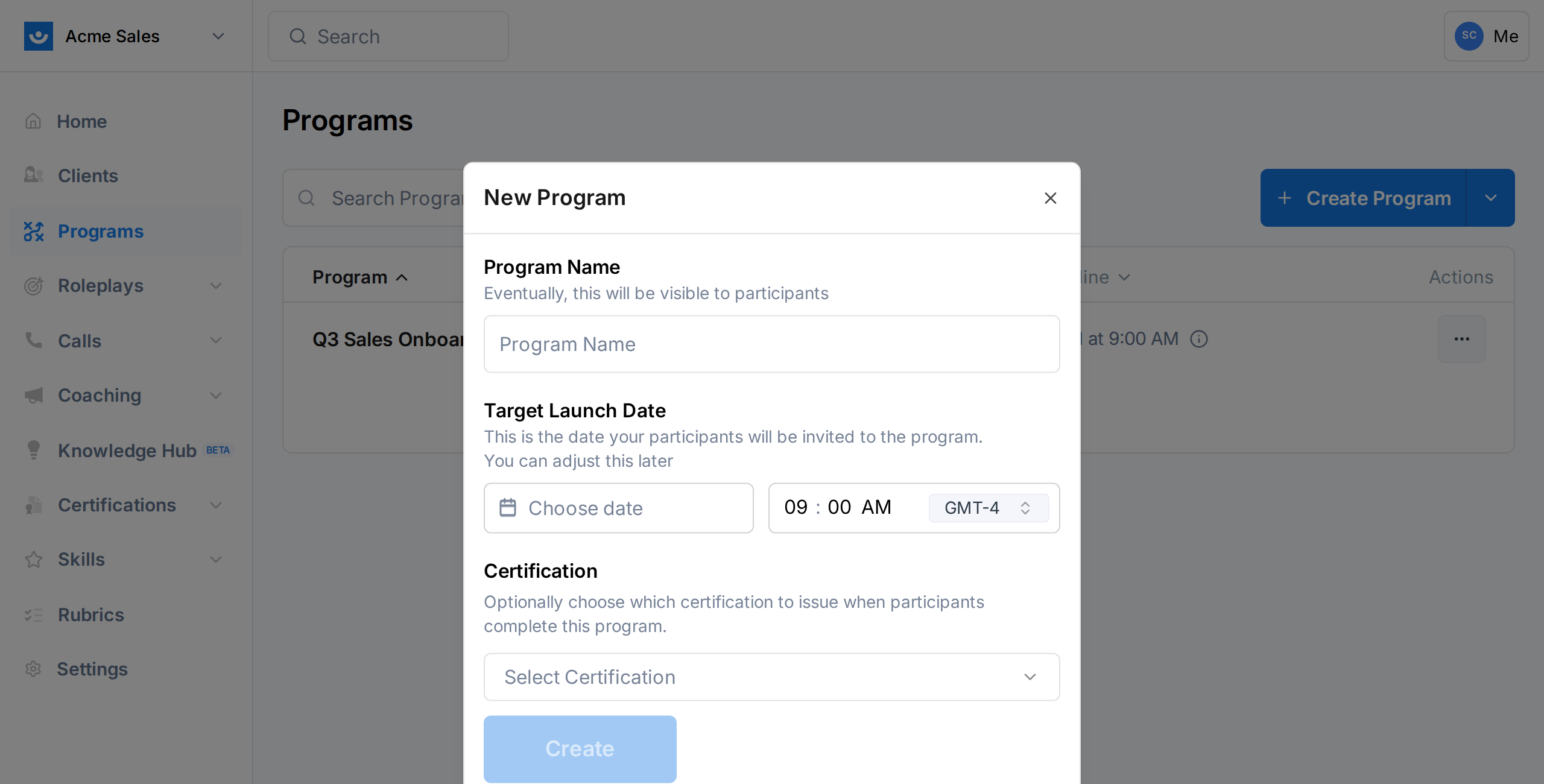 The launch date is when enrollment emails go out and participants gain access. Give yourself enough time to add components and enroll participants before this date.
Your program is created in **In Design** status. You are taken to the program dashboard where you can start adding components and participants.
***
## Generate a Program with AI
If you have a general idea of what your program should cover, Exec's AI can build the full structure for you - including announcements, surveys, action items, videos, articles, and roleplays.
From the left sidebar, click **Programs**.
Click the dropdown arrow next to **Create Program**, then select **Generate with AI**. A drawer opens on the right side of the screen.
The launch date is when enrollment emails go out and participants gain access. Give yourself enough time to add components and enroll participants before this date.
Your program is created in **In Design** status. You are taken to the program dashboard where you can start adding components and participants.
***
## Generate a Program with AI
If you have a general idea of what your program should cover, Exec's AI can build the full structure for you - including announcements, surveys, action items, videos, articles, and roleplays.
From the left sidebar, click **Programs**.
Click the dropdown arrow next to **Create Program**, then select **Generate with AI**. A drawer opens on the right side of the screen.
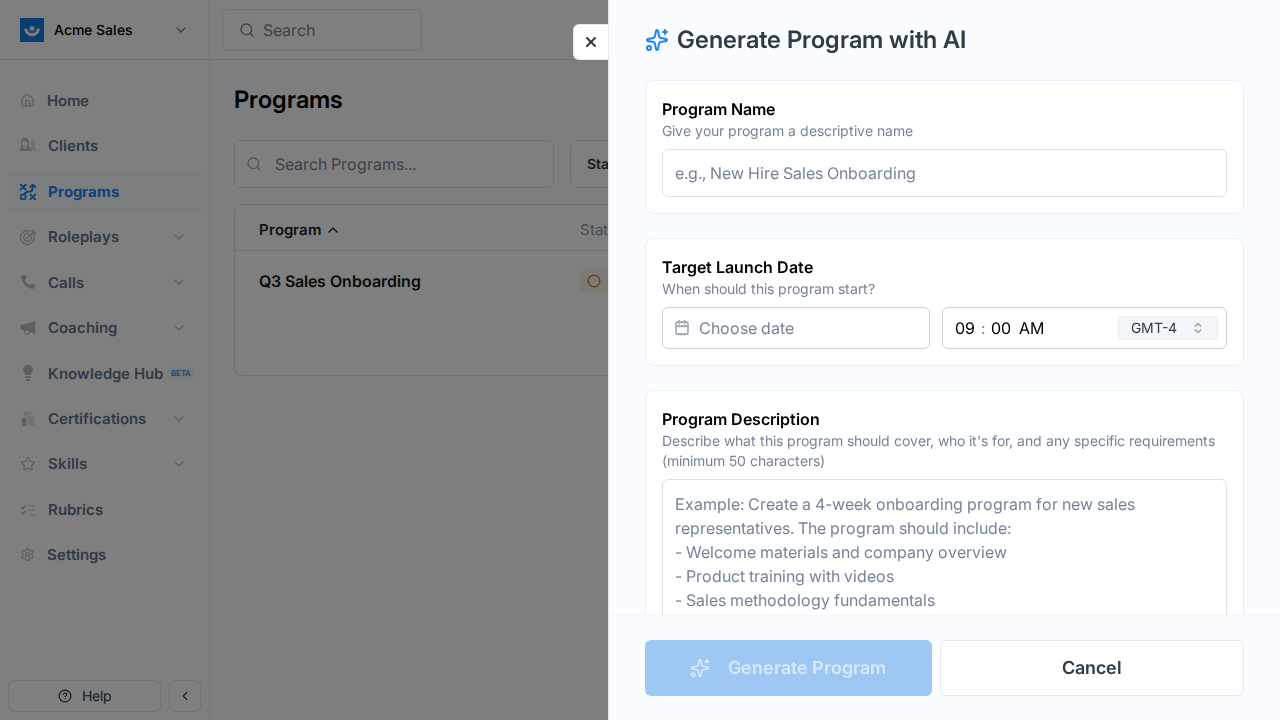 Fill in the following:
* **Program Name**: A descriptive name (e.g., "New Hire Sales Onboarding").
* **Target Launch Date**: When the program should start.
* **Program Description** (minimum 50 characters): Describe what the program should cover, who it is for, and any specific requirements. The more detail you provide, the better the result.
Example description: "Create a 4-week onboarding program for new sales representatives. The program should include welcome materials and company overview, product training with videos, sales methodology fundamentals, practice roleplays for common objection handling, weekly check-in surveys, and a final assessment survey."
Select which types of components to include. **Announcements** are always included. You can toggle on or off:
* Surveys
* Action Items
* Videos
* Articles
* AI Roleplays
To give the AI more context, you can attach:
* **Knowledge Hub items**: Select pages, files, and their linked scenarios from your Knowledge Hub.
* **Reference files**: Upload PDFs, text files, or markdown documents (if file uploads are enabled).
Click **Generate Program**. The AI works through several steps:
* Extracting content from your files
* Researching content
* Generating the program template
* Creating the program and its components
This typically takes 3-5 minutes. You can watch the progress in real time as each step completes.
Once generation completes, you are taken to the new program's dashboard. Review the components the AI created and make any adjustments - edit names, change dates, add or remove components, or update content.
AI-generated programs are a starting point. Always review the generated components, dates, and content before launching to participants.
***
## Clone an Existing Program
Cloning creates a copy of an existing program's structure - all components are duplicated with their configuration, but participants are not copied.
On the Programs page, find the program you want to copy.
Click the three-dot menu on the program row and select **Clone**.
* **Program Name**: Pre-filled as "\[Copy] Original Name." Change it to something descriptive.
* **Target Launch Date**: Set the launch date for the new cohort.
* **Certification**: Optionally link a certification (inherits from the original if one was set).
The cloned program is created in **In Design** status with all components from the original. Adjust dates and content as needed for the new cohort.
Cloning is ideal for recurring programs. Run a sales bootcamp every quarter? Clone last quarter's program, update the dates, and you are ready to go.
***
## What Happens Next
After creating a program, you will want to:
1. [Add components](/programs/add-components) - Build out the learning path
2. [Enroll participants](/programs/manage-participants) - Add the people who will go through the program
3. [Launch](/programs/launch-and-lifecycle) - Send enrollment emails and go live
***
## Getting Help
Need help creating a program? Contact us at [hello@exec.com](mailto:hello@exec.com).
Fill in the following:
* **Program Name**: A descriptive name (e.g., "New Hire Sales Onboarding").
* **Target Launch Date**: When the program should start.
* **Program Description** (minimum 50 characters): Describe what the program should cover, who it is for, and any specific requirements. The more detail you provide, the better the result.
Example description: "Create a 4-week onboarding program for new sales representatives. The program should include welcome materials and company overview, product training with videos, sales methodology fundamentals, practice roleplays for common objection handling, weekly check-in surveys, and a final assessment survey."
Select which types of components to include. **Announcements** are always included. You can toggle on or off:
* Surveys
* Action Items
* Videos
* Articles
* AI Roleplays
To give the AI more context, you can attach:
* **Knowledge Hub items**: Select pages, files, and their linked scenarios from your Knowledge Hub.
* **Reference files**: Upload PDFs, text files, or markdown documents (if file uploads are enabled).
Click **Generate Program**. The AI works through several steps:
* Extracting content from your files
* Researching content
* Generating the program template
* Creating the program and its components
This typically takes 3-5 minutes. You can watch the progress in real time as each step completes.
Once generation completes, you are taken to the new program's dashboard. Review the components the AI created and make any adjustments - edit names, change dates, add or remove components, or update content.
AI-generated programs are a starting point. Always review the generated components, dates, and content before launching to participants.
***
## Clone an Existing Program
Cloning creates a copy of an existing program's structure - all components are duplicated with their configuration, but participants are not copied.
On the Programs page, find the program you want to copy.
Click the three-dot menu on the program row and select **Clone**.
* **Program Name**: Pre-filled as "\[Copy] Original Name." Change it to something descriptive.
* **Target Launch Date**: Set the launch date for the new cohort.
* **Certification**: Optionally link a certification (inherits from the original if one was set).
The cloned program is created in **In Design** status with all components from the original. Adjust dates and content as needed for the new cohort.
Cloning is ideal for recurring programs. Run a sales bootcamp every quarter? Clone last quarter's program, update the dates, and you are ready to go.
***
## What Happens Next
After creating a program, you will want to:
1. [Add components](/programs/add-components) - Build out the learning path
2. [Enroll participants](/programs/manage-participants) - Add the people who will go through the program
3. [Launch](/programs/launch-and-lifecycle) - Send enrollment emails and go live
***
## Getting Help
Need help creating a program? Contact us at [hello@exec.com](mailto:hello@exec.com).