> ## Documentation Index
> Fetch the complete documentation index at: https://docs.exec.com/llms.txt
> Use this file to discover all available pages before exploring further.
# Programs and Certifications
> Automatically certify participants when they complete a program, and track progress through the certification pipeline
When you link a certification to a program, participants who complete all required components are automatically certified when the program ends. The certification pipeline gives you a real-time view of who is on track and who needs attention.
***
## Linking a Certification to a Program
You can link a certification when creating a program or add one later.
### When Creating a Program
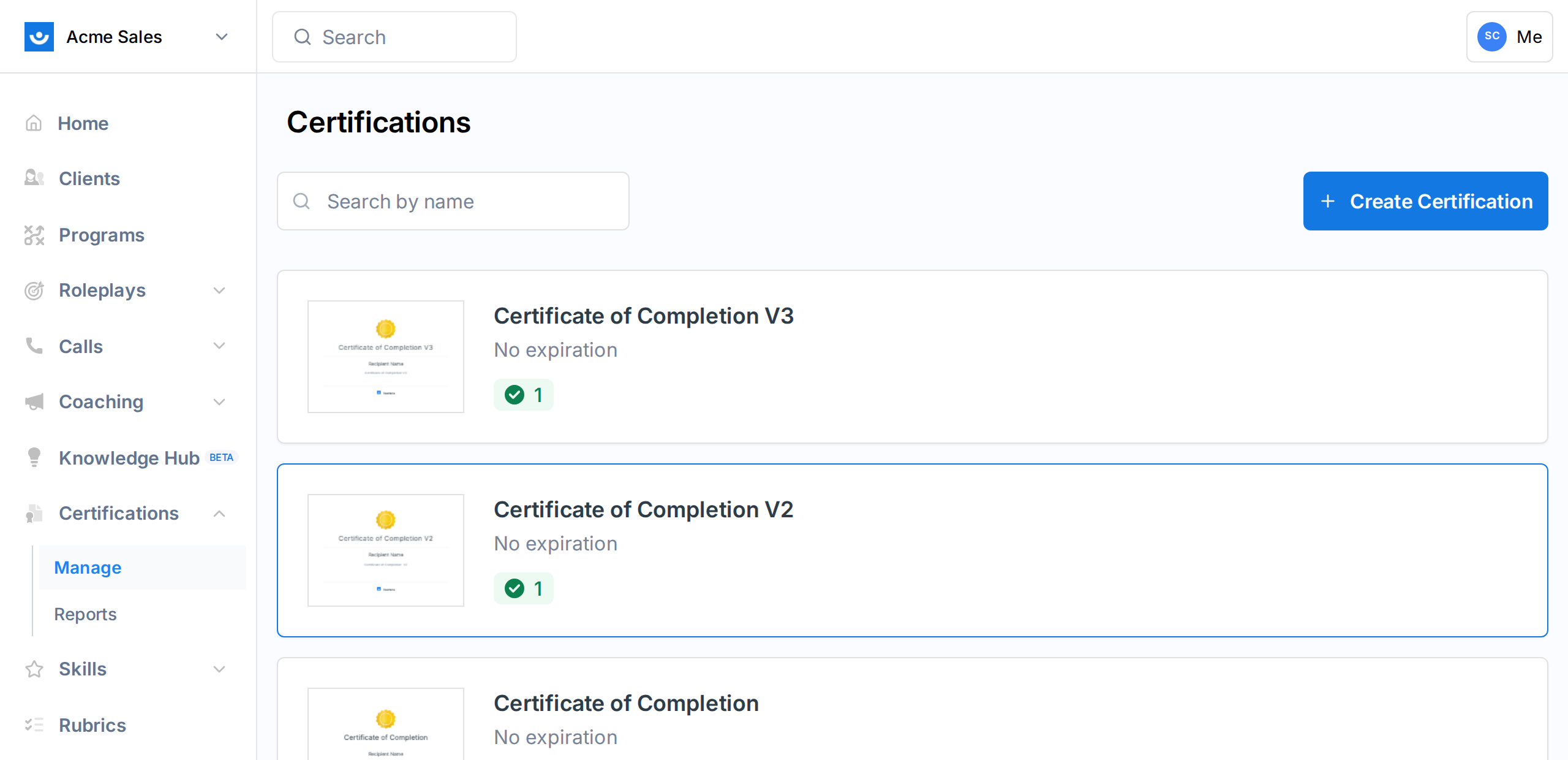
During program creation, use the **Certification** dropdown to select an existing certification. If you do not have any certifications yet, [create one first](/certificates/create-certification).
 ### After Creating a Program
From the program dashboard, the certification pipeline card on the right panel shows an **Add Certification** button if no certification is linked.
Certifications must be enabled for your workspace. If you do not see the certification option, contact your Exec account manager.
***
## How Automatic Certification Works
When you end a program that has a linked certification, Exec evaluates each participant:
1. **Required components are checked**: Every component that is not marked as optional is evaluated. Announcements, group meetings, and coaching intro sessions are excluded from this check.
2. **Status is determined**:
* **Complete**: The participant finished all required components. A certificate is automatically issued.
* **Did Not Pass**: The participant did not finish all required components. No certificate is issued.
3. **Certificates are issued**: For participants who passed, a certificate is created with:
* The certification name and details
* Issue date (when the program ended)
* Expiration date (based on the certification's validity period settings)
* A unique downloadable certificate
4. **Notification emails** are sent to participants with their completion status.
If a participant already has an active certificate for the same certification (from a previous program, for example), the old certificate is revoked and replaced with the new one.
***
## The Certification Pipeline
The certification pipeline is a dashboard that tracks participant progress toward certification across all programs linked to a specific certification.
### Accessing the Pipeline
There are two ways to view the pipeline:
1. **From the Certifications page**: Click on a certification to see its full pipeline dashboard
2. **From a program dashboard**: The certification pipeline card on the right panel shows a summary for participants in that specific program
### Pipeline Statuses
Each participant in the pipeline has one of four statuses:
| Status | What it means |
| ---------------- | ---------------------------------------------------------------------------------------------------------------------------------------------- |
| **Enrolled** | The participant is in a program linked to this certification, but has not started any components yet |
| **On Track** | The participant is progressing through components with no past-due items |
| **Off Track** | The participant has past-due required components that have not been completed |
| **Did Not Pass** | The participant failed to meet certification criteria (has required components marked as Did Not Finish, Did Not Pass, No Response, or Missed) |
### Pipeline Statistics
The pipeline dashboard shows four summary cards at the top:
* **Enrolled**: Total number of participants in the pipeline
* **On Track**: Count of participants progressing on schedule
* **Off Track**: Count of participants with past-due work
* **Did Not Pass**: Count of participants who failed to meet criteria
### Pipeline Participants Table
Below the statistics, a table lists all participants with:
| Column | What it shows |
| ------------ | --------------------------------------------------------------------- |
| **Name** | Participant name and avatar |
| **Program** | Which program they are enrolled in |
| **Expected** | Estimated certification date (based on the last component's end date) |
| **Status** | Pipeline status badge (Enrolled, On Track, Off Track, Did Not Pass) |
You can filter participants by name, group, or program. All columns are sortable.
***
## In-Program Pipeline View
When viewing a program with a linked certification, the right panel shows a **Certification Pipeline Card** with:
* The certification name
* A visual progress grid showing each component's status as a colored badge:
* Components the participant has completed
* Components in progress
* Components not yet started
* Announcements are excluded from this view
* An overall status label: "On Track," "Off Track," "Not Started," or "Certification Criteria Not Met"
### Program Completion Banner
When a program ends, participants see a completion banner on their dashboard showing:
* Their certification status (passed or did not pass)
* A certificate preview if they were certified
* The certification name and validity dates
***
## Best Practices
**Set clear required vs optional components.** Mark components as optional if they are supplementary. Only required components determine whether a participant passes. This gives you flexibility to include bonus content without penalizing participants who skip it.
**Monitor the Off Track count regularly.** Participants who fall behind early are unlikely to catch up on their own. Use [nudges](/programs/manage-participants#sending-nudges) and [extensions](/programs/manage-participants#granting-deadline-extensions) to help them get back on track.
**Review certification settings before linking.** Make sure the certification's validity period and other settings are configured how you want them before linking it to a program. Changes to the certification after linking still take effect.
***
## Getting Help
Need help with program certifications? Contact us at [hello@exec.com](mailto:hello@exec.com).
### After Creating a Program
From the program dashboard, the certification pipeline card on the right panel shows an **Add Certification** button if no certification is linked.
Certifications must be enabled for your workspace. If you do not see the certification option, contact your Exec account manager.
***
## How Automatic Certification Works
When you end a program that has a linked certification, Exec evaluates each participant:
1. **Required components are checked**: Every component that is not marked as optional is evaluated. Announcements, group meetings, and coaching intro sessions are excluded from this check.
2. **Status is determined**:
* **Complete**: The participant finished all required components. A certificate is automatically issued.
* **Did Not Pass**: The participant did not finish all required components. No certificate is issued.
3. **Certificates are issued**: For participants who passed, a certificate is created with:
* The certification name and details
* Issue date (when the program ended)
* Expiration date (based on the certification's validity period settings)
* A unique downloadable certificate
4. **Notification emails** are sent to participants with their completion status.
If a participant already has an active certificate for the same certification (from a previous program, for example), the old certificate is revoked and replaced with the new one.
***
## The Certification Pipeline
The certification pipeline is a dashboard that tracks participant progress toward certification across all programs linked to a specific certification.
### Accessing the Pipeline
There are two ways to view the pipeline:
1. **From the Certifications page**: Click on a certification to see its full pipeline dashboard
2. **From a program dashboard**: The certification pipeline card on the right panel shows a summary for participants in that specific program
### Pipeline Statuses
Each participant in the pipeline has one of four statuses:
| Status | What it means |
| ---------------- | ---------------------------------------------------------------------------------------------------------------------------------------------- |
| **Enrolled** | The participant is in a program linked to this certification, but has not started any components yet |
| **On Track** | The participant is progressing through components with no past-due items |
| **Off Track** | The participant has past-due required components that have not been completed |
| **Did Not Pass** | The participant failed to meet certification criteria (has required components marked as Did Not Finish, Did Not Pass, No Response, or Missed) |
### Pipeline Statistics
The pipeline dashboard shows four summary cards at the top:
* **Enrolled**: Total number of participants in the pipeline
* **On Track**: Count of participants progressing on schedule
* **Off Track**: Count of participants with past-due work
* **Did Not Pass**: Count of participants who failed to meet criteria
### Pipeline Participants Table
Below the statistics, a table lists all participants with:
| Column | What it shows |
| ------------ | --------------------------------------------------------------------- |
| **Name** | Participant name and avatar |
| **Program** | Which program they are enrolled in |
| **Expected** | Estimated certification date (based on the last component's end date) |
| **Status** | Pipeline status badge (Enrolled, On Track, Off Track, Did Not Pass) |
You can filter participants by name, group, or program. All columns are sortable.
***
## In-Program Pipeline View
When viewing a program with a linked certification, the right panel shows a **Certification Pipeline Card** with:
* The certification name
* A visual progress grid showing each component's status as a colored badge:
* Components the participant has completed
* Components in progress
* Components not yet started
* Announcements are excluded from this view
* An overall status label: "On Track," "Off Track," "Not Started," or "Certification Criteria Not Met"
### Program Completion Banner
When a program ends, participants see a completion banner on their dashboard showing:
* Their certification status (passed or did not pass)
* A certificate preview if they were certified
* The certification name and validity dates
***
## Best Practices
**Set clear required vs optional components.** Mark components as optional if they are supplementary. Only required components determine whether a participant passes. This gives you flexibility to include bonus content without penalizing participants who skip it.
**Monitor the Off Track count regularly.** Participants who fall behind early are unlikely to catch up on their own. Use [nudges](/programs/manage-participants#sending-nudges) and [extensions](/programs/manage-participants#granting-deadline-extensions) to help them get back on track.
**Review certification settings before linking.** Make sure the certification's validity period and other settings are configured how you want them before linking it to a program. Changes to the certification after linking still take effect.
***
## Getting Help
Need help with program certifications? Contact us at [hello@exec.com](mailto:hello@exec.com).