> ## Documentation Index
> Fetch the complete documentation index at: https://docs.exec.com/llms.txt
> Use this file to discover all available pages before exploring further.
# Add Program Components
> Build your learning path with announcements, surveys, roleplays, videos, articles, action items, coaching, and group meetings
Components are the building blocks of a program. Each component represents an activity that participants complete - watching a video, finishing a survey, practicing a roleplay, or attending a coaching session. You add components to define the learning path, then set dates, participants, and prerequisites for each one.
***
## Adding a Component
Navigate to the program dashboard. On the right panel, click **Add Component** (or use the + button on the dashboard).
Select from the available types:
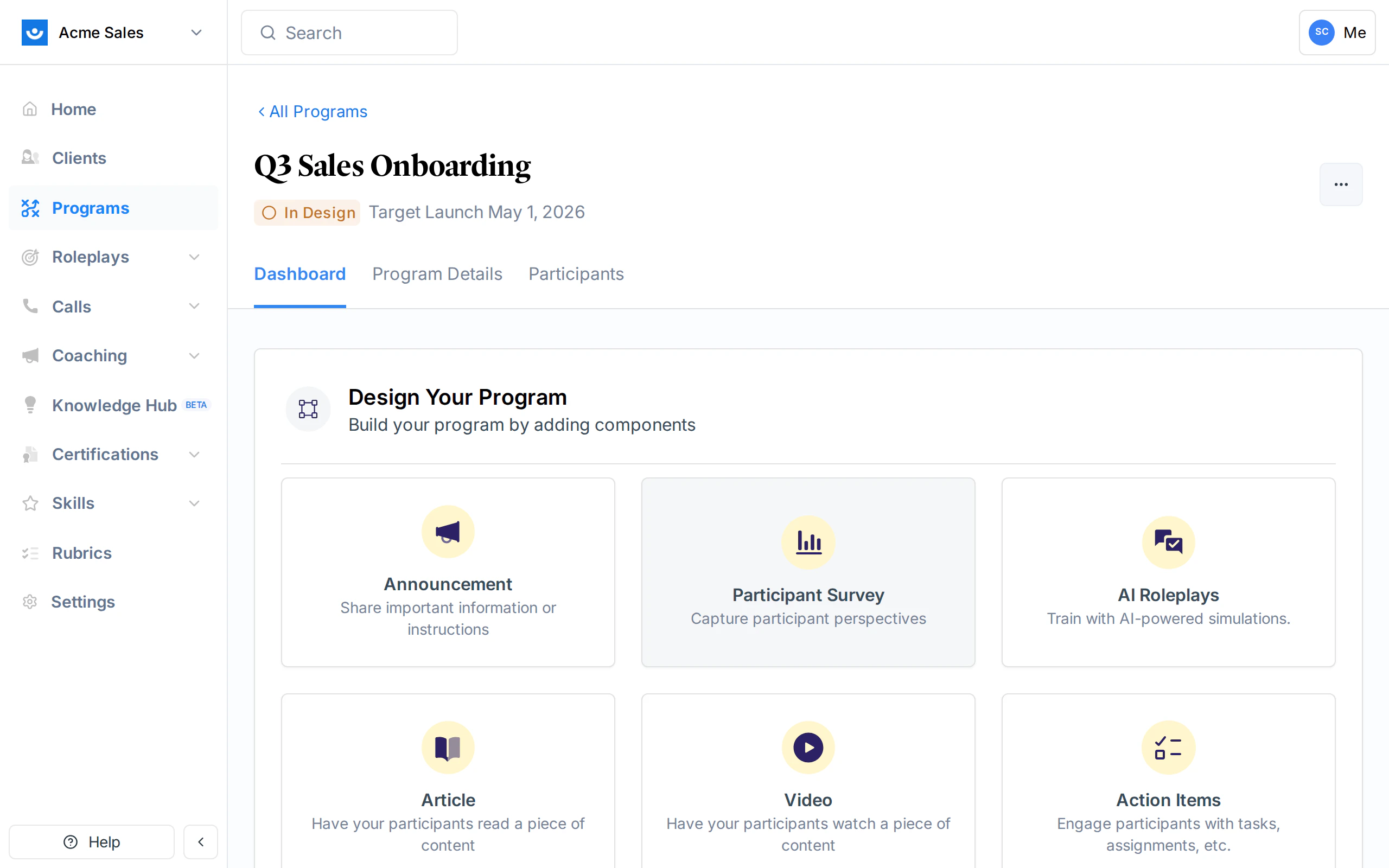 | Type | Group | What it does |
| ---------------------- | ---------------------- | -------------------------------------------------- |
| **Announcement** | General | Share information or instructions |
| **Participant Survey** | Insights | Capture participant feedback with custom questions |
| **AI Roleplays** | Individual Development | Practice with AI-powered conversation simulations |
| **Video** | Individual Development | Assign a video to watch |
| **Article** | Individual Development | Assign an article to read |
| **Action Items** | Individual Development | Assign tasks or assignments |
| **1:1 Coaching** | Individual Development | Connect participants with expert coaches |
| **Group Meeting** | Collaborative Learning | Schedule a group session |
Each type has a guided setup wizard. After the type-specific steps, you configure shared settings like name, dates, participants, and notifications.
***
## Component Types
### Announcement
Announcements share information with participants. No action is required from them - the announcement is simply displayed on their program dashboard.
**What you configure:**
* **Name**: Title of the announcement
* **Body**: Rich text content (supports formatting, links, and file attachments)
* **Launch date and close date**: When the announcement appears and when it is removed
* **Visible before launch**: Whether participants can see the announcement before its launch date
Announcements do not have a due date since they require no action. They also do not send due or past-due notification emails.
***
### Participant Survey
Surveys let you capture perspectives from participants using custom questions or pre-built templates.
**Setup steps:**
1. **Choose a template** (optional): Pick from a library of pre-built survey templates, or start from scratch
2. **Customize questions**: Add, edit, or remove questions. Supported question types include text, multiple choice, rating scales, and more
3. **Configure**: Set the name, dates, participants, and notification preferences
**What you configure:**
* **Survey questions**: The questions participants will answer
* **Guidance for Participants**: Optional instructions shown to participants explaining what the survey is about
* **Due date**: When the survey should be completed
***
### AI Roleplays
AI Roleplay components let participants practice with AI-powered conversation simulations. You select which scenarios from your workspace library to include.
**Setup steps:**
1. **Choose scenarios**: Select one or more roleplay scenarios from your workspace library
2. **Configure**: Set name, dates, participants, and completion criteria
**What you configure:**
* **Scenarios**: Which roleplay scenarios to include
* **Completion criteria** (optional):
* **Required scenarios**: How many of the assigned scenarios must be completed (default: all)
* **Minimum rank**: The minimum session rank participants must achieve (Bronze, Silver, or Gold)
* **Minimum attempts**: How many times participants must attempt each scenario
* **Maximum attempts**: Cap on the number of attempts allowed
* **Guidance for Participants**: Optional instructions
Setting a minimum rank of Silver or Gold encourages participants to practice until they reach a strong performance, not just complete the scenario once.
***
### Video
Video components assign a video for participants to watch. Provide a URL and Exec generates a preview.
**What you configure:**
* **Video URL**: Link to the video (YouTube, Vimeo, or other hosted video)
* **Guidance for Participants**: Optional context or instructions
* **Due date**: When the video should be watched
***
### Article
Article components assign reading material. Provide a URL and Exec generates a preview.
**What you configure:**
* **Article URL**: Link to the article or document
* **Guidance for Participants**: Optional context or instructions
* **Due date**: When the article should be read
***
### Action Items
Action item components assign tasks or activities for participants to complete.
**Setup steps:**
1. **Define action items**: Create the list of tasks participants need to complete
2. **Configure**: Set name, dates, participants, and notification preferences
**What you configure:**
* **Task list**: The individual tasks or assignments
* **Guidance for Participants**: Optional instructions
* **Due date**: When tasks should be completed
***
### 1:1 Coaching
Coaching components connect participants with expert coaches for personalized sessions. This type has the most involved setup process.
1:1 Coaching must be enabled for your workspace. If you do not see this option, contact your Exec account manager.
**Setup steps:**
1. **Choose specialty**: Select the coaching specialty area
2. **Configure basics**: Set the component name and date range
3. **Design the journey**: Configure the coaching session structure (intro sessions, regular sessions)
4. **Select coaches**: Choose which coaches are available for participants to book with
5. **Review**: Confirm the setup
**What you configure:**
* **Specialty**: The coaching focus area
* **Coaches**: Which coaches participants can select from
* **Session journey**: Number and structure of intro and regular sessions
* **Date range**: When coaching sessions can be scheduled
***
### Group Meeting
Group meeting components schedule group sessions. You provide a meeting link and Exec handles the rest.
**What you configure:**
* **Meeting link**: URL for the video call (Zoom, Teams, Google Meet, etc.)
* **Description**: Optional context visible to participants
* **Date and time**: When the meeting takes place
Group meetings do not have a due date or send due/past-due notifications. They also do not support prerequisite eligibility since they are scheduled events.
***
## Shared Configuration
Every component (except where noted above) shares these configuration options:
### Dates
| Field | What it controls |
| --------------- | -------------------------------------------------------------------------------- |
| **Launch date** | When the component becomes visible and active for participants |
| **Due date** | The deadline for completion (not applicable to announcements and group meetings) |
| **Close date** | When the component closes and no more responses are accepted |
You can set a component to **auto-launch with the program** so its launch date syncs with the program's launch date.
### Participants
By default, components are assigned to **all participants** in the program. You can also assign them to specific participants by selecting individuals from the dropdown. If a participant is added to the program later, they are automatically included in "all participants" components.
### Prerequisite Eligibility
You can make a component dependent on another component. When a prerequisite is set, participants must complete the prerequisite before the dependent component becomes available to them.
Prerequisites are not available for announcements or group meetings.
### Optional vs Required
Components can be marked as **optional**. Optional components do not count toward program completion - participants can skip them without affecting their certification status. This is available for surveys, action items, AI roleplays, videos, articles, and 1:1 coaching.
### Notification Settings
For most component types, you can control three email notifications:
| Notification | When it sends | Default |
| ------------------------- | -------------------------------- | ------- |
| **Initial notification** | When the component launches | On |
| **Due soon notification** | When the due date is approaching | On |
| **Past due notification** | After the due date has passed | On |
Announcements only support the initial launch notification. Group meetings handle notifications differently through the meeting link.
***
## Editing and Removing Components
### Edit a Component
Click on any component in the program dashboard to open its details. From there you can update its configuration - change dates, modify participants, adjust content, or update notification settings.
### Remove a Component
To remove a component, click the three-dot menu on the component card and select **Delete**. You will be asked to confirm. If other components depend on this one as a prerequisite, you will be given the option to release those dependent components.
### Close a Component Early
For ongoing components, you can close them before their scheduled close date. Click the three-dot menu and select **Close**. This finalizes all participant statuses for that component. If other components depend on this one, you will be asked whether to release them.
***
## Getting Help
Need help configuring components? Contact us at [hello@exec.com](mailto:hello@exec.com).
| Type | Group | What it does |
| ---------------------- | ---------------------- | -------------------------------------------------- |
| **Announcement** | General | Share information or instructions |
| **Participant Survey** | Insights | Capture participant feedback with custom questions |
| **AI Roleplays** | Individual Development | Practice with AI-powered conversation simulations |
| **Video** | Individual Development | Assign a video to watch |
| **Article** | Individual Development | Assign an article to read |
| **Action Items** | Individual Development | Assign tasks or assignments |
| **1:1 Coaching** | Individual Development | Connect participants with expert coaches |
| **Group Meeting** | Collaborative Learning | Schedule a group session |
Each type has a guided setup wizard. After the type-specific steps, you configure shared settings like name, dates, participants, and notifications.
***
## Component Types
### Announcement
Announcements share information with participants. No action is required from them - the announcement is simply displayed on their program dashboard.
**What you configure:**
* **Name**: Title of the announcement
* **Body**: Rich text content (supports formatting, links, and file attachments)
* **Launch date and close date**: When the announcement appears and when it is removed
* **Visible before launch**: Whether participants can see the announcement before its launch date
Announcements do not have a due date since they require no action. They also do not send due or past-due notification emails.
***
### Participant Survey
Surveys let you capture perspectives from participants using custom questions or pre-built templates.
**Setup steps:**
1. **Choose a template** (optional): Pick from a library of pre-built survey templates, or start from scratch
2. **Customize questions**: Add, edit, or remove questions. Supported question types include text, multiple choice, rating scales, and more
3. **Configure**: Set the name, dates, participants, and notification preferences
**What you configure:**
* **Survey questions**: The questions participants will answer
* **Guidance for Participants**: Optional instructions shown to participants explaining what the survey is about
* **Due date**: When the survey should be completed
***
### AI Roleplays
AI Roleplay components let participants practice with AI-powered conversation simulations. You select which scenarios from your workspace library to include.
**Setup steps:**
1. **Choose scenarios**: Select one or more roleplay scenarios from your workspace library
2. **Configure**: Set name, dates, participants, and completion criteria
**What you configure:**
* **Scenarios**: Which roleplay scenarios to include
* **Completion criteria** (optional):
* **Required scenarios**: How many of the assigned scenarios must be completed (default: all)
* **Minimum rank**: The minimum session rank participants must achieve (Bronze, Silver, or Gold)
* **Minimum attempts**: How many times participants must attempt each scenario
* **Maximum attempts**: Cap on the number of attempts allowed
* **Guidance for Participants**: Optional instructions
Setting a minimum rank of Silver or Gold encourages participants to practice until they reach a strong performance, not just complete the scenario once.
***
### Video
Video components assign a video for participants to watch. Provide a URL and Exec generates a preview.
**What you configure:**
* **Video URL**: Link to the video (YouTube, Vimeo, or other hosted video)
* **Guidance for Participants**: Optional context or instructions
* **Due date**: When the video should be watched
***
### Article
Article components assign reading material. Provide a URL and Exec generates a preview.
**What you configure:**
* **Article URL**: Link to the article or document
* **Guidance for Participants**: Optional context or instructions
* **Due date**: When the article should be read
***
### Action Items
Action item components assign tasks or activities for participants to complete.
**Setup steps:**
1. **Define action items**: Create the list of tasks participants need to complete
2. **Configure**: Set name, dates, participants, and notification preferences
**What you configure:**
* **Task list**: The individual tasks or assignments
* **Guidance for Participants**: Optional instructions
* **Due date**: When tasks should be completed
***
### 1:1 Coaching
Coaching components connect participants with expert coaches for personalized sessions. This type has the most involved setup process.
1:1 Coaching must be enabled for your workspace. If you do not see this option, contact your Exec account manager.
**Setup steps:**
1. **Choose specialty**: Select the coaching specialty area
2. **Configure basics**: Set the component name and date range
3. **Design the journey**: Configure the coaching session structure (intro sessions, regular sessions)
4. **Select coaches**: Choose which coaches are available for participants to book with
5. **Review**: Confirm the setup
**What you configure:**
* **Specialty**: The coaching focus area
* **Coaches**: Which coaches participants can select from
* **Session journey**: Number and structure of intro and regular sessions
* **Date range**: When coaching sessions can be scheduled
***
### Group Meeting
Group meeting components schedule group sessions. You provide a meeting link and Exec handles the rest.
**What you configure:**
* **Meeting link**: URL for the video call (Zoom, Teams, Google Meet, etc.)
* **Description**: Optional context visible to participants
* **Date and time**: When the meeting takes place
Group meetings do not have a due date or send due/past-due notifications. They also do not support prerequisite eligibility since they are scheduled events.
***
## Shared Configuration
Every component (except where noted above) shares these configuration options:
### Dates
| Field | What it controls |
| --------------- | -------------------------------------------------------------------------------- |
| **Launch date** | When the component becomes visible and active for participants |
| **Due date** | The deadline for completion (not applicable to announcements and group meetings) |
| **Close date** | When the component closes and no more responses are accepted |
You can set a component to **auto-launch with the program** so its launch date syncs with the program's launch date.
### Participants
By default, components are assigned to **all participants** in the program. You can also assign them to specific participants by selecting individuals from the dropdown. If a participant is added to the program later, they are automatically included in "all participants" components.
### Prerequisite Eligibility
You can make a component dependent on another component. When a prerequisite is set, participants must complete the prerequisite before the dependent component becomes available to them.
Prerequisites are not available for announcements or group meetings.
### Optional vs Required
Components can be marked as **optional**. Optional components do not count toward program completion - participants can skip them without affecting their certification status. This is available for surveys, action items, AI roleplays, videos, articles, and 1:1 coaching.
### Notification Settings
For most component types, you can control three email notifications:
| Notification | When it sends | Default |
| ------------------------- | -------------------------------- | ------- |
| **Initial notification** | When the component launches | On |
| **Due soon notification** | When the due date is approaching | On |
| **Past due notification** | After the due date has passed | On |
Announcements only support the initial launch notification. Group meetings handle notifications differently through the meeting link.
***
## Editing and Removing Components
### Edit a Component
Click on any component in the program dashboard to open its details. From there you can update its configuration - change dates, modify participants, adjust content, or update notification settings.
### Remove a Component
To remove a component, click the three-dot menu on the component card and select **Delete**. You will be asked to confirm. If other components depend on this one as a prerequisite, you will be given the option to release those dependent components.
### Close a Component Early
For ongoing components, you can close them before their scheduled close date. Click the three-dot menu and select **Close**. This finalizes all participant statuses for that component. If other components depend on this one, you will be asked whether to release them.
***
## Getting Help
Need help configuring components? Contact us at [hello@exec.com](mailto:hello@exec.com).