> ## Documentation Index
> Fetch the complete documentation index at: https://docs.exec.com/llms.txt
> Use this file to discover all available pages before exploring further.
# Profile Fields
> Create custom fields like Department or Region on every member's profile and use them to personalize roleplays
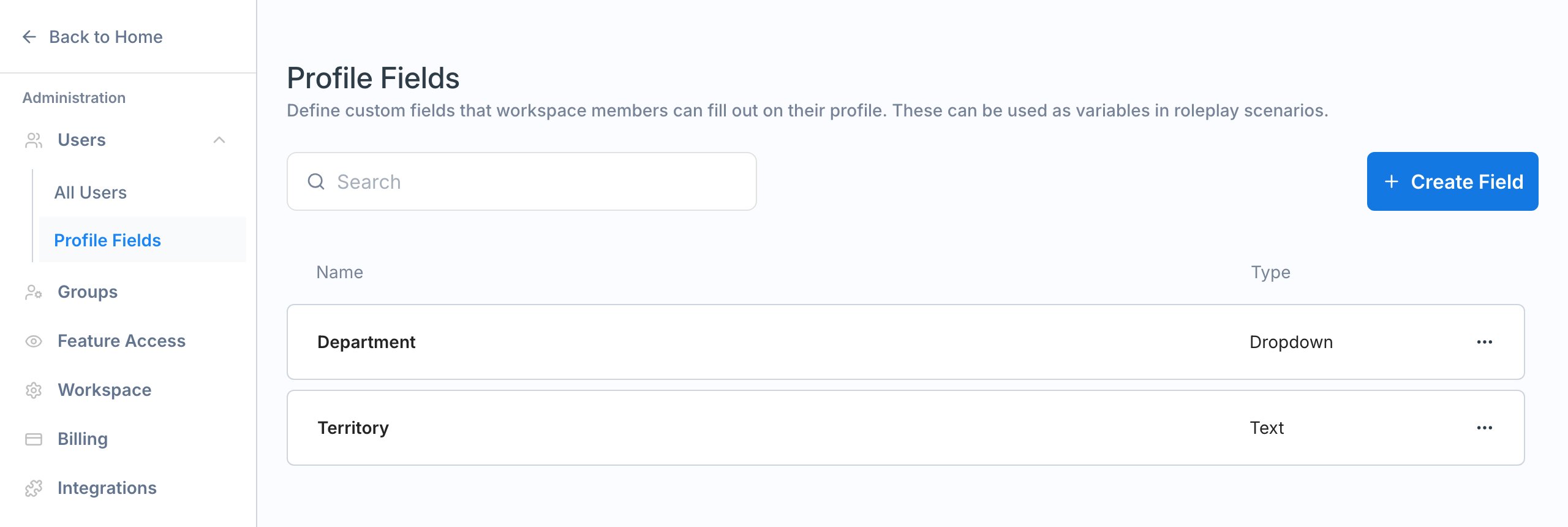
Profile fields are custom attributes a workspace adds to every member's account, such as **Department**, **Region**, or **Segment**. Admins create the fields, members fill in their own values, and roleplays can read those values to tailor a scenario to each person through [conditional context](/roleplays/conditional-context).
Manage fields from **Settings > Users > Profile Fields**. Only [workspace admins](/platform/admin-capabilities) can open this page.
 ***
## Field types
| Type | What members see | Works with conditional context |
| ------------ | ------------------------------------------------ | ------------------------------ |
| **Dropdown** | A list of options you define, up to 20 per field | Yes |
| **Text** | A free text box | No |
Use **Dropdown** whenever the answer comes from a known list, such as departments or regions. It keeps values consistent, which makes filtering reliable and is required for conditional context.
***
## Create a field
Go to **Settings > Users > Profile Fields** and click **Create Field**.
Enter a **Name** of up to 60 characters, such as "Department" or "Region", then choose **Dropdown** or **Text**. The name is what members see on their profile, and it must be unique in the workspace.
Type each option in its own box and click **Add Option** for another.
***
## Field types
| Type | What members see | Works with conditional context |
| ------------ | ------------------------------------------------ | ------------------------------ |
| **Dropdown** | A list of options you define, up to 20 per field | Yes |
| **Text** | A free text box | No |
Use **Dropdown** whenever the answer comes from a known list, such as departments or regions. It keeps values consistent, which makes filtering reliable and is required for conditional context.
***
## Create a field
Go to **Settings > Users > Profile Fields** and click **Create Field**.
Enter a **Name** of up to 60 characters, such as "Department" or "Region", then choose **Dropdown** or **Text**. The name is what members see on their profile, and it must be unique in the workspace.
Type each option in its own box and click **Add Option** for another.
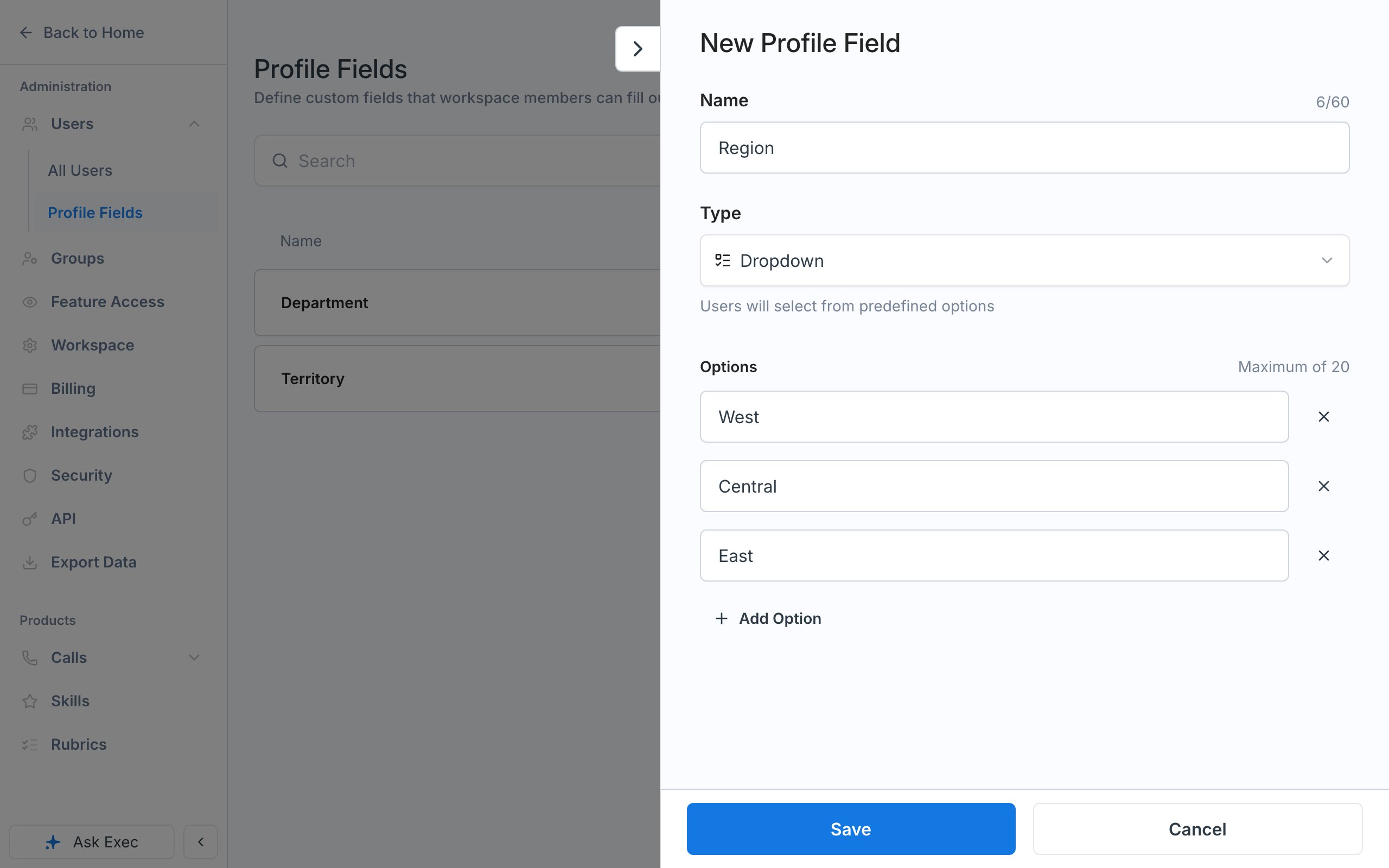 Click **Save**. The field appears on every member's Account panel right away.
***
## Edit or delete a field
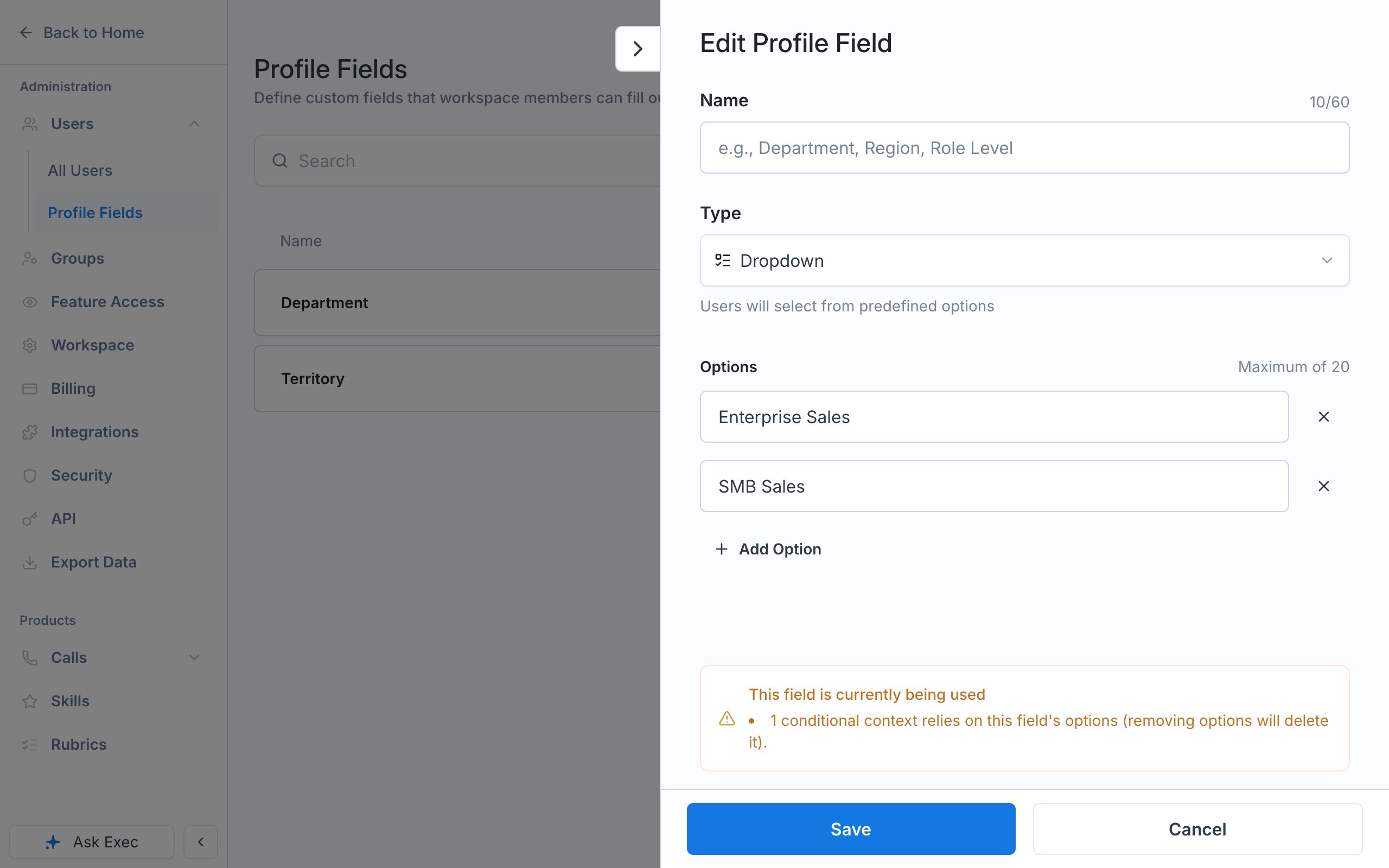
Click a field to edit its name, options, or type, and drag fields by their handle to change the order they appear in. To delete one, open the row's **...** menu and select **Delete Field**.
If a scenario uses the field, both the edit panel and the delete confirmation show **This field is currently being used**, with a count of the scenarios and conditional context rules that rely on it.
Click **Save**. The field appears on every member's Account panel right away.
***
## Edit or delete a field
Click a field to edit its name, options, or type, and drag fields by their handle to change the order they appear in. To delete one, open the row's **...** menu and select **Delete Field**.
If a scenario uses the field, both the edit panel and the delete confirmation show **This field is currently being used**, with a count of the scenarios and conditional context rules that rely on it.
 | Change | What happens |
| ------------------------------- | --------------------------------------------------------------------------------------------- |
| Rename the field | Members' values are kept |
| Remove or rename an option | The option is cleared for members who chose it, and its conditional context rules are deleted |
| Change **Dropdown** to **Text** | All selections and the field's conditional context rules are deleted |
| Delete the field | The field, every member's value, and its conditional context rules are removed permanently |
***
## Set values
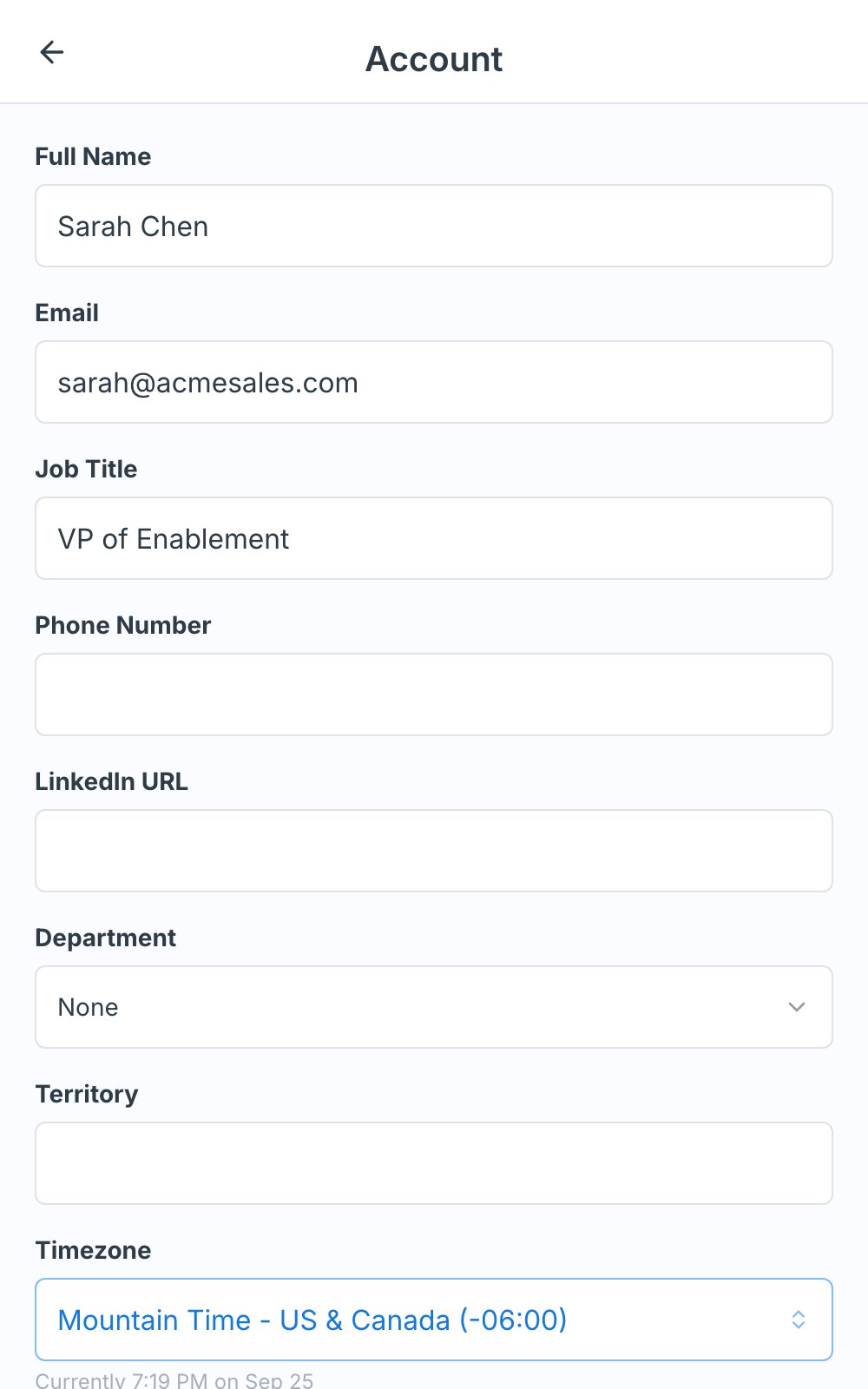
**Members** fill in their own values by clicking their profile picture in the top-right corner and selecting **Account**. If a roleplay needs a value they haven't set, Exec asks for it before the session starts and saves the answer to their profile.
| Change | What happens |
| ------------------------------- | --------------------------------------------------------------------------------------------- |
| Rename the field | Members' values are kept |
| Remove or rename an option | The option is cleared for members who chose it, and its conditional context rules are deleted |
| Change **Dropdown** to **Text** | All selections and the field's conditional context rules are deleted |
| Delete the field | The field, every member's value, and its conditional context rules are removed permanently |
***
## Set values
**Members** fill in their own values by clicking their profile picture in the top-right corner and selecting **Account**. If a roleplay needs a value they haven't set, Exec asks for it before the session starts and saves the answer to their profile.
 **Admins** can set values for anyone from **Settings > Users**:
* **One member:** open the row's **...** menu and select **Edit Profile Fields**. Use **Clear value** to empty a field.
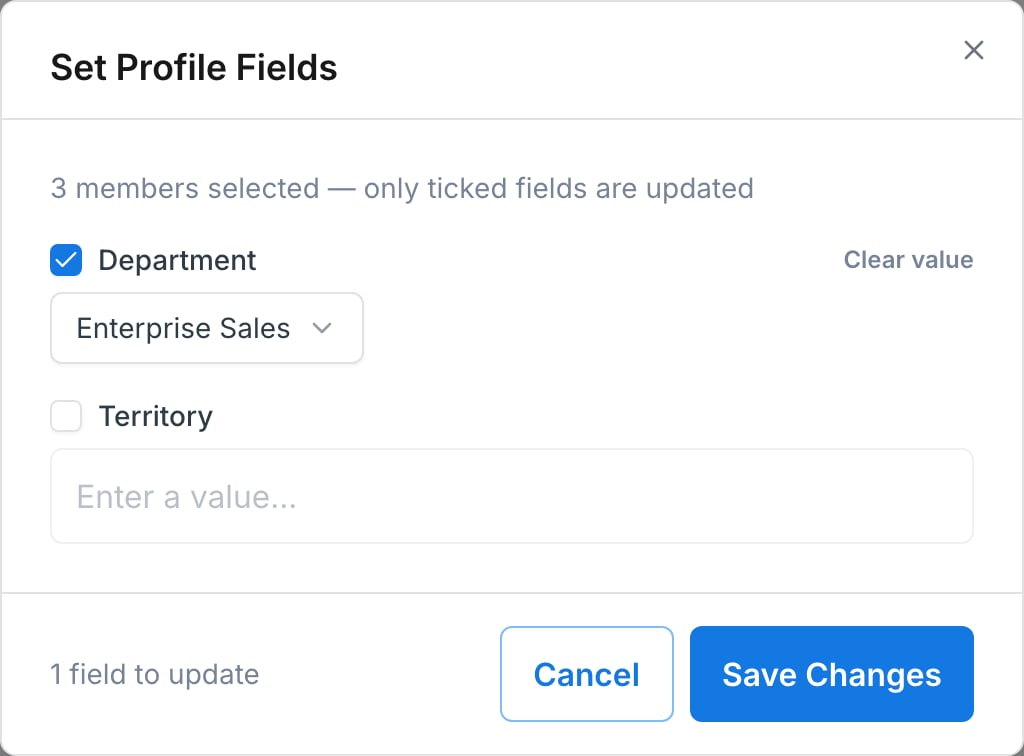
* **Many members:** tick the members, click **Set Profile Fields** in the bulk action bar, then tick only the fields to update.
**Admins** can set values for anyone from **Settings > Users**:
* **One member:** open the row's **...** menu and select **Edit Profile Fields**. Use **Clear value** to empty a field.
* **Many members:** tick the members, click **Set Profile Fields** in the bulk action bar, then tick only the fields to update.
 To find members by value, click **Filters** on **Settings > Users** and pick a profile field. Every field includes a **Not set** option, which shows who still needs a value. Profile field values are also included as columns in the **All Users** export. See [Understand the Settings Tab](/platform/settings-tab#users) and [Export Data](/platform/export-data).
***
## Use profile fields in roleplays
* [**Conditional context**](/roleplays/conditional-context) adds background to the AI character when a member's dropdown value matches a rule, so one scenario can play differently for Enterprise and SMB reps.
* **Variables** insert a member's value directly into scenario text. Type `{{user_` plus the field name in lowercase with underscores for spaces, then `}}`. For example, a field named Territory becomes `{{user_territory}}`.
For when to use conditional context and when to build separate scenarios instead, see [Advanced Roleplay Building](/roleplays/advanced-building#conditional-context).
To find members by value, click **Filters** on **Settings > Users** and pick a profile field. Every field includes a **Not set** option, which shows who still needs a value. Profile field values are also included as columns in the **All Users** export. See [Understand the Settings Tab](/platform/settings-tab#users) and [Export Data](/platform/export-data).
***
## Use profile fields in roleplays
* [**Conditional context**](/roleplays/conditional-context) adds background to the AI character when a member's dropdown value matches a rule, so one scenario can play differently for Enterprise and SMB reps.
* **Variables** insert a member's value directly into scenario text. Type `{{user_` plus the field name in lowercase with underscores for spaces, then `}}`. For example, a field named Territory becomes `{{user_territory}}`.
For when to use conditional context and when to build separate scenarios instead, see [Advanced Roleplay Building](/roleplays/advanced-building#conditional-context).