> ## Documentation Index
> Fetch the complete documentation index at: https://docs.exec.com/llms.txt
> Use this file to discover all available pages before exploring further.
# Basic Seats vs. Full Seats
> Understand the two seat types in Exec and how to manage them
Exec uses two seat types to support different user needs: **basic seats** for coaching and program access, and **full seats** for users who also need AI roleplay and advanced features.
***
## Basic Seats
Basic seats are designed for users who participate in coaching programs but don't need AI roleplays or advanced platform features.
Basic seat users can:
* Book coaching sessions
* Enroll in programs
* Access articles, videos, and other learning materials
* Complete surveys
All paid Exec workspaces include **unlimited basic seats at no additional cost**.
***
## Full Seats
Full seats (formerly called paid seats) are for users who need access to Exec's full suite of AI-powered tools in addition to coaching.
Full seat users can do everything basic seat users can, plus:
* Use AI roleplay sessions
* Access roleplay analytics
* Assign roleplays to team members (where enabled)
* Access future AI-powered features as they launch
***
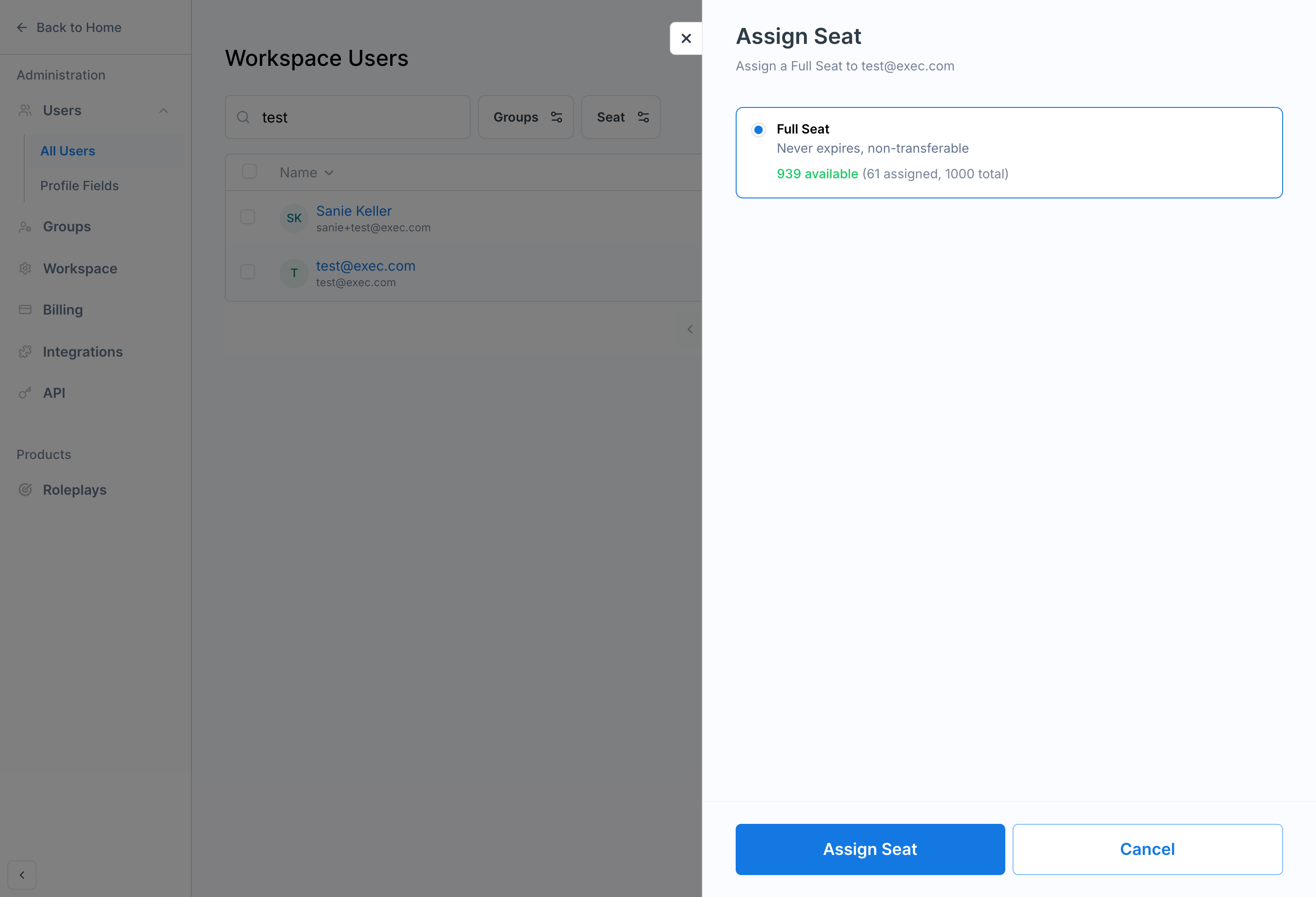
## Assigning a Full Seat
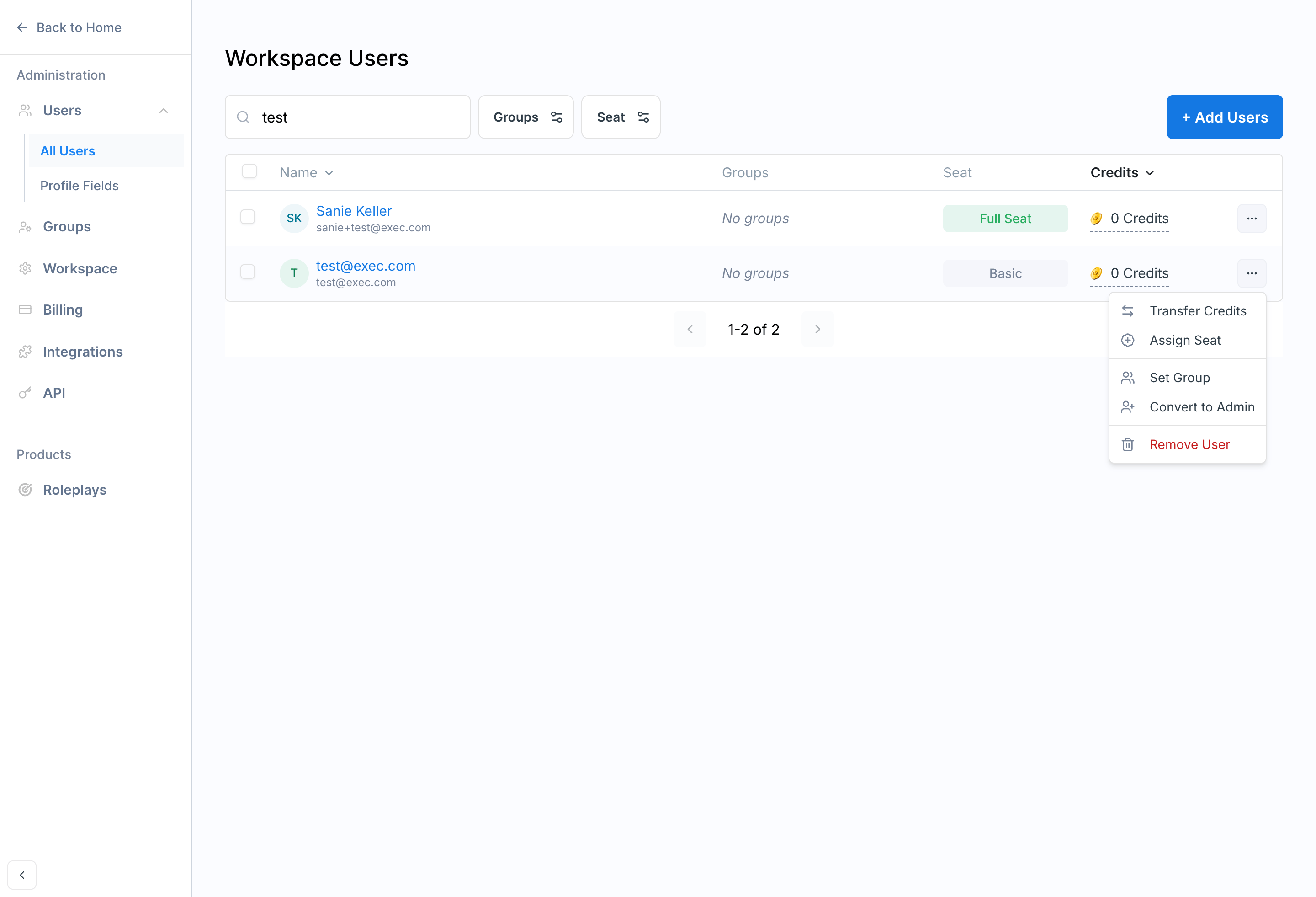 You'll see how many seats are available and how many are currently assigned. Review the details and confirm.
 ***
## Revoking a Full Seat
You can revoke a full seat using the same steps as above. There are a few important things to know before doing so.
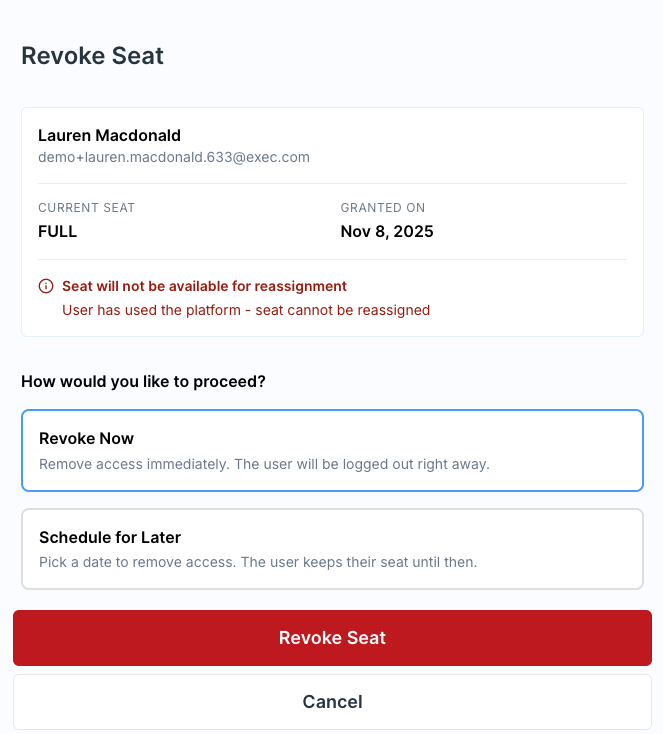
**If the seat has been used** — if the user has already used any full seat features (e.g., participated in an AI roleplay), the seat cannot be reassigned to another user once revoked. You'll see a red alert indicating this.
***
## Revoking a Full Seat
You can revoke a full seat using the same steps as above. There are a few important things to know before doing so.
**If the seat has been used** — if the user has already used any full seat features (e.g., participated in an AI roleplay), the seat cannot be reassigned to another user once revoked. You'll see a red alert indicating this.
 **If the seat has not been used** — if the user hasn't used any full seat features yet, the seat can be revoked and reassigned to someone else. You'll see a green alert indicating this.
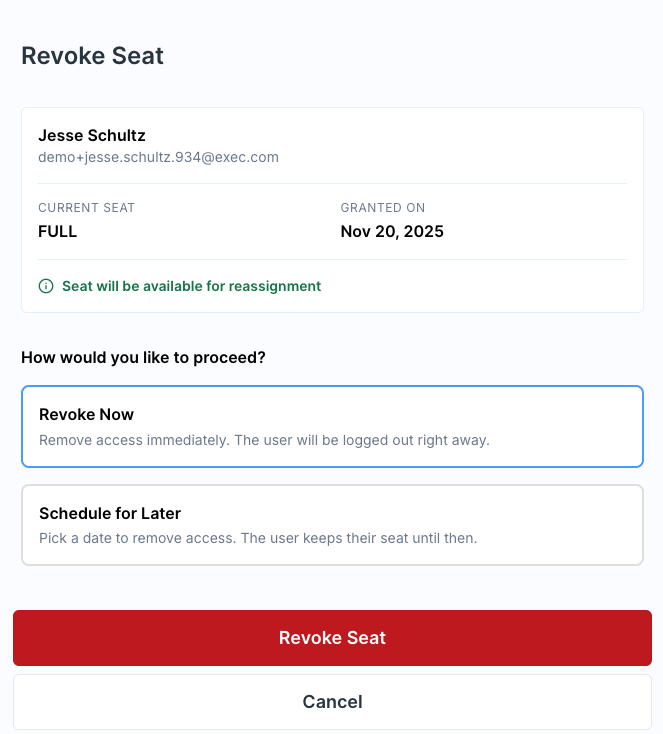 **Scheduling a revocation** — you can revoke a seat immediately or schedule it to end on a specific date and time. This is useful for programs with fixed timelines or when you want to give someone a buffer before their access ends.
***
## Getting Help
**Need help?** Contact us at [hello@exec.com](mailto:hello@exec.com) for guidance on seat types or any questions about managing workspace access.
**Scheduling a revocation** — you can revoke a seat immediately or schedule it to end on a specific date and time. This is useful for programs with fixed timelines or when you want to give someone a buffer before their access ends.
***
## Getting Help
**Need help?** Contact us at [hello@exec.com](mailto:hello@exec.com) for guidance on seat types or any questions about managing workspace access.